Appearance
BestPDF offers flexibility in the approach of defining the base layout.
The simplest way is to upload your company logo, but you can also upload your own PDF file to use as a template. Or you can do both.
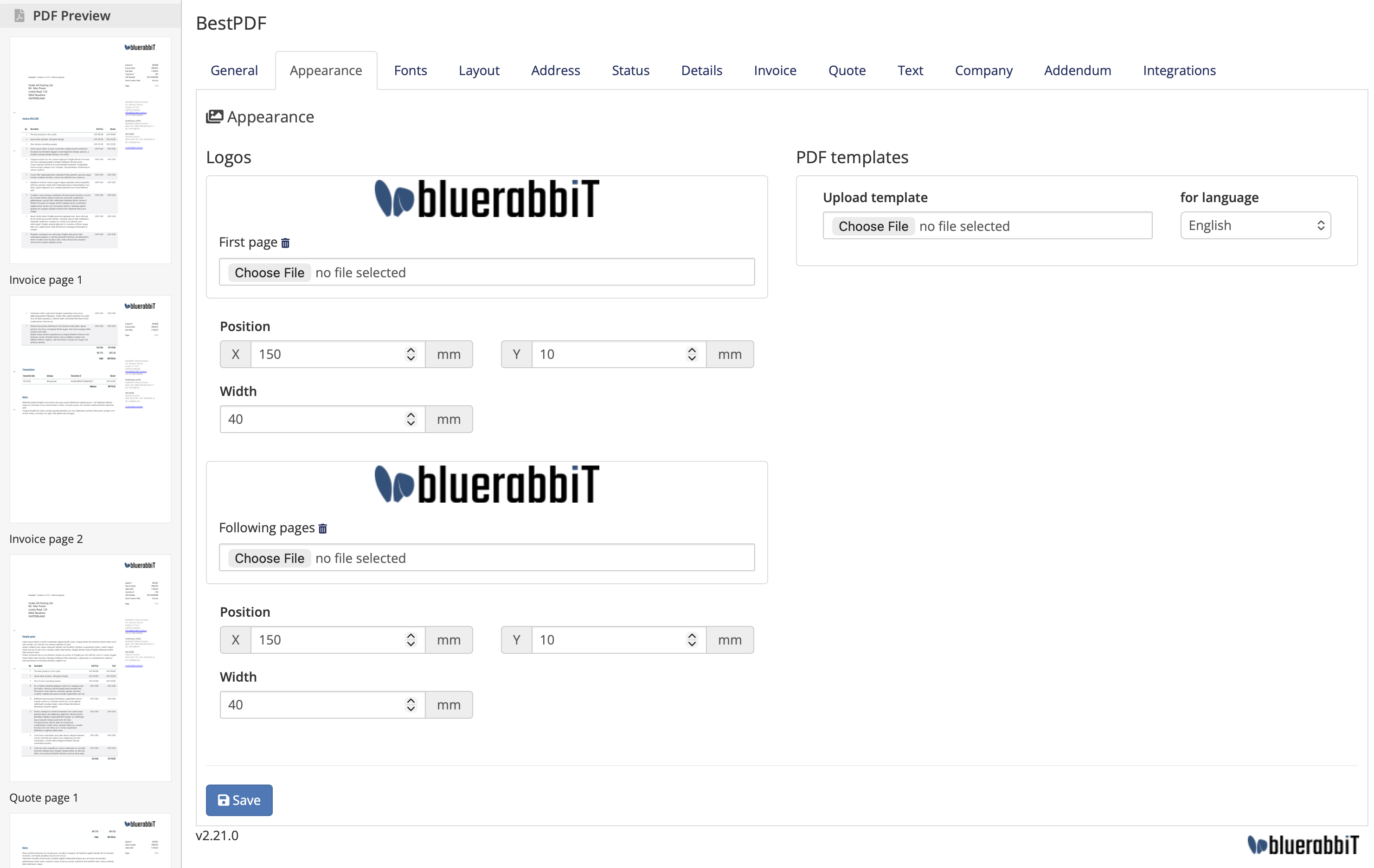
Logos
Upload your company logo and specify the position it should be placed in.
PDF Templates
BestPDF will use a PDF template you provide and draw the invoice on top of it. This allows you to place your logo, company details or any other static information where you want, directly in the template file.
We have provided some examples for you in the examples/ folder, but basically you should create your own template.
The PDF format should be PDF specification 1.4, not greater than that.
In Adobe Acrobat for example, you should save the file as PDF/A-1b.
Upload the template via the BestPDF configuration interface. estPDF will load the template and draw on it based on configuration. Make sure that margins and positions are set accordingly in the module configuration, so that the end result looks nice.
Your PDF template file should consist of one or two pages:
- Page 1: Empty room for the customer address (mailing envelope window).
- Page 2: If this page is present, it will be used for pages 2-n, else the first page will be used.
In case you are using BestPDF in conjunction with the BlueRabbIT Billing Booster or Pingen modules, make sure to read that respective module’s documentation for additional considerations concerning PDF templates.