Installation
Installing BestPDF takes five steps: upload the files, activate the addon in WHMCS, grant your admin roles access, enter your license key in the BestPDF interface, and finally point WHMCS's invoice and quote PDFs at BestPDF.
Don't follow this page — it describes a fresh install. Go to Upgrade instead, and read the Release notes first.
1. Upload the files
The release archive mirrors the WHMCS directory layout, so it can be uploaded as-is:
/modules/addons/bestpdf
/templates/bestpdf-six
/templates/bestpdf-nexus
/templates/bestpdf-twenty-one
/templates/lagom2
Only /modules/addons/bestpdf is mandatory. The templates/ folders are the ready-made ways of routing PDFs to BestPDF in step 5 — upload the one that matches your client area theme, or none of them if you would rather edit your own template.
The folders sit alongside WHMCS's existing modules and templates directories — they do not replace anything.
2. Activate the addon
In your WHMCS admin area, navigate to Setup → Addon Modules.
Find BestPDF in the list and click Activate.
Activation creates BestPDF's database tables and seeds the bundled designs, so the Designs tab is never empty when you first open it. If your WHMCS is older than 8.11, activation is refused with a message saying so — see Requirements.
3. Grant access
Still on Setup → Addon Modules, click Configure on the BestPDF row, tick the admin roles that should be able to open BestPDF and edit designs under Access Control, and save.
That is all this page holds. The license key and every other setting live inside BestPDF itself.
4. Open BestPDF and enter your license key
BestPDF is reached from the admin Addons menu, or from the Configure BestPDF button on the addon's Configure page.
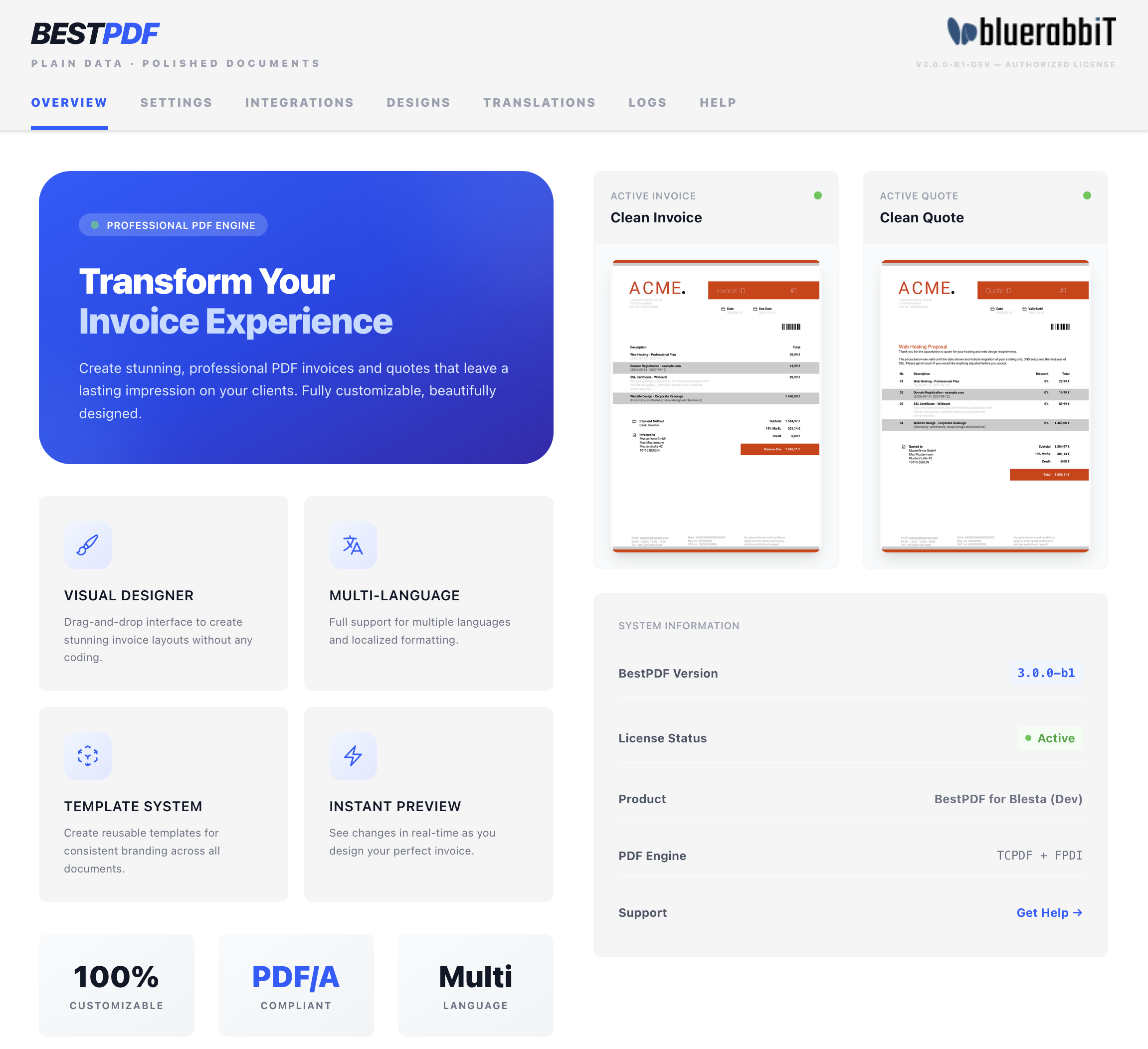
Open the Settings tab and, on the General sub-tab, paste your license key and click Save Changes. The status next to the key should read Active; if it doesn't, the description underneath explains why — a mistyped key, an expired subscription, or a license server your firewall is blocking.
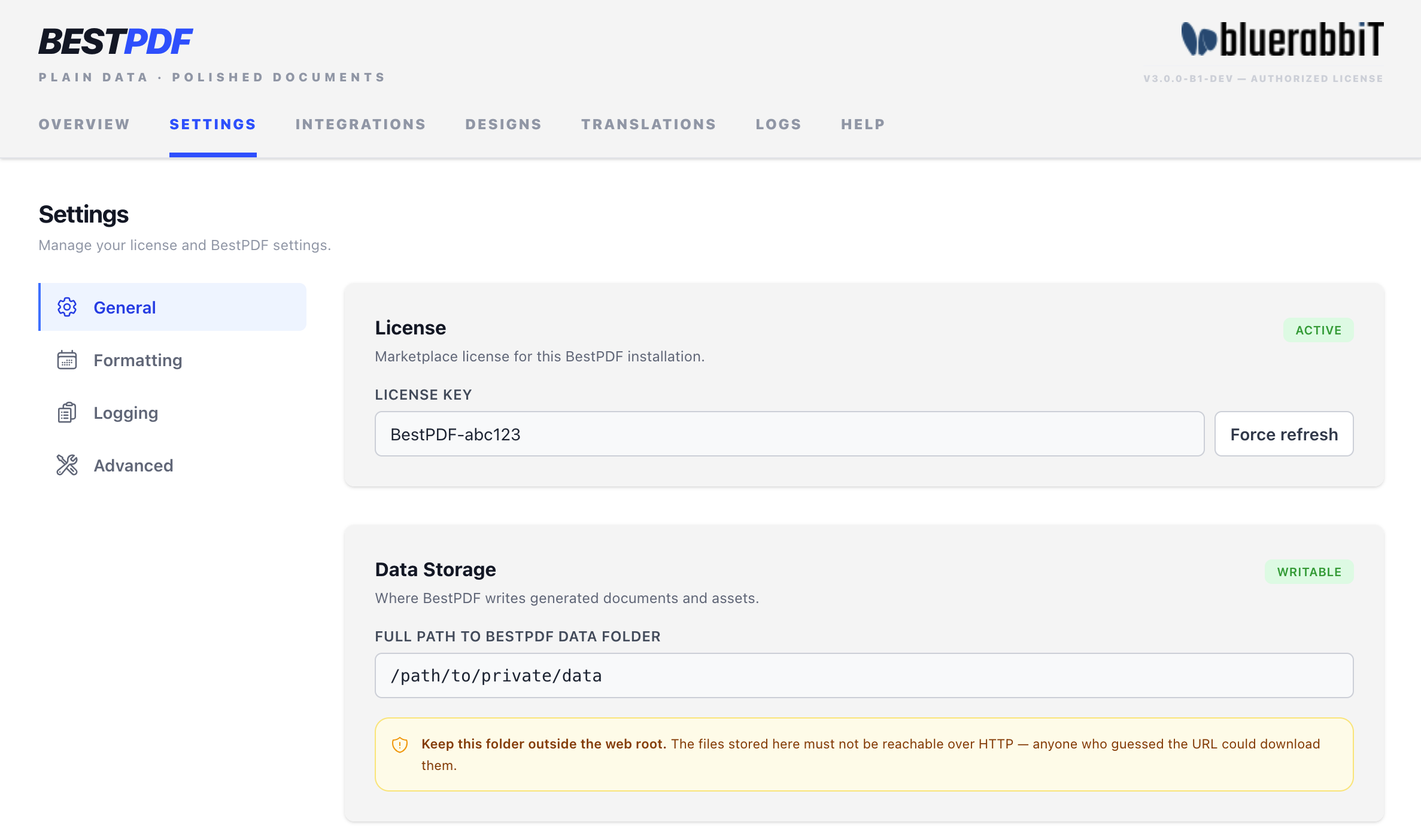
While you are on General, check the Data Storage path too.
BestPDF stores uploaded images, fonts and PDF stationery under the data storage path. Put it somewhere that isn't reachable over HTTP, or protect it with .htaccess — otherwise anyone who guesses the URL can download your stationery.
5. Route invoices and quotes to BestPDF
This is the step that actually switches WHMCS over. WHMCS decides how to draw a PDF from two template files in your active client area theme — invoicepdf.tpl and quotepdf.tpl — so BestPDF takes over by having those files hand off to it. Until they do, WHMCS keeps drawing its own stock PDFs and nothing you do in the designer shows up.
Pick whichever of the following matches your setup.
WHMCS Six, Twenty-One or Nexus
The archive ships a child theme for each: bestpdf-six, bestpdf-twenty-one and bestpdf-nexus. Each one inherits everything from its parent theme and overrides only the two PDF templates.
- Go to Setup → General Settings → General.
- Set the Template to BestPDF-6, BestPDF-21 or BestPDF-Nexus, matching the theme you were using.
- Save.
To go back to the stock PDFs later, set the template back to what it was.
Lagom 2
Lagom handles PDF pages through its own page-option mechanism, so there is nothing to switch at the WHMCS level.
- Upload
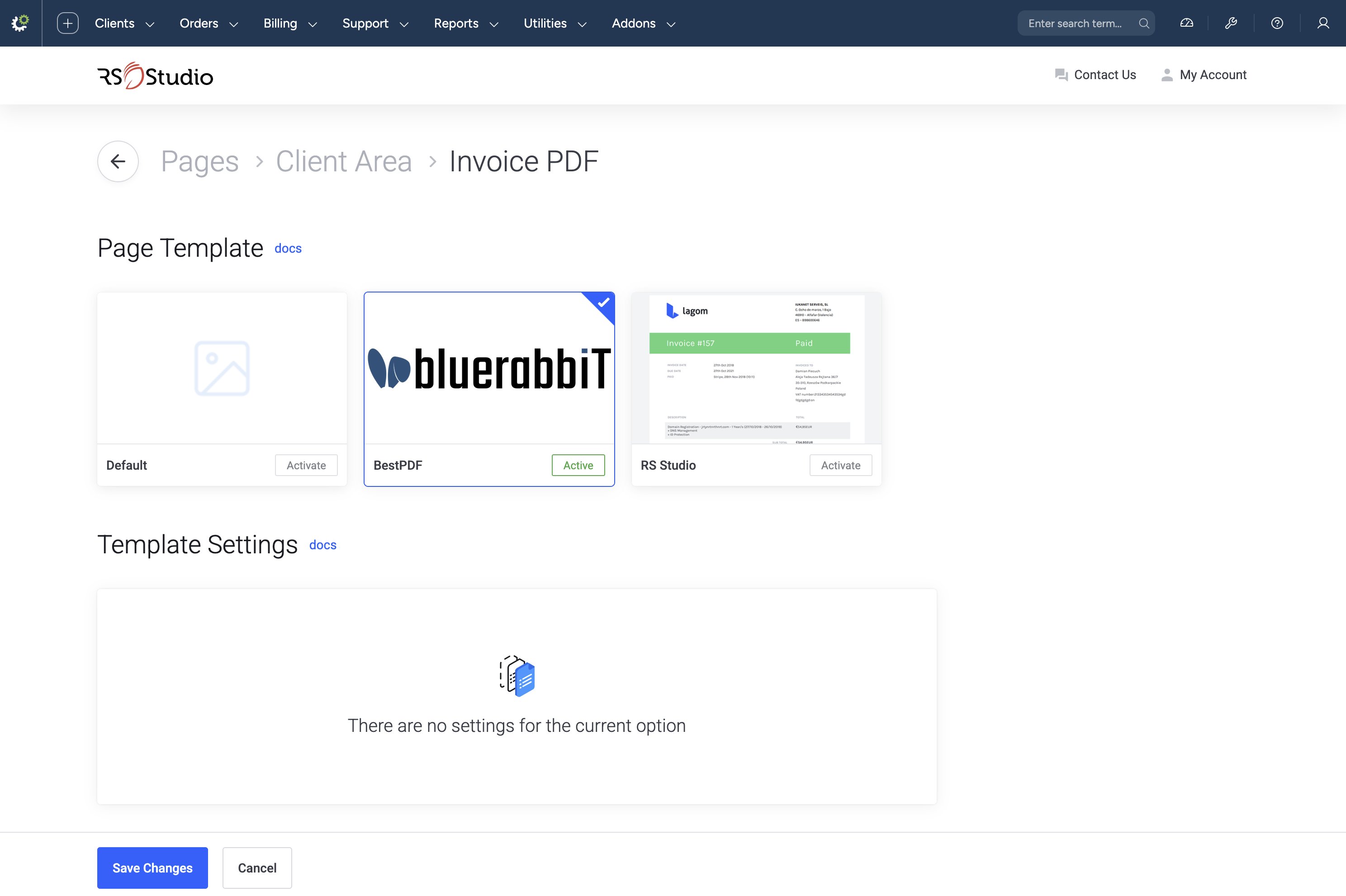
templates/lagom2/from the archive over your existing Lagom 2 template. - In the admin area, go to Addons → RS Themes.
- Open the Pages tab and click Invoice PDF.
- Choose the BestPDF option and click Save Changes.
- Repeat for Quote PDF.
Any other template
Two files need to point at BestPDF. Back up your template's invoicepdf.tpl and quotepdf.tpl first, then either:
- copy the two files from
templates/bestpdf-six/(orbestpdf-twenty-one//bestpdf-nexus/, whichever your theme derives from) into your template, or - add the include yourself at the very top of each file:
<?php

#BestPDF
include(ROOTDIR . '/modules/addons/bestpdf/invoicepdf.php');
if ($pdf instanceof \BlueRabbIT\BestPDF\BestInvoice) {
    return;
}
#/BestPDF
Use quotepdf.php and \BlueRabbIT\BestPDF\BestQuote in quotepdf.tpl.
Restoring the backed-up files is all it takes to switch back.
The Settings → Documents tab has an Attempt to auto-fix option per document type that writes exactly the block above into your template for you. See Configuration → Documents.
Confirm it worked
Open Settings → Documents in the BestPDF interface. Invoices and Quotes each carry a badge; both should read Active.
Leave Notify admins if not active on. BestPDF re-checks whenever an invoice email is sent, whenever an invoice or quote is viewed, and on every cron run, so if a future template change breaks the wiring you hear about it within a day instead of from a customer.
With BestPDF rendering your documents, head over to the Quick start for a five-minute walkthrough of your first design, or straight to Configuration for the settings in detail.