Installation
Installing Billing Booster takes a handful of short steps: upload the files, activate the addon in WHMCS, enter your license key in the Billing Booster interface, and then tell WHMCS where the payment codes should appear.
1. Upload the files
The release archive mirrors the WHMCS directory layout, so it can be uploaded as-is:
/crons/billboost.php
/modules/addons/billboost
/modules/gateways/paycode
/modules/gateways/paycode.php
/templates/billboost-six
/templates/billboost-twenty-one
/templates/billboost-nexus
/templates/lagom2
The folders sit alongside WHMCS's existing modules and templates directories — they do not replace anything.
Only /modules/addons/billboost is mandatory. The rest are what make Billing Booster visible to the rest of WHMCS, and each is optional on its own:
| Path | What it is | Needed for |
|---|---|---|
modules/gateways/paycode* | The Payment Code payment gateway | Showing a payment code on the client's payment page, and required for statement processing to book payments (see step 6) |
templates/billboost-* | Child themes of Six, Twenty-One and Nexus | Payment codes on PDF invoices, when you are not using BestPDF (see step 4) |
templates/lagom2 | A Lagom 2 PDF page option | The same, on a Lagom 2 template |
crons/billboost.php | A standalone statement-sync script | Syncing statements more often than once a day (see Statements → On your own schedule) |
2. Activate the addon
In your WHMCS admin area, navigate to Setup → Addon Modules.
Find Billing Booster in the list and click Activate. This creates Billing Booster's database tables. If your WHMCS is older than 8.11, activation is refused with a message saying so — see Requirements.
Then click Configure on the Billing Booster row, tick the admin roles that may open Billing Booster under Access Control, and save. That is all this page holds — the license key and every other setting live inside Billing Booster itself.
Billing Booster's work is driven by the WHMCS cron: automatic statement processing and the daily cleanup of the log and statement archive both run with it. Neither needs setting up, but both depend on your WHMCS cron actually running.
3. Open the configuration interface
Billing Booster is reached from the admin Addons menu, or from the Configure BillBoost button on the addon's Configure page.
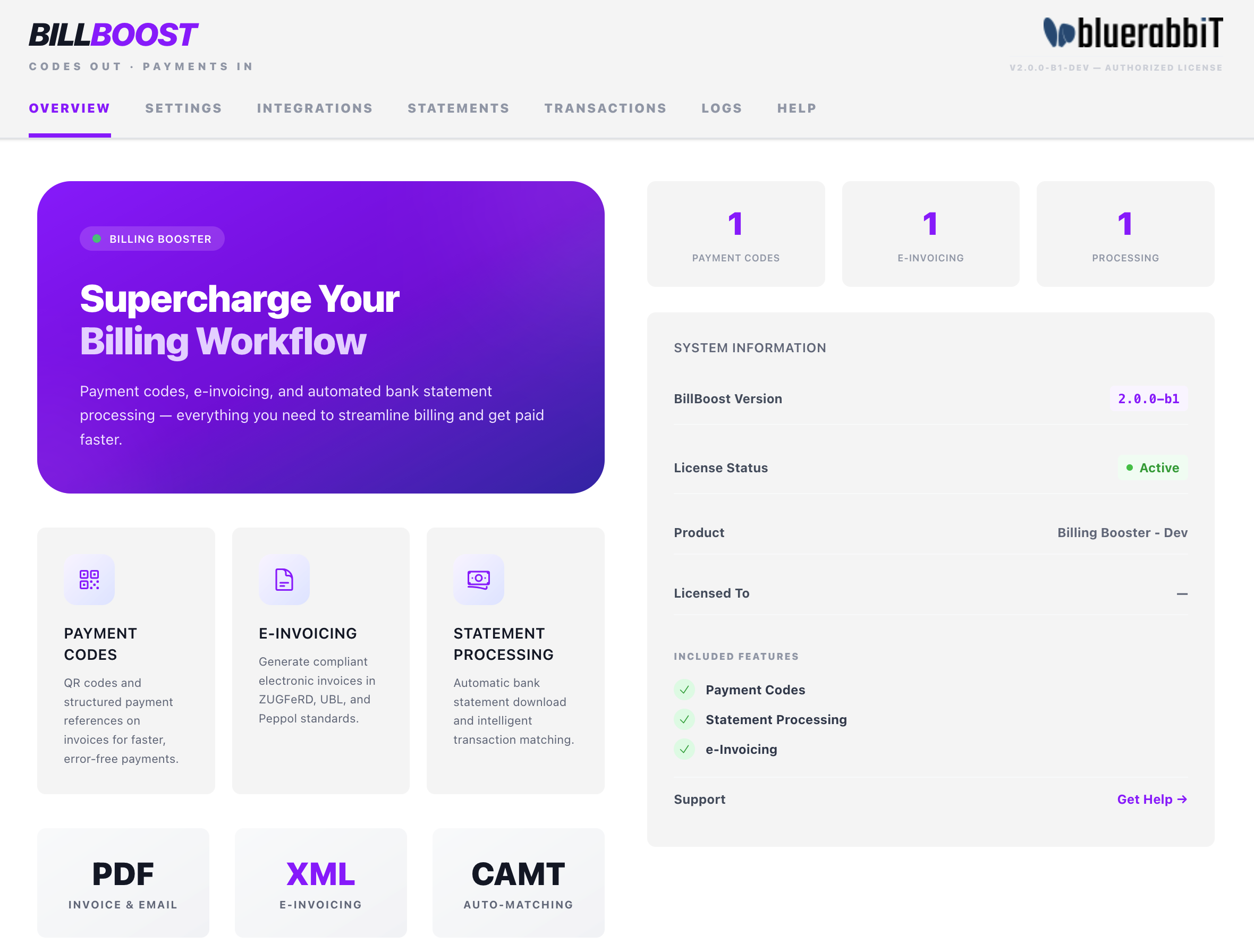
This is where you will configure payment codes, e-invoicing, statement processing, and the module settings.
Entering the license key
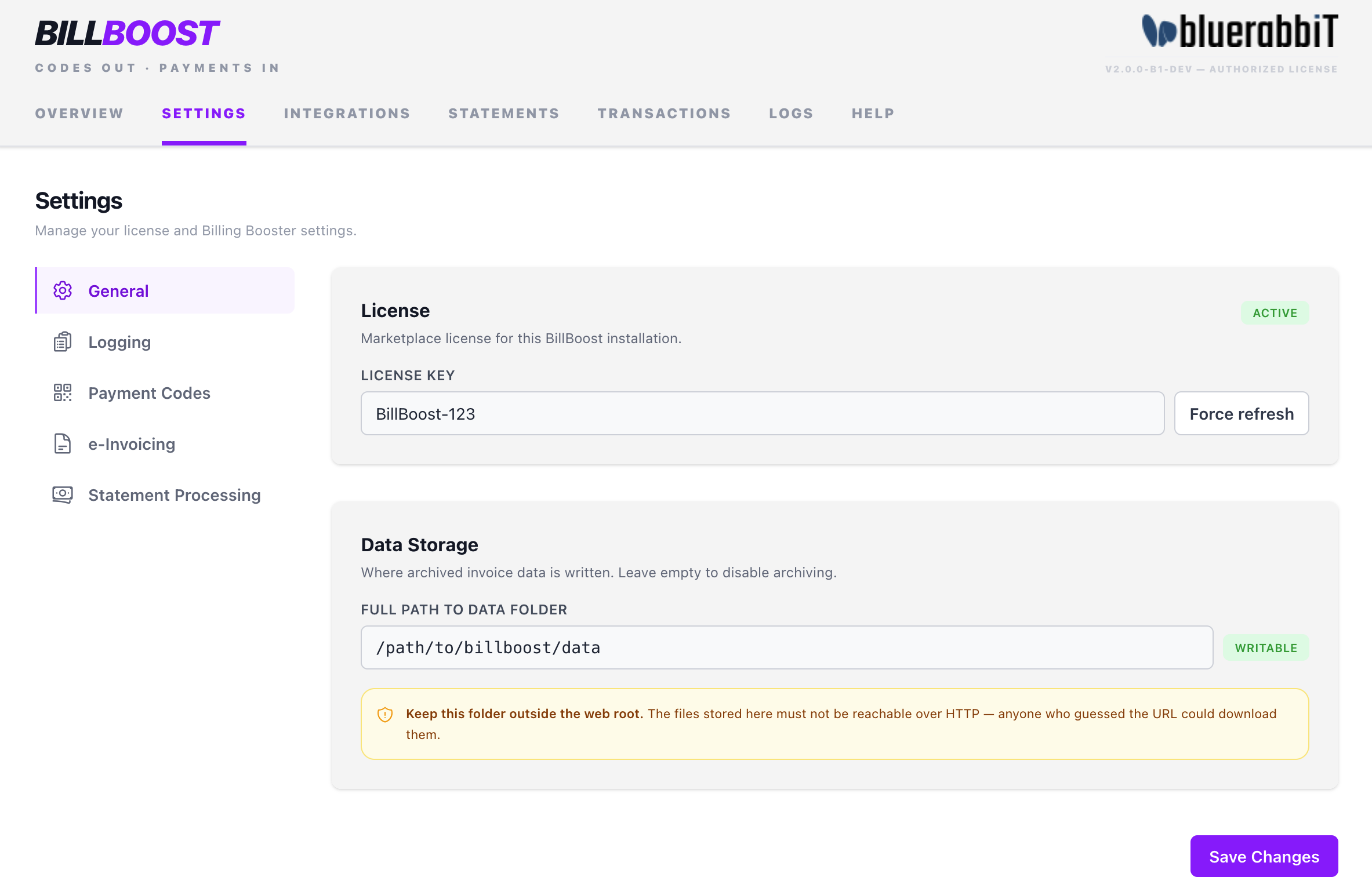
Open the Settings tab and, on the General sub-tab, paste your license key and click Save Changes. The status next to the key should read Active. If you have just bought a feature and it hasn't appeared yet, click Force refresh next to the field to re-check with the license server immediately.
Billing Booster's three features — payment codes, e-invoicing, and statement processing — are licensed individually, and the interface only exposes what your license includes. See Configuration → Licensing and what you can see for the full picture, and check the Overview tab for the list of features your license unlocks.
While you are here, set the Data Storage path to a directory that is not reachable from the web — this is where Billing Booster archives generated codes and processed statements. See Configuration → Data Storage.
4. Route payment codes onto the PDF
WHMCS draws its invoice PDFs from invoicepdf.tpl in the active client area template, so that file has to know about Billing Booster. How you do it depends on whether you use BestPDF.
Using BestPDF
Nothing to do here. Leave your template as it is and place the code with the Payment Code component in the design editor — BestPDF detects Billing Booster automatically and gives you full control over where the code sits. This is the better option: the alternative below draws at a fixed position.
Do not combine the two by also switching to a billboost-* theme; you would get the code drawn twice.
Not using BestPDF
Switch to the matching child theme. Each one inherits everything from its parent and only wraps invoicepdf.tpl, reserving space for a first-page payment slip before the invoice is drawn and then placing the code afterwards.
- Go to Setup → General Settings → General.
- Set the Template to the
billboost-variant of your current theme (Six, Twenty-One or Nexus). - Save.
On Lagom 2, upload templates/lagom2/ over your existing Lagom template instead, then go to Addons → RS Themes → Pages → Invoice PDF and select the BillBoost option.
On any other template, copy invoicepdf.tpl from the closest billboost-* folder into your template, adjusting the include line at its centre to point at your own theme's original file. Back up the original first.
With a stock template and no BestPDF, Billing Booster has nothing to draw into: invoices generate exactly as before, with no payment code and no reserved slip space. This is the single most common reason a correctly configured code never shows up.
5. Add the email tag
WHMCS builds invoice emails from your own templates, so Billing Booster provides a merge tag for you to place where you want it:
| Tag | What it inserts |
|---|---|
{$paycode} | The payment code block (QR code plus payment details) for the invoice |
Go to Setup → Email Templates → Invoice and edit the templates you use. Billing Booster fills the tag in these seven, and only these:
- Invoice Created
- Invoice Payment Reminder
- First / Second / Third Invoice Overdue Notice
- Invoice Modified (late fee)
- Invoice Payment Confirmation
The tag renders empty when nothing applies — an invoice with no matching payment code — so it is safe to leave it in every template.
Each payment code has a Notifications tab with a No email on… toggle for each of the five event types above. Those go further than hiding the code: they cancel the email entirely. See Payment codes → Notifications.
The client area and e-invoice downloads need no setup
Billing Booster adds the payment code to the client-area invoice page by itself — there is no template tag to place. The code is suppressed there when the client has selected the Payment Code gateway, since that page shows its own.
The same goes for e-invoices: when one is available for an invoice, an e-Invoice download button appears on the client-area invoice page automatically.
For a heavily customized client area template that the automatic injection can't find a home in, the hook also exposes the rendered block as the Smarty variable {$invoiceQrHtml} on viewinvoice.tpl, so you can place it yourself.
6. Install the Payment Code gateway
Billing Booster ships a non-merchant gateway called Payment Code. It does two jobs:
- It shows the payment code on the client's payment page — useful when a customer chooses to pay by bank transfer and wants to scan the code straight from the screen. The gateway encodes the amount the client allocated to each invoice, so partial and multi-invoice payments produce a code for the amount actually being paid.
- It is the gateway that statement processing books payments against. Every payment Billing Booster applies from a bank statement is recorded as a WHMCS transaction on this gateway, which is also what the Transactions tab lists.
To install it, go to Setup → Payments → Payment Gateways, open the All Payment Gateways tab, and click Payment Code. Then activate it for the currencies you accept.
Without this gateway installed, applying a payment fails with "Paycode gateway not found.", and the Transactions tab stays permanently empty. If you use Statement Processing, this step is not optional.
If you only use payment codes and e-invoicing, and you don't want clients to see Payment Code as a checkout option, you can skip this step.
With Billing Booster licensed and wired up, head to the Quick start to create your first payment code, or dive into Configuration.