Troubleshooting
Common issues and how to resolve them. If you can't find your problem here, check the Reading the logs section to gather context, then open a ticket in our client area and we'll help you out.
Installation and licensing
Activation is refused
Pingen Post 7 requires WHMCS 9.x; activation is refused on older releases, naming the minimum version in the message. Pingen Post 6 is no help here — it requires WHMCS 9 too. If you are still on WHMCS 8, stay on Pingen Post 5.x until you can upgrade WHMCS. See Requirements.
"Missing PHP extension"
The module page lists the extensions it could not find instead of loading. Install them and restart PHP-FPM — see Requirements → PHP extensions.
ionCube errors
Pingen Post's PHP files are encoded with ionCube. If you see ionCube-related errors:
- Run
php -vfrom the command line. The output should mention "with the ionCube PHP Loader v13" (or newer). - If it doesn't, install or update ionCube Loader on your server (see your hosting provider's documentation).
- Restart your web server / PHP-FPM after installing.
The operational tabs are locked
The Invoices, Quotes and Mailroom tabs only unlock when a valid license is active; Integrations works without one. If they show a license required panel:
- Open Settings → General and confirm your license key is entered.
- Click Force refresh to re-check it immediately — useful right after a renewal.
- The status next to the License heading explains a refusal: a mistyped key, an expired subscription, a build newer than your updates entitlement, or a license server your firewall is blocking.
Pingen Post isn't in the Addons menu
Access is per admin role. Go to Setup → Addon Modules → Configure on the Pingen row and tick your role under Access Control.
"Class not found" or autoload errors after upgrade
Stale opcache or a partial file copy. Fix by:
- Make sure the file upload finished cleanly — check that
/modules/addons/pingen/lib/and/modules/addons/pingen/vendor/are fully populated. - Clear your PHP opcache (restart PHP-FPM, or
service php-fpm restart). - Reload the admin page.
Connecting to Pingen
"Authentication failed" / letters won't submit
Almost always a credential or environment mismatch:
- On Settings → Account, confirm the Environment matches the credentials you entered — staging credentials only work against staging, production against production.
- Re-check the Organisation ID, Client ID, and Client Secret for the selected environment. Regenerate them if unsure (Pingen Account Configuration).
- Staging and production live on different dashboards — make sure you copied from the right one.
I'm in staging and nothing arrives by post
That's expected. In Staging, letters are validated and tracked but never physically dispatched and never charged. Switch Environment to Production on Settings → Account once you're ready.
Sending
An invoice was never posted
Work down this list — every one of these is a reason Pingen Post skips an invoice, and each skip is written to the log:
- Is Sending Mode something other than Manual on Settings → Delivery?
- Is the invoice unpaid? Paid, cancelled and draft invoices are never posted automatically.
- If the invoice has a zero or credit balance, is Send when balance is zero on?
- Has the client been opted out on their profile, or — in Clients mode — never opted in? See Client Preferences & Fees.
- Do the restrictions pass — the invoice's payment gateway, and the required product addon if you set one?
- Is the Trigger the one you expect? With When order is accepted, invoices raised outside an order are handled on creation instead.
- Is WHMCS's system cron running? Overdue and late-fee resends depend on it.
- Is the license active? An inactive license stops automatic sending and emails the admins.
A manual Send bypasses all of the above, which makes it a quick way to tell a configuration problem from a Pingen problem.
"Document validation failed" / margins or address rejected
Pingen enforces minimum margins and a correctly positioned recipient address. If a PDF is rejected:
- Generate the document with BestPDF, which produces Pingen-ready PDFs, or use the bundled Lagom 2 layout.
- For a manually uploaded PDF, adjust the source document to meet Pingen's requirements and try again.
Clients are still getting the invoice by email
Turn on Abort WHMCS emails when Pingen handles the invoice on Settings → Notifications. It only suppresses emails for invoices Pingen Post is actually handling, and never suppresses an email you send deliberately from the invoice page.
The Swiss QR slip is missing
- The QR slip only applies to recipients in Switzerland and Liechtenstein — it's intentionally omitted elsewhere.
- Confirm Billing Booster is installed and detected on the Integrations tab.
Tracking shows no events
Detailed tracking depends on the speed and the destination country. Economy mail and unsupported destinations report little or nothing; try Priority to a supported country for full tracking.
The storage path shows "No Permissions"
The badge next to the path on Settings → General reflects what PHP can actually write. Fix the directory ownership or permissions, or clear the field to fall back to the addon's own storage/ folder.
Reading the logs
The Logs tab inside the Pingen Post interface shows the addon's activity log — the first place to look when something doesn't behave as expected.
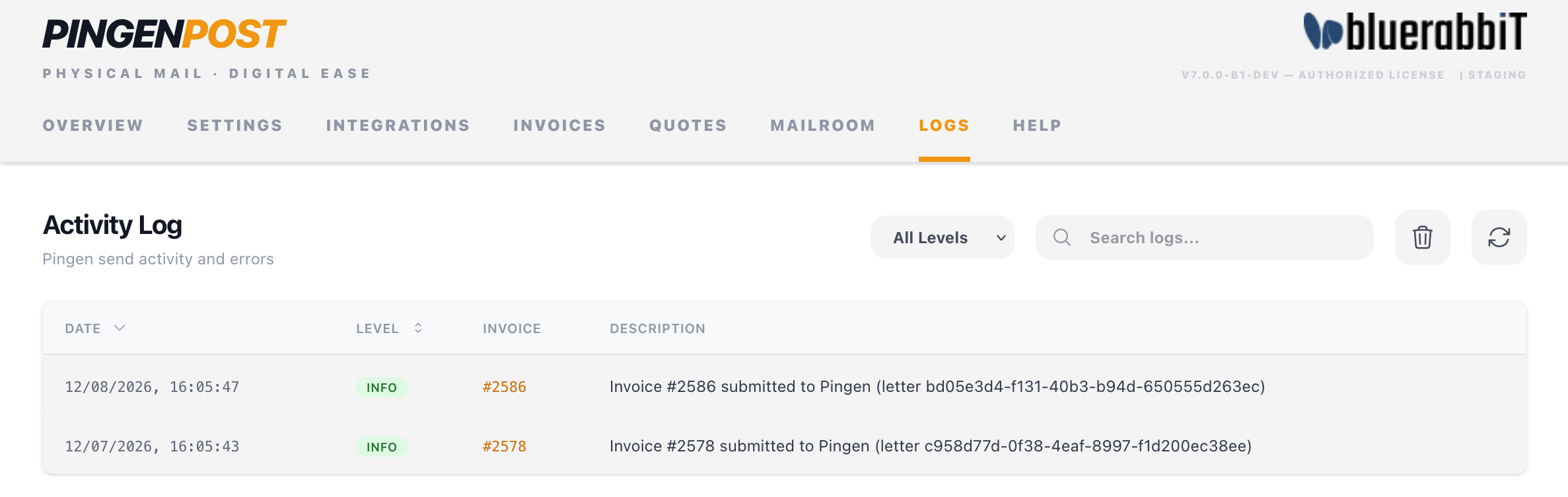
Controls
- Filter by level — Debug, Info, Warning, Error.
- Search — substring match against the log message.
- Refresh — re-fetch the latest entries.
What's logged
- INFO — routine operations: invoice submitted, letter sent.
- WARNING — recoverable issues: an invoice skipped by a condition, a letter that couldn't be tracked.
- ERROR — unrecoverable issues: authentication failure, document validation rejected, submission failure.
- DEBUG — verbose tracing for deeper diagnosis, including the exact reason an invoice was skipped.
Entries older than the Log retention (days) setting (Settings → General) are pruned by the WHMCS daily cron.
When to attach logs to a support ticket
If you're opening a ticket in our client area, reproduce the issue, then filter the log to the relevant time window and copy the matching entries into the ticket. This gives us enough context to diagnose without repeated round-trips.
Frequently asked questions
Will my configuration survive an upgrade?
Yes. Credentials, letter defaults, triggers and restrictions live in the WHMCS database. Replacing the addon files preserves them — including the upgrade from 6.x, which imports its settings automatically. See Upgrade.
Deactivating the addon keeps them too, unless Remove all data when the addon is deactivated is switched on under Settings → Advanced. See Uninstall.
Do I need BestPDF?
Not strictly — but Pingen only posts PDFs that pass its validation, and BestPDF produces Pingen-ready documents automatically. Without it, use the bundled Lagom 2 layout or make your own template compliant. See Integrations.
Can clients choose to receive paper themselves?
Yes. Enable the client area on Settings → General and they get an Invoice delivery page in their portal. Pair it with a delivery fee so the postage cost is added when they opt in.
How do I test without spending money?
Use the Staging environment. Letters are validated and move through the whole flow but are never physically posted or charged.
Uninstalling
If you want to remove Pingen Post from your installation entirely, see the dedicated Uninstall page.