Sending Invoices & Quotes
Pingen Post turns WHMCS invoices and quotes into physical mail. There are two ways a document reaches Pingen — automatically, driven by the sending mode and trigger you configure, or manually, from the admin area. This page covers both, and the conditions an invoice has to meet before Pingen Post will post it by itself.
Automatic sending
Two settings on Settings → Delivery decide what happens on its own:
Sending Mode — who it applies to:
| Mode | Behaviour |
|---|---|
| Manual | Nothing is ever posted automatically. Sending is something you do by hand. |
| Clients | Only clients who have explicitly opted in get their invoices posted. |
| Automatic | Every client gets their invoices posted, except those explicitly opted out. |
Trigger — when it happens:
- When invoice is created — the moment WHMCS raises the invoice.
- When order is accepted — for invoices that belong to an order, the moment you accept it. Invoices with no order behind them (renewals, invoices you raise by hand) are still handled on creation.
Invoice created  /  Order accepted
        │
        ▼
Eligible?  (mode, client preference, restrictions, …)
        │  yes
        ▼
Submitted to Pingen → printed → posted
When is an invoice eligible?
Before posting anything automatically, Pingen Post checks all of the following. A no at any point means the invoice is skipped, and the reason is written to the log.
| Condition | Detail |
|---|---|
| The invoice is unpaid | Paid, cancelled and draft invoices are never posted automatically. |
| The license is active | An inactive license stops automatic sending and emails the admins. |
| Sending Mode is not Manual | In Manual mode nothing is automatic, by definition. |
| The balance qualifies | A zero or credit balance is skipped unless Send when balance is zero is on. |
| The client has not opted out | See Client Preferences & Fees. |
| Restrictions pass | The invoice's payment gateway must match, and so must the product addon if you use one as a filter — see Settings → Restrictions and Delivery. |
| In Clients mode, the client opted in | The system default is not enough in this mode; the client (or you, on their profile) has to say yes. |
None of this applies to a manual send: clicking Send posts the document regardless.
Resending on overdue notices
An invoice that goes unpaid can be posted again. On Settings → Delivery, enable any of:
- Resend on first / second / third overdue notice — sends alongside WHMCS's overdue reminders.
- Resend when a late fee is added — sends when WHMCS applies a late fee to the invoice.
Each resend goes through the same eligibility checks as the original.
Suppressing the matching WHMCS email
If Pingen Post is posting the invoice, emailing it as well is usually noise. Abort WHMCS emails when Pingen handles the invoice, on Settings → Notifications, suppresses the WHMCS email for exactly those invoices Pingen Post is handling — the Invoice Created and Invoice Payment Reminder emails, plus the overdue and late-fee emails whose resend trigger is enabled.
Invoices you email deliberately from the invoice page are never suppressed.
Sending manually
You don't have to wait for a trigger — you can push a document to Pingen on demand, and manual sends ignore the sending mode and the restrictions entirely.
Invoices tab
The Invoices tab lists your invoices with their Pingen status.
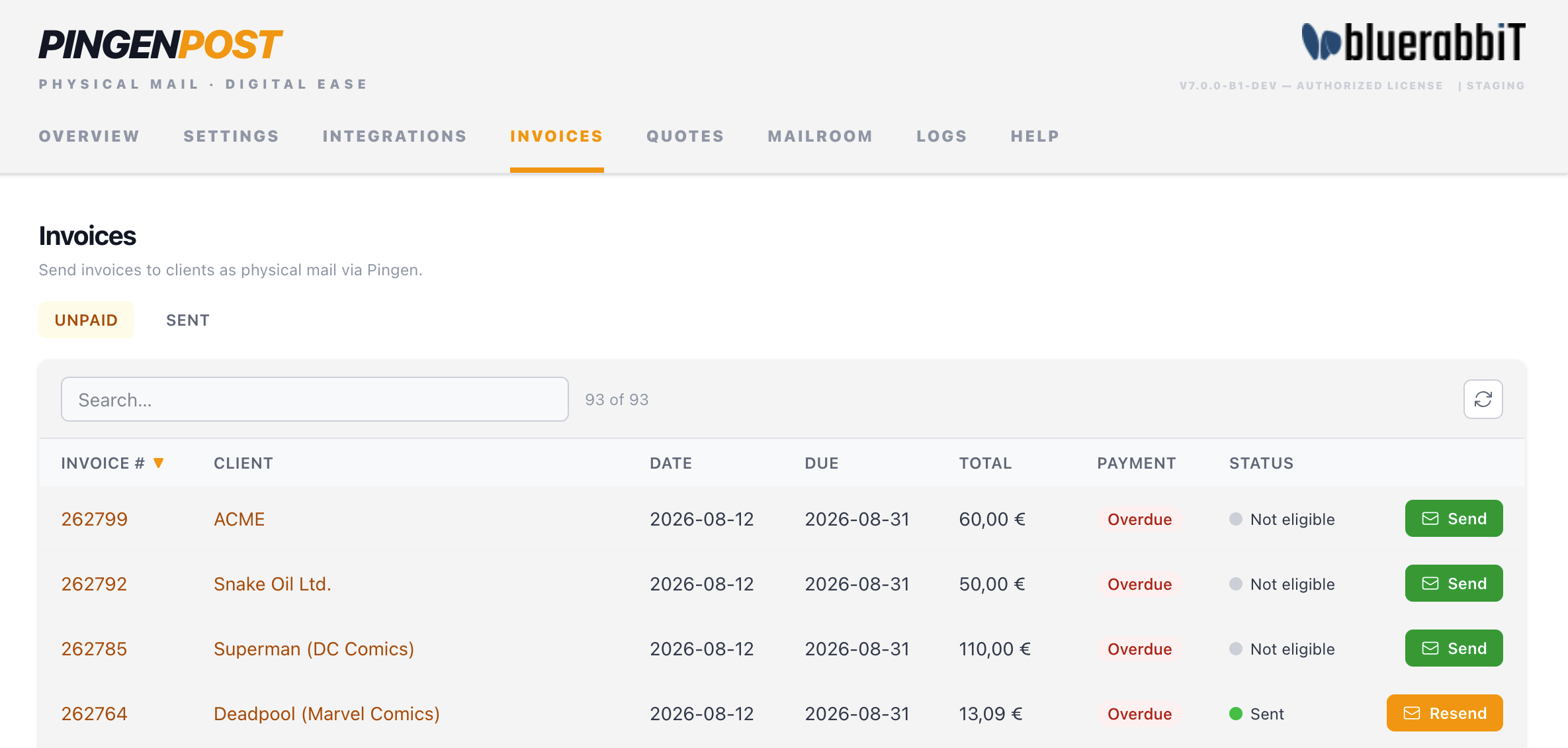
- Send — submit this invoice to Pingen now. A confirmation dialog shows the invoice number, client, and total before you commit.
- Already-sent invoices show when they were sent; use the same control to resend if needed.
Quotes tab
Quotes work the same way on the Quotes tab — pick a valid quote and Send it to Pingen as a letter.
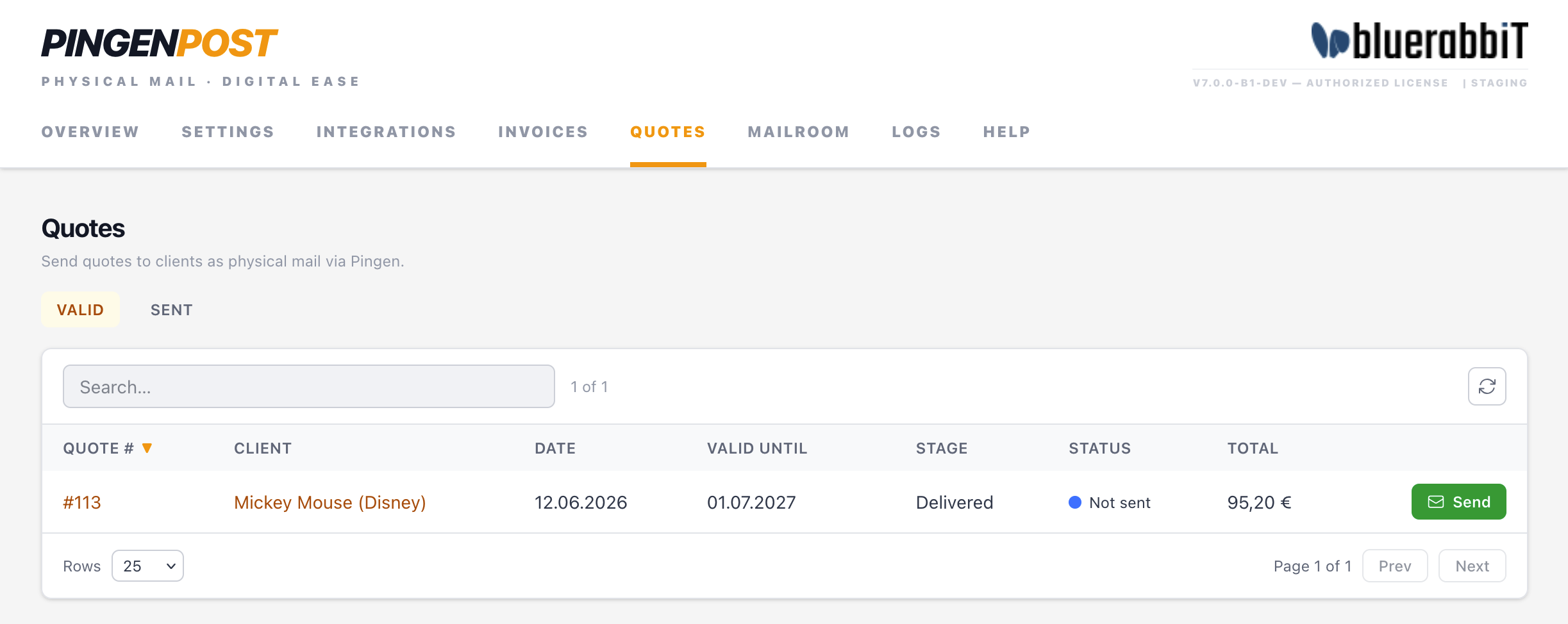
Quotes are manual-only: no trigger posts them automatically.
From the invoice page
Every invoice in the WHMCS admin area gains a Send to Pingen button, so you can post the invoice you are already looking at without opening the module. It reads Resend for an invoice that has been posted before.
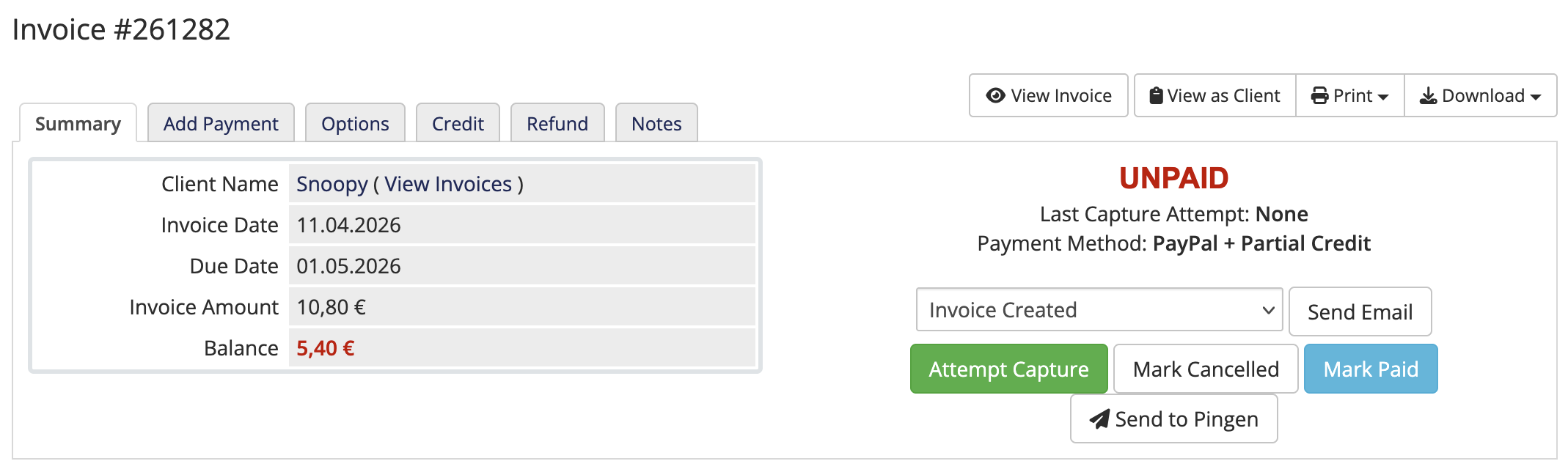
Once submitted, every document — whether it went automatically or by hand — is tracked in the Mailroom.
Pingen validates every PDF for correct margins and address positioning before it will post it. If a document fails validation it won't be sent, and the reason is recorded in the Logs. The easiest way to guarantee valid PDFs is to generate them with BestPDF, which produces Pingen-ready output automatically.
Continue to Client Preferences & Fees to let clients choose for themselves, or to the Mailroom to see how sent letters are tracked.