Quick start
A five-minute walkthrough — once Pingen Post is installed and licensed, this is the fastest path from zero to a physically posted invoice.
If you haven't installed Pingen Post yet, start with Installation.
1. Connect your Pingen account
Follow Pingen Account Configuration to get your Organisation ID, Client ID, and Client Secret. Do it for staging first — staging letters are validated but never physically sent or charged, which makes it perfect for this walkthrough.
In Addons → Pingen → Settings → Account, set Environment to Staging, paste your staging credentials, and click Save settings.
2. Set your letter defaults
On Settings → Preferences, pick sensible defaults — Economy speed, Grayscale, Simplex, address on the Left works for most Swiss window envelopes. You can override any of these per letter later.
3. Send your first invoice by hand
Leave Sending Mode on Manual for now: nothing is posted unless you ask for it.
Open the Invoices tab, find an unpaid invoice, and click Send. A confirmation dialog shows the invoice number, client and total before you commit.
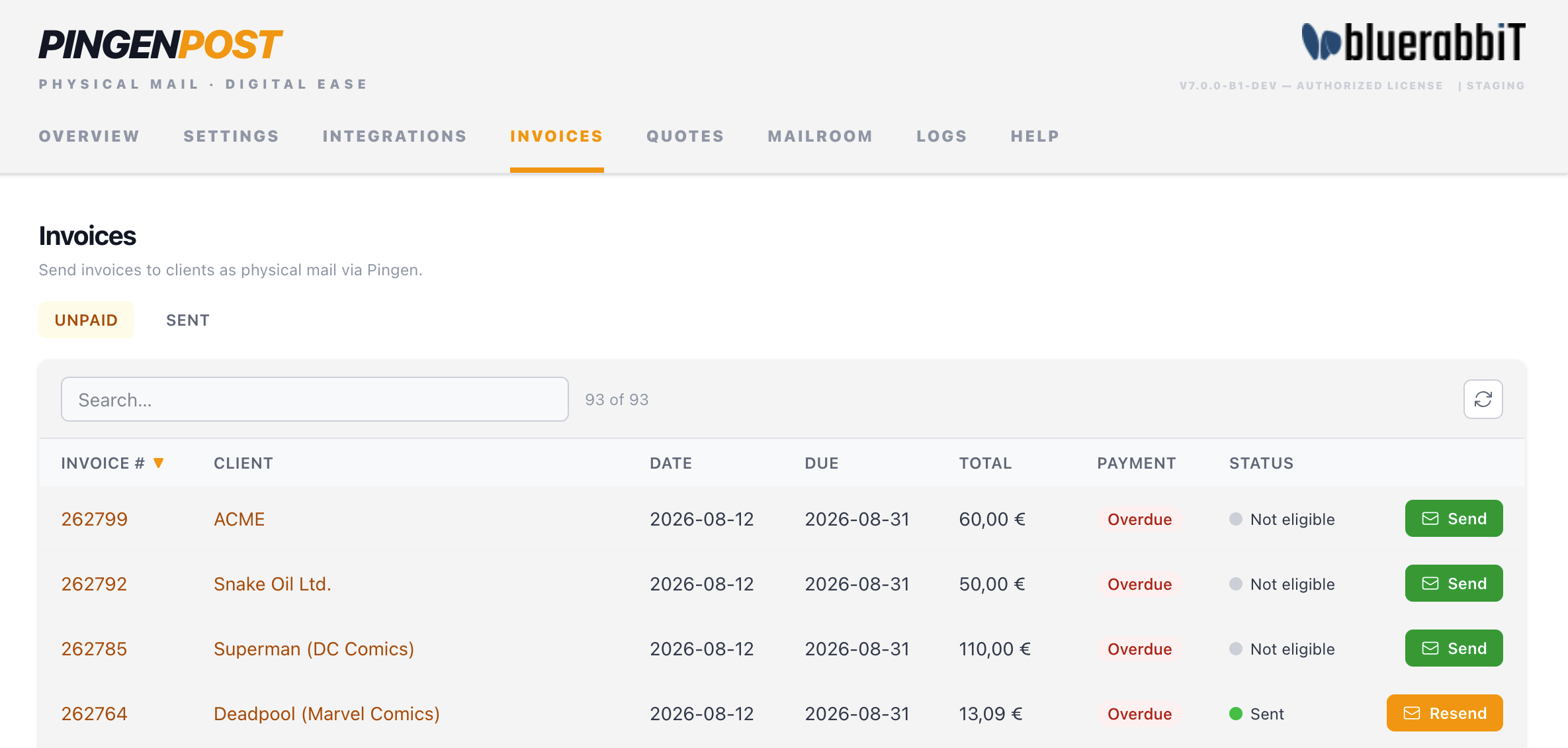
You can do the same from the invoice itself: WHMCS invoice pages in the admin area gain a Send to Pingen button.
4. Track it in the Mailroom
Switch to the Mailroom tab. Your letter appears with a live status — preparing, then sent — and, where the destination supports it, per-step tracking events.
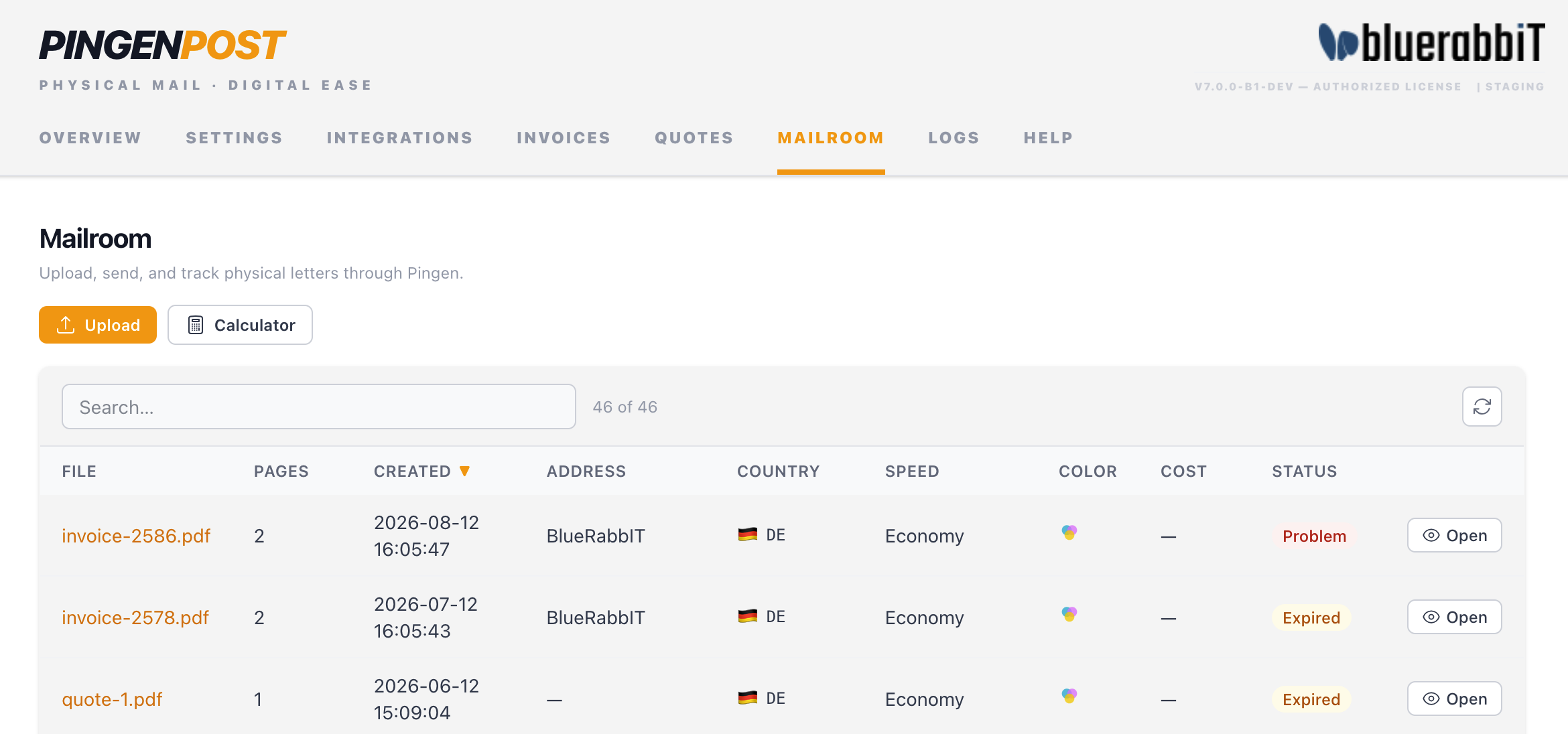
Because you're in staging, nothing is physically posted and nothing is charged — but the whole flow behaves exactly as it will in production.
5. Let Pingen Post send by itself
Manual sending is only half of it. On Settings → Delivery, choose how invoices should be posted automatically:
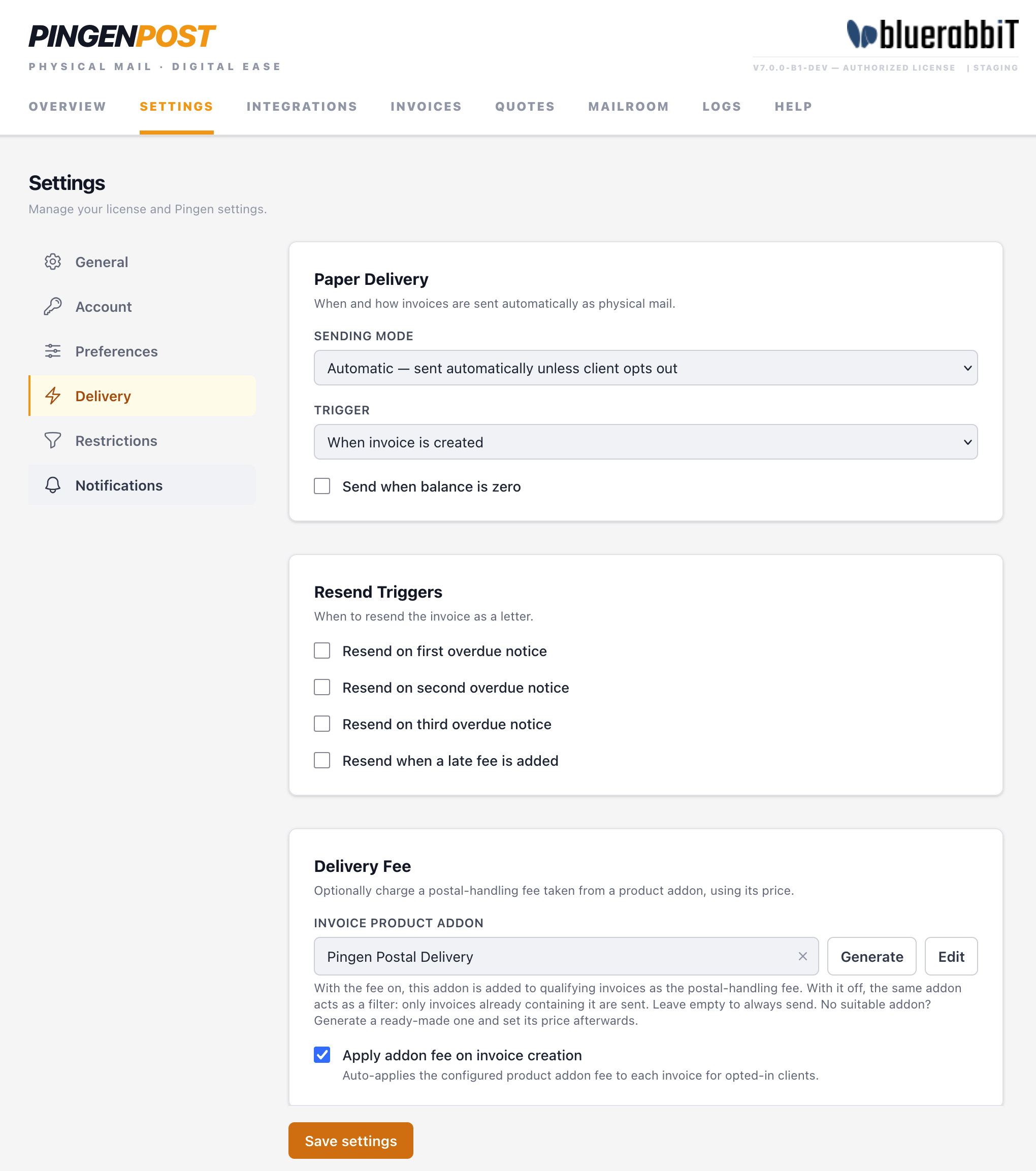
- Sending Mode — Manual (nothing automatic), Clients (only clients who opted in), or Automatic (every client except those who opted out).
- Trigger — post the invoice when it is created, or when the order is accepted.
Set the mode to Automatic and create a test invoice: it goes to Pingen on its own, and shows up in the Mailroom alongside the one you sent by hand.
Where to go from here
- Sending Invoices & Quotes — sending modes, triggers, resends and restrictions in full.
- Client Preferences & Fees — per-client opt-in, the client-area page, and charging for postage.
- Mailroom — tracking, cancelling, uploading a PDF by hand, and the price calculator.
- Configuration — every setting documented.
- Integrations — produce Pingen-ready PDFs with BestPDF and add Swiss QR slips with Billing Booster.
Going live
When you're happy with staging, create production credentials (same steps, on the production dashboard), enter them on Settings → Account, and switch Environment to Production. From then on, letters are printed and posted for real.