Mailroom
The Mailroom is where every letter Pingen Post handles lives — whether it was sent automatically by a trigger or by hand from the Invoices, Quotes, or Upload flows. It's your single view of what's in preparation, what's on its way, and what has been delivered.
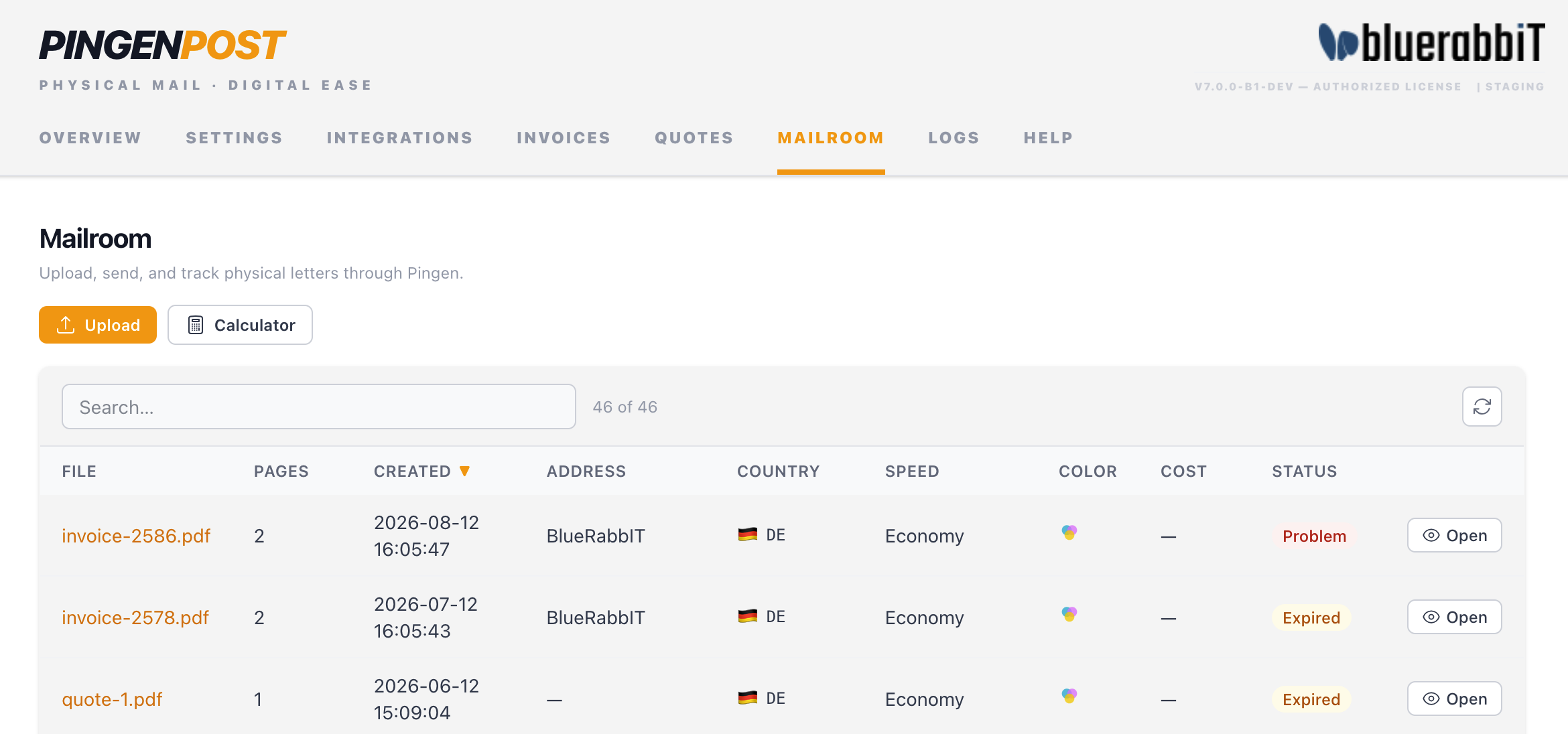
The letter list
Each row is one letter, showing its recipient, country, page count, cost, and status. Sort and search to find what you need; hit Refresh to pull the latest state from Pingen.
Statuses
A letter moves through a lifecycle. The status column reflects where it is:
| Status | Meaning |
|---|---|
| Preparing | Submitted to Pingen and being validated / queued for print. |
| Sent | Printed and handed to the postal service. |
| Cancelled | Cancelled before dispatch (see below). |
| Undeliverable | Pingen could not deliver the letter. |
While you're pointed at the Staging environment, letters are validated and move through the flow but are never physically posted. Switch to Production on Settings → Account to send for real.
Letter details
Click a letter to open its detail view — the recipient address, the options it was sent with (speed, colour, print mode), a preview of the PDF, and its tracking events.
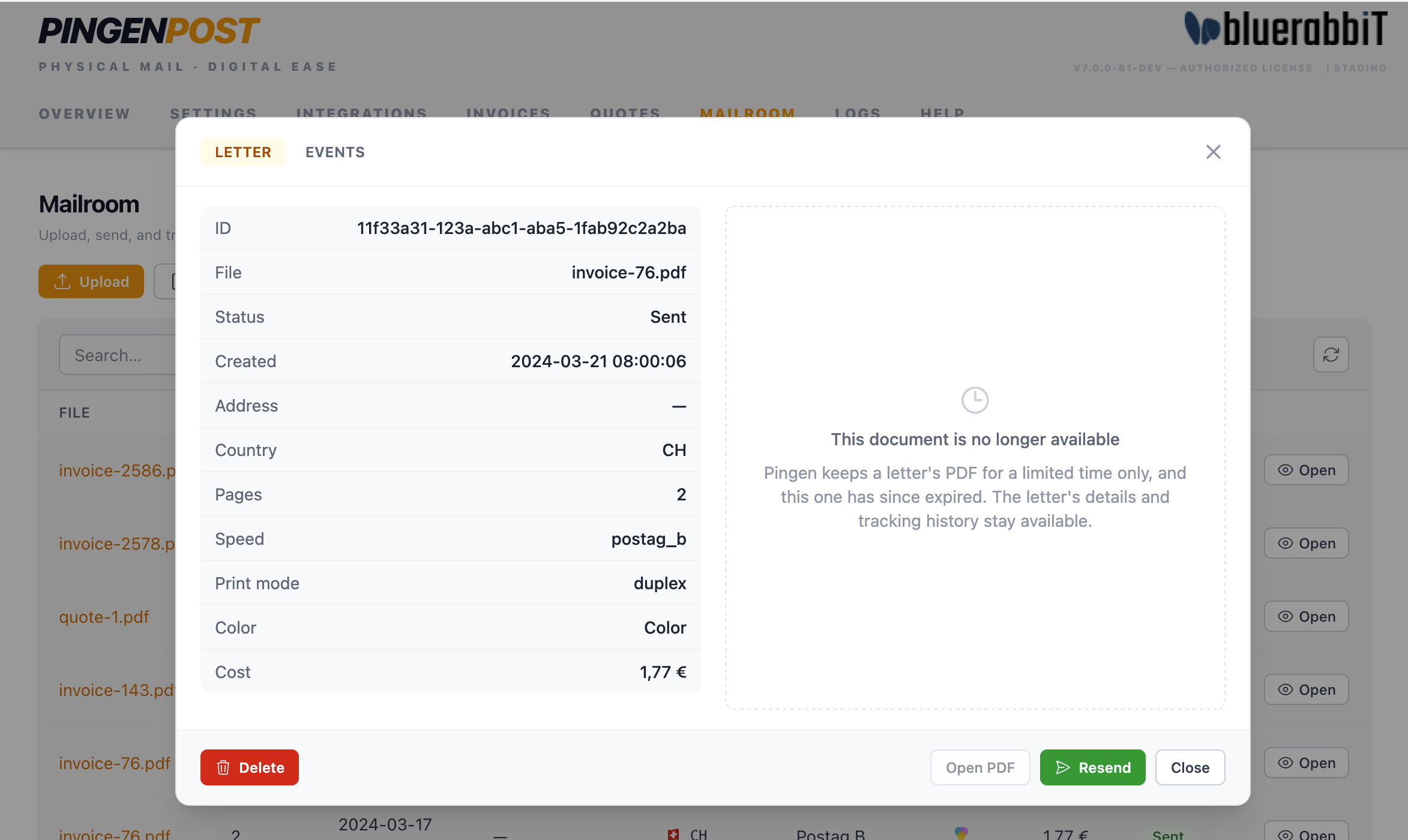
- Tracking — a timeline of what happened and where, step by step. Availability depends on the speed and the destination country; Priority to a supported country gives the most detail.
- Open PDF — view the exact document that was (or will be) posted.
- Resend — post the same letter again.
Cancelling and deleting
- Cancel — while a letter is still preparing, you can cancel it before it's dispatched. Once it's sent, it's on its way and can no longer be cancelled.
- Delete — remove a letter from the list once you no longer need to track it.
Upload a letter by hand
Need to post something that isn't a WHMCS invoice or quote? Use Upload to send any PDF directly.
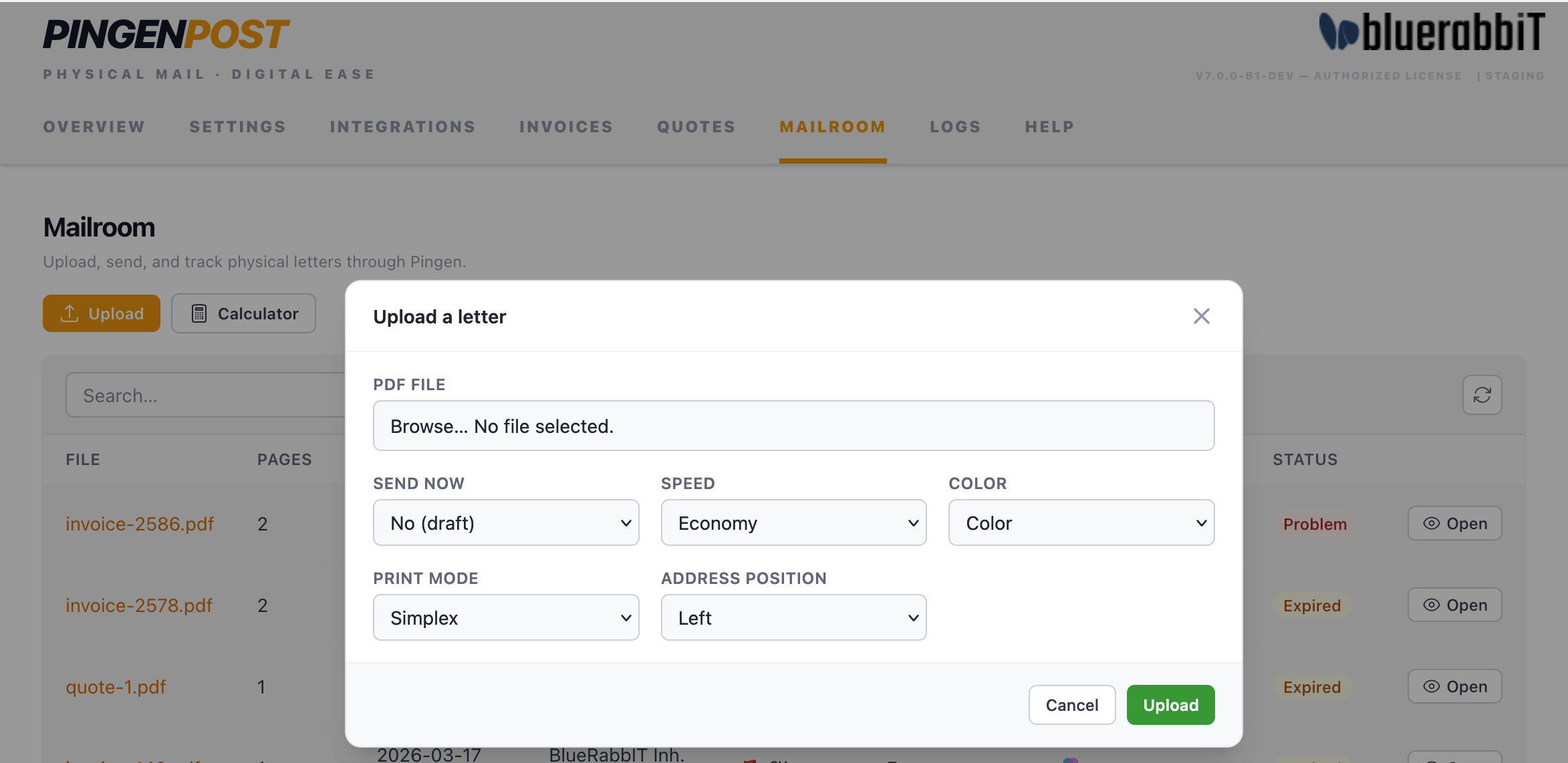
Choose the PDF, decide whether to send now or just stage it, and set the speed, colour, print mode, and address position for this one letter.
An uploaded PDF must satisfy Pingen's rules — minimum margins and a correctly positioned recipient address for the window envelope. Pingen validates on upload and will tell you if something is wrong. PDFs produced by BestPDF already meet these requirements.
Price calculator
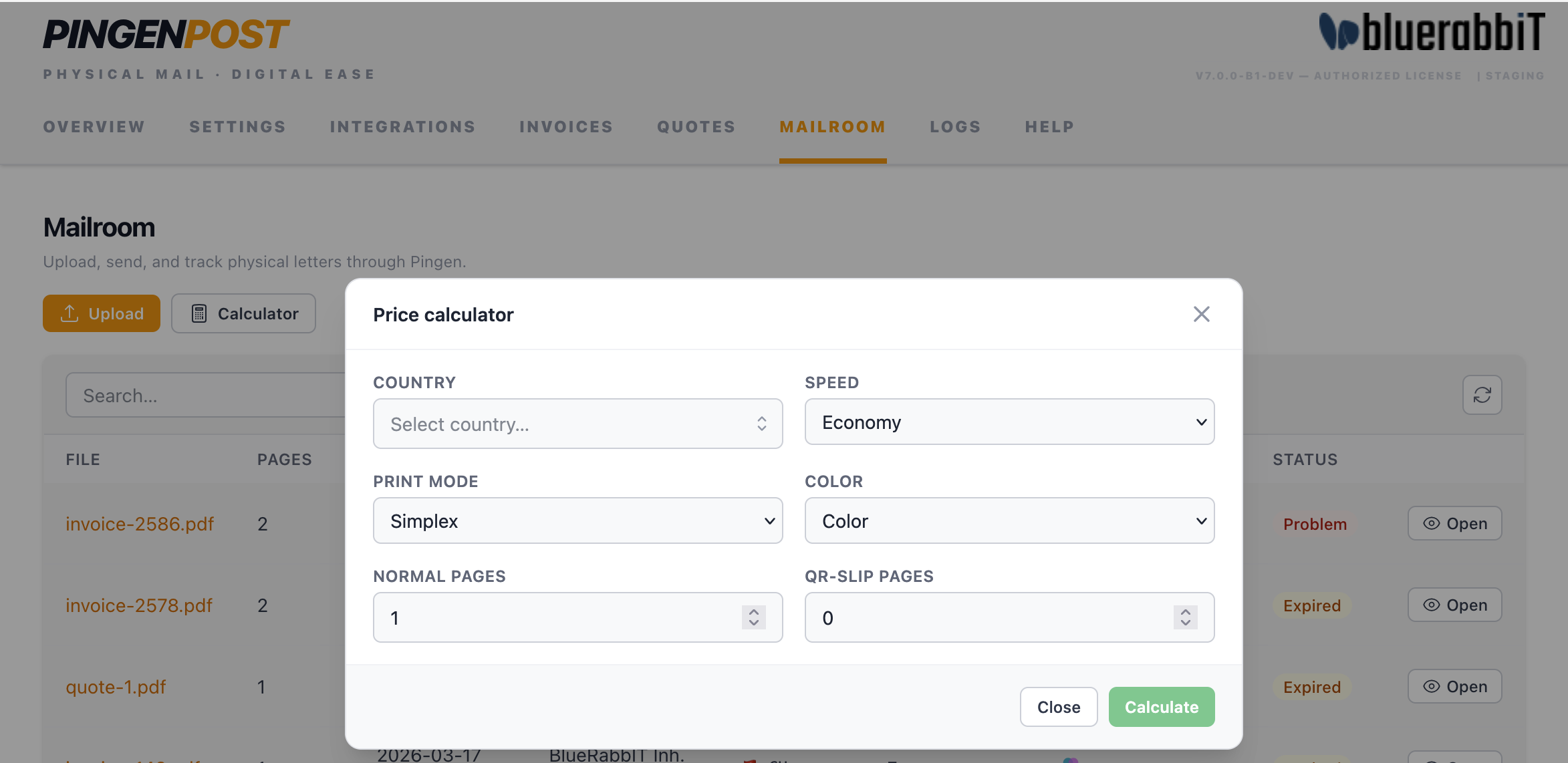
Before committing to a mailing, the price calculator estimates what it will cost. Pick the destination country and the options, and it returns Pingen's price — handy for checking Priority-vs-Economy or colour-vs-grayscale trade-offs.
The Pingen Overview dashboard widget shows the balance left in your Pingen account, so you notice a mailing budget running out before letters start failing. Enable it per admin role under Setup → Staff Management → Administrator Roles.
If letters aren't reaching sent, check Troubleshooting and the activity log.