Integrations
Pingen Post works on its own, but it gets better alongside other products from BlueRabbIT. On the Integrations tab inside the Pingen Post interface you can see which of these are detected and what each one adds.
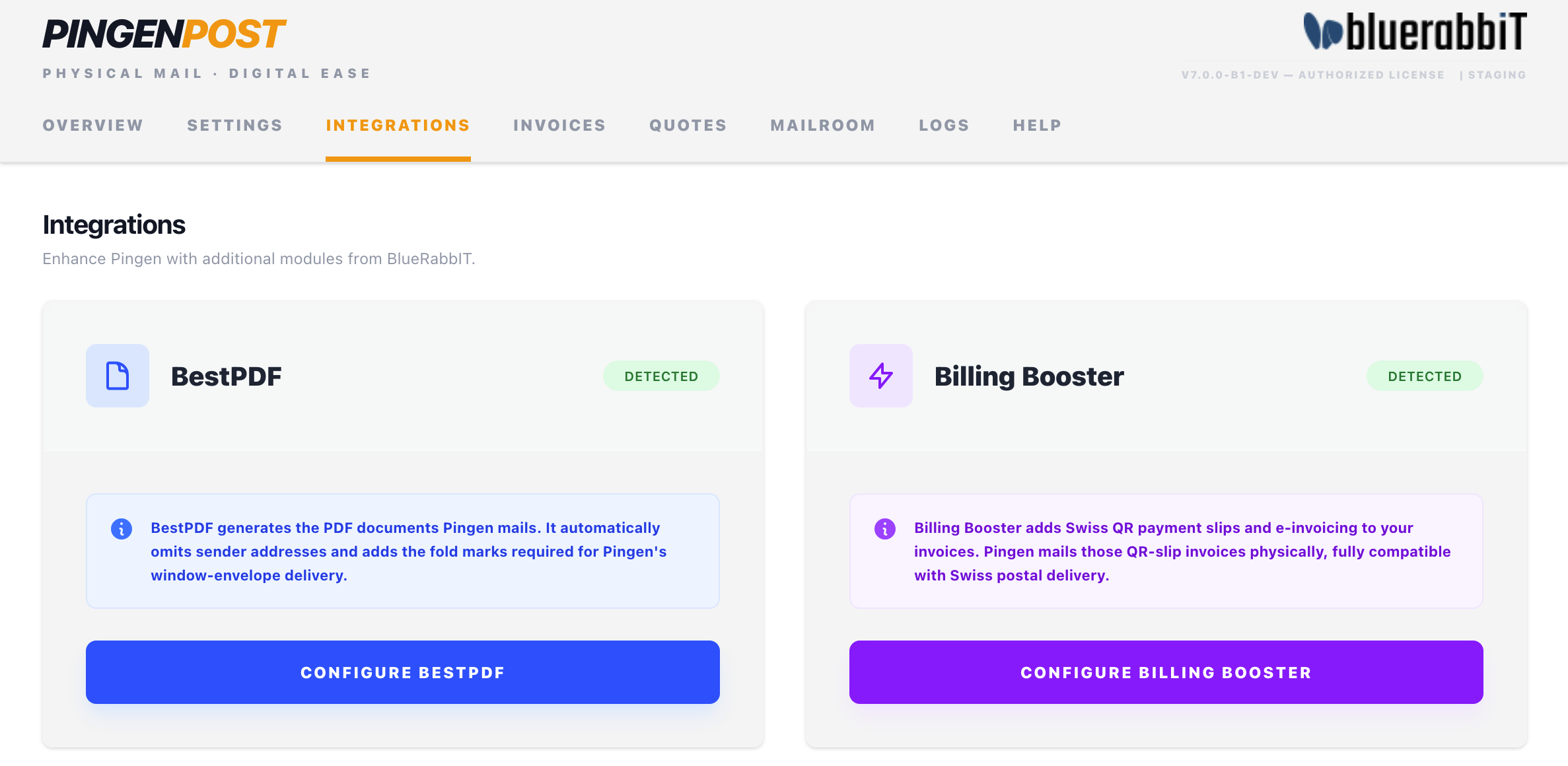
Each card shows a status — Detected, Deactivated (files present but the addon isn't activated), or Not Installed — and, when active, links straight to that product's configuration.
BestPDF
BestPDF is our advanced document engine for WHMCS. It replaces WHMCS's default PDF generation with fully customisable, professional invoice and quote designs.
For Pingen Post, BestPDF matters because Pingen is strict about the PDFs it will post. When BestPDF is detected, it produces Pingen-ready documents automatically — correct margins, the sender address omitted, and the fold marks required for window-envelope delivery. That means your letters pass Pingen's validation instead of being rejected.
When detected, the Integrations tab links straight to the BestPDF configuration.
Product page: bluerabbit.solutions/products/whmcs/bestpdf
Billing Booster
Billing Booster adds payment codes, e-invoicing, and bank reconciliation to WHMCS.
When both modules are active, Billing Booster generates a Swiss QR-bill payment slip and Pingen prints it as a detachable slip on the letter. Note that Pingen only supports QR payment slips for recipients in Switzerland and Liechtenstein — for all other countries the slip is omitted and the invoice is still mailed normally.
Product page: bluerabbit.solutions/products/whmcs/billing-booster
Billing Booster supersedes our standalone Swiss QR module. If you still run Swiss QR, plan the move to Billing Booster — Pingen Post 7 detects Billing Booster only.
Producing Pingen-ready PDFs
Pingen mails the PDF that WHMCS itself produces for an invoice or quote, which means the document has to satisfy Pingen's rules — minimum margins and the recipient address positioned for the window envelope. Your theme's stock PDF usually does not.
There are two ways to get a compliant document:
- BestPDF — the recommended route. It takes over PDF generation entirely and produces Pingen-ready output with no layout work on your side.
- The bundled Lagom 2 layout — the archive ships
templates/lagom2/, which adds a Pingen option to Lagom's PDF page settings. Upload it over your existing Lagom 2 template, then in the admin area go to Addons → RS Themes, open the Pages tab, click Invoice PDF, choose Pingen, and save. Repeat for Quote PDF.
If you run neither, adjust your own invoicepdf.tpl and quotepdf.tpl so the resulting PDF meets Pingen's requirements — otherwise submissions are rejected at validation, with the reason in the log.