Installation
Installing Pingen Post takes five short steps: upload the files, activate the addon, grant access, open the interface, and enter your license key. Getting your Pingen API credentials is covered separately in Pingen Account Configuration.
Don't follow this page — it describes a fresh install. Go to Upgrade instead, and read the Release notes first.
1. Upload the files
The release archive mirrors the WHMCS directory layout, so it can be uploaded as-is:
/modules/addons/pingen
/templates/lagom2
Only /modules/addons/pingen is mandatory. /templates/lagom2 adds a Pingen-compliant invoice and quote PDF layout to the Lagom 2 theme, for installations that don't run BestPDF — see Integrations → Producing Pingen-ready PDFs.
The folders sit alongside WHMCS's existing modules and templates directories — they do not replace anything.
2. Activate the addon
In your WHMCS admin area, navigate to Setup → Addon Modules.
Find Pingen in the list and click Activate.

Activation creates Pingen Post's database tables. On a WHMCS older than the minimum, activation is refused with a message saying so — see Requirements.
3. Grant access
Still on Setup → Addon Modules, click Configure on the Pingen row.
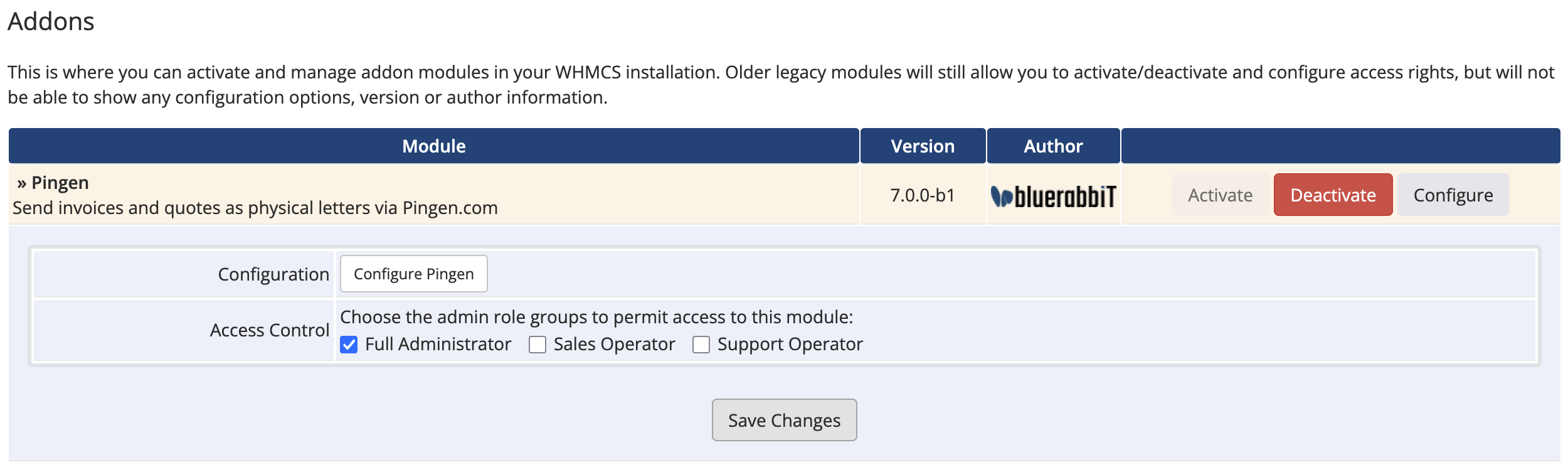
There is nothing to fill in here — the addon is configured from its own interface — but Access Control decides which admin roles may open it. Tick the roles that should be able to send letters and change settings, then save.
Pingen Post ships an admin dashboard widget showing your remaining Pingen account balance. To make it available, go to Setup → Staff Management → Administrator Roles, edit the roles that apply, and enable the Pingen Overview widget.
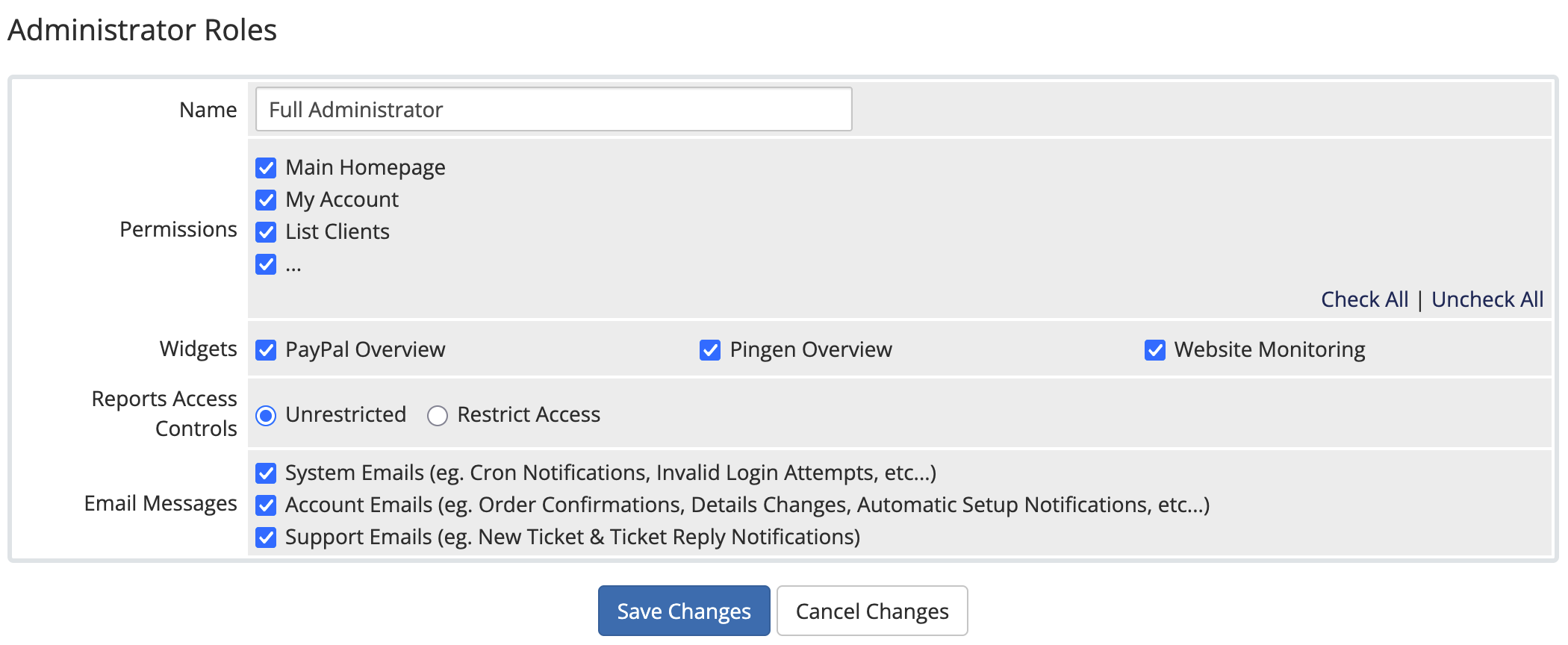
4. Open the configuration interface
Pingen Post is reached from the admin Addons menu, or from the Configure Pingen button on the page above.
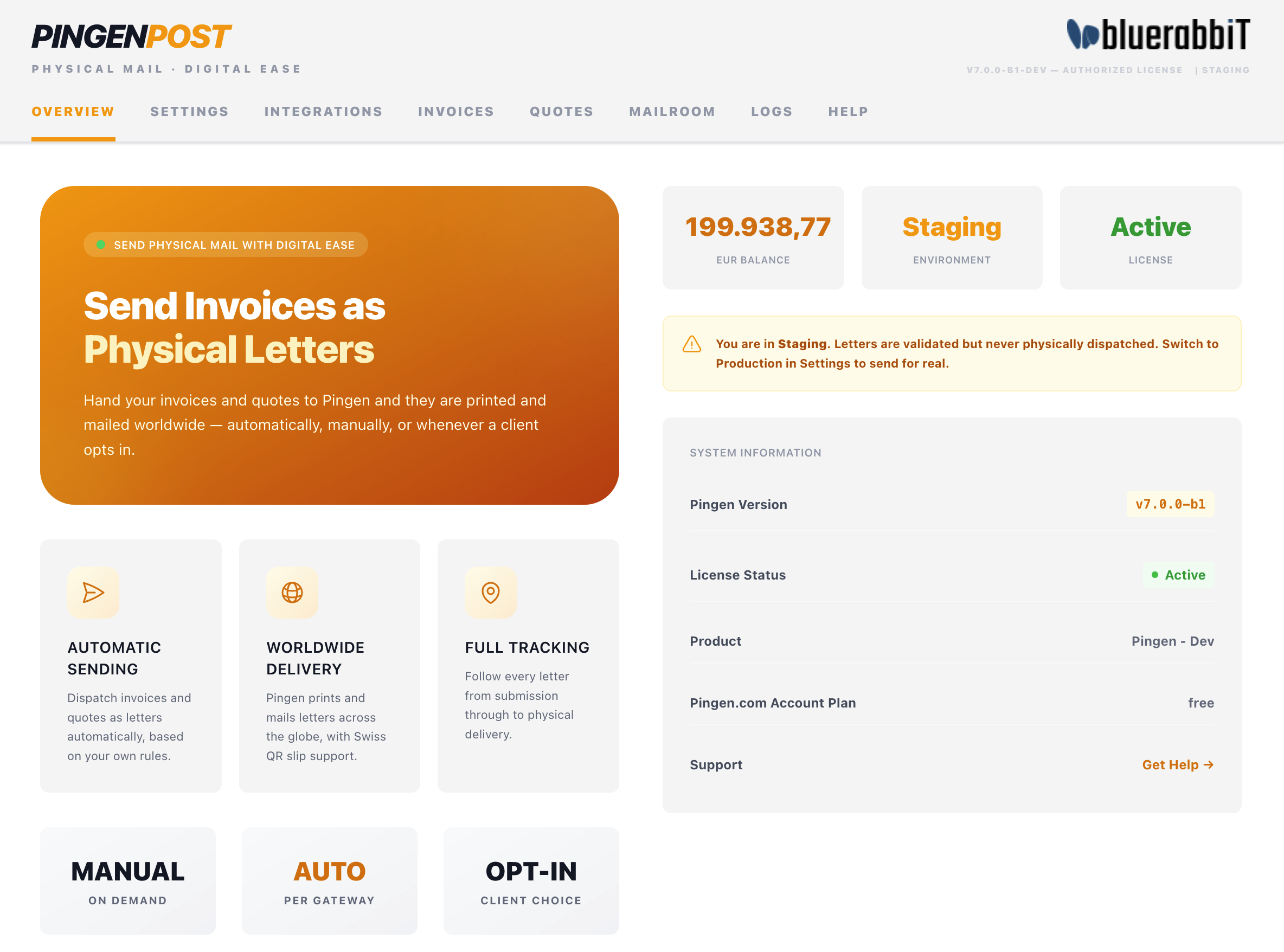
This is where you will manage credentials, letter defaults, sending behaviour, and where you track everything you send.
5. Configure the license key
Open the Settings tab and, on the General sub-tab, paste your license key, then click Save settings.
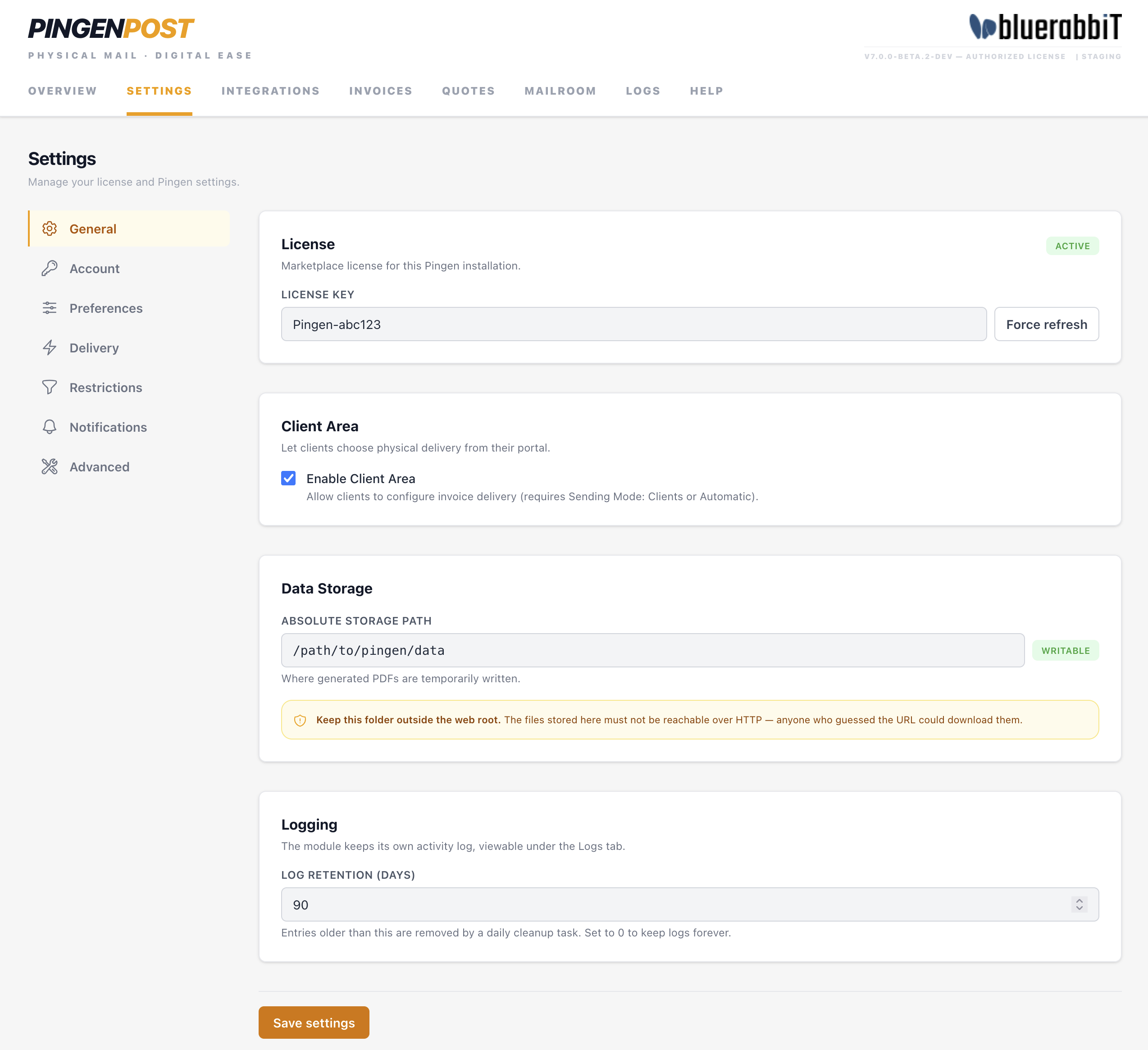
While you are here, check the Data Storage path on the same sub-tab. Pingen Post writes each PDF there for the moment it takes to hand it to Pingen; leave it blank to use the addon's own storage/ folder.
If you set a custom storage path, make sure the directory is not reachable over HTTP. It briefly holds the documents being mailed, which contain personal and financial data.
With Pingen Post licensed, connect your Pingen account by following Pingen Account Configuration, then head to the Quick start to send your first letter.