Configuration
The Pingen Post interface is where you connect your Pingen account, set your letter defaults, decide how invoices are sent, and track everything you post. This page covers the layout of the interface and the Settings tab; the operational tabs are documented on their own pages.
Opening the configuration interface
Once Pingen Post is installed and licensed (see Installation), open it from the admin Addons menu — click Addons in the main navigation and select Pingen.
The menu entry only appears for admin roles that were granted access. Add yours under Setup → Addon Modules → Configure → Access Control — see Installation → Grant access.
The Pingen Post interface at a glance
The interface is organised into tabs across the top:
| Tab | What it does | Documented in |
|---|---|---|
| Overview | Landing page — license status, environment, module version, and a summary of what Pingen Post does. | (this page) |
| Settings | License key, Pingen API credentials, letter defaults, sending behaviour and restrictions. | (this page) |
| Integrations | Shows which BlueRabbIT addons (BestPDF, Billing Booster) are detected and what they enable. | Integrations |
| Invoices | Send invoices as physical mail and see which ones have already been sent. | Sending Invoices & Quotes |
| Quotes | Send quotes as physical mail and track their status. | Sending Invoices & Quotes |
| Mailroom | Track every letter Pingen Post has printed and posted; upload a PDF by hand; estimate a mailing's cost. | Mailroom |
| Logs | A searchable, filterable view of Pingen Post's activity log — used when something goes wrong. | Troubleshooting → Reading the logs |
| Help | This documentation, embedded inside the admin area. | — |
Overview tab
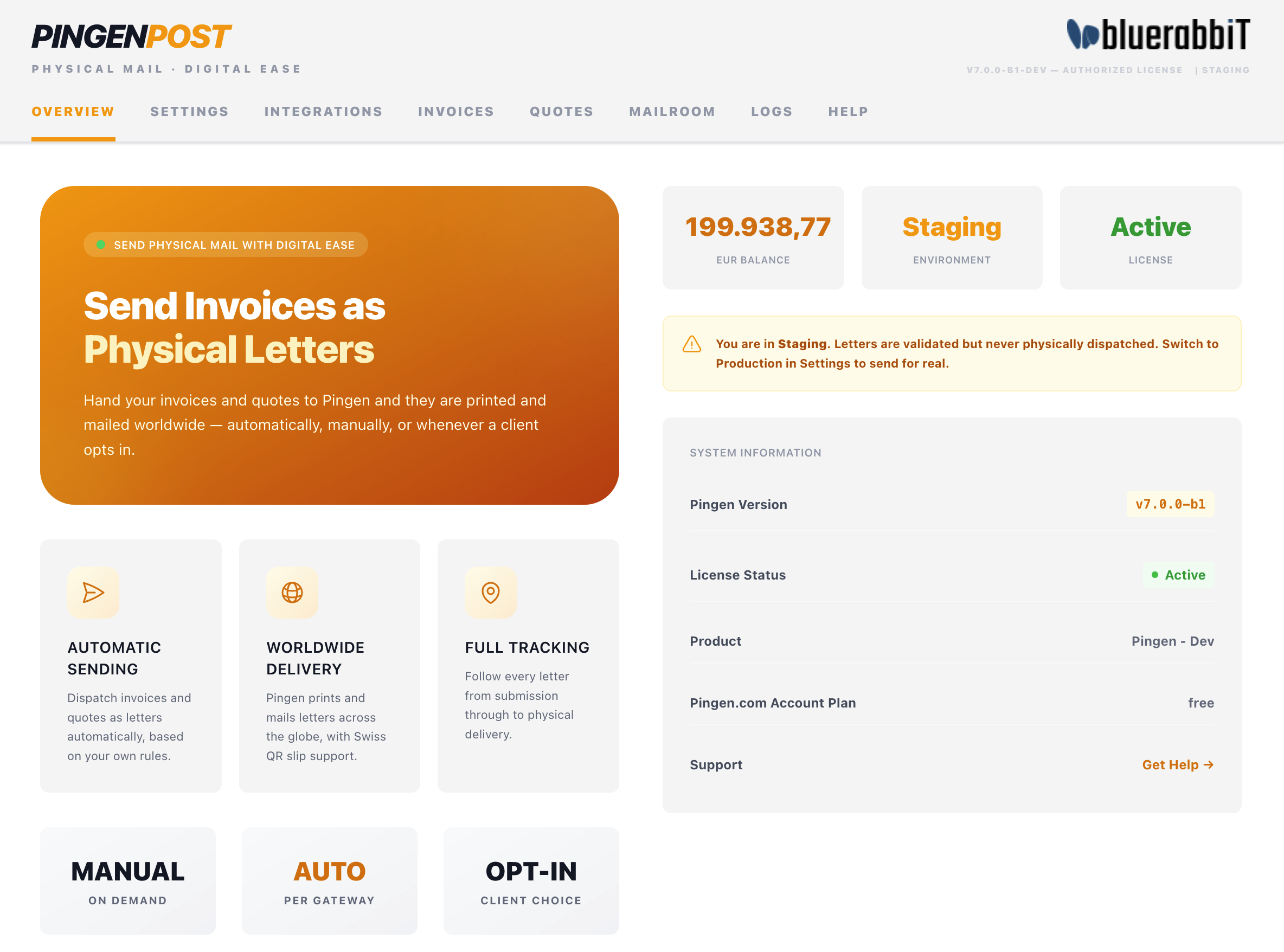
The Overview tab is the landing page. It surfaces, at a glance:
- System information — module version and license status.
- Environment — whether you are pointed at Staging (letters validated but never dispatched) or Production (letters printed and posted for real).
- What Pingen does — a short recap of automatic sending, worldwide delivery, and full tracking.
While the environment reads Staging, letters are validated against Pingen but never physically sent and never charged. Switch to Production (on Settings → Account) only when you're ready to post real mail.
Settings
The Settings tab holds all module configuration, split across sub-tabs down the side. Each sub-tab shares one Save settings button at the bottom.
General
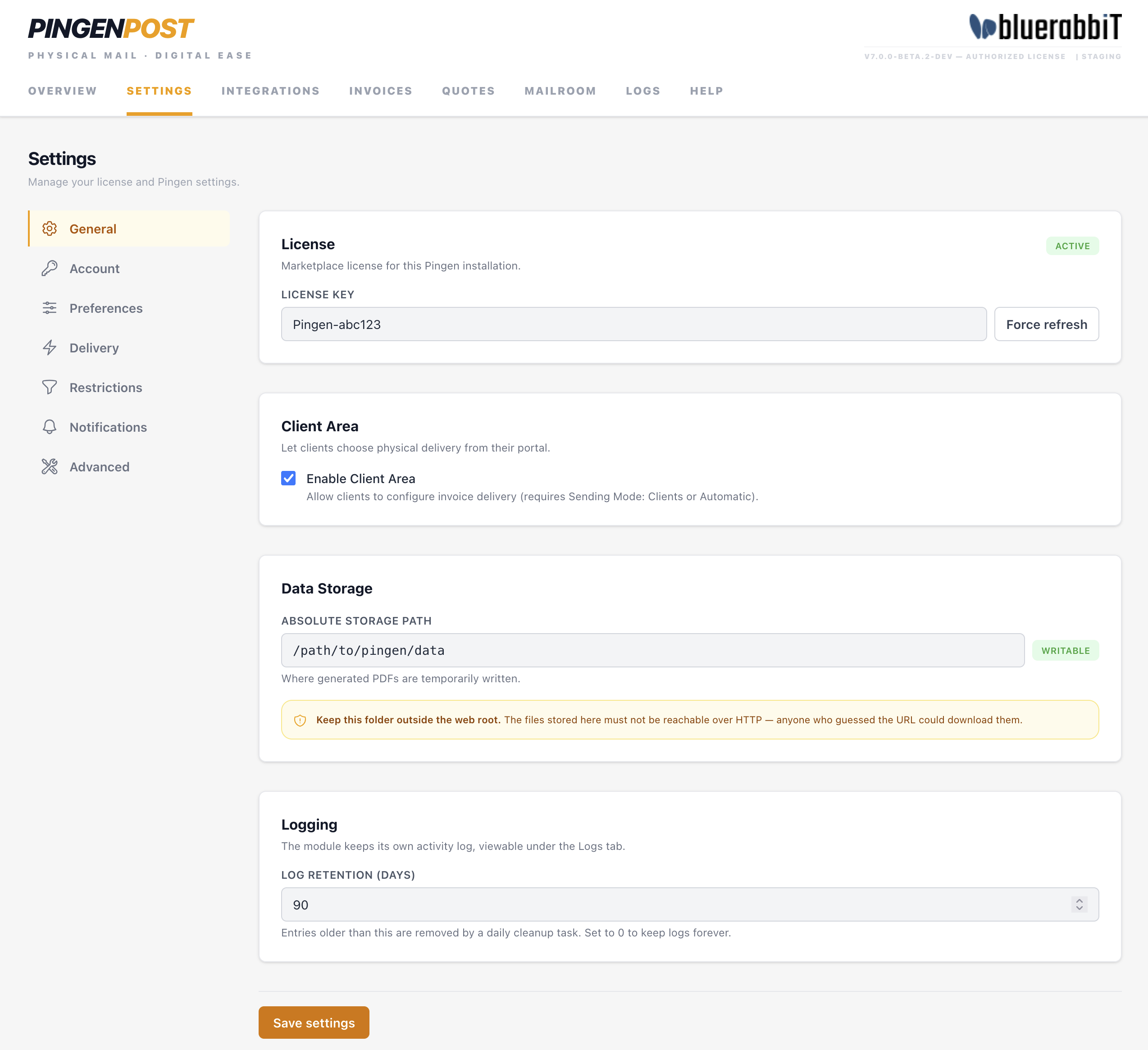
- License — paste your license key here and click Save settings. The status is shown next to the section heading; Force refresh re-checks it against our license server immediately, which is what to reach for after renewing.
- Client Area — Enable Client Area gives your clients a page in their portal where they choose whether their invoices are posted. It needs a Sending Mode of Clients or Automatic; while the mode is Manual the page stays hidden and the interface says so. See Client Preferences & Fees.
- Data Storage — an absolute path where PDFs are written for the moment it takes to hand them to Pingen. Leave it blank to use the addon's own
storage/folder. The badge next to the field tells you whether the path is writable. - Logging — Log retention (days) controls how long activity-log entries are kept before the daily cleanup removes them. Default 90; set to 0 to keep logs forever.
If you set a custom storage path, make sure the directory is not reachable from the web. It briefly holds the PDFs being mailed, which can contain personal and financial data.
Account
The Account sub-tab holds your Pingen API credentials.
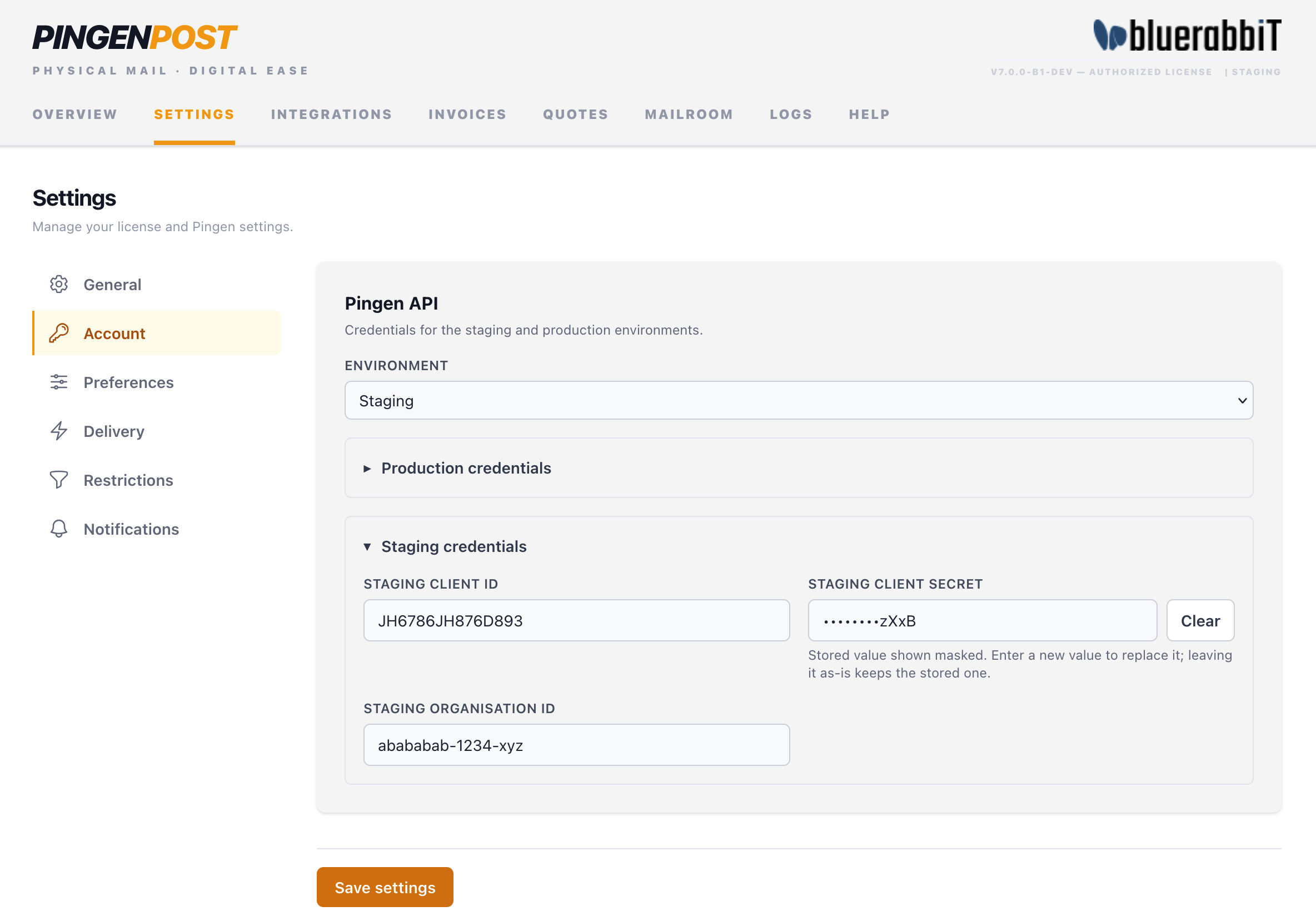
- Environment — choose Staging or Production. The addon uses the credentials for whichever environment is selected.
- Production credentials — Production Client ID, Client Secret, and Organisation ID.
- Staging credentials — Staging Client ID, Client Secret, and Organisation ID.
Both sets are stored, so switching environments is a one-field change. Saved secrets are shown masked; type a new value to replace one, or use Clear to empty it.
To obtain these values, follow Pingen Account Configuration.
Preferences
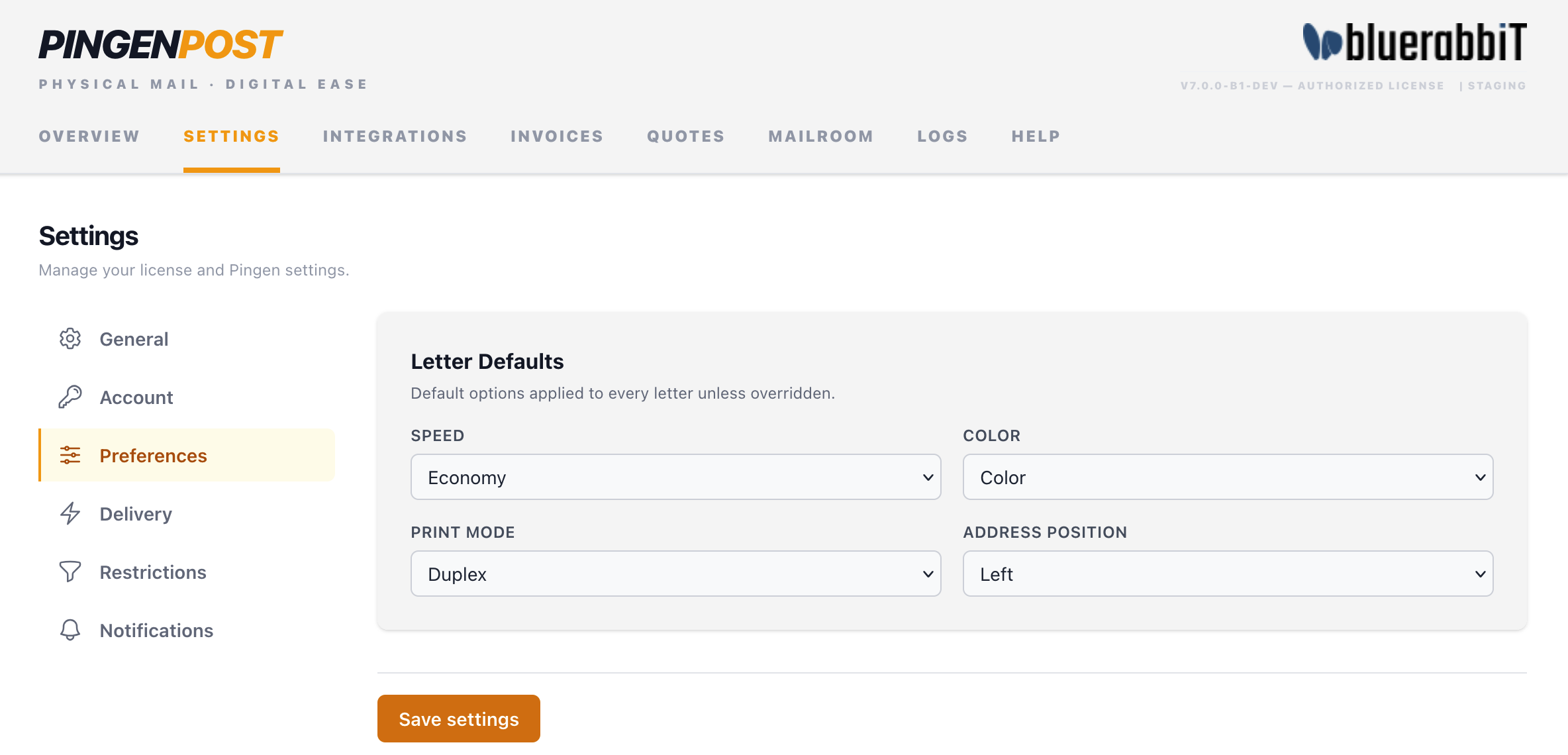
The Preferences sub-tab sets the letter defaults applied to every mailing unless overridden at send time.
| Default | Options | Notes |
|---|---|---|
| Speed | Economy / Priority | Priority is faster and more expensive; tracking availability depends on the destination country. |
| Colour | Colour / Grayscale | Grayscale prints are cheaper; colour looks nicer. |
| Print Mode | Simplex / Duplex | Single- or double-sided printing. |
| Address Position | Left / Right | Which side of the page carries the recipient address for the window envelope. |
Delivery
The Delivery sub-tab controls when invoices are posted automatically, and what postage costs the client.
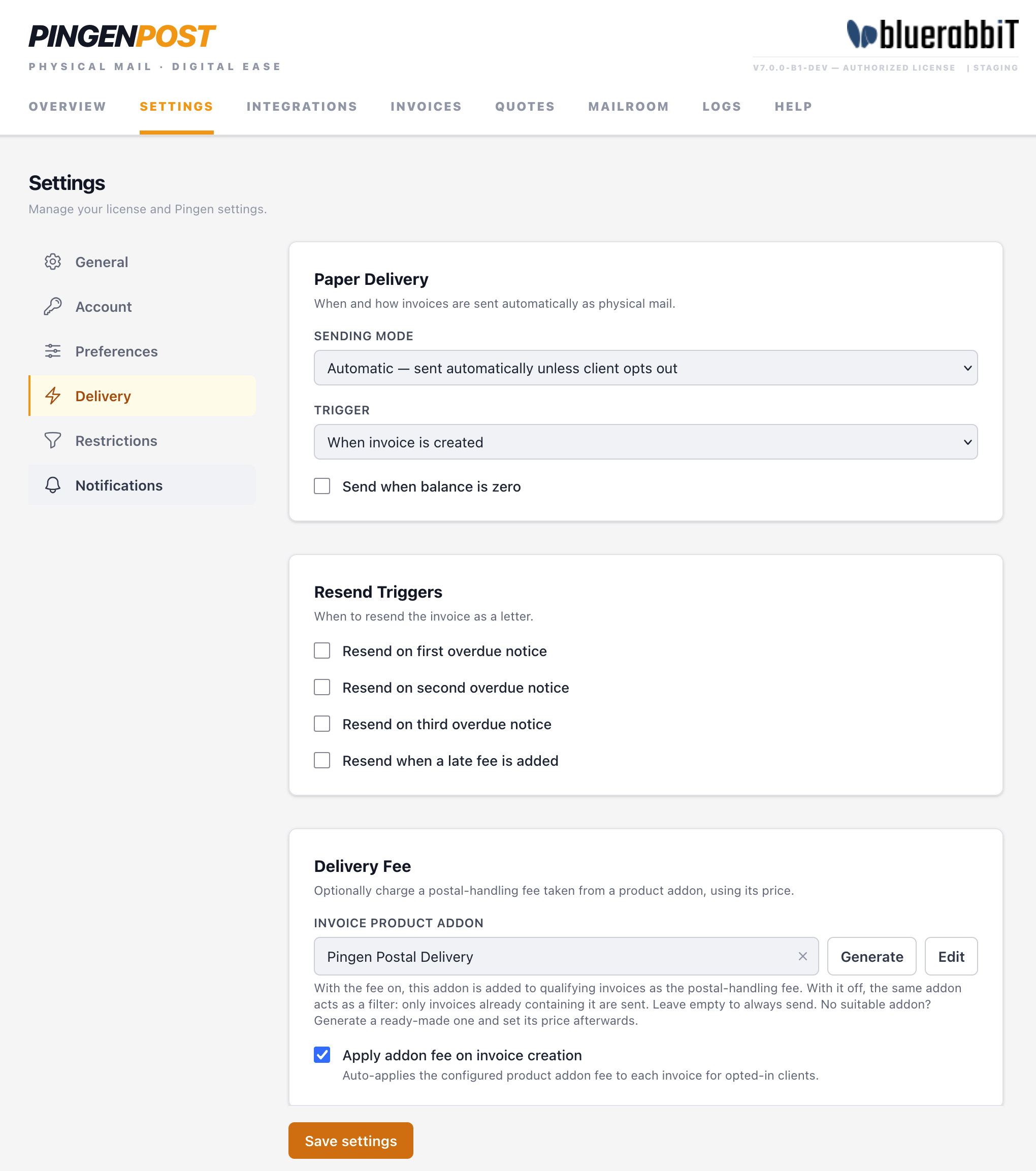
- Paper Delivery
- Sending Mode — Manual (nothing is sent automatically), Clients (only for clients who explicitly opted in), or Automatic (for every client except those who opted out).
- Trigger — When invoice is created, or When order is accepted. Invoices without an order — renewals, for instance — are always handled on creation.
- Send when balance is zero — also post invoices with nothing left to pay, such as a paid receipt.
- Resend Triggers — post the invoice again on the first, second or third overdue notice, or when a late fee is added.
- Delivery Fee
- Invoice Product Addon — the product addon this section works with. Generate creates a ready-made one; Edit opens it so you can set its price.
- Apply addon fee on invoice creation — when on, that addon's price is added to qualifying invoices as the postal-handling fee. When off, the same addon acts as a filter instead: only invoices that already carry it are posted. See Client Preferences & Fees.
See Sending Invoices & Quotes for how these fit together, and which invoices qualify.
Restrictions
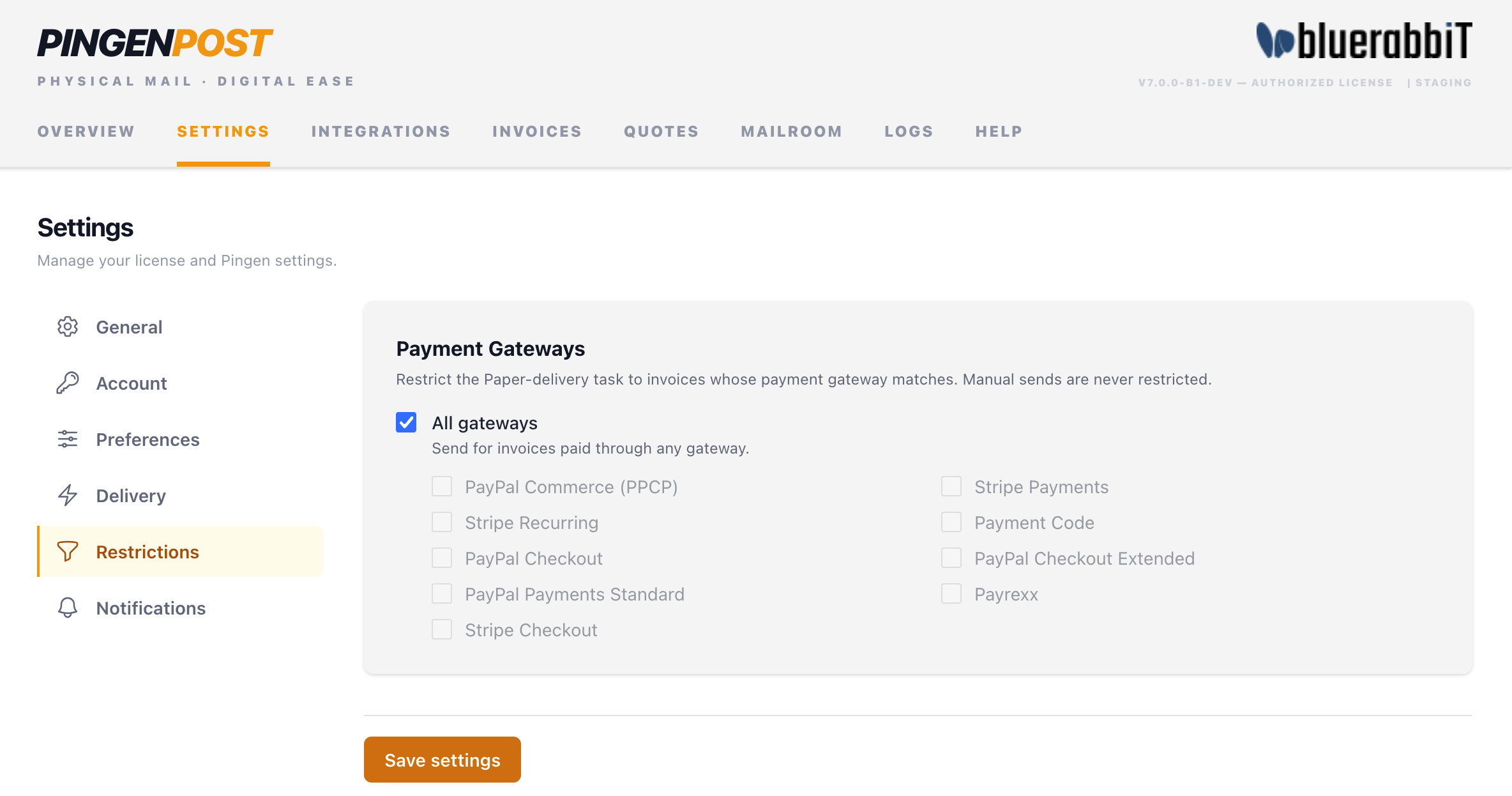
- Payment Gateways — pick the gateways whose invoices may be posted. Leave the selection empty to allow all of them.
The filter applies to automatic sending only — a manual Send is never blocked by it.
Notifications
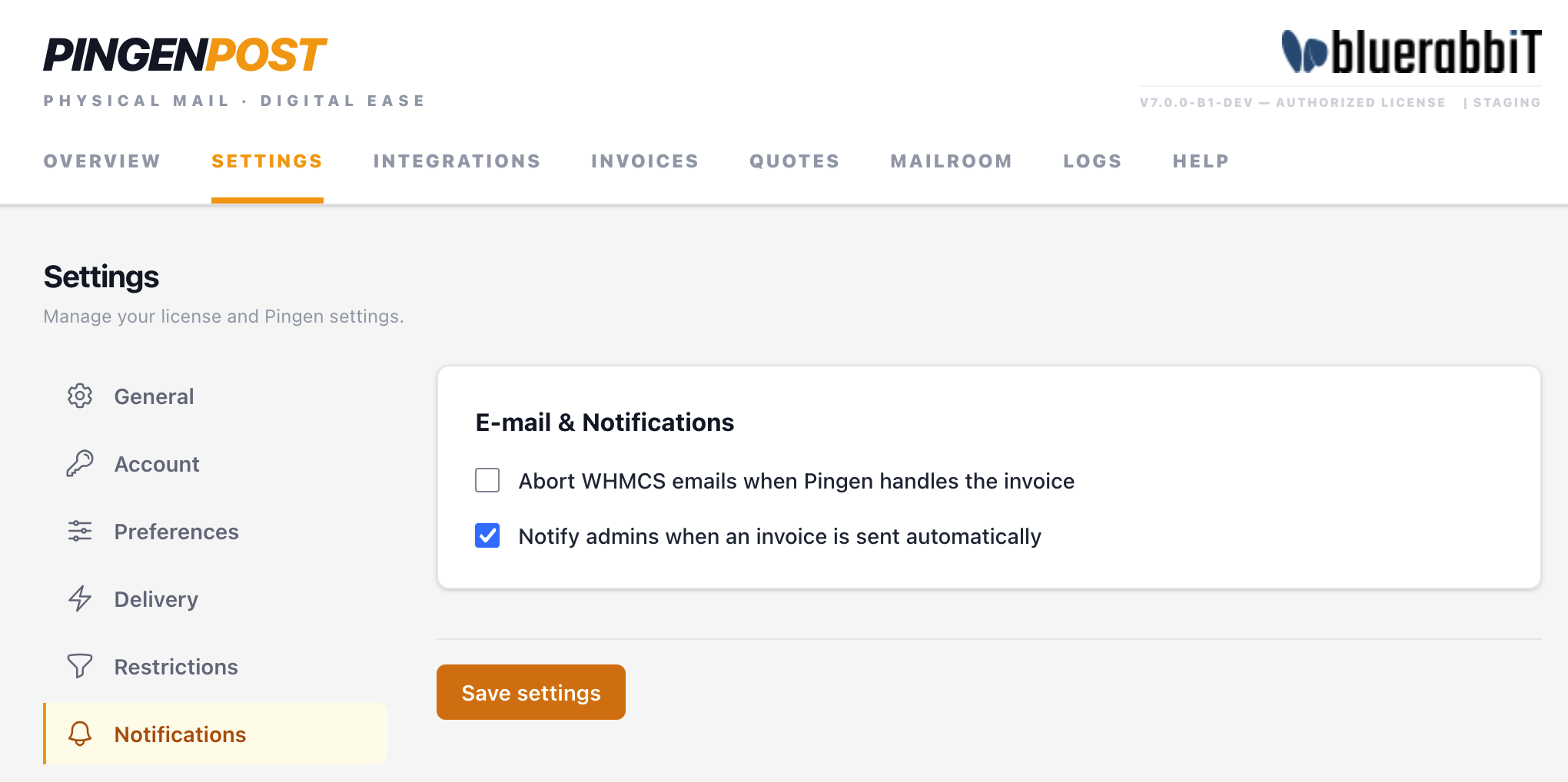
- Abort WHMCS emails when Pingen handles the invoice — suppresses the matching WHMCS invoice email when the same invoice is going out on paper, so the client is not notified twice. It applies to the Invoice Created and Invoice Payment Reminder emails, and to the overdue and late-fee emails whose resend trigger is enabled.
- Notify admins when an invoice is sent automatically — emails your WHMCS administrators on each automatic send. Errors are reported by email whether or not this is on.
Advanced
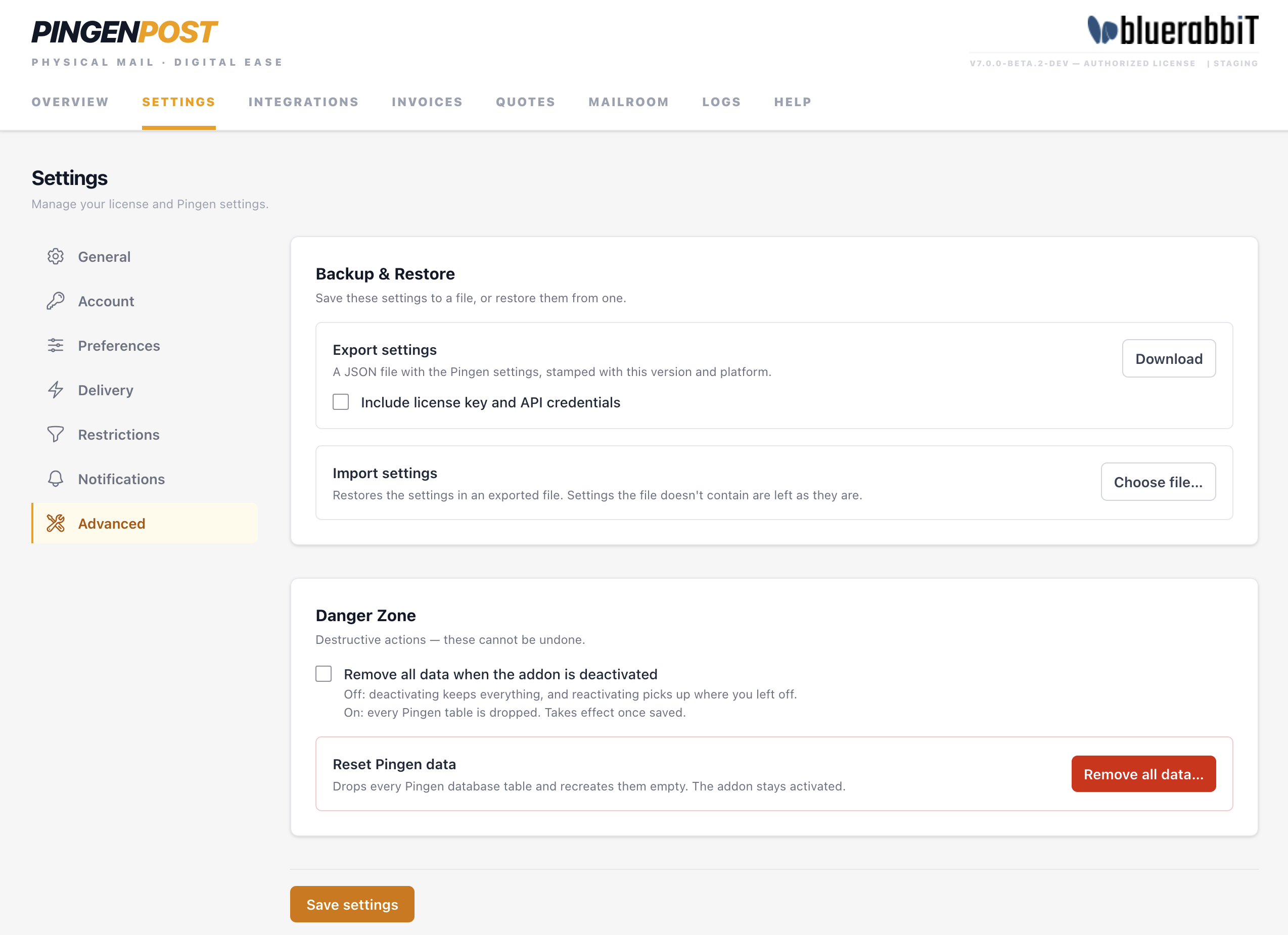
Backup & Restore
Saves Pingen Post's settings to a file, and restores them from one — to move them to another installation, or to keep a copy before you change things. Both act straight away rather than through Save settings.
- Export settings — Download saves a JSON file with the settings, stamped with the Pingen Post version and the platform it came from. The license key and the Pingen API credentials are left out unless you tick Include license key and API credentials; a file that holds them should be stored like a password, and not attached to a support ticket.
- Import settings — Choose file… reads an exported file first and shows where it came from and when it was made, with a warning if it is from another platform or another Pingen Post version. Nothing changes until you click Import: the file's settings then replace the current ones, and settings the file doesn't contain are left as they are. If the file carries the license key and API credentials, Also restore the license key and API credentials decides whether they replace this installation's. Settings this installation doesn't use are skipped, and the confirmation lists them.
The record of sent letters is not part of the file. An import can't be undone, so export the current settings first if you might want them back.
Danger Zone
- Remove all data when the addon is deactivated — off by default: deactivating Pingen Post keeps its tables, and reactivating it picks up where you left off. Switch it on, and click Save settings, before deactivating if you want every Pingen Post table dropped with it. See Uninstall.
- Reset Pingen data — Remove all data… drops every Pingen Post table and recreates them empty, while the addon stays activated: the API credentials (staging and production) and the license key, all settings and restrictions, the record of every sent invoice and quote, and the activity log. Letters already handed to Pingen are not affected. Type
DELETEto confirm. There is no undo.
Scheduled tasks
Pingen Post has no cron entry of its own. It rides along with WHMCS's system cron:
| Runs | Purpose |
|---|---|
| Daily cron | Prunes activity-log entries older than the configured log retention. |
| Invoice creation, order acceptance, overdue notices, late fees | Post the invoice as a letter, if the relevant trigger is enabled and the invoice qualifies. |
WHMCS's own cron must be configured and running on the server for any of this to happen.
With your account connected and defaults set, see Sending Invoices & Quotes to mail your first document, or the Quick start for the fastest path from zero to a posted letter.