Client Preferences & Fees
Not every client wants paper, and postage costs money. This page covers the three pieces that go together: setting a client's preference from the admin area, letting clients set it themselves in the client area, and charging them for the privilege.
Per-client preference
Each client can be opted in or out individually, whatever the global Sending Mode is.
In the admin area, open a client's Profile tab. Pingen Post adds a Send invoices with Pingen field:
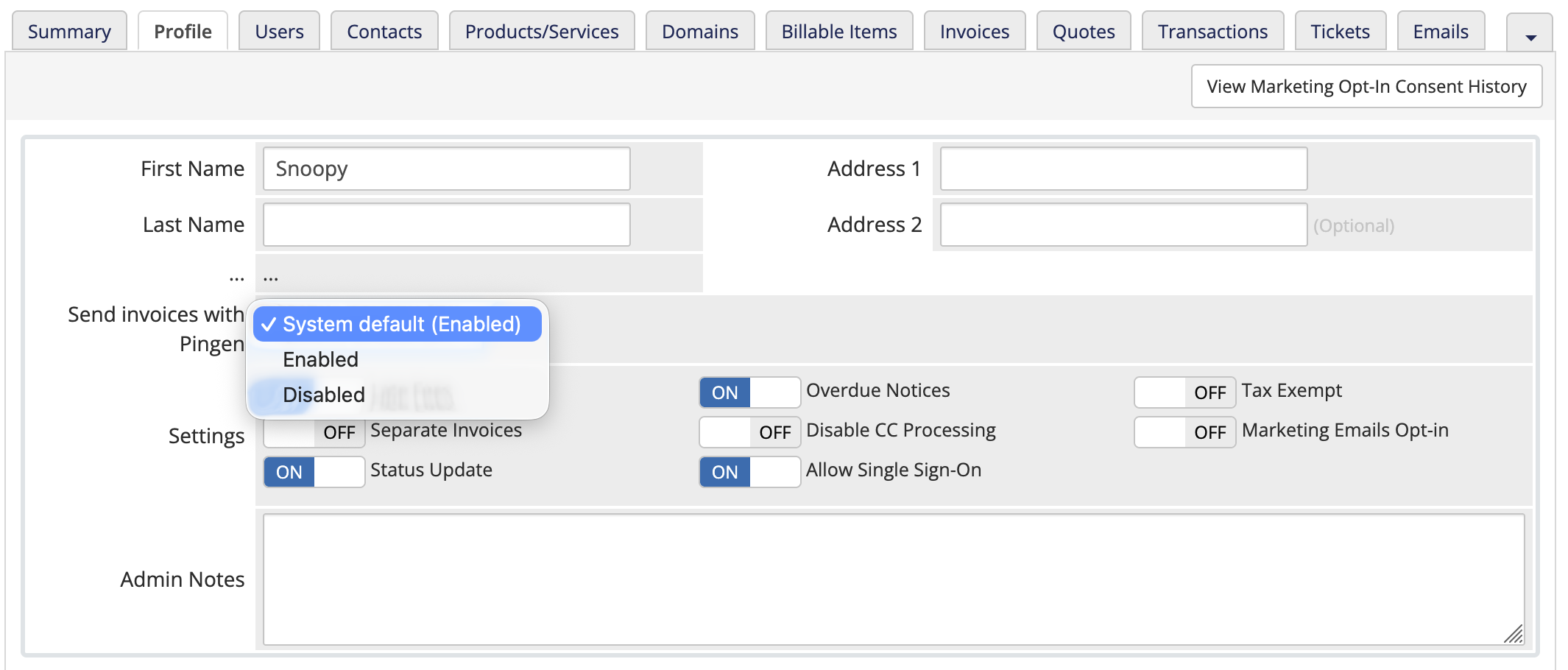
| Option | Meaning |
|---|---|
| System default | Follow the global Sending Mode. In Automatic that means enabled; in Clients or Manual it means the client is not sent to automatically. |
| Enabled | Post this client's invoices automatically whenever the mode is Clients or Automatic and the invoice qualifies. |
| Disabled | Never post this client's invoices automatically, whatever the mode says. |
The field shows the effective system default in brackets, so you can see what "System default" means right now without leaving the page.
The client-area page
Clients can also make the choice themselves. Turn on Enable Client Area on Settings → General; an Invoice delivery entry then appears under Account in the client area navigation.
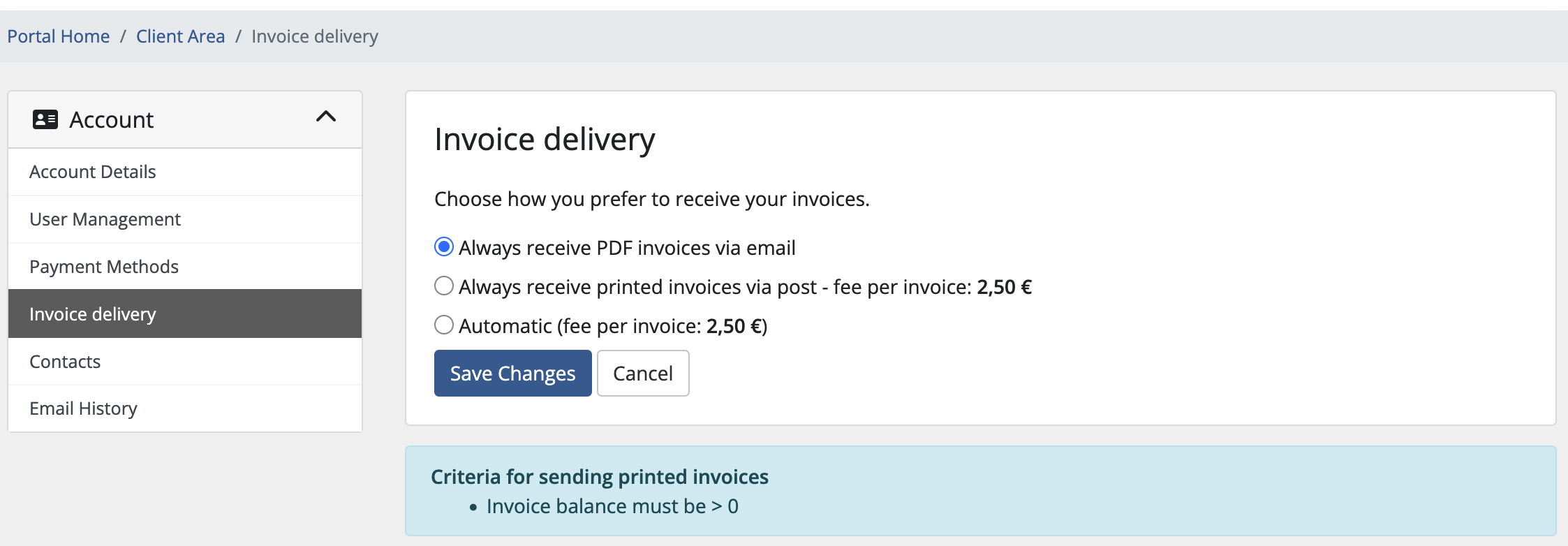
The page offers:
- Always receive PDF invoices via email — express no preference, which leaves the client on the system default. In Clients mode that means nothing is posted.
- Always receive printed invoices via post — opt in explicitly. When a delivery fee is configured, the amount is shown right on the option.
- Automatic — opt out explicitly, so nothing is ever posted for this client. Offered only when the Sending Mode is Automatic, where it is the option that actually stops paper: leaving the first option selected there means following a system default of post.
Underneath, the page lists the conditions an invoice must meet to actually be posted — a minimum balance, the required product addon, or the permitted payment gateways — but only the ones you have actually configured. Clients see the rules that apply to them and nothing else.
The page is translated into English, German, French and Italian, and follows the client's language setting.
The client-area page only makes sense when something can happen automatically, so it stays hidden while Sending Mode is Manual — even with the toggle on. The Settings screen flags this for you.
The delivery fee
Posting a letter costs money, and you may want to pass that on. Pingen Post charges the fee through a WHMCS product addon: you nominate one on Settings → Restrictions, and its price is added as a line item on each new invoice for a client who has opted in.
- On Settings → Delivery, under Delivery Fee, pick an Invoice Product Addon. No suitable addon? Click Generate to create a ready-made one, then Edit to set its price.
- Turn on Apply addon fee on invoice creation in the same section.
From then on, invoices raised for opted-in clients carry the fee, and the client-area page shows the amount next to the postal option so the charge is visible at the moment they choose it.
The same Invoice Product Addon setting does double duty. With the fee switched off, it acts as a filter: only invoices that already contain that addon are posted. With the fee switched on, Pingen Post adds the addon to qualifying invoices instead, and stops using it to filter. Pick the behaviour you want with the toggle.
Sending Mode Clients, the client area enabled, and the fee switched on: clients choose paper themselves and see the postage cost at the moment they do. Nobody gets an unexpected charge, and nobody gets paper they didn't ask for.
See Sending Invoices & Quotes for what happens once a client is opted in, or Mailroom to track what has gone out.