Statement Processing
Statement processing closes the loop on payment codes: it reads incoming bank statements, matches each payment back to the invoice it belongs to (using the structured reference your payment code put there, or the invoice number in the payment note), and applies the payment in WHMCS.
This page covers how it works and how to set it up. The day-to-day work — getting statements in and applying the payments they contain — lives on the Statements tab.
How it works
- Your invoices carry a payment code with a structured reference (e.g. client number + invoice number).
- The customer pays; the reference travels with the payment through the banking system.
- Billing Booster reads the incoming payments — from a camt.054 or camt.053 statement, from your bank's CSV export, or straight from Revolut Business or a bank connected through Enable Banking.
- Each incoming payment is matched back to its WHMCS invoice, by its reference or, optionally, by the invoice number in its payment note.
- You review the matches and apply them — WHMCS records the payments. With a bank connection, automatic processing can do this for you, and hands you what it could not settle on its own.
Applied payments are booked as WHMCS transactions against the Payment Code gateway. If it isn't installed, applying fails with "Paycode gateway not found." and nothing is recorded. See Installation → Install the Payment Code gateway.
Statement types
Every configuration reads one type of statement. Pick the one your bank provides:
| Type | What it reads | How it gets in |
|---|---|---|
| camt.054 | ISO 20022 payment notifications — the usual choice for Swiss banks. | Upload, or download through MFTPF (PostFinance) or EBICS |
| camt.053 (Beta) | ISO 20022 account statements — the usual choice for German and Austrian banks. | Upload, or download through MFTPF or EBICS |
| CSV | Any bank's CSV export, once you have mapped its columns. | Upload only |
| Revolut Business (Beta) | The transactions of a Revolut Business account. | Download through the Revolut Business API |
| Enable Banking (Beta) | The transactions of an account at most European banks, N26 among them. | Download through Enable Banking |
camt.054 and camt.053 work with any bank that can export them, uploaded by hand on the Statements tab. A bank connection lets Billing Booster download them itself. Revolut Business and Enable Banking have no file to upload: they only work through their connection.
The types and connections marked Beta in the interface are being tested with more banks. If one doesn't behave as expected with yours, please open a ticket in our client area.
camt.054 or camt.053?
| Format | What it is | Typical use |
|---|---|---|
| camt.054 | Debit/credit notifications: one message per booking, with the details of each payment. | The usual choice for Swiss banks, and the only one that lists the payments inside a collective booking (e.g. all QR-bill payments of a day) individually. |
| camt.053 | The account statement: every booking on the account, incoming and outgoing. | The usual choice for German and Austrian banks. |
Pick the one your bank provides with the payment details. Billing Booster ignores outgoing payments in a camt.053. If a bank books several payments as a single line without listing them, those payments can't be matched: Billing Booster reports the number of such bookings instead of dropping them silently. In that case, ask your bank to list each payment, or switch to camt.054.
How payments are matched
By reference. A payment with a structured reference is matched to the invoice the reference names: a Swiss QR reference, or an ISO 11649 RF creditor reference. Both are what Billing Booster's own payment codes put on the invoice — the Swiss QR-bill, and the EPC (SEPA) code with Use an RF creditor reference turned on. This is exact, and is what automatic processing applies without asking. A CSV export has no reference field, but an RF reference the payer copied into the payment note is found there.
By the invoice number in the payment note. A payment without a reference — typically a manual transfer where the customer typed "Invoice 2026-0042" — can be matched by the invoice number in its free-text note. The number is looked up the way WHMCS prints it: the custom invoice number, or the invoice ID when custom numbering is off. The digits of something like RE-12345 are tried on their own as well. A match only counts if exactly one invoice fits, and that invoice is unpaid, in the payment's currency, and paid in full by the amount (within the CHF rounding tolerance, if accepted). Payment notes are full of numbers — dates, customer numbers, IBANs — and these rules keep them from producing a wrong match. What happens with such matches is set per configuration (see Payment Matching).
Processing configuration
Open Settings and choose the Statement Processing sub-tab — this is where you define processing configurations.
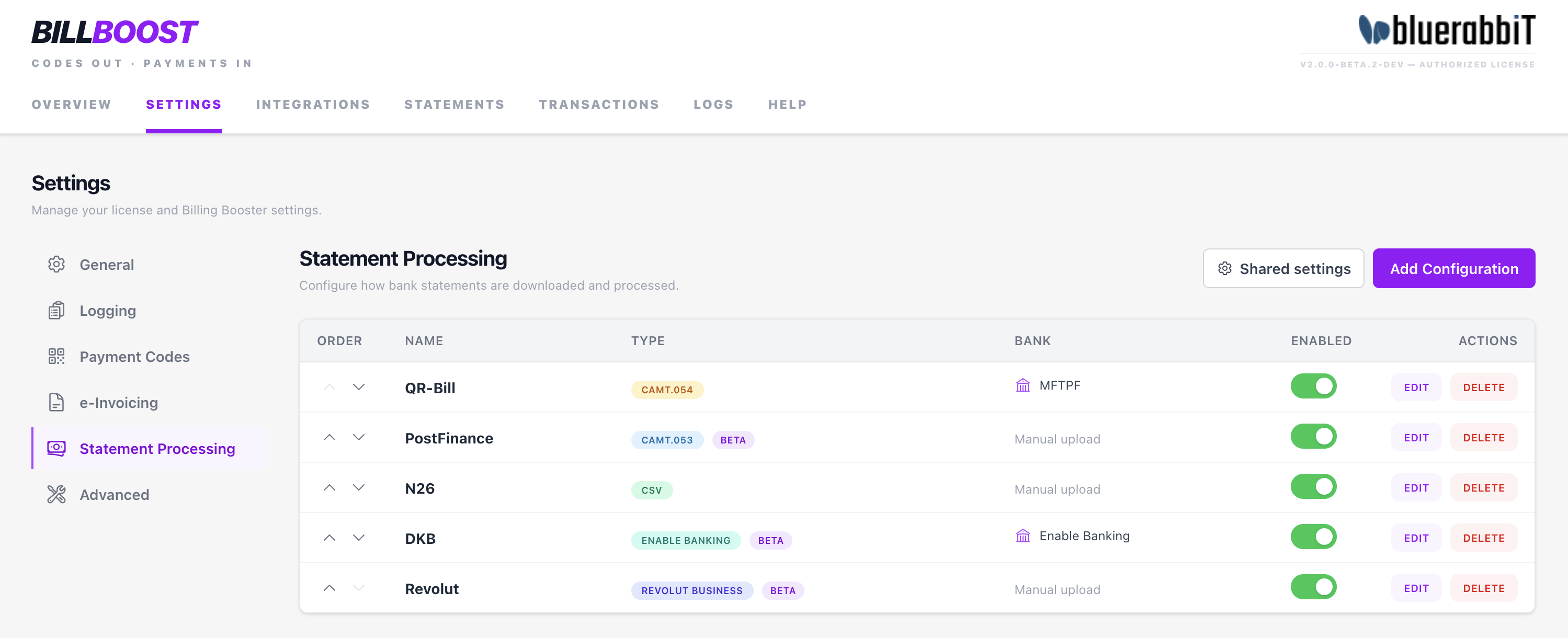
The list shows each configuration's Type, its Bank — the connection it downloads through, with an Auto sync mark when automatic sync is on, or Manual upload — and whether it is Enabled. The Order arrows decide the order of the subtabs on the Statements tab, and the order in which automatic processing works through the configurations.
You can have several configurations, of any type — for example one camt.054 configuration for your PostFinance account and another for your UBS account, each with its own bank connection. Every configuration keeps its own settings, its own subtab on the Statements tab, and its own archive of statement files.
Adding a configuration
Click Add Configuration. The dialog has two columns:
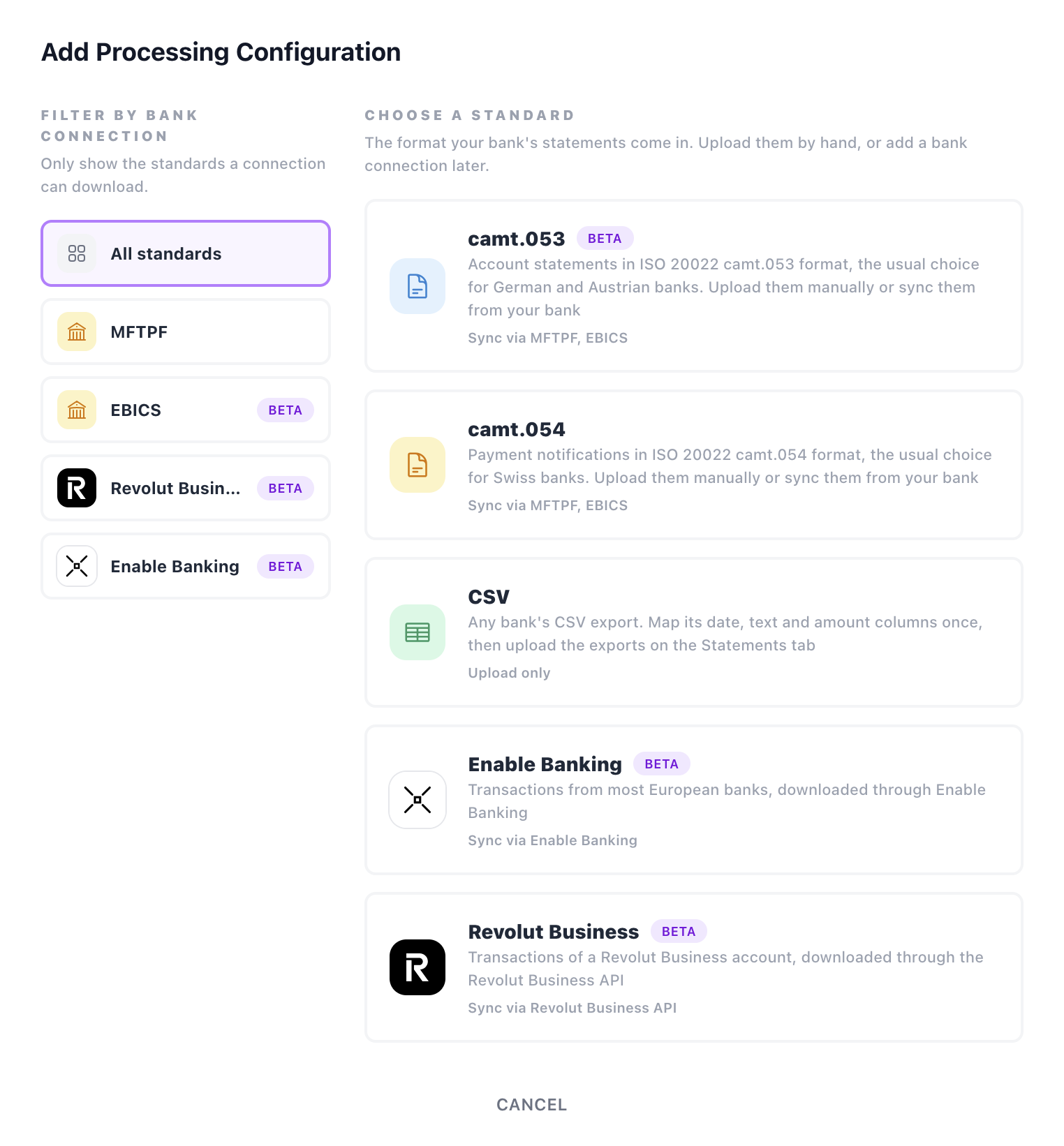
- Choose a standard — the statement types, each saying whether it can sync through a connection (Sync via …) or is Upload only.
- Filter by bank connection — pick a connection (MFTPF, EBICS, Revolut Business API, Enable Banking) to see only the types it can download. Choosing a type from a filtered list opens that connection's setup right after.
Then give the configuration a name and click Create. The configuration opens for editing.
Editing a configuration
Edit opens a configuration's settings. The name is edited in the dialog's header; the sections below depend on the type.
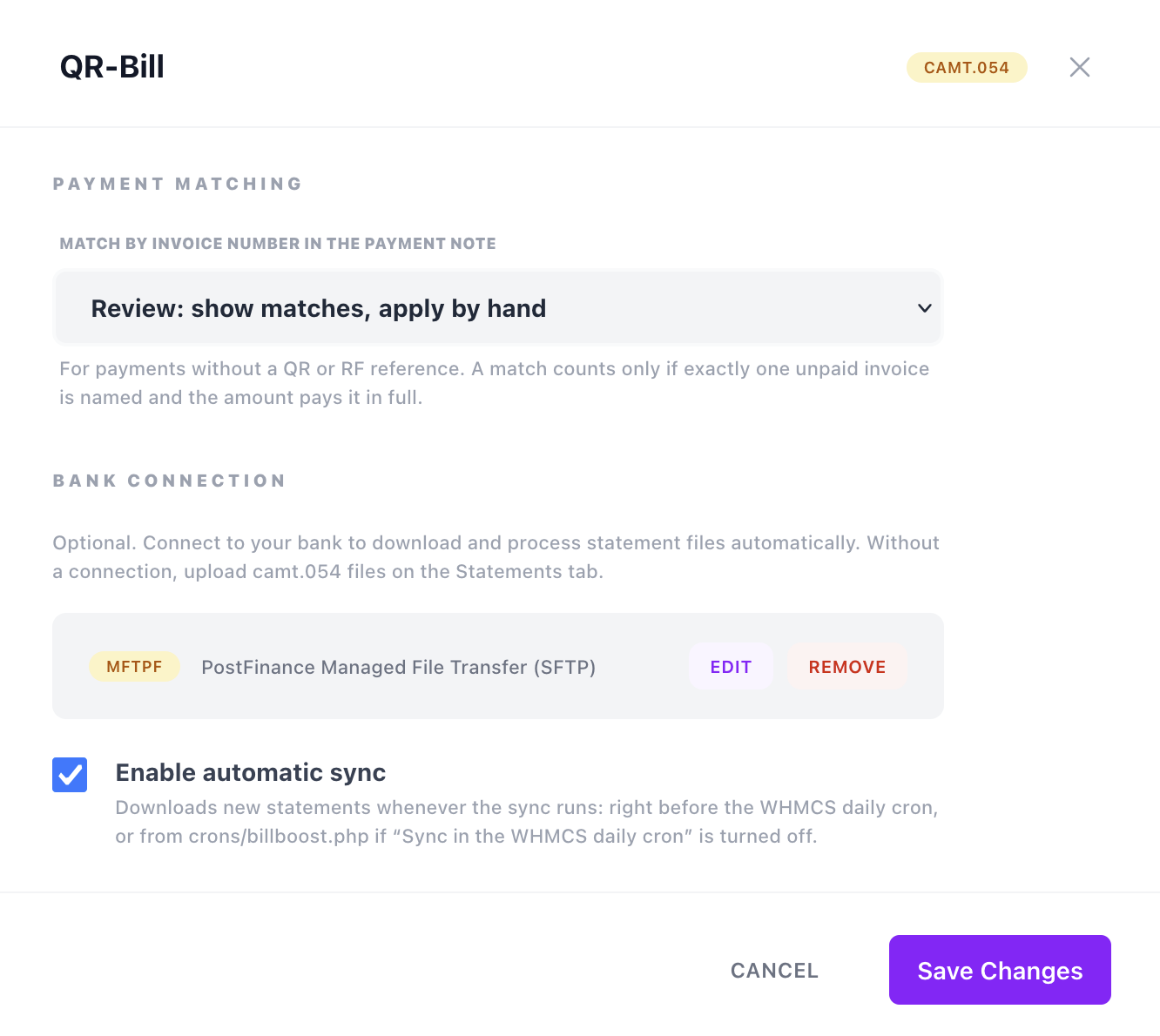
CSV Columns
A CSV configuration first needs to know how your bank writes its export. Click Choose sample… and pick an export from your bank: its first rows are shown as a table, and the columns you map are highlighted in it. The sample is only read in your browser, not stored.
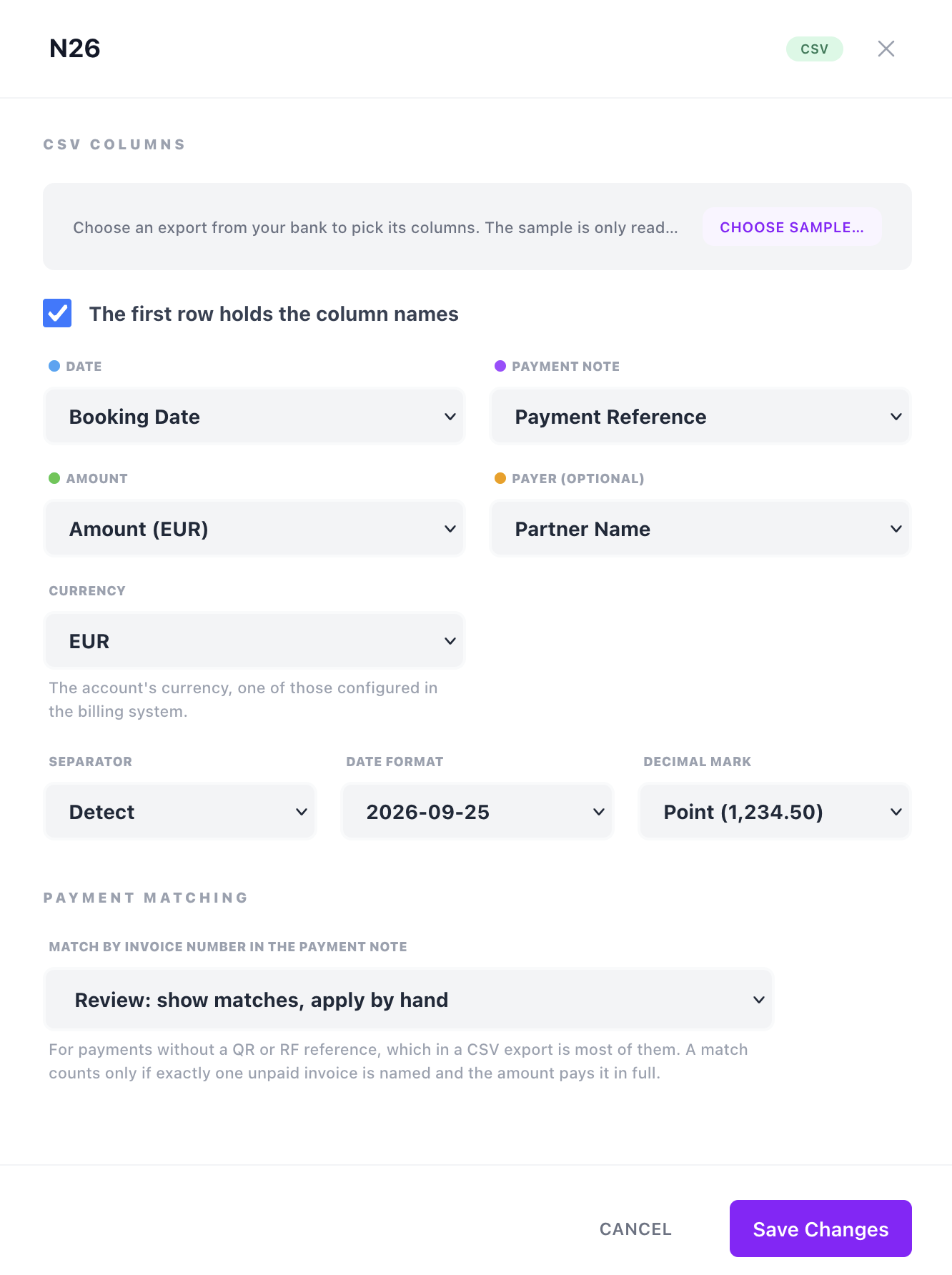
| Field | Purpose |
|---|---|
| The first row holds the column names | Tick it when the export starts with a header row. The columns are then offered by name, and found by name in later exports, even if the bank reorders them. |
| Date | The booking date of the payment. |
| Payment note | The free-text note the payer wrote — what the invoice number (or an RF reference) is read from. |
| Amount | The amount. Outgoing payments (zero or negative amounts) are skipped. |
| Payer (optional) | Who paid, shown in the transaction preview and details. |
| Currency | The account's currency, one of those configured in WHMCS. A CSV configuration reads one account, so the currency is set here rather than read from the file. |
| Separator, Date format, Decimal mark | How values are written. Detect works them out from the file; set them explicitly if a sample reads wrongly. |
The Reads as column next to the sample shows how each row will be understood — its date and amount, outgoing, skipped, or what is wrong with it — so you can check the mapping before saving. If a later export lacks a mapped column, Billing Booster names it rather than guessing.
Payment Matching
Match by invoice number in the payment note decides what to do with payments that carry no reference, but whose note names an invoice:
| Option | Effect |
|---|---|
| Off | Payments are matched by their reference only. Not offered for CSV, where most payments carry no reference. |
| Review (default) | Matches found in the payment note are shown in the preview, marked From note and not preselected. You apply them by hand after checking them; automatic processing puts them on the review list instead. |
| Automatic | Matches found in the payment note are also applied by automatic processing, like reference matches. |
Bank Connection
For every type except CSV. A connection is optional for camt.054 and camt.053; without one, you upload the files yourself on the Statements tab. Revolut Business and Enable Banking need theirs.
To add one, click Configure, choose the connection type, fill in its details or go through its setup, and click Apply. The connection is stored with the configuration when you click Save Changes. Edit changes its details, and Remove takes it off the configuration again. The connection types are described below.
Automatic sync
Enable automatic sync becomes available once a bank connection is configured and ready — for EBICS, once the setup is Active; for Revolut Business and Enable Banking, once access is authorised and an account chosen. When on, new statements are downloaded and processed automatically — with the WHMCS daily cron, or as often as you schedule crons/billboost.php, depending on the shared setting Sync in the WHMCS daily cron (see Automatic processing).
Toggle the configuration Enabled once it's filled in. When at least one statement configuration is enabled, the Statements top tab appears (see Statements) — with or without a bank connection.
Shared settings
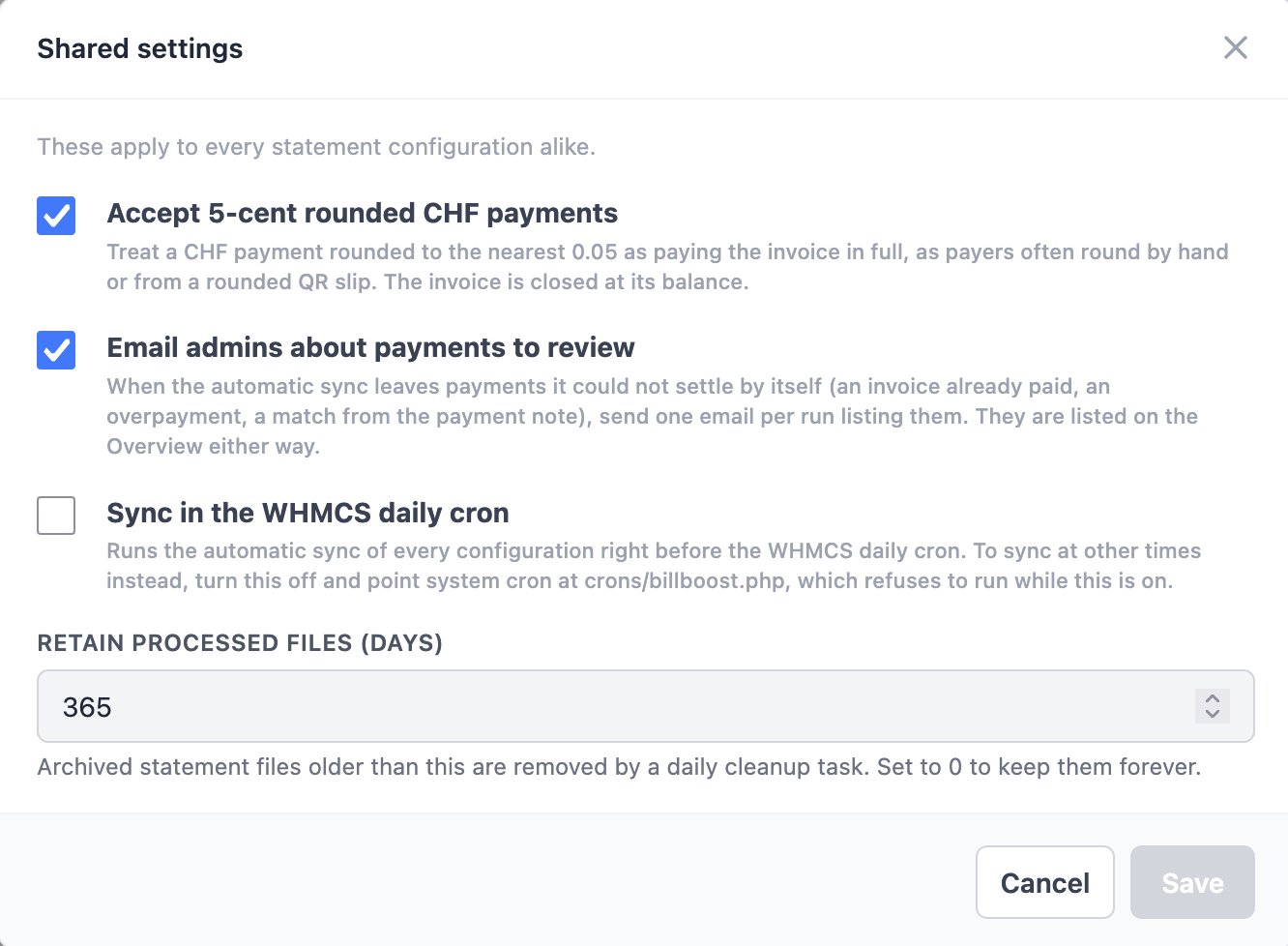
A few settings apply to every statement configuration alike. Shared settings, next to Add Configuration, opens them:
| Setting | Purpose |
|---|---|
| Accept 5-cent rounded CHF payments | Treat a CHF payment rounded to the nearest 0.05 as paying the invoice in full — payers often round by hand, or pay from a rounded QR slip — and close the invoice at its balance. Only shown when WHMCS has CHF configured, and always on while a SwissQR payment code has Apply rounding on create on. |
| Sync in the WHMCS daily cron | On by default. Runs the automatic sync of every configuration right before the WHMCS daily cron. Turn it off to sync at times of your own instead, by scheduling crons/billboost.php — which refuses to run while this is on. See Automatic processing. |
| Email admins about payments to review | On by default. When automatic processing leaves payments it could not settle by itself, send one email per run listing them. They are listed on the Overview either way; see Payments to review. |
| Retain processed files (days) | How many days to keep statement files in the archives — uploaded and downloaded files alike. Older files are removed by a cleanup that runs with the WHMCS daily cron. 0 keeps them forever. Default 30. |
Bank connections
A connection downloads the configuration's own type: a camt.053 configuration fetches camt.053 files, a camt.054 configuration camt.054 files, and the Revolut Business and Enable Banking types their account's transactions.
MFTPF (PostFinance)
PostFinance's Managed File Transfer Platform, over SFTP. For camt.054 and camt.053.
| Field | Purpose |
|---|---|
| SFTP Username | Your PostFinance MFTPF SFTP username. |
| SFTP Private Key Path | Absolute path on the server to the SSH private key used to authenticate to MFTPF. |
Each file is saved to the archive before it is deleted from the SFTP server.
The SFTP private key authenticates to your bank. Store it outside the web root with strict file permissions, and point the SFTP Private Key Path at that location.
EBICS
EBICS 3.0, the banking standard for corporate file transfer in Switzerland, Germany and Austria — offered by UBS, Raiffeisen, ZKB, the cantonal banks, PostFinance, and the German and Austrian banks alike. For camt.054 and camt.053. (Beta)
Before you start, you need:
- An EBICS contract with your bank, usually available for a fee. Downloading statements only needs transport rights, not signing rights. The bank sends you the access details: the EBICS URL, host ID, partner ID and user ID, and the hash values of the bank's keys.
- Outbound HTTPS from your server to the bank's EBICS URL. The bank's TLS certificate is always verified.
| Field | Purpose |
|---|---|
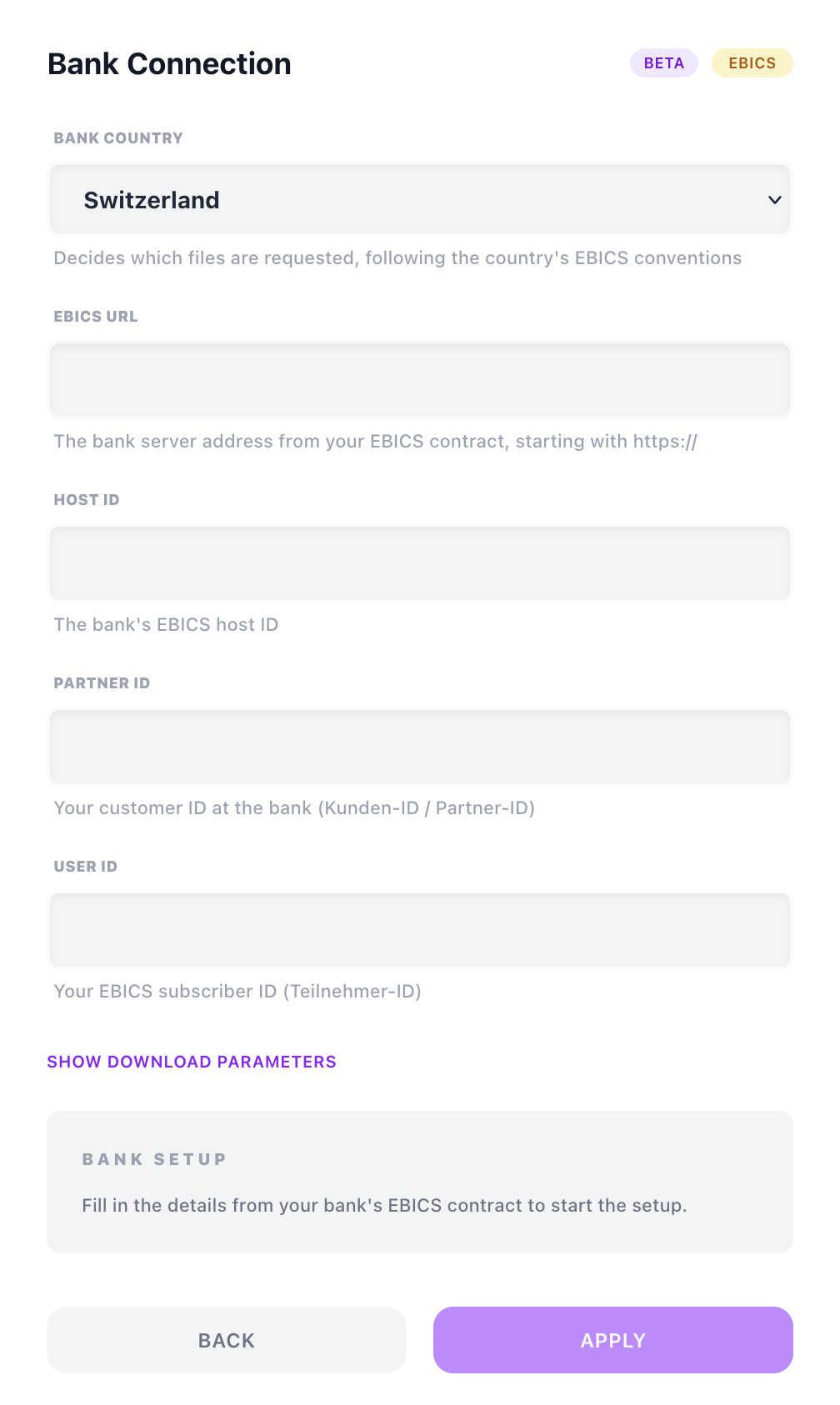
| Bank Country | Switzerland, Germany or Austria. Decides which files are requested, following the country's EBICS conventions. |
| EBICS URL | The bank server address from your EBICS contract, starting with https://. |
| Host ID | The bank's EBICS host ID. |
| Partner ID | Your customer ID at the bank (Kunden-ID / Partner-ID). |
| User ID | Your EBICS subscriber ID (Teilnehmer-ID). |
Show download parameters reveals the EBICS parameters of the files to download. They are filled in from the bank country and the configuration's format — leave them empty unless your bank tells you otherwise:
| camt.053 | camt.054 | |
|---|---|---|
| Switzerland | EOP / CH / ZIP | EOP / CH / ZIP |
| Germany | EOP / DE / ZIP | STM / DE / ZIP |
| Austria | EOP / AT / ZIP | STM / AT / ZIP |
(Service Name / Scope / Container; the Message Name is the configuration's format.) Service Option can narrow the download, e.g. XQRR for QR-reference credits only at Swiss banks that offer it.
Setting up EBICS with your bank
Before the first download, your keys have to be exchanged with the bank. The Bank Setup panel below the fields walks you through it, and shows where you are:
- Generate & Send Keys. Billing Booster generates your EBICS keys, with certificates issued in your company name, and sends them to the bank. If sending fails halfway, the button changes to Retry Sending Keys and resends the same keys.
- Print Letter. Print the initialisation letter, sign it, and post it to your bank. The bank compares it with the keys it received.
- Wait for the bank. The bank activates your access once it has checked the letter — usually within a few days. The panel shows Waiting for bank in the meantime; you can close it and come back later.
- Check Bank Activation. Downloads the bank's keys. Until the bank has activated your access, it refuses, and Billing Booster shows the bank's reason.
- Compare the hash values. The panel shows the hashes of the bank's authentication and encryption keys. Compare them with the ones in your bank's EBICS contract documents. Click They Match, Activate only if they match exactly; otherwise click Don't Match and contact your bank.
Once Active, the connection downloads statements, and automatic sync can be turned on.
These steps take effect at the bank immediately, independently of Save Changes — but the connection details themselves are only stored on the configuration when you save it. While keys exist, the contract fields are locked, since changing them would name a different subscriber. Start over with new keys discards the keys so you can begin again; ask your bank to reset your EBICS access first, as it still holds the old keys.
Your private keys never leave the server and are never sent to the browser. They are stored encrypted, with a password that is itself encrypted with WHMCS's own encryption key — so a copy of the database alone is not enough to use them.
A download is only confirmed to the bank once its files are safely in the archive. If saving them fails, the bank delivers the same files again on the next download.
Revolut Business API
The Business API of your Revolut Business account, for the Revolut Business type. (Beta) The Bank Setup panel walks you through it:
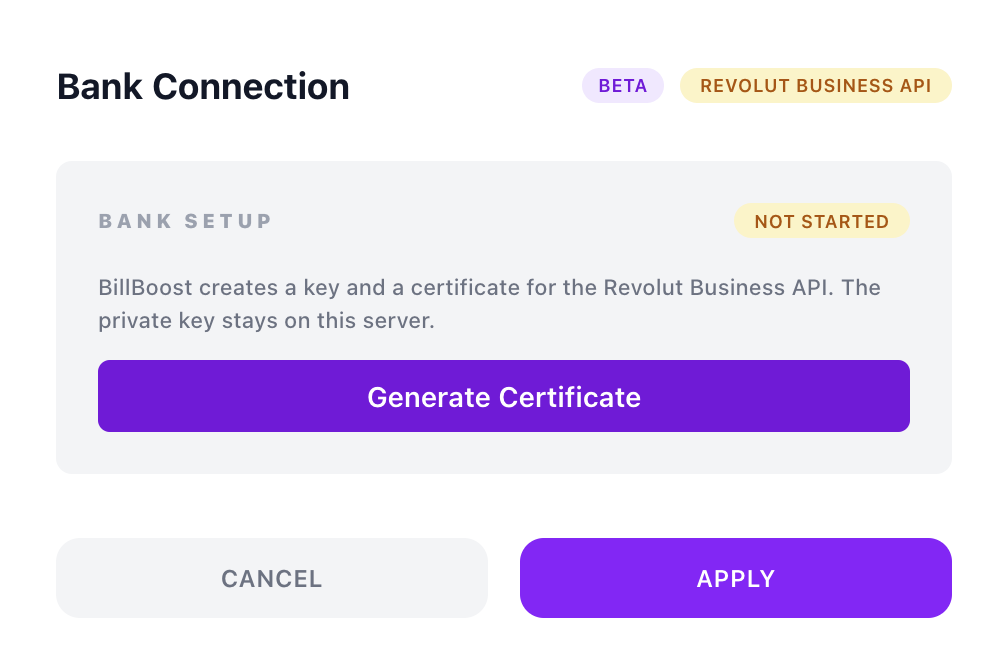
- Generate Certificate. Billing Booster creates a key and a certificate for the API. The private key stays on your server.
- Register it in Revolut. In Revolut Business, open Settings → APIs → Business API and add an API certificate. Enter the OAuth redirect URI shown in the panel, and paste the X509 public key — both have a copy button.
- Client ID. Copy the client ID Revolut shows for the certificate into the Client ID field. Tick Revolut sandbox only for testing against Revolut's sandbox.
- Authorise in Revolut. A new window opens at Revolut; confirm access there, and it closes itself when done.
- Account. Choose the account to download from the list.
The panel's status reads Not started, Not authorised, Authorised or Expired. Start over discards the certificate and the authorisation; you will then have to add a new certificate in Revolut.
Enable Banking
Enable Banking connects most European banks through their PSD2 interfaces, for the Enable Banking type. You use your own Enable Banking application; linking your own accounts to it lets you use it without a contract with Enable Banking. (Beta)
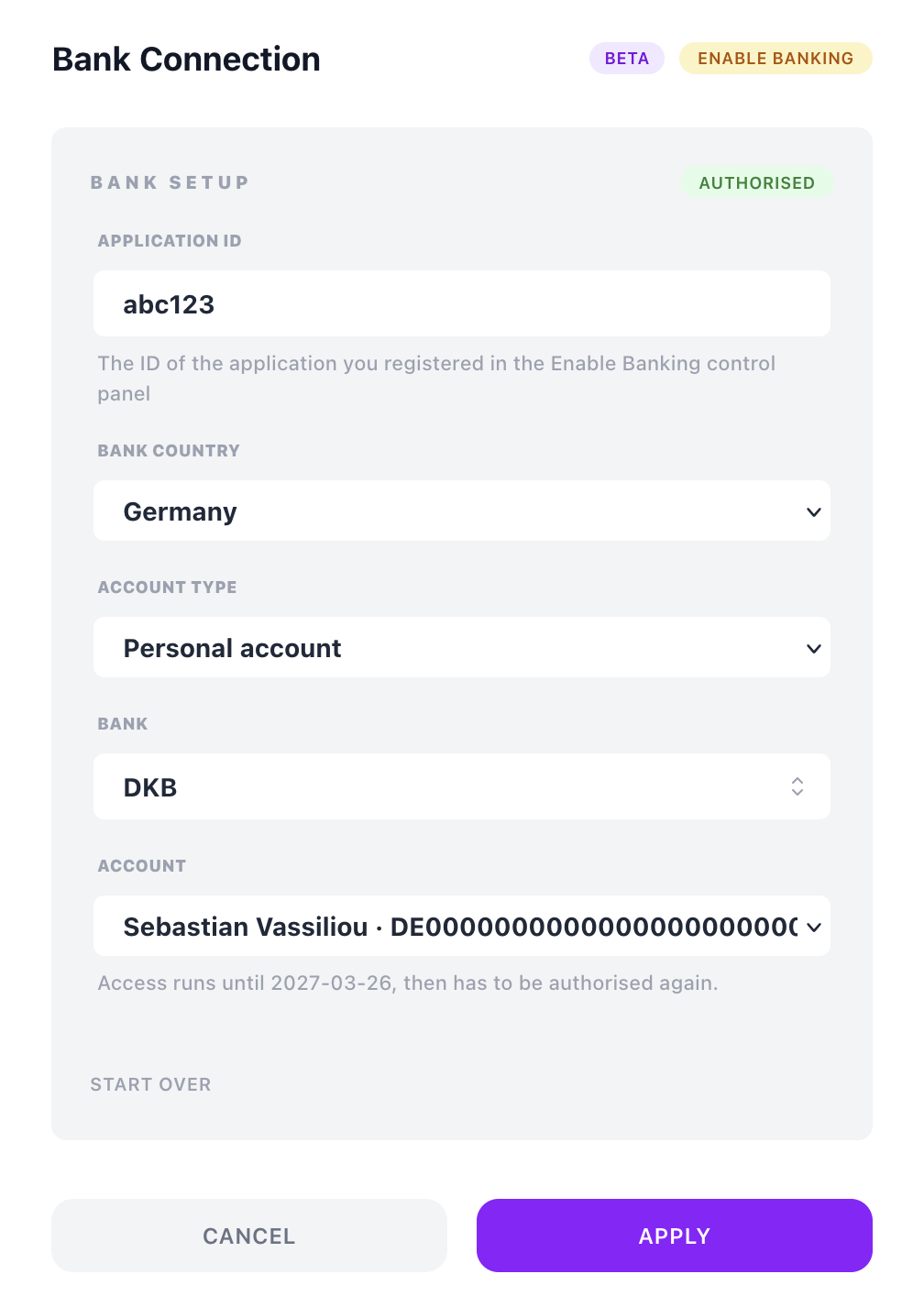
- Register an application. In the Enable Banking control panel, register an application with the Redirect URL shown in the panel, and keep the private key it downloads. Link your bank accounts to the application there.
- Private key. Drop the
.pemfile onto the Private key field, or paste its contents, and click Save Key. - Application. Enter the Application ID, and choose the Bank Country and the Account Type (business or personal).
- Bank. Pick your bank from the list; type to search it.
- Authorise at the Bank. A new window opens at your bank; grant access there, and it closes itself when done.
- Account. Choose the account to download from the list.
Banks grant access for a limited time — as long as each bank allows, or 90 days where it doesn't say. The panel shows Access runs until that date; after it, the status turns Expired and Authorise Again renews it. The Statements tab warns two weeks ahead. Start over discards the authorisation and keeps the application key.
How API downloads work
Revolut Business and Enable Banking downloads fetch transactions, not files. The first download reaches back 30 days; each later one fetches the last few days again, since banks book late, and keeps only the transactions it has not seen before. A transaction the bank still reports as pending is held back until it is booked. What is fetched is archived as a JSON file, like any statement, so it can be processed again from the Statements tab.
Revolut and Enable Banking send your browser back to modules/addons/billboost/oauth/callback.php after you authorise. Billing Booster's module folder denies direct access, and ships an .htaccess in oauth/ that lets this one file through. On nginx, or behind a web application firewall, allow that path yourself, or the authorisation ends on a 403.
The Revolut key, the Enable Banking private key and the access tokens are stored encrypted in Billing Booster's settings, and never sent to the browser.
It is one of Billing Booster's three separately-sold features. Without it, the Statements top tab stays hidden, Transactions only appears if Payment Codes is licensed, and the automatic sync exits without doing anything — even if a configuration was set up while the feature was still licensed. See Licensing and what you can see.
With a configuration enabled, head to Statements to upload or download statements and apply the payments they contain.