Payment Codes
Payment codes are scannable codes (and structured payment references) that Billing Booster embeds into your PDF invoices, invoice emails, and the payment page. A customer scans the code with their banking app and the payment is pre-filled with your account, the amount, and a reference — so they pay faster and you get correctly-referenced payments.
You manage them on the Payment Codes sub-tab, under Settings.
A payment code only reaches a PDF invoice once WHMCS knows where to put it: either a BestPDF design with a Payment Code component, or one of the billboost-* child themes. Emails additionally need the {$paycode} tag. Both are covered in Installation, and both are easy to forget.
Supported standards
| Standard | Region | Notes |
|---|---|---|
| EPC (SEPA) | Single Euro Payments Area | The "SEPA QR" / GiroCode. EUR accounts. |
| SPAYD | Czech Republic & Slovakia | Short Payment Descriptor. Supports the KS constant symbol. |
| HUB3 | Croatia | Supports model and purpose codes. |
| SwissQR | Switzerland & Liechtenstein | The Swiss QR-bill. CHF / EUR, a QR-IBAN with a QR reference or a classic IBAN with an RF creditor reference. |
| Verifactu | Spain | The Spanish invoice QR (VeriFACTU), linking to the AEAT. |
All five standards are included with the Payment Codes feature — there is no per-standard licensing. What your license does decide is whether the Payment Codes feature is available at all; see Licensing and what you can see.
Creating a payment code
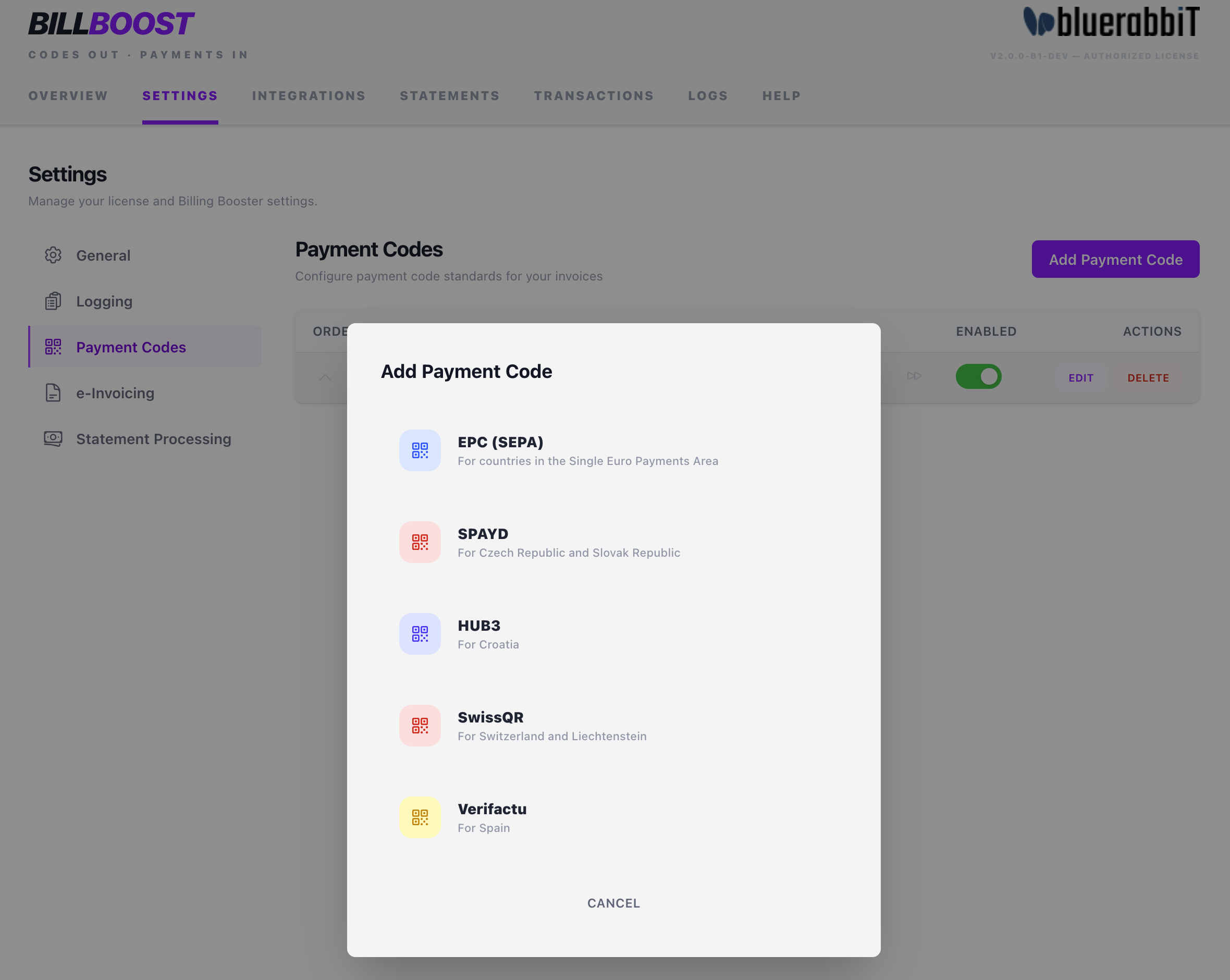
- On the Payment Codes tab, click Add Payment Code.
- Choose a standard that matches your bank account and region.
- Name the configuration (e.g.
Main EUR account) and create it. The editor opens. - Fill in the editor tabs (below), click Save, and toggle the configuration Enabled in the list.
You can have multiple payment codes — for example one EPC code for your Euro account and one SwissQR code for your CHF account — and use Conditions to control which invoice gets which.
The editor
The editor is organised into tabs. Which tabs appear depends on the standard you chose: Account Details, Settings (all standards except Verifactu), Company Details (SwissQR only), Layout, and Conditions.
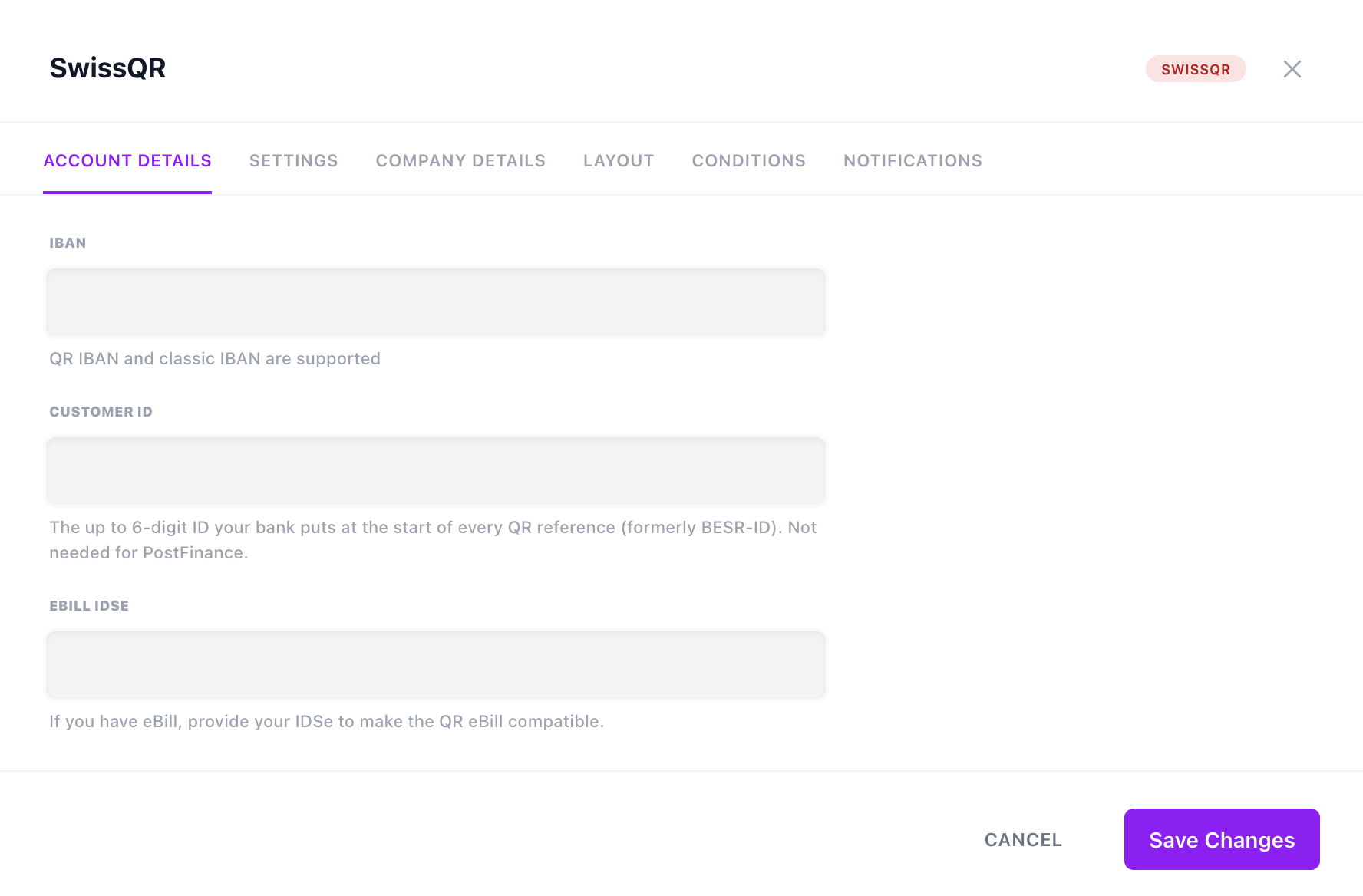
Account Details
The bank details the payment will be directed to. Fields vary by standard:
- EPC / SPAYD — Account Recipient, IBAN, and BIC.
- HUB3 — the same three, plus two Recipient Address lines.
- SwissQR — your IBAN, a QR-IBAN or a classic IBAN. The editor tells you which one you entered, and that decides the reference on the slip: a QR-IBAN gets a QR reference, a classic IBAN an ISO 11649 RF creditor reference.
- Customer ID — the ID of up to 6 digits that some banks, UBS among them, put at the start of every QR reference, formerly known as the BESR-ID. Your bank gives it to you with the QR-IBAN. Leave it empty for PostFinance. Only a QR reference has room for it, so the field is greyed out for a classic IBAN.
- eBill IDSe — if you use eBill, providing your IDSe makes the QR eBill-compatible.
- Verifactu — your Tax Identification Number (NIF).
Settings
Per-code options, varying by standard (the tab is not shown for Verifactu):
- Statement format (EPC / SPAYD / HUB3) — a template for the payment reference / message shown to the payer. Use merge fields such as the invoice and client numbers; the editor has an insert menu for them.
- Use an RF creditor reference (EPC) — puts an ISO 11649 RF reference, built from the client and invoice number, into the code instead of the statement text. The bank then passes it on as a structured reference, which statement processing matches exactly. A SEPA transfer carries either a reference or a free text, never both, so the Statement format is greyed out and emptied while this is on; switching the reference off again in the same edit brings the text back.
- Constant Symbol (SPAYD) — the
KSvalue. - Model and Purpose (HUB3) — the purpose code as defined in ISO 20022.
- Reference format (HUB3) — a free-text template for the structured reference.
- Apply rounding on create (SwissQR) — rounds CHF slip amounts to the nearest 0.05. While it is on, statement processing always accepts such rounded payments.
- Reference Format (SwissQR) — either Invoice number, or Client number + Invoice number (the client is omitted if the combination is too long).
Company Details (SwissQR only)
The Swiss QR-bill prints the creditor (your company) address on the slip. Enter your Company Name, Street and Number, Country, Postcode, and City.
Layout
Controls how the code is rendered when Billing Booster places it itself (i.e. without BestPDF). Most of these controls are disabled when BestPDF is detected, since BestPDF owns placement.
For every standard except SwissQR:
- QR width — the size of the QR code, in millimetres. This is the one setting that still applies under BestPDF, which renders the QR code alone at the position set in its template editor.
- Style —
Horizontal,Vertical, orQR-only. - Text alignment —
Left,Right,Center, orJustify. - Show euro logo next to header (EPC only) — render the euro logo alongside the code.
- Show details for manual bank transfers (EPC / SPAYD / HUB3) — render a human-readable details block next to the code, for customers who type the transfer by hand.
For SwissQR, the slip itself has a fixed, standardised layout, so there is nothing to size or align. The Layout tab instead controls where the slip goes and how it is marked up.
Slip placement
Which page of the invoice PDF the payment part is drawn on:
| Value | Behaviour |
|---|---|
| Last page (default) | Draw the slip at the foot of the last page. If invoice content already reaches down into the slip area, a new page is added first, so the two can never overlap. |
| Separate page after the invoice | Always append a page and put the slip on it, leaving the invoice itself untouched. |
| First page | Draw the slip at the foot of page one — the traditional Swiss QR-bill look. |
Last page is the right answer for most installs: on a single-page invoice it looks identical to First page, and it protects itself on longer ones. Choose Separate page after the invoice if you want the invoice body never to be altered — some accounting workflows prefer the slip on its own sheet.
The slip occupies the bottom 105 mm of the page, so Billing Booster has to keep invoice content out of that band. TCPDF's page-break margin is a single global value, which means the space is reserved on every page, not just page one.
On an invoice that fits on one page, that is exactly what you want. On one that runs to two or more, you get a gap at the foot of every page and a payment slip sitting in the middle of the document. Prefer Last page unless your invoices reliably fit on a single page. The editor shows the same warning when you pick this option.
Show separation lines
When the QR-bill's scissor / fold lines and slip are rendered:
| Value | Behaviour |
|---|---|
| Always | Always render the full payment part with separation lines. |
| Always except admin area | Render everywhere except admin-generated previews. |
| In emails only | Only include the slip in emailed invoices. |
| Never | Never render the separation lines. |
Unlike slip placement, this setting stays editable when BestPDF is installed — BestPDF decides where the slip goes, but not how it is marked up.
When BestPDF is installed, the Layout settings are superseded by the Payment Code component in the design editor, which gives you pixel-precise positioning. The editor shows a note to this effect and greys the controls out — Slip placement included: under BestPDF, a Swiss QR slip lands on the page the invoice content reaches the Payment Code on — last in the content for the last page, behind a page break for a page of its own, first for page one. See Where the Swiss slip lands.
Conditions
Conditions decide which invoices receive this payment code. An invoice must match every active condition.
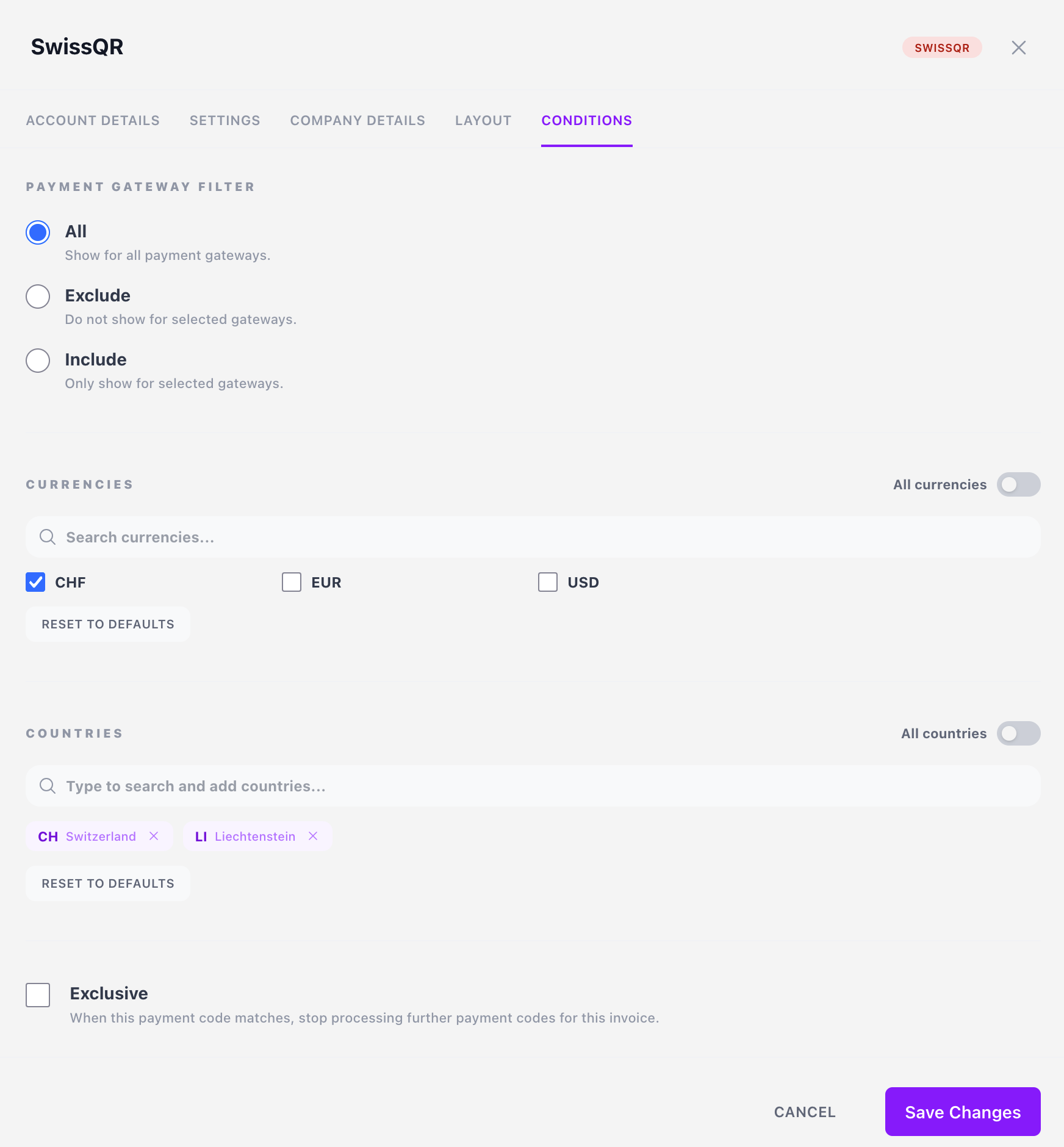
- Payment gateway filter — Show for all gateways, Only show for selected gateways (include), or Do not show for selected gateways (exclude). Useful when a code only makes sense for, say, bank transfer.
- Currencies — restrict to specific currencies, or enable All currencies. For EPC, a Convert to EUR for non-SEPA countries checkbox sits under this list: it converts the amount to EUR when the invoice is in another currency, so a non-EUR invoice can still carry a SEPA code.
- Countries — restrict to specific client countries, or enable All countries. Search and add countries as tags.
- Exclusive — when enabled, if this code matches an invoice, no lower-priority code is also applied. Use it to guarantee exactly one code per invoice when several configurations could otherwise match.
When more than one code could match an invoice, the Order column on the list determines priority.
Merge fields in references
The Statement format and reference fields accept merge fields so the payer's reference can include invoice- and client-specific values. Common fields:
| Field | Meaning |
|---|---|
{{ invoice.num }} | Invoice number |
{{ invoice.id }} | Internal invoice ID |
{{ client.num }} | Client number |
{{ client.name }} | Client full name |
The editor's merge-field menu lists the full set, including invoice dates and totals, the client's address fields, and your company details.
A reference format of Client number + Invoice number (the built-in SwissQR preset) produces references that statement processing can later match back to the invoice automatically — see Statement Processing.
Notifications
The Notifications tab of a payment code decides whether WHMCS sends its own invoice emails at all when this code applies. It carries five toggles:
| Toggle | Suppresses |
|---|---|
| No email on create | Invoice Created |
| No email on reminder | Invoice Payment Reminder |
| No email on overdue | First / Second / Third Invoice Overdue Notice |
| No email on late fee | Invoice Modified |
| No email on payment | Invoice Payment Confirmation |
These do more than hide the payment code: they cancel the email. Use them when your bank or accounting workflow already notifies the customer and you don't want WHMCS duplicating it.
Sending an invoice by hand from the admin area goes out regardless of these toggles, so you always have a way to get a message to a customer.
Where the code appears
When a configuration is enabled and an invoice matches its conditions, the code is rendered into:
| Where | What has to be set up |
|---|---|
| The PDF invoice | A Payment Code component in your BestPDF design — or, without BestPDF, one of the billboost-* child themes as your active template |
| Invoice emails | A {$paycode} tag in the email template (see Installation → Add the email tag) |
| The client-area invoice page | Nothing — Billing Booster adds it by itself |
| The payment page | The Payment Code gateway installed and enabled for the currency |
On the client-area invoice page the code is suppressed when the client has selected the Payment Code gateway, because that page renders its own code for the amount actually being paid.
Turn on diagnostic logging under Settings → Logging, regenerate the invoice, and check the Logs tab — it will tell you exactly which condition excluded the invoice. See Troubleshooting.