E-Invoicing
E-invoicing produces a machine-readable XML version of your invoice alongside the human-readable PDF. Many jurisdictions and B2B/B2G customers now require structured electronic invoices that their accounting systems can ingest automatically — Billing Booster generates that XML in the standard you need.
You manage e-invoice configurations on the e-Invoicing sub-tab, under Settings.
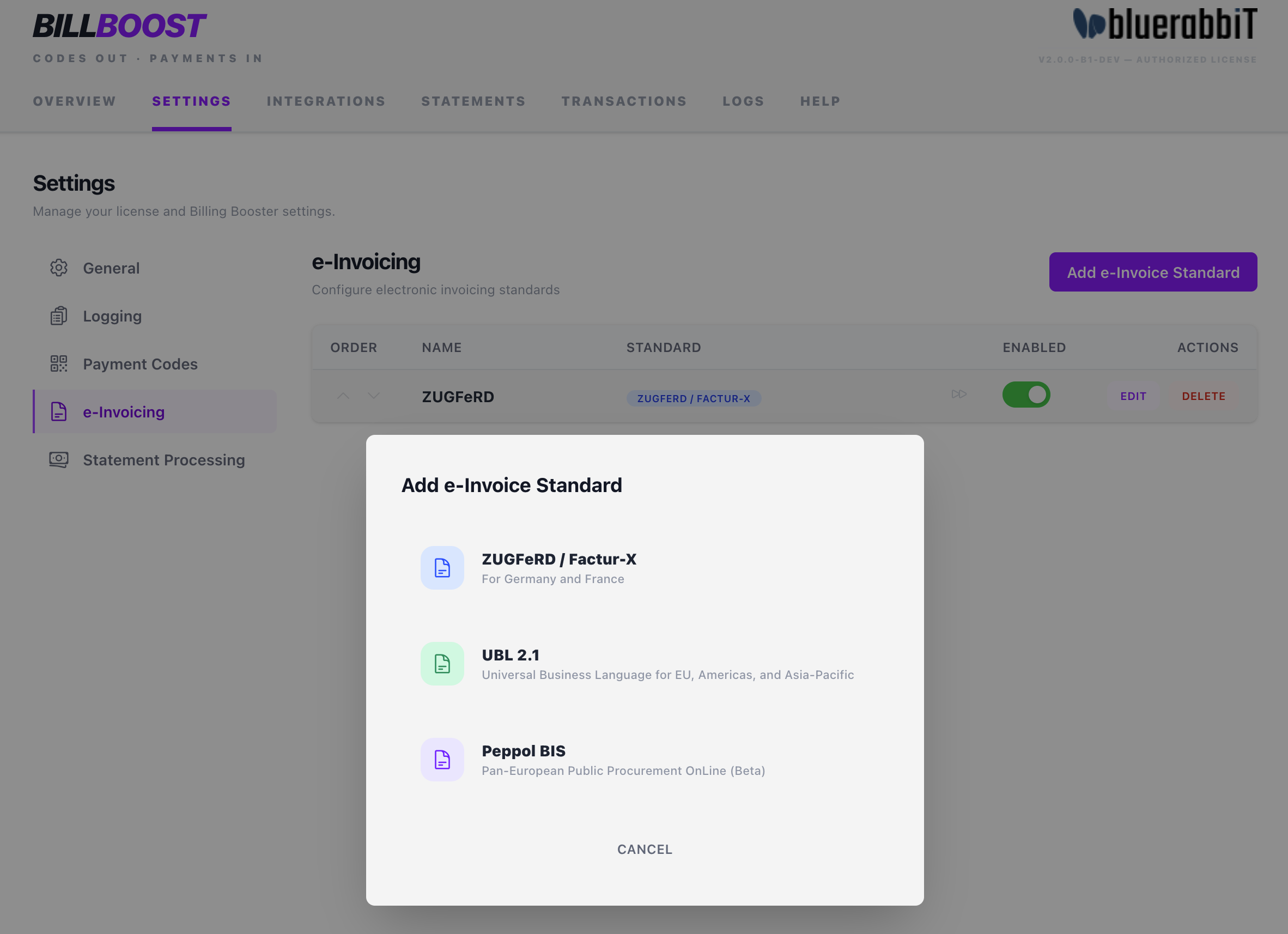
Supported standards
| Standard | Region | Notes |
|---|---|---|
| ZUGFeRD / Factur-X | Germany & France | Hybrid format — the XML is embedded inside the PDF. Requires BestPDF. |
| UBL 2.1 | EU, Americas, Asia-Pacific | Universal Business Language. Broad international coverage. |
| Peppol BIS (beta) | Pan-European procurement | Peppol BIS Billing. Currently in beta. |
All three are included with the e-Invoicing feature — there is no per-standard licensing. Whether the feature itself is available depends on your license; see Licensing and what you can see.
ZUGFeRD and Factur-X are hybrid invoices: the XML must be embedded within the PDF file itself. That embedding is performed by the BestPDF E-Invoicing component. Without BestPDF, Billing Booster can still produce the XML for UBL and Peppol, but it cannot embed Factur-X into the PDF.
Creating an e-invoice configuration
- On the e-Invoicing sub-tab (under Settings), click Add and choose a standard.
- Name the configuration and create it. The editor opens.
- Fill in the editor tabs (below), click Save, and toggle the configuration Enabled.
The editor
Company Details
Your company's legal identity as it must appear in the XML — company name, street (and building number for UBL), postcode, city, and country. ZUGFeRD supports additional address lines.
Tax Information
Your VAT number, and for ZUGFeRD also your national tax number (Steuernummer). These are required for the invoice XML to validate against the chosen standard's schema.
This tab also decides how invoice lines that carry no VAT are declared, which is a statement about the reason they are untaxed — not a cosmetic choice. Your customer's accounts-payable system posts VAT from that code.
VAT treatment of untaxed lines
| Option | Means | Use it for |
|---|---|---|
| Zero rated (Z) | The supply is taxable, at 0%. | The default, and correct for genuinely zero-rated domestic supplies. |
| Exempt from VAT (E) | The supply is outside the scope of VAT. | Exempt supplies, where an exemption reason applies. |
| VAT reverse charge (AE) | The buyer accounts for the VAT. | Intra-EU B2B supplies to a VAT-registered customer. |
Choosing E or AE reveals two more fields:
- Reverse charge wording (AE) / Exemption reason (E) — the text printed on the invoice. For reverse charge it defaults to "Reverse charge" when left empty; for an exemption it is required, because the statutory reason is specific to the supply.
- Exemption reason code — an optional VATEX code, e.g.
VATEX-EU-AEfor an intra-community reverse charge.
An e-invoicing configuration states one treatment, so target it with the Conditions tab — typically by country — rather than expecting Billing Booster to work out which customers it applies to. Which treatment is correct is a legal question about the supply; confirm it against your own VAT position.
Both non-default options fall back to zero-rated rather than emit an invalid document: AE needs both your VAT number and the customer's, and E needs a reason. Invoices missing either are generated as Z.
Existing configurations keep the previous behaviour — the default is Z, which is what every untaxed line was declared as before this option existed.
Contact Information (ZUGFeRD only)
ZUGFeRD can carry a named contact: contact name, department, email, and phone.
Conditions
As with payment codes, conditions decide which invoices generate this e-invoice. An invoice must match every active condition.
- Payment gateway filter — limit to (or exclude) specific gateways.
- Currencies — restrict to specific currencies, or All currencies.
- Countries — restrict to specific client countries, or All countries.
- Exclusive — when enabled, a matching invoice won't also receive a lower-priority e-invoice configuration.
This lets you, for example, generate Factur-X for German and French clients while generating UBL for the rest of the EU — or run one configuration for domestic customers and a second, reverse-charged one for other EU member states.
Where the XML goes
Billing Booster produces the XML at three moments, and each has its own destination:
- When an invoice is closed — the XML is written to Billing Booster's data storage directory. This is your own archive copy; it is not exposed to clients.
- In invoice emails — as a file attached to the invoice email, when Attach e-invoices to invoice emails is on (see below).
- On the client-area invoice page — an e-Invoice download button appears automatically on any invoice that has one. There is no tag to place and no template to edit.
- Inside the PDF (ZUGFeRD / Factur-X only) — the XML is embedded into the PDF by BestPDF, producing a single hybrid file that is both a normal PDF and a valid e-invoice.
Attaching e-invoices to emails
Email delivery is set in the Shared settings dialog — the button next to Add e-Invoice Standard — since it applies to every e-invoicing configuration alike. The toggle saves as soon as you change it:
Attach e-invoices to invoice emails — on by default.
It is worth knowing how this works, because it has a visible side effect. WHMCS's email hooks cannot add an attachment to a message already in flight, so Billing Booster cancels the invoice email and sends its own copy carrying the XML. The customer receives one email either way, but it is sent by Billing Booster rather than by WHMCS.
Turn it off to leave WHMCS's emails completely untouched. E-invoices are still generated, still archived, still embedded in the PDF, and still downloadable from the client area — they simply aren't attached to the email.
Before sending e-invoices to customers or authorities in production, validate a sample against the official validator for your standard (e.g. the Factur-X / ZUGFeRD validator, or a Peppol test endpoint). If generation fails, check the Logs tab.