Configuration
The Billing Booster interface is where you manage payment codes, e-invoicing rules, statement processing, and the module's general settings. This page covers the layout of the interface and the general settings; the feature-specific pages cover the rest.
Opening the configuration interface
Once Billing Booster is installed and licensed (see Installation), open it from the admin Addons menu — click Addons in the main navigation and select Billing Booster.
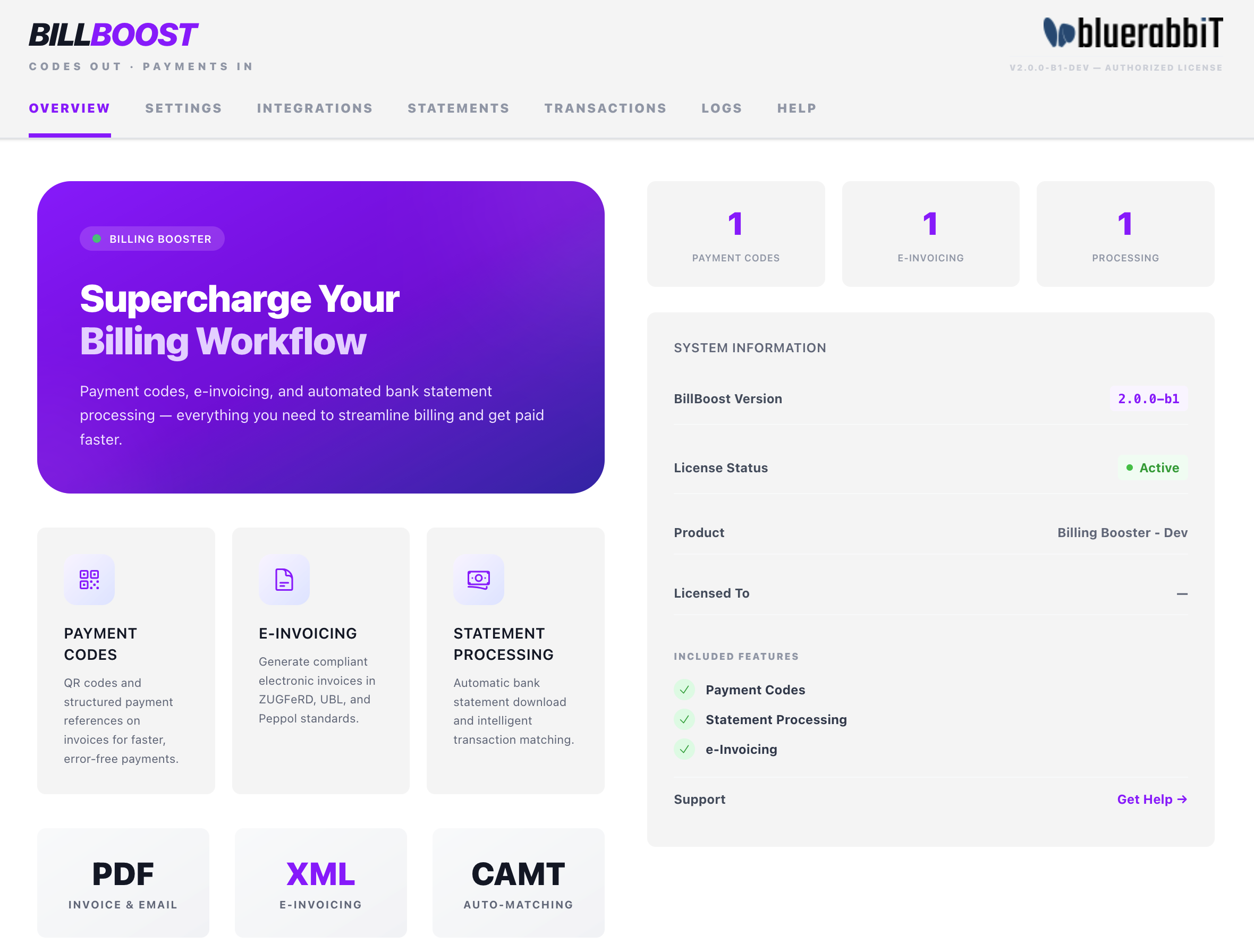
The Billing Booster interface at a glance
The interface is organised into tabs across the top:
| Tab | What it does | Documented in |
|---|---|---|
| Overview | Landing page — license status, licensed features, module version, configuration counts, and payments waiting for review. | (this page) |
| Settings | All configuration, organised into sub-tabs (see below). | (this page) |
| Integrations | Shows which BlueRabbIT add-ons (BestPDF, Pingen Post) are detected and what they enable. | Integrations |
| Statements | Import bank statements and apply the payments they contain. | Statements |
| Transactions | A log of payments booked through the Payment Code gateway. | Transactions |
| Logs | A searchable, filterable view of Billing Booster's activity log — used when something goes wrong. | Troubleshooting → Reading the logs |
| Help | This documentation, embedded inside the admin area. | — |
Not all of them are always present — which tabs you see depends on your license and your configuration. See Licensing and what you can see.
Payment codes and e-invoicing are configured on sub-tabs inside Settings — there are no separate top-level tabs for them. The Statements and Transactions top tabs hold the day-to-day statement work; the processing configuration also lives under Settings. See Settings below.
Overview tab
The Overview tab is the landing page. It surfaces, at a glance:
- System information — module version, license status, the product you're licensed for, and who it's licensed to.
- Included features — a checklist showing which of Payment Codes, Statement Processing, and e-Invoicing your license unlocks.
- Active configuration counts — how many Payment Code, e-Invoicing, and Statement Processing configurations you currently have.
- Payments to review — the payments automatic statement processing could not settle by itself, each with an Apply or Dismiss button. The list only appears while there is something in it; see Statements → Payments to review.
The Included features checklist is the authoritative answer to "why can't I see X?" — a feature with a grey cross is not part of your license, and the parts of the interface that belong to it stay hidden or locked.
Licensing and what you can see
Billing Booster's three features — Payment Codes, e-Invoicing, and Statement Processing — are sold as three separate products rather than as one module with optional extras. A license entitles you to the feature its product covers, plus any further features you bought as add-ons on top of it.
Two consequences worth knowing:
- A feature you didn't buy stays locked even when your license is perfectly valid and shows Active. That is not an error — check the Included features checklist on Overview.
- The same gating is applied on the server, not just in the interface, so a locked feature also stops working in the background: no codes on invoices, no XML generated, no statements downloaded.
Entitlements are cached. Open Settings → General and click Force refresh next to the license key to re-check with the license server immediately. If the Overview tab says your license is active but includes no features at all, that's the button you want.
Settings
The Settings tab holds all configuration, organised into a vertical list of sub-tabs down the left side:
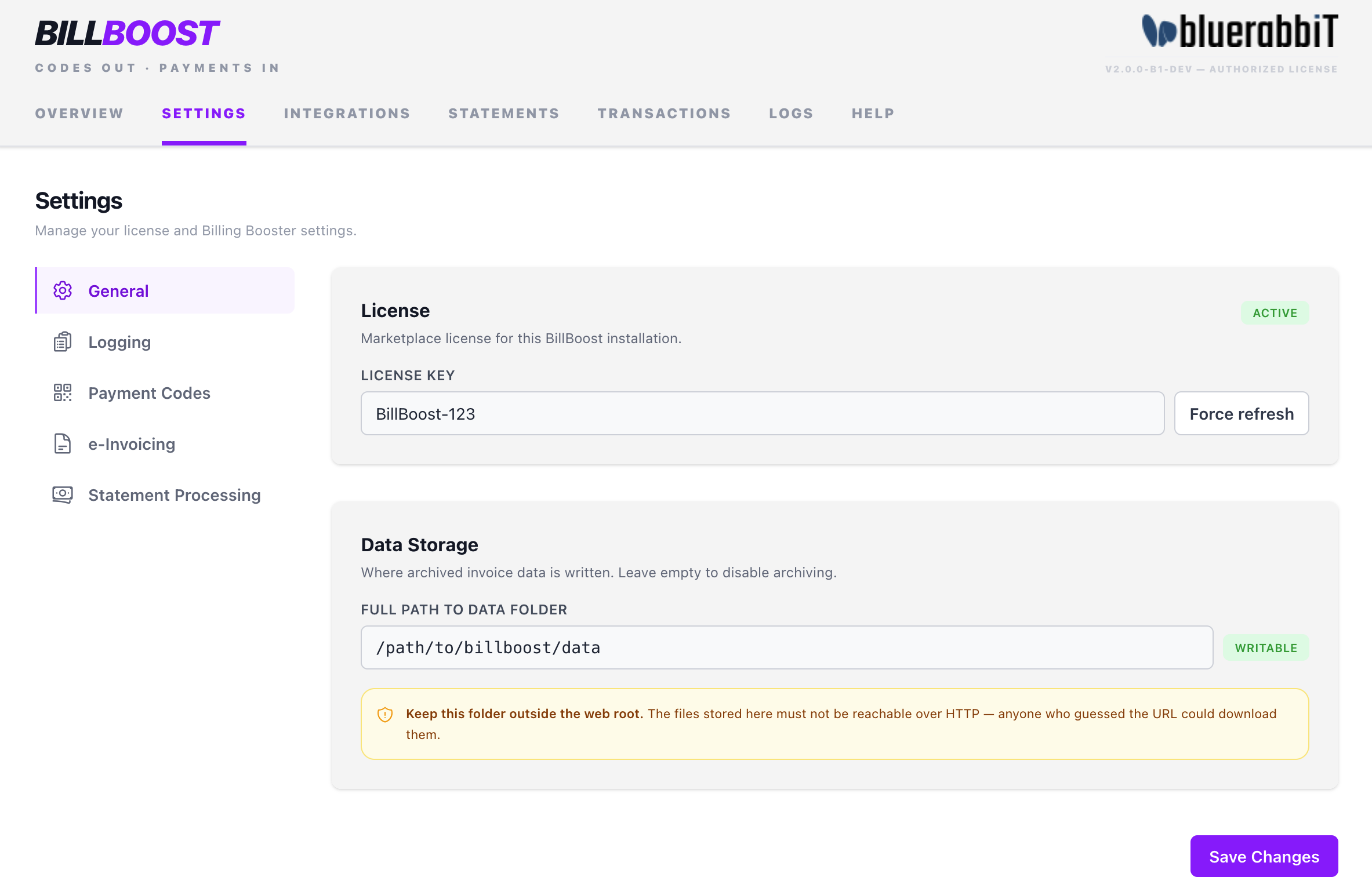
| Sub-tab | What it holds | Documented in |
|---|---|---|
| General | License key and data storage path. | (this page) |
| Logging | Diagnostic logging and log retention. | (this page) |
| Payment Codes | Create and manage payment code configurations. | Payment Codes |
| e-Invoicing | Create and manage e-invoice (XML) configurations. | E-Invoicing |
| Statement Processing | Statement processing configurations, each with an optional bank connection. | Statement Processing |
| Advanced | Settings backup and restore, and data removal. | (this page) |
The General, Logging and Advanced sub-tabs share the Save Changes button. The Payment Codes, e-Invoicing, and Statement Processing sub-tabs manage their own configurations directly (each add / edit / delete saves on its own).
General
The General sub-tab holds the license key and the data storage path.
License
Paste your license key here and click Save Changes. After saving you'll see the license status (Active, Invalid, Expired, or Suspended) and, where relevant, a description explaining any problem.
The Force refresh button next to the field re-checks with the license server there and then, bypassing the cached result. Use it after buying or renewing something, or when the status looks stale.
Data Storage
The full path to a directory where Billing Booster stores its data: archived payment codes and downloaded/processed bank statement files. Statement files are kept in one folder per statement configuration, e.g. camt054-1/.
(Generated e-invoice XML is archived here too; see E-Invoicing → Where the XML goes.)
- Leave it empty to disable archiving.
- The interface shows a live status chip next to the field: Writable, Not Readable, Not Writable, Not Executable, or Not Set.
Make sure the directory you configure here is not reachable from the web! Either protect it via .htaccess or, even better, store it outside of the web root. Downloaded bank statements can contain sensitive financial data.
Logging
The Logging sub-tab controls the module's own activity log (viewable on the Logs tab).
- Diagnostic logging — enable this to record detailed information about why an invoice did or didn't receive a payment code. This is the first thing to turn on when a code isn't appearing where you expect. Leave it off in normal operation to keep the log clean.
- Log retention (days) — entries older than this are removed by a cleanup that runs with the WHMCS daily cron. Set to
0to keep logs forever.
Advanced
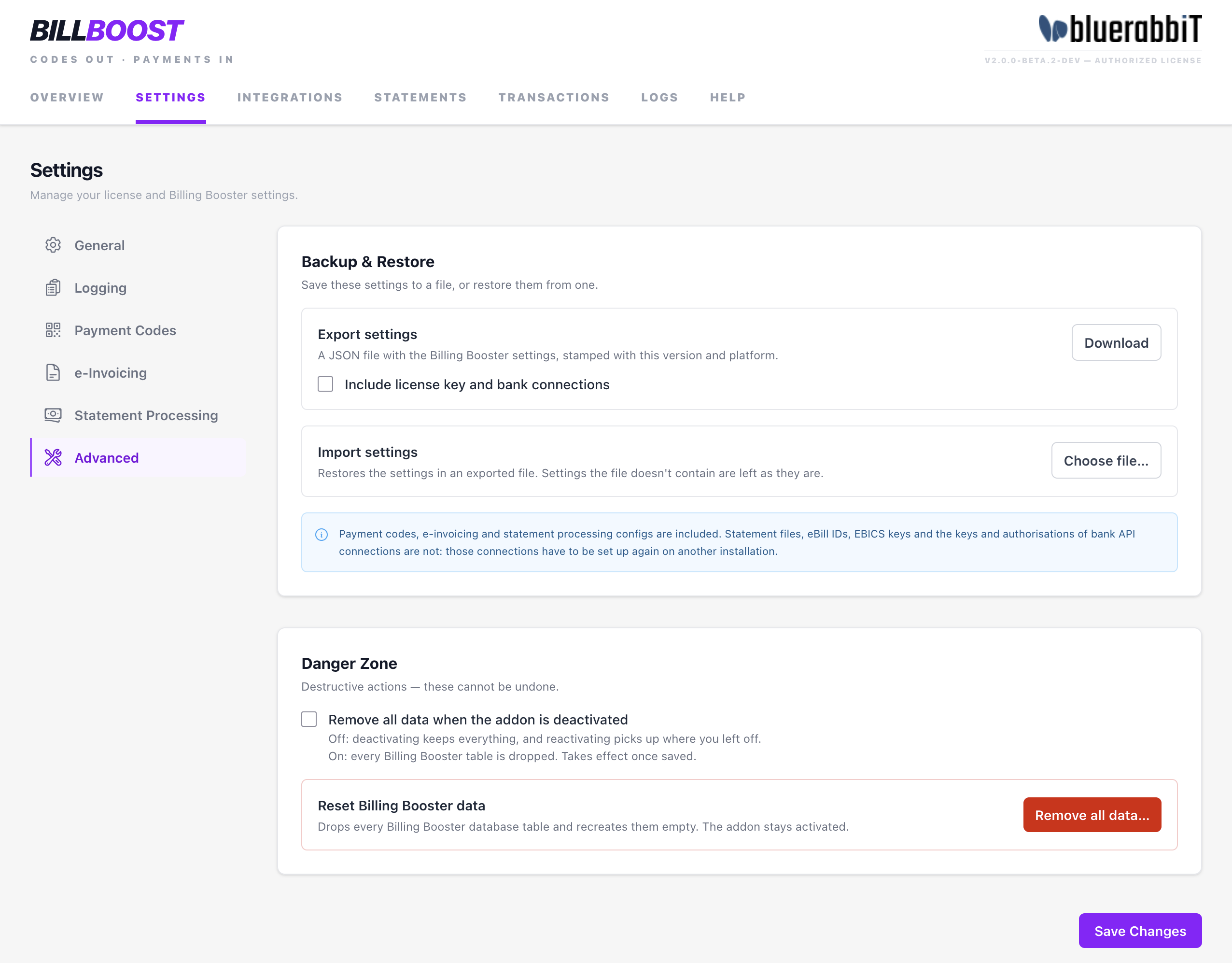
Backup & Restore
Saves Billing Booster's configuration to a file, and restores it from one — to move it to another installation, or to keep a copy before you change things. Both act straight away rather than through Save Changes.
- Export settings — Download saves a JSON file with the general settings and every payment code, e-invoicing and statement processing configuration, stamped with the Billing Booster version and the platform it came from. The license key and the bank connections are left out unless you tick Include license key and bank connections; a file that holds them should be stored like a password, and not attached to a support ticket.
- Import settings — Choose file… reads an exported file first and shows where it came from and when it was made, with a warning if it is from another platform or another Billing Booster version. Nothing changes until you click Import. Each configuration in the file then updates the one of the same standard and name, or is added if there is none; settings the file doesn't contain are left as they are. If the file carries the license key and bank connections, Also restore the license key and bank connections decides whether they replace this installation's; without them, each configuration keeps the connection it has.
Statement files, client eBill IDs, EBICS keys, and the keys and authorisations of the Revolut Business and Enable Banking connections are never exported. On another installation, those connections have to be set up again.
An import can't be undone, so export the current settings first if you might want them back.
Danger Zone
- Remove all data when the addon is deactivated — off by default: deactivating Billing Booster keeps its tables, and reactivating it picks up where you left off. Switch it on, and Save Changes, before deactivating if you want every Billing Booster table dropped with it. See Uninstall.
- Reset Billing Booster data — Remove all data… drops every Billing Booster table and recreates them empty, while the addon stays activated: all settings including the license key; every payment code, e-invoicing and statement processing configuration, with their bank connections, EBICS keys and bank API authorisations; client eBill IDs; and the activity log. Statement files already downloaded stay in the data folder. Type
DELETEto confirm. There is no undo.
With the general settings in place, continue to Payment Codes, E-Invoicing, or Statement Processing.