Installation
- Copy the contents of
modules/to your whmcsmodules/folder. - Proceed with the Migration chapter if you were previously using our SwissQR or SEPA QR modules.
- Proceed with the Configuration chapter.
- Proceed with the Integration chapter.
Integration
Showing Payment Codes in HTML invoices
Billing Booster v1.5 and newer automatically inject the payment code and e-invoice download button when required.
Custom modifications of the viewinvoice.tpl template file are no longer necessary.
CleanHTML integration
Billing Booster has been tested with the CleanHTML module by Cmsbased.
If you want to show the Payment Code in the CleanHTML invoice output, you need to modify the template file modules/addons/clean_html_invoice/templates/xyz/viewinvoice.tpl
We recommend adding the following HTML snippet right before the {if $show_footer_areas} line.
<!-- BillBoost by BlueRabbIT -->
<div style="display: table; margin: 0 auto;">
{$paycode}
</div>
Showing Payment Codes in Invoice E-mails
To embed payment codes directly into the e-mail message of invoice-related e-mails, just add the {$paycode} variable anywhere you like in the e-mail templates.
Showing Payment Codes in PDF Invoices
Operating with BestPDF
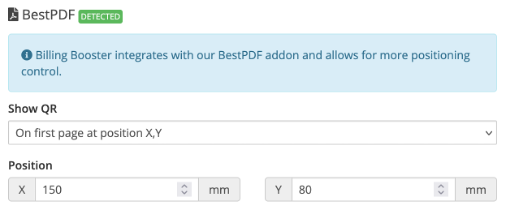
This addon can be used in combination with our BestPDF addon module (version 2.19 or newer), which allows some specific additional configuration options regarding positioning of the payment codes. Its presence is detected automatically.
Operating with CleanPDF
Billing Booster has been tested with the CleanPDF module by Cmsbased.
Just follow the steps described in the next section “Operating as Standalone”.
Operating as Standalone
If you want to use this module without our BestPDF module, you must adapt the invoicepdf.tpl file of your WHMCS template by adding the following code at the very bottom of the file.
# BillBoost by BlueRabbIT
try {
require_once(ROOTDIR . '/modules/addons/billboost/vendor/autoload.php');
  $bb = new \BlueRabbIT\WHMCS\BillBoost\BillBoost($invoiceid);
  $bb->outputPdf($pdf);
} catch (Exception $ex) {
  // Don't disrupt PDF generation
}
As an alternative, you can use one of our child templates located in the template/ folder or create an own child template. This reduces the risk of disabling the module when a template is updated and the invoicepdf.tpl file gets overwritten.
Pingen integration
When used in combination with our Pingen module, the following applies:
- The company address line is never printed out, regardless of setting
The following applies for Swiss QR Payment Slips:
- The payment slip is displayed regardless of payment gateway restriction configuration
- The separation lines will be slightly to provide enough margin