Troubleshooting
Common issues and how to resolve them. If you can't find your problem here, check the Reading the logs section to gather context, then open a ticket in our client area and we'll help you out.
Installation and upgrade issues
"Requires ionCube Loader 13 or newer"
BestPDF's PHP files are encoded with ionCube. If you see ionCube-related errors during install, check:
- Run
php -vfrom the command line. The output should mention "with the ionCube PHP Loader v13" (or newer). - If it doesn't, install or update ionCube Loader on your server (see your hosting provider's documentation).
- Restart your web server / PHP-FPM after installing.
"This version of BestPDF requires at least WHMCS version 8.11.0"
Activation checks your WHMCS version and refuses on anything older, rather than leaving you with a half-installed module. Upgrade WHMCS first — see Requirements.
The version didn't change after replacing the files
WHMCS runs a module's upgrade routine when an admin next opens Setup → Addon Modules and notices the version has moved. If the version on the addon row still shows the old number, open that page once. If it still doesn't change, the file upload didn't fully replace /modules/addons/bestpdf — see the next entry.
"Missing PHP extension" on the addon page
Instead of the interface, the addon page lists the extensions BestPDF needs and can't find. Install them and restart PHP — see Requirements.
"Class not found" or autoload errors after upgrade
Stale opcache or a partial file copy. Fix by:
- Make sure the file upload finished cleanly — check that
/modules/addons/bestpdf/lib/and/modules/addons/bestpdf/vendor/are fully populated. - Clear your PHP opcache (restart PHP-FPM, or
service php-fpm restart). - Reload the WHMCS admin page.
File permission errors
The BestPDF data directory (see Configuration → Data Storage) must be writable by the user that runs PHP. If uploads fail or thumbnails don't appear, check the permissions on that directory.
PDF rendering issues
My PDFs still look like the stock WHMCS ones
Nothing in the designer has any effect until WHMCS is actually routing PDFs to BestPDF. Open Settings → Documents in the BestPDF interface: Invoices and Quotes each carry a badge, and if either reads Not Active, WHMCS is still drawing its own PDF for that document type.
Fix it by completing Installation → step 5, or by turning on Attempt to auto-fix on that same tab.
This also happens after the fact: switching client area themes, or a theme update that overwrites invoicepdf.tpl, silently undoes the wiring. Leaving Notify admins if not active on means you get an email when it does rather than finding out from a customer.
Blank or partial PDF
Open the Logs tab and filter to ERROR. The most common causes:
- A merge field references a value that doesn't exist (e.g. a typo in
{{ client.companyy }}). The reference renders as empty rather than throwing — so the symptom is a missing word or empty cell, not a broken-looking PDF. If you see literal{{ ... }}in the output instead, that's a Twig syntax error: the engine couldn't parse the template at all and printed the unrendered source as a graceful fallback. - A referenced asset (image or PDF) has been deleted but a component still points at it.
- A required PHP extension is missing — the error names it. See Requirements.
- An ImageMagick policy on the server blocks PDF rasterisation (see below).
"Missing fonts" or wrong font in the output
If a typography style references a custom font that has since been deleted, BestPDF falls back to Helvetica at render time. Re-open the typography style and pick a replacement.
If a built-in font is rendering strangely (missing glyphs), try switching to Dejavu Sans or FreeSans — both have very wide Unicode coverage.
Broken images
If an image asset shows up as a placeholder or a missing-file icon in the PDF:
- Check the Assets tab — is the image still listed?
- Check that the data storage directory is writable and the files are physically present.
- Try re-uploading the image with the same name.
"ImageMagick policy error" / PDF preview not generating
Some servers ship an ImageMagick policy file (/etc/ImageMagick-6/policy.xml, /etc/ImageMagick-7/policy.xml or similar) that blocks PDF rasterisation by default. This breaks the preview thumbnails and PDF Document component previews.
Find and edit the policy file, locate the line:
<policy domain="coder" rights="none" pattern="PDF" />
…and change rights="none" to rights="read|write". Restart your web server.
Formatting in an HTML Text block doesn't show up in the PDF
BestPDF renders HTML through TCPDF, which supports a deliberate subset of HTML and CSS. Markup outside that subset is stripped before rendering rather than passed through — so a <section> disappears (its text stays), and a CSS property TCPDF doesn't read is dropped.
The toolbar only offers things that do render, so this generally only bites when pasting markup from elsewhere or hand-editing in source view. See HTML Text → What the PDF renders for the exact list of supported tags and CSS properties.
For layout in columns, use a <table> (TCPDF has no float or flexbox support) or the Columns component.
Oversized PDF file
If your produced PDFs are larger than expected:
- On Document Settings → Output & Logic, set Font Embedding Strategy to Subset instead of Full.
- Check that uploaded images aren't larger than they need to be (a logo printed at 30 × 30 mm doesn't need a 4000 × 4000 px source).
Integration issues
Billing Booster not detected
On the Integrations tab inside the BestPDF UI, Billing Booster should show as detected if installed.
If it's missing:
- Confirm Billing Booster is installed and activated under Setup → Addon Modules.
- Make sure both modules are on compatible versions (check the BestPDF and Billing Booster changelogs). Billing Booster 2.x is the generation that pairs with BestPDF 3.x.
- Reload the BestPDF interface.
The Payment Code and E-Invoicing components display a "Not Detected" notice and render nothing when Billing Booster is missing.
Pingen rejects a submitted PDF
Start on the Integrations tab: the Pingen Post card runs a configuration check against your active design and shows exactly which requirement isn't met — first-page top margin, the other margins, or the address box position and formatting mode.
Beyond that, check:
- Fold marks are switched off for physical mail. Pingen folds the letter itself, so your own marks can land in the wrong place and interfere with validation. Open the Fold Marks component's Visibility tab and enable Hide when sent as a physical letter (Pingen) — the same goes for a sender-address block.
- The address position configured in Pingen (left or right) matches where your Address Box actually sits — the expected X window differs between the two.
- The PDF is not encrypted or password-protected (BestPDF doesn't do this, but a downstream tool might).
Reading the logs
The Logs tab inside the BestPDF interface shows BestPDF's activity log — the first place to look when something doesn't behave as expected.
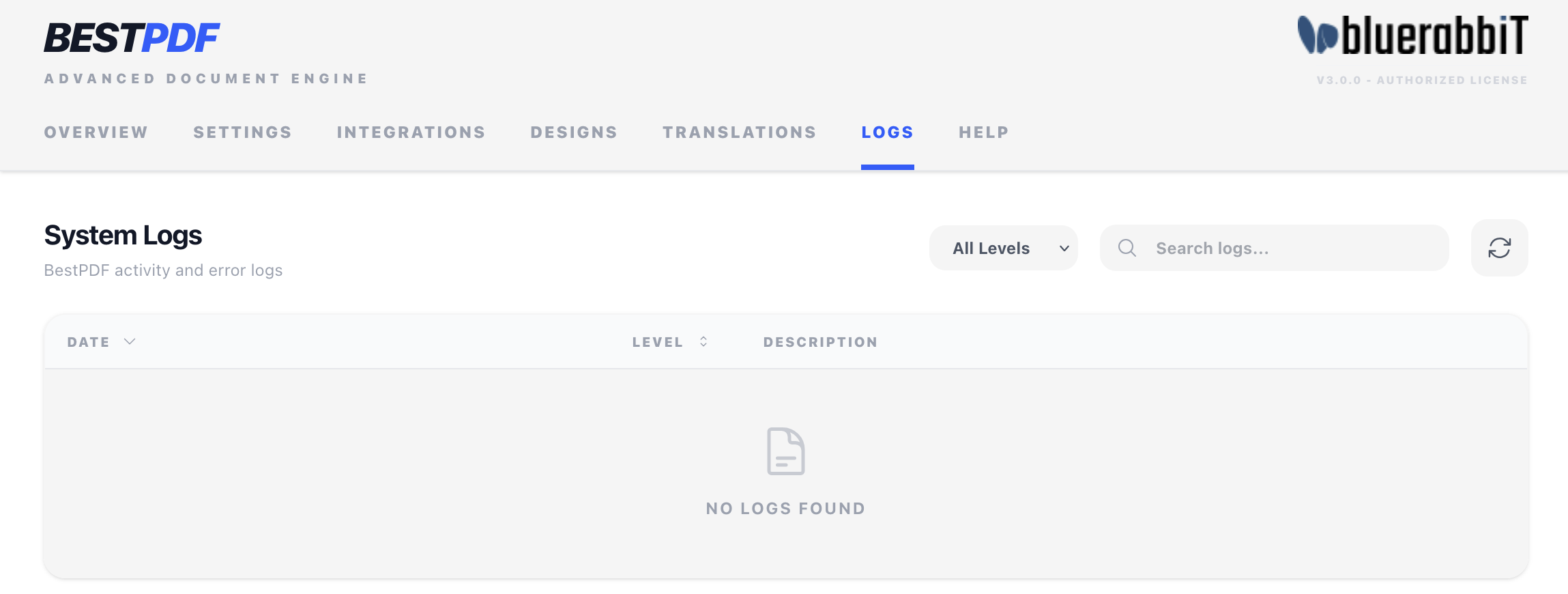
Controls
- Filter by level — Debug, Info, Warning, Error. Defaults to All.
- Search — substring match against the log message and date.
- Sort — by date or level, ascending or descending. Defaults to most recent first.
- Refresh — re-fetch the latest entries.
What's logged
- INFO — routine operations: PDF rendered, template saved, asset uploaded.
- WARNING — recoverable issues: a referenced asset is missing (rendering continues with a fallback), a Twig template has a syntax error (rendering continues with the unrendered text).
- ERROR — unrecoverable issues: file write permission denied, ImageMagick failure, fatal database error.
- DEBUG — verbose tracing, usually only relevant when investigating a specific issue with us.
When to attach logs to a support ticket
If you're opening a ticket in our client area, filter the log to the relevant time window, switch to DEBUG level, and copy the matching entries into the ticket. This gives us enough context to diagnose without needing repeated round-trips.
Frequently asked questions
A summary row I expect isn't printing
Most Summary rows carry a condition — only when > 0, only when tax applies, and so on — that hides them when they'd say nothing. Open the Summary component, expand the row, and switch its condition checkbox off to make it unconditional. A row that isn't in the Selected Rows list at all simply isn't part of the design.
Can I have different designs for different clients or countries?
Not currently. BestPDF uses one active invoice design and one active quote design across the whole installation — there is no per-client, per-language or per-country routing.
The one split that does exist is by delivery channel: a separate design can be assigned to physical mail, so letters printed through Pingen can carry the envelope geometry they need without affecting the document you email. See Managing your designs → A design for physical mail.
Will my translations and designs survive an upgrade?
Yes. Translations and design configurations live in the WHMCS database, and assets live on disk in the configured data storage directory. Replacing the BestPDF files preserves both.
Deactivating the addon keeps them too, unless Remove all data when the addon is deactivated is switched on under Settings → Advanced — then deactivating drops BestPDF's tables outright. See Uninstall.
Can I edit the produced PDF in Acrobat?
Yes, but consider the font embedding strategy. Subset embedding only includes glyphs actually used at render time — if you add text that uses glyphs not in the subset, they won't display. For maximum editability, use Full embedding (at the cost of larger files).
How do I move a design from staging to production?
Use Export on the source installation and Import on the target. The exported .bestpdf.zip is self-contained — it carries all assets with it. See Managing your designs → Importing a design.
How do I back up my designs?
Either back up the data storage directory together with your WHMCS database, or use Export on each design to download portable .bestpdf.zip files. See Managing your designs → Backing up your designs.
Uninstalling
If you want to remove BestPDF from your installation entirely, see the dedicated Uninstall page.