Integrations
BestPDF integrates with the other BlueRabbIT products for WHMCS. The Integrations tab inside the BestPDF UI shows which of them are detected, what each one adds, and — for the two that impose requirements on your design — whether your active design actually meets them.
Detection status
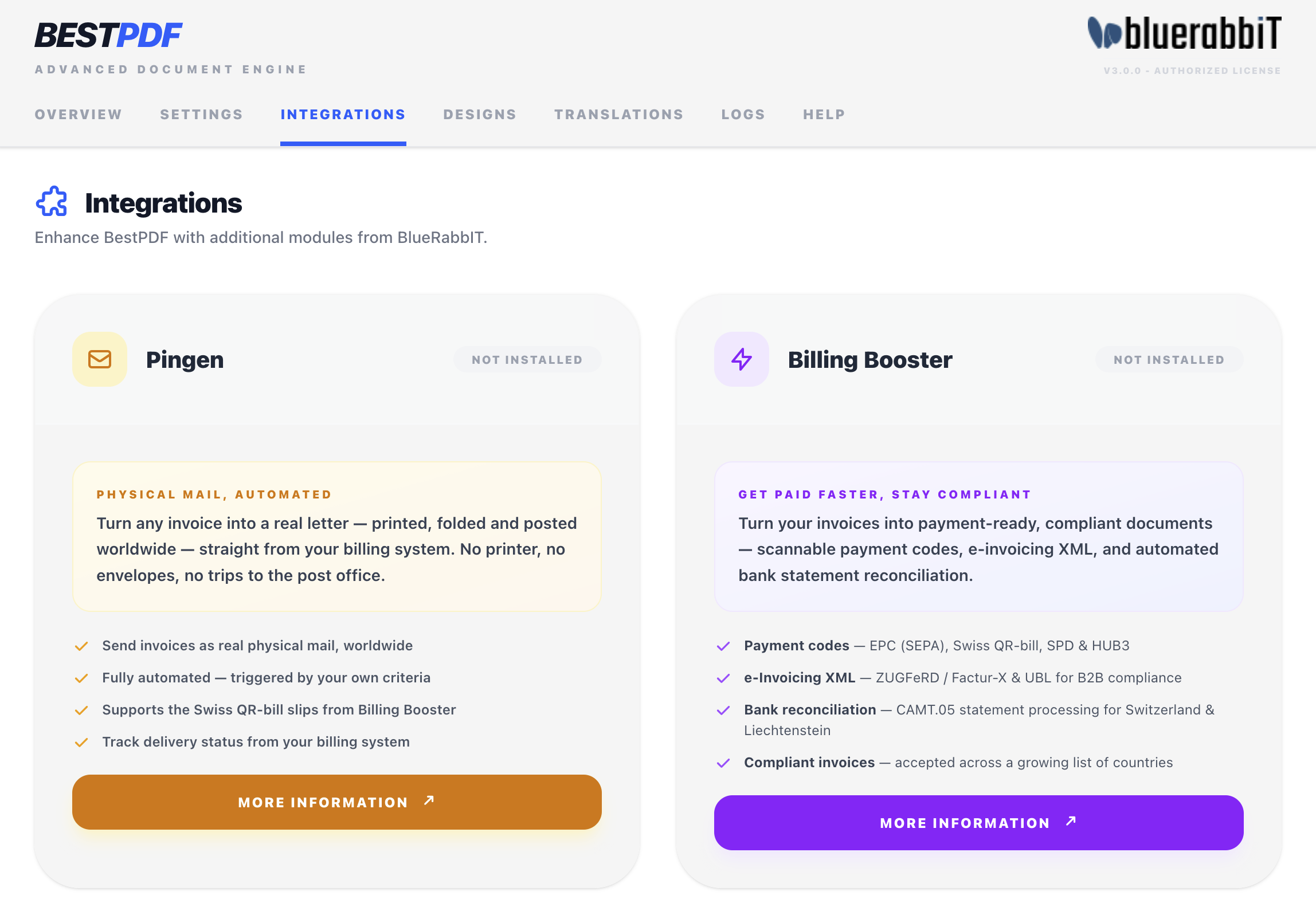
Each integration is shown as a card with a status chip:
| Status | Meaning |
|---|---|
| Detected | Installed and active. The integration's features are available. |
| Deactivated | The module's files are present but it isn't activated. The card offers an Activate button that takes you to Setup → Addon Modules. |
| Not Installed | Not present. The card shows what the product does and links to more information. |
If the status check itself fails, a red banner appears above the cards saying so, rather than the cards quietly claiming nothing is installed. Treat the cards below such a banner as unreliable and check the logs.
Billing Booster
This WHMCS addon adds several capabilities to improve invoicing for your customers:
- Payment Codes — EPC (SEPA), Swiss QR-bill, SPD and HUB3
- e-Invoicing XML — ZUGFeRD / Factur-X and UBL for B2B compliance
- Bank reconciliation
- Compliant invoices accepted across a growing list of countries
When Billing Booster is installed, two extra components become useful in the design editor:
- Payment Code — renders payment QR codes or full payment slips.
- E-Invoicing — embeds machine-readable XML into the PDF.
Without Billing Booster, those components display a "Not Detected" notice and render nothing.
Swiss QR slip check
A Swiss QR full slip occupies the bottom 105 mm of whichever page it lands on. A Payment Code in the content claims that room itself — plus 6 mm of air — so flowing content wraps above the slip, and a page is added when there is not enough left. The page margins do not need changing. Where the slip lands is decided by where you put the component in the content.
What BestPDF cannot move are overlays: they sit at fixed positions, and one placed in the slip's area prints straight through it. When Billing Booster has a Swiss QR code configured and your active invoice design draws the full slip, the card lists every overlay positioned in that area, with the pages it prints on. One on all pages meets the slip wherever it lands; one on the first or last page only when the slip lands there.
Move those overlays, or switch on Hide on pages carrying a payment slip for them: the component then stands aside on the slip's page and still prints on every other one.
Pingen Post
Pingen Post for WHMCS lets you send printed invoices as physical mail worldwide, straight from your billing system — printed, folded and posted, with no printer or envelopes at your end.
BestPDF's part of the integration is twofold.
Hiding components on physical mail
Overlay components gain a Hide when sent as a physical letter (Pingen) toggle in their Visibility panel. Use it on the sender address block and Fold Marks — Pingen handles the envelope and the folding itself, so those elements are redundant (and, in the wrong place, can interfere with document validation).
Which design gets checked
Physical mail can have its own design. The card tells you which one it validated:
- Physical mail design — you assigned one with the Mail chip on the Designs tab. Only that design has to satisfy the requirements below; your active design is free of them.
- Active design — nothing is assigned to mail, so letters are printed from the active design and it has to meet the requirements itself.
If the constraints are awkward on the document you email, that's the signal to assign a separate mail design.
Configuration check
Pingen's print pipeline requires a specific page geometry, and the card validates the design identified above against it:
| Check | Requirement |
|---|---|
| First-page top margin | At least 100 mm — the top of page 1 is reserved for the printer's address and franking zone. |
| All other margins | At least 5 mm on every remaining side, first page and subsequent pages alike. |
| Address box position | The Address Box overlay must fall inside the envelope window. With a right-positioned address, X between 118 and 123 mm; with a left-positioned one, X between 23 and 28 mm. In both cases Y between 60 and 65 mm. |
| Address formatting mode | Automatic is recommended, so per-country conventions are applied to the printed address. |
Each row shows pass, fail, or a neutral state where the check doesn't apply — a design with no Address Box overlay simply has nothing to validate, so the address checks report as not applicable rather than as failures.
The address-position window follows the address position configured in Pingen itself (left or right), so change it there and the expected X range here changes with it.