Document settings
The Document tab covers the page-level setup — margins, font embedding, and stationery. These settings affect the whole PDF, not individual elements on it.
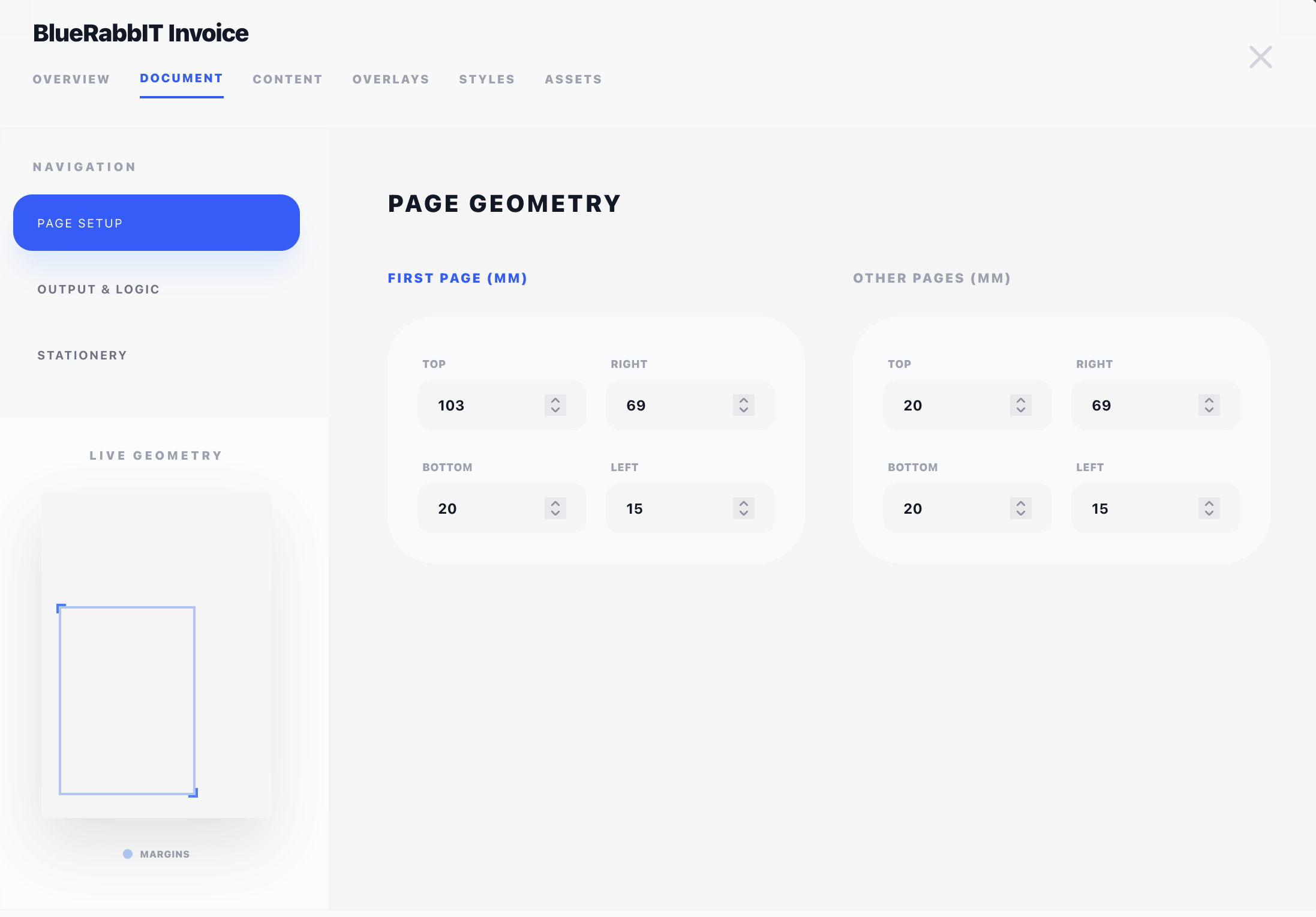
The tab has three sub-sections, listed in the left rail.
Page Setup
Sets the margins for the document, in millimetres. You configure two sets independently:
- First Page — used for page 1 only. Typical use: a wider top margin to leave room for the letterhead and address window.
- Other Pages — used for page 2 onward.
Each set has four inputs: Top, Right, Bottom, Left.
The little page diagram in the bottom-left of the tab updates live to show the first-page margins in blue, so you can sanity-check the geometry before saving.
For DL envelopes with a left-side address window, the address typically needs to fall between Y = 45 mm and Y = 90 mm. The address itself is placed via an Address Box overlay — but the page margins should leave that area free of body content.
Margins apply to content components (which flow inside the margins). Overlay components are positioned absolutely from the page edge and ignore margins entirely — see Concepts → Positioning.
Pingen Post needs a 100 mm first-page top margin, and the Integrations tab checks your active design against it. A Billing Booster Swiss QR full slip needs no margin of yours: the Payment Code claims the bottom of its page itself.
Output & Logic
Font embedding strategy
Controls how fonts are embedded inside the produced PDF file:
- Full (the default) — embed the complete font file. Larger PDF, but the document can be edited in tools that need access to the entire glyph set, and every glyph is guaranteed present.
- Subset — embed only the glyphs actually used in the document. Noticeably smaller PDFs, which is what you want for archival and for invoices sent by email.
Subset is the better choice for most installations. Switch to Full if a downstream tool complains about missing glyphs, or if your e-invoicing standard requires the complete font.
Stationery
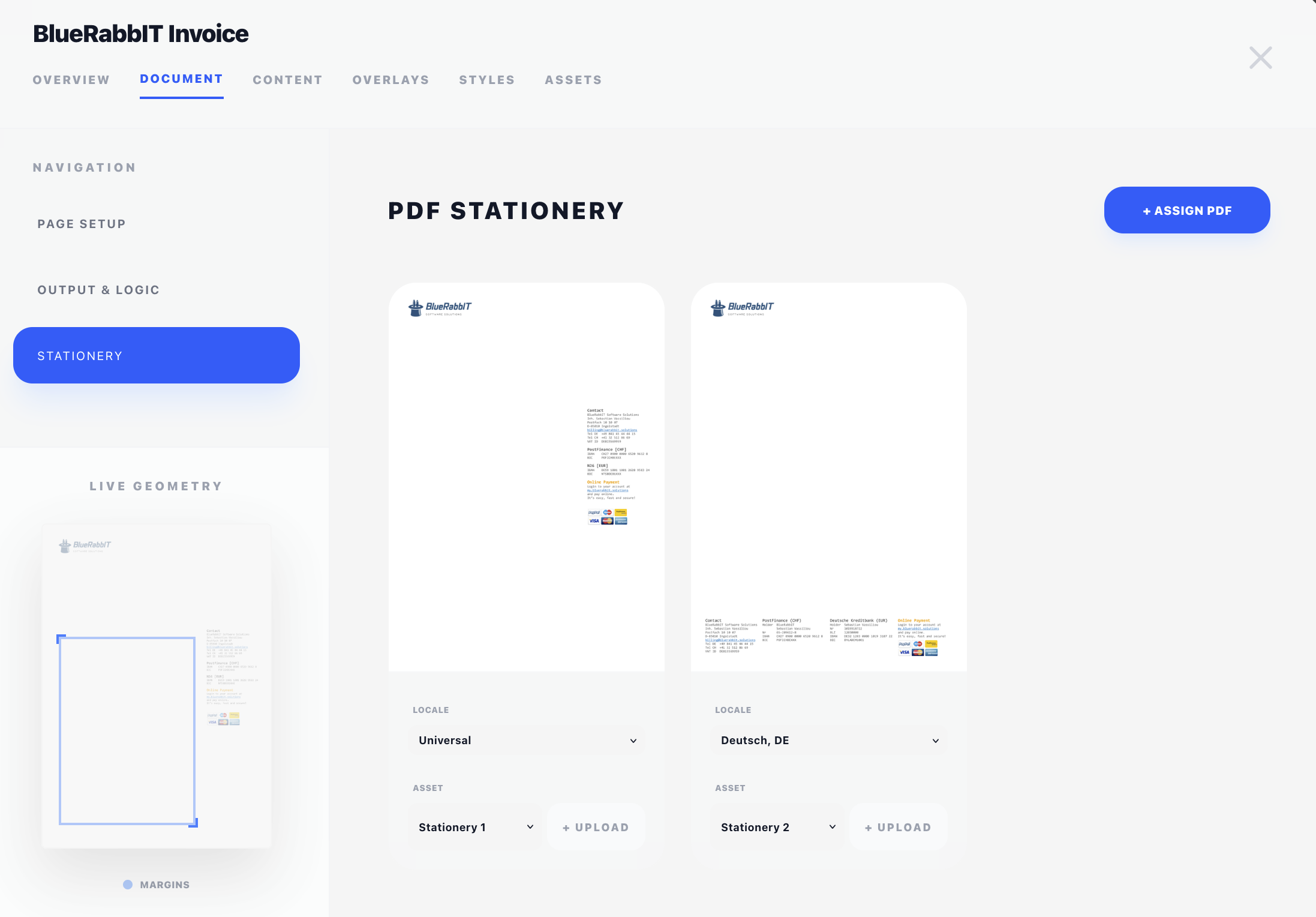
Stationery is a PDF that gets used as the background for every page of the generated invoice or quote. It's the digital equivalent of pre-printed letterhead paper: your logo, contact details, perforations, footer graphics — all baked into a PDF file once, then applied behind your dynamic content on every render.
You assign stationery here, per language:
- Click + Assign PDF.
- Pick a Locale — either Universal (used for any language not specifically assigned) or a specific language (used when a client's language matches).
- Pick a PDF asset from the dropdown — or upload one on the spot.
- Save the design.
Each card shows a thumbnail of the chosen PDF and the language it's bound to. A red ring around two cards means you've assigned the same language twice — only one of them will be used.
How stationery is selected at render time
When BestPDF renders an invoice for a client whose language is german, it looks for a stationery entry with that language — first against the client's country-derived locale, then the document's own. If none matches, the Universal entry takes over. Only when a design names no universal entry at all does an English one serve as a last resort, on the grounds that the wrong letterhead beats none. If there is nothing to fall back to, the PDF is rendered without stationery.
The PDF Document component resolves its files through the same chain, so a document that gets German stationery also gets German terms and conditions.
Notes about stationery
- Stationery PDFs are uploaded to the Assets tab as regular PDF assets. The dropdown here shows everything in that pool.
- Multi-page stationery is supported — page 1 of the stationery underlays page 1 of the invoice, page 2 underlays page 2, and so on. If the invoice has more pages than the stationery, the last page of stationery repeats.
- Stationery is suppressed under the PDF Document content component, which lets you splice an external PDF cleanly into the output.