Content
The Content tab is where you build the main body of the document — everything that flows from top to bottom and breaks across pages naturally. The address block, the items table, the totals, the notes — these are all content.
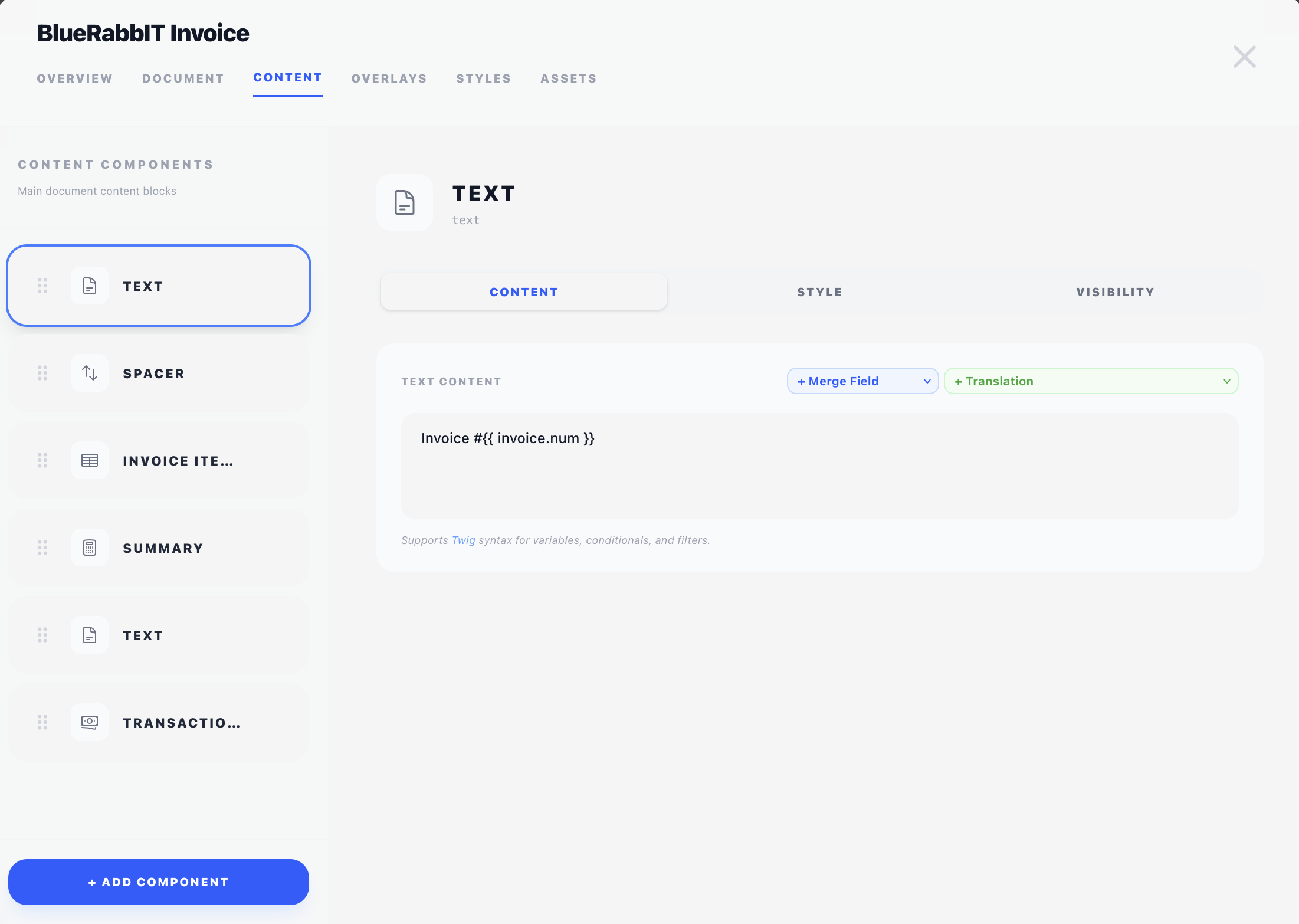
How content flows
Content components render in the order shown in the left list, top to bottom, inside the page margins set in Document Settings → Page Setup. When a component doesn't fit on the current page, BestPDF breaks to the next page and continues.
Unlike overlays, content components have no absolute X/Y position — they take the full width of the content area (or a Width you set, a plain millimetre field with none of the mode buttons an overlay gets) and stack vertically. They are not rigid, though: each one's Layout tab carries an Offset that nudges it out of its natural spot, and the Columns component places several of them side by side. See Concepts → Positioning.
Adding a component
Click + Add Component at the bottom of the list. A picker appears showing every content component compatible with this design's type (invoice or quote). Type to filter by name.
Click a component to add it. It appears at the bottom of the list and is automatically selected so you can configure it.
See the Components section for a full reference of every component, what it does, and what it can be configured with.
Reordering and removing
- Reorder — grab the dotted handle on the left of a component and drag it to a new position. The PDF will reflow accordingly.
- Select — click a component to open its editor in the right pane.
- Remove — hover a component in the list and click the trash icon that appears.
Components nested inside a Columns container are managed within that container's editor, and can be dragged between its columns.
The editor pane
When you select a component, its editor opens on the right. Every editor is different, but they all share a few common sections — typically a visibility panel, one or more style selectors, and the component's own specific settings.
The shared sections are documented once in the Concepts section:
- Visibility & conditions — control whether and when this component is rendered.
- Styles — pick the typography or table style for the component.
- Merge fields & Twig — the syntax for dynamic text.
Suggested order
There is no required order, but a typical invoice reads top to bottom roughly like this:
- Spacer — push everything below the address window.
- Details Box — invoice number, dates, customer number.
- Spacer.
- HTML Text — a greeting line ("Dear Mr Smith, please find your invoice below.")
- Invoice Items — the line items table.
- Summary — subtotal, tax, total, balance due.
- Spacer.
- Transactions — payment history (hidden automatically if empty).
- Divider — a rule before the closing text.
- HTML Text — terms and conditions or thank-you note.
You can rearrange any of this freely.
When to use content vs an overlay
Use content when the element should flow with the document and is allowed to push other things down — line items, totals, body copy. Use an overlay when the element needs to be at a fixed position on the page regardless of what's above or below it — letterhead, page numbers, the address window.