Positioning
Every component's Layout tab controls where it sits. What that tab offers depends on which tab of the design the component lives on: overlays get an absolute Position, content components get a relative Offset. Most also carry a Width.
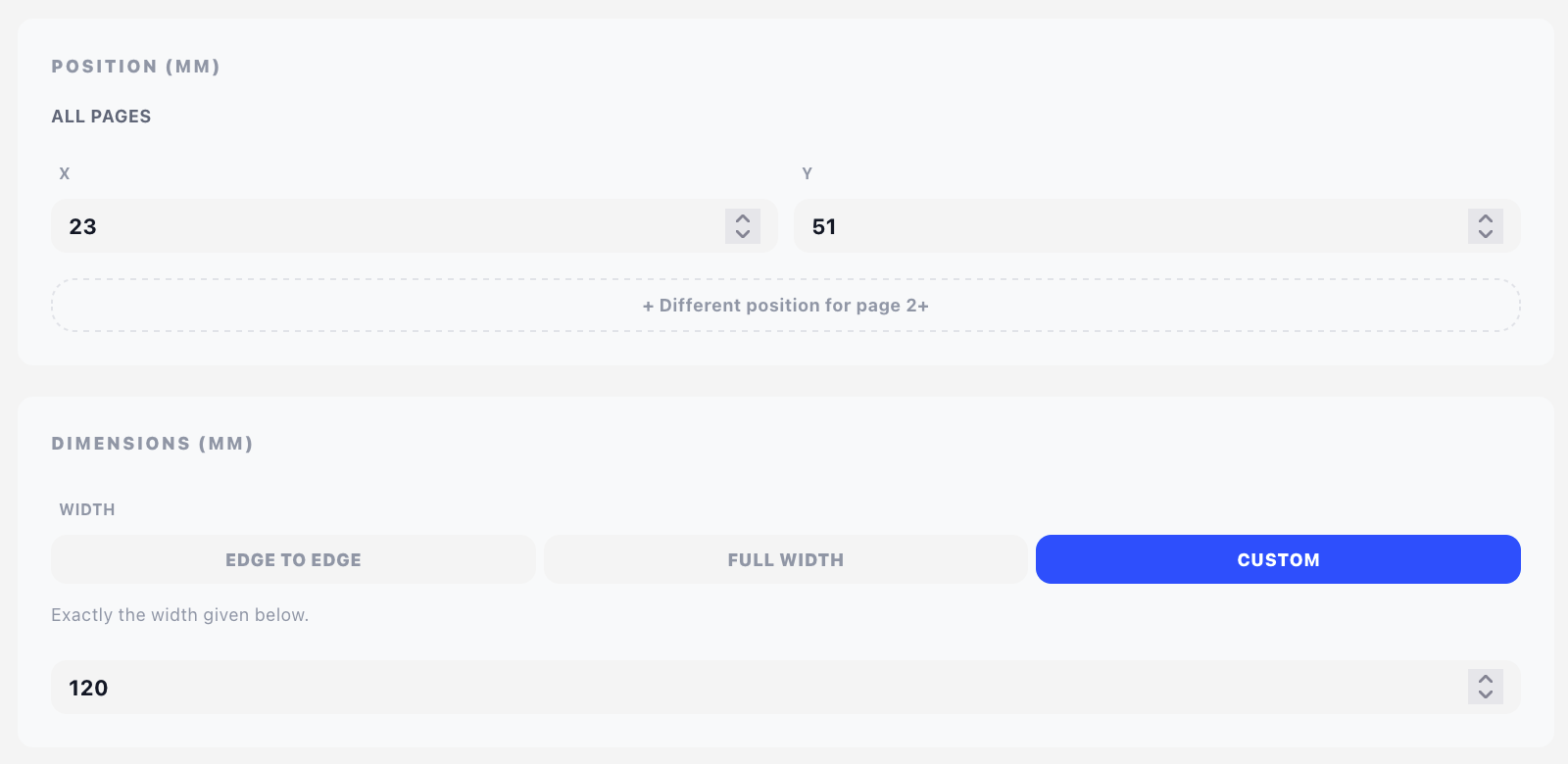
Overlays: absolute position
Overlay components are placed at fixed coordinates on the page. The Position panel appears at the top of every overlay component's Layout tab.
Coordinates
- X is the horizontal distance from the left edge of the page, in millimetres.
- Y is the vertical distance from the top edge of the page, in millimetres.
- Decimals are allowed (e.g.
12.5).
Positions are measured from the page edge, not from inside the margin — so an overlay at Y = 10 sits 10 mm from the top of the paper, regardless of the document's top margin.
A4 is 210 × 297 mm. So X = 105 is the horizontal centre, and Y = 287 puts something 10 mm from the bottom edge.
Measuring X from the right edge
A negative X is read as a distance from the right edge of the page: X = -60 puts the component's left edge 60 mm in from the right side of the sheet. Wrapped lines return to that same edge rather than to the page margin, so a right-hand details box or status stamp stays as a block.
Separate position for page 2 and beyond
By default, the X/Y you enter applies to all pages the overlay shows on. Click + Different position for page 2+ to add a second set of coordinates that takes over from page 2 onward — useful when, for example, your letterhead logo on page 1 is larger than the running header you want on subsequent pages.
When a secondary position is set, the labels change to Page 1 and Page 2+, and a Remove link next to the secondary inputs clears it again.
Which pages the overlay appears on
Position controls where on a page the overlay is drawn. Which pages it appears on is controlled by the Display setting in the Visibility & conditions panel — typically On all pages, On first page only, or On last page only.
Content: flow plus offset
Content components flow inside the document's content area (the space between the configured margins) and lay out top-to-bottom in the order you arrange them. They have no X/Y coordinate — but they are not locked to the flow either.
The Layout tab of a content component shows an Offset (mm) panel with two fields:
- X — shifts the component right (positive) or left (negative) from where it would naturally start.
- Y — shifts it down (positive) or up (negative).
The two behave differently, and the difference matters:
- X shifts only this component. It moves the left edge of the component's box, so wrapped lines and line breaks return to the offset edge rather than the page margin. The next component is unaffected and starts at the normal left margin again.
- Y moves the cursor before the component renders, which carries everything after it along too. A
-5Y offset pulls this component up 5 mm and closes 5 mm of gap for the rest of the document.
That makes them right for different jobs. Use an X offset to indent a note or push a totals block to the right. Use a Y offset to tighten (or open) the gap at one point in the flow — a negative value is effectively a "negative spacer".
Both fields are optional; clearing a field or setting it to 0 removes the offset entirely.
A Spacer adds positive space and is easier to see in the component list. A negative Y offset is the only way to remove space. Reach for the spacer first, and use offsets when you need to pull something back.
Width
The same Layout tab carries a Dimensions (mm) panel. What it offers again depends on the mode.
Overlays: the three width modes
An overlay starts at its X coordinate, but where it ends is a separate question — and the answer is a row of three buttons under Width:
| Mode | Where the box ends |
|---|---|
| Edge to edge | At the physical edge of the paper, whatever the page margins are. The default. |
| Full width | At the page's own right content margin, so the overlay lines up with the document flow underneath it. |
| Custom | At exactly the number of millimetres you type in the field that appears. |
The mode matters as soon as the component wraps: it is the right-hand boundary that decides where a line breaks and where the next one resumes.
Pick Full width for an overlay that has to agree with the body — a header rule or a note that should stop where the items table stops. Pick Edge to edge for something that deliberately ignores the margins, such as a full-bleed band or a footer line. Pick Custom when the block has a size of its own, such as an address box sized for a window envelope.
Full width is ignored when the overlay's own X sits past the right margin — a details box in the top-right corner, a page number tucked into the margin. Ending such a component at a margin it already starts beyond would leave it no width at all, so it keeps the paper instead.
Older designs carried the same idea in the width alone: a number meant "this many millimetres", an empty field meant "to the page edge". They are read exactly that way, so nothing shifts — the first opens as Custom, the second as Edge to edge.
Content: a plain width
Content components flow between the page's margins by definition, so there are no modes — just a Width field that narrows that box. Leave it empty and the component runs to the right margin; set it, and combine it with an X offset, to inset or right-align a block.
Components that keep a plain number
Image, Barcode 1D and Barcode 2D take no notice of the modes in either mode. Their width is the size of the thing being drawn, not a box its content flows in, so they keep a single Width field.
Components with no width at all
- Divider — its extent is its Length, on the Style tab. As an overlay it still offers the mode buttons, which decide where a divider with no Length stops.
- Payment Code — the size is fixed by the payment standard it follows.
Height
The Layout tab owns a component's whole size, not just its width, so a Height sits beside the Width for everything that draws a box of its own:
| Component | Height |
|---|---|
| Image | Millimetres, or an Auto toggle that takes the height from the picture's own proportions. |
| Rectangle | Millimetres. Default 20 mm. |
| Barcode 1D | Bar height in millimetres. Default 15 mm. |
| Spacer | Millimetres — the only thing a spacer has. |
Auto is the image's alone: it is the one component that draws something with proportions of its own to infer a height from. A rectangle or a barcode has to be told.
Everything else takes its height from what it renders — a block of text is as tall as the text, a table as tall as its rows — so there is nothing to set.
Sizes used to be split across two tabs: the rectangle and the 1D barcode kept their height on the Content tab, and the 2D barcode's Size was the same value as its Layout Width under a second name. They are all on the Layout tab now, under one name each. Nothing changed in the saved design — only where the field appears.
Components with no position
Page Break, PDF Document, E-Invoicing and Fold Marks have no Layout tab at all — they act on the document as a whole rather than occupying a place on it. Columns has one, but it holds the column definitions rather than a position. And Spacer has a Layout tab that is nothing but a height: it spans the flow it sits in, so there is no position or width to give it.