PDF Document
Inserts an entire external PDF at this point in the document — every page of the source file is spliced into the output. Use it for terms and conditions, legal appendices, product brochures, or any static multi-page document.
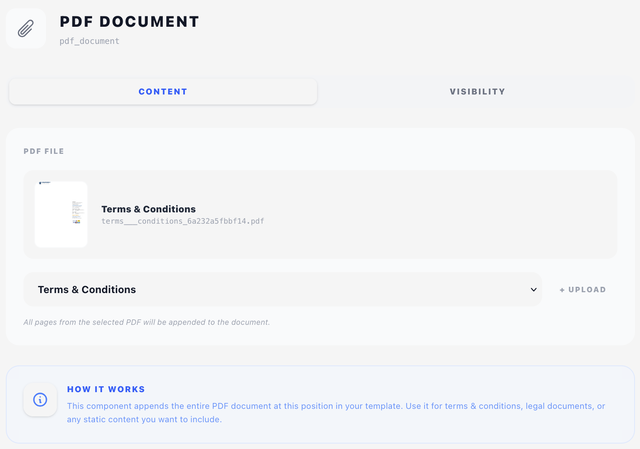
Content tab
Pick a PDF from the PDF File dropdown. Everything uploaded on the Assets tab → PDF Files appears here.
If the PDF you need isn't uploaded yet, click the + button next to the dropdown to upload it on the spot.
When a PDF is selected, a card appears above the dropdown showing the file name, internal filename, and page count.
By Language
Optional. Below the main dropdown you can add one file per language, the same pairing stationery has always had — so a terms-and-conditions page follows the document's language instead of every client receiving the same one.
Each row pairs a language with a PDF asset. A row whose language is left as Universal is the catch-all.
At render time BestPDF picks, in this order:
- A file whose language matches the document — the client's country-derived locale first, then the document's own language.
- The file chosen in PDF File above, which is what a component configured before languages existed holds.
- A file marked Universal in the list.
- Only if the design names no universal file at all: the English file, on the grounds that a terms page in the wrong language beats a missing one.
The same chain resolves page stationery, so a document that gets German stationery gets German terms.
How it differs from stationery
- Stationery (Document Settings → Stationery) draws behind every page of your invoice. The dynamic content layers on top.
- PDF Document replaces the invoice content for the pages it covers. Stationery is suppressed under PDF Document pages too — you see the source PDF exactly as it is.
Use stationery for branded letterhead that should sit behind your invoice; use PDF Document for self-contained content that should stand on its own.
Visibility tab
See Concepts → Visibility & conditions.
A common use is conditional inclusion — only splice in a "Reverse Charge VAT Notice" PDF for EU non-domestic clients, for example. See the examples in the Conditions reference.
Tips
- All pages of the source PDF are inserted, in order. There's no way to pick a subset of pages.
- If you only ever ship one language, ignore the By Language list entirely — the single PDF File above is all the component needs.
- Page breaks before and after PDF Document are handled automatically — don't add manual Page Break components around it.
- If the source PDF uses unusual page sizes (anything other than your document's page size), it will still print at its native size, which may look mismatched. Re-export the source at A4 / Letter to match.