Payment Code
Renders a payment QR code or full payment slip — Swiss QR-bill, EPC QR, and other payment-code standards. Requires the Billing Booster WHMCS addon to be installed and configured.
When Billing Booster is not installed
If the addon isn't detected, the Content tab shows a "Billing Booster Not Detected" message and a pointer to the Integrations tab. The component will not render anything in the PDF until Billing Booster is installed.
Content tab — payment codes
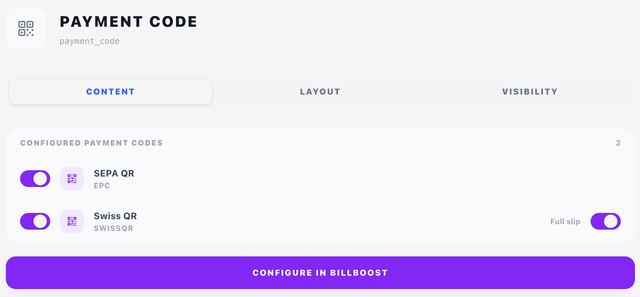
Billing Booster maintains a list of configured payment codes (Swiss QR, EPC QR, etc.). Each one is shown here as a row with:
- Enable toggle — turn this code on or off for this PDF component.
- Name and standard — what the code is and which standard it follows.
- Configure in BillBoost button at the bottom — links to Billing Booster's own configuration screen, where you maintain the actual code parameters (issuer details, account numbers, etc.).
Swiss QR — full slip (content mode only)
When a Swiss QR code is configured and Payment Code sits in the content, an extra Full slip toggle appears next to that row.
- Full slip on (default) — renders the complete Swiss payment slip (receipt and payment part) across the bottom of the page.
- Full slip off — renders just the QR code, where the content has reached.
As an overlay, a Payment Code always draws the bare QR code at its position — the row shows QR code only.
Where the Swiss slip lands
The slip belongs to the content: it lands on the page the content reaches the Payment Code on. There, it claims the bottom of the page — the slip's own 105 mm plus 6 mm of air — and the rest of the content wraps above it. If the content has already reached that far down, the slip moves to a fresh page. Where you put the component in the content decides the page:
| Place the Payment Code | The slip lands |
|---|---|
| Last in the content | On the last page — or a page of its own, if the content ends too low |
| After a Page Break | On a page of its own at the end |
| First in the content | At the bottom of page 1, with the invoice items flowing above it |
A page the slip claims is an ordinary page: overlays shown on all pages (or on the last page, when it is the last) print on it too. Keep the ones positioned in the slip's area off it with Hide on pages carrying a payment slip.
Layout tab
- Overlay — Position (X/Y in mm). See Concepts → Positioning.
- Content — Offset (X/Y nudges from the natural flow position).
There is no width or height here — payment code sizing is fixed by the standard it follows, so the width modes other overlays offer do not appear.
In a design preview
A preview is rendered from sample data, not from a real invoice. Payment codes follow that: Billing Booster draws the code from its own sample values, with the previewed client's name and invoice number carried across, so the slip you see names the same customer as the rest of the page. No real invoice is read, and nothing a customer would recognise ends up in preview.pdf.
Two consequences worth knowing while you design:
- If Billing Booster has no payment code configured at all, the component draws nothing in the preview — and, because there is nothing to sit under, any component linked to its visibility (a "scan to pay" heading, say) is hidden with it. Configure a code in Billing Booster and both come back.
- A full Swiss slip occupies the bottom of the page in the preview exactly as it will in production, so the room it takes is visible while you are still arranging the page.
Visibility tab
See Concepts → Visibility & conditions.
Tips
- Each enabled code renders independently — if you enable two codes, both are drawn. In the content, a bare code (EPC, say) is drawn where the content stands, and a Swiss slip at the bottom of the page.
- For the Swiss QR-bill: put the Payment Code in the content with full slip on — last for the last page, behind a Page Break for a page of its own.
- For a discreet EPC QR code on a fixed spot of every page: use an overlay set to On all pages.