Address Box
The recipient address block. Almost always used as a first-page overlay positioned to fall inside a DL envelope window — though it can also be placed in the content flow when you don't print to window envelopes.
It has two modes: let BestPDF format the address according to the recipient's country, or compose the lines yourself, field by field.
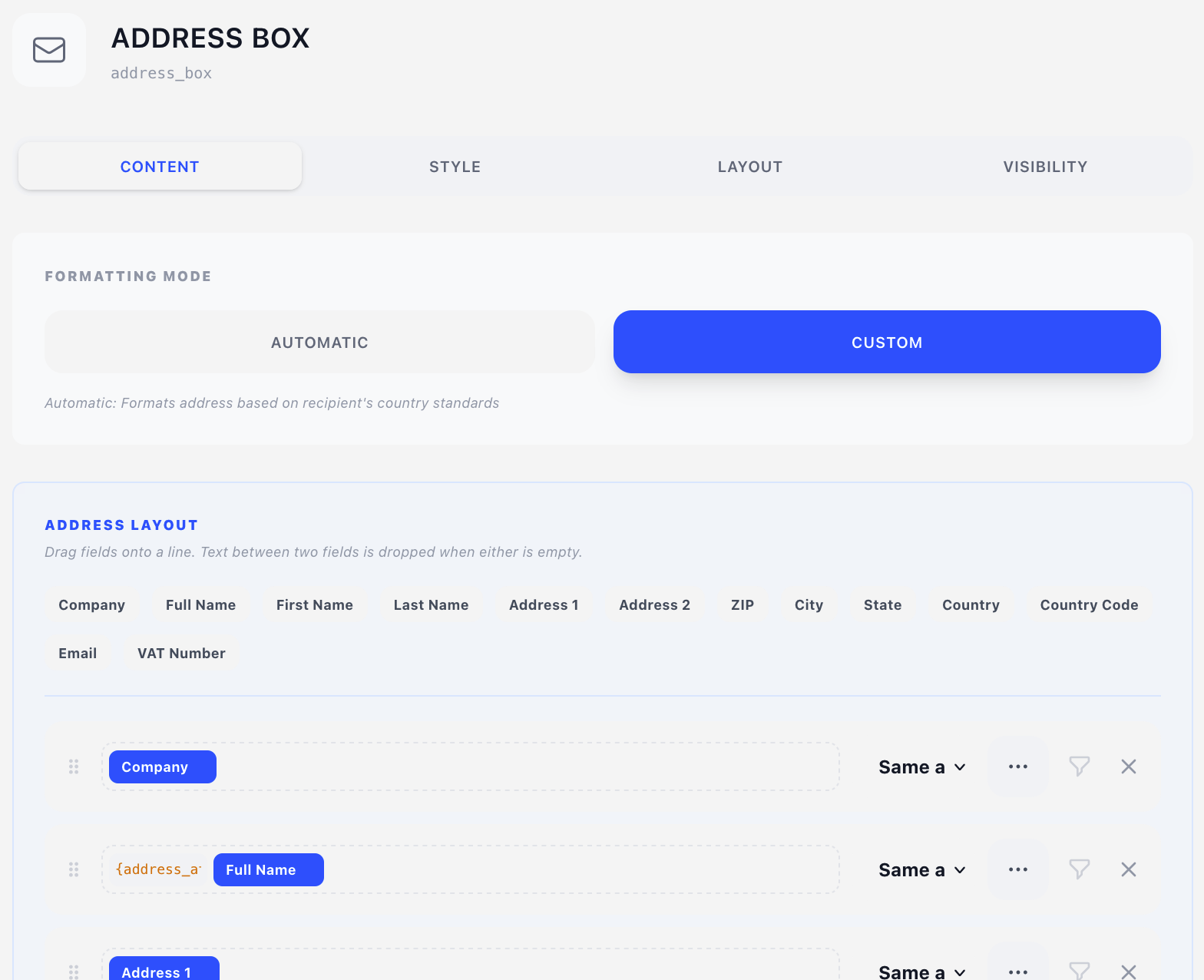
Content tab
Formatting Mode
- Automatic (default) — the address is formatted according to the recipient's country conventions: line order, where the postcode sits relative to the city, how the state is written, and whether the country is named at all. This is the right choice for international mail.
- Custom — you compose the lines yourself. See Address Layout below.
Automatic formatting needs both the recipient's country and your own company country to be resolvable. If either is missing, the component falls back to the custom layout for that document rather than printing nothing — so it's worth having a sensible layout configured even if you normally run in automatic mode.
Client Name Display (automatic mode)
Controls when the client's personal name is printed alongside the company name:
- Always show
- Only when no company name
- Only when no company and no address 2
- Only when no company or no address 2
The last two are envelope-space savers: a window only fits so many lines, so the contact name is the one that gives way.
In custom mode this setting still governs the name fields, but conditions on the line itself are usually the clearer way to express the same rule — see Line conditions.
Address Layout
In Custom mode the component is built from an ordered list of lines, and each line from an ordered list of entries. An entry is either a field (a piece of client data) or a piece of text (a literal separator, or a translation key).
Drag a field from the palette onto a line, drag chips between lines to rearrange, click a separator to edit it, and use + Add Line to add another.
Available fields
| Field | What it prints |
|---|---|
| Company | The client's company name |
| Full Name | First and last name together |
| First Name / Last Name | Either half on its own |
| Address 1 / Address 2 | The two street lines |
| ZIP | Postcode |
| City | |
| State | |
| Country | Country name — subject to the domestic rule below |
| Country Code | ISO alpha-2 code, e.g. CH |
| VAT Number | The client's tax ID |
Separators, and why they disappear
The text between two fields is only printed when there is something on both sides of it. Text is held back until a field with content follows it, and a field that resolves to nothing takes its pending separator along with it.
So a line composed as [City] ", " [State] ", " [ZIP] prints:
Austin, TX, 78701for a client with a state, andZurich, 8001for one without — one comma, notZurich, , 8001.
Text that comes after the last field survives only when nothing was dropped since, which is what makes a bracketed (State) lose both brackets rather than just one.
A line where every field came back empty is left out entirely, so a missing second address line closes the gap behind it instead of printing blank.
Translated separators
A text entry can hold a translation key instead of literal text: type {key} into it and the value comes from the Translations tab, in the client's language.
The built-in example is {address_attn} — "Attn: " in English — placed in front of the name field so a company address introduces its contact person, in whichever language the document is rendered.
Per-line typography
Each line carries its own typography style selector, defaulting to Same as box. Use it to print the company name bolder than the rest, or the country in caps — see Styles, where letter case is one of the style's own fields.
Line conditions
The chevron at the end of a line opens a Show this line when panel — the same rules builder used for component visibility, with the same fields, operators and AND/OR modes.
This is for rules that composition can't express, because they depend on a field the line doesn't contain. The classic case:
Hide the contact name line when the client has a company —
client.company is not empty.
A line with no conditions shows whenever it has content.
The country line
The Country field prints only when the recipient is in a different country from your company. Domestic addresses drop it, which is the convention for national post. Country Code behaves independently and always resolves.
Style tab
Typography
The typography style for the box as a whole. Individual lines can override it — see Per-line typography.
Line Truncation
- Enable truncation — cut long lines at a fixed character count.
- After N characters — the truncation length. Default 50.
Useful when a very long company name would overflow the envelope window.
Layout tab
As an overlay, Position (X/Y in mm) plus a Width mode — Edge to edge, Full width or Custom. An address box wants Custom, since the envelope window it has to show through has a fixed size. Typical setup for a DL window envelope:
- X around 22 mm
- Y around 45 mm
- Width mode Custom, around 90 mm
As content, an Offset (X/Y nudges from the natural flow position) plus a plain Width takes the place of Position.
See Concepts → Positioning for details, including the width modes and page-1-only positioning.
Pingen's print pipeline expects the address in a specific window — the Integrations tab checks your position against it and tells you the exact range. If your emailed and printed documents want different geometry, give physical mail its own design.
Visibility tab
By default, Address Box is set to First Page Only — see Concepts → Visibility & conditions.
If you use the Pingen Post integration, switch on Hide when sent as a physical letter for a sender-address block. Pingen handles the envelope itself, so your own sender line is redundant on those renders.
Upgrading an older design
Designs saved before lines were composable are read as the layout their old settings described — company, name, both address lines, the city line in the arrangement that was selected, and the country. They render identically, open in the editor on a populated layout, and are stored in the new shape the next time you save.