Sending Invoices & Quotes
Pingen Post turns Blesta invoices and quotes into physical mail. This page explains the two ways a document reaches Pingen — the automatic Paper delivery method and manual sending from the interface — plus the optional delivery fee.
The Paper delivery method
Blesta already lets each invoice choose a delivery method. Pingen Post hooks into the native Paper option: any invoice set to Paper delivery is a candidate for physical mailing.
A scheduled task — Pingen Paper Delivery, which runs every few minutes — sweeps up these invoices and submits each one to Pingen for printing and posting. You enable the sweep on Settings → Delivery; it is on by default once Send Paper-delivery invoices via Pingen is ticked.
Invoice delivery method = Paper
        │
        ▼
Pingen Paper Delivery cron  (every ~5 min)
        │
        ▼
Submitted to Pingen → printed → posted
Unlike some mailing tools, Pingen Post for Blesta doesn't introduce its own "sending mode" — it simply reacts to Blesta's own Paper delivery method. Anything that can set an invoice to Paper delivery (an admin, an automation, or the client) drives Pingen Post.
Who chooses Paper
-
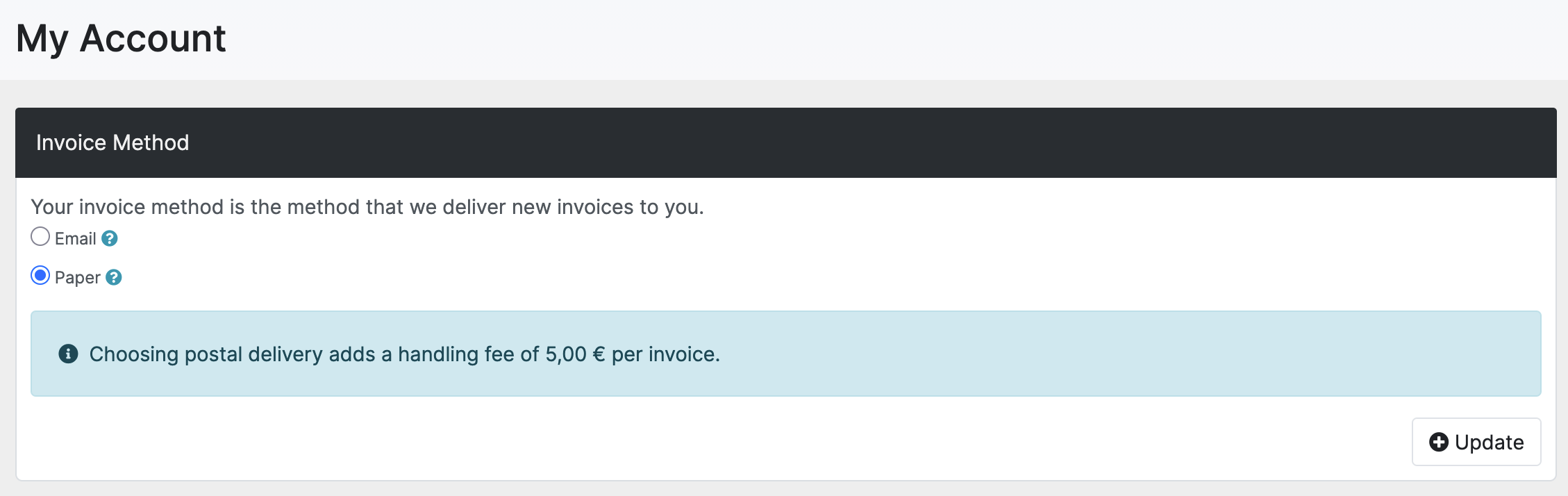
The client, from the client area — on the invoice-method page, alongside the usual delivery choices. The plugin adds a short note next to the Paper option explaining that the invoice will be mailed physically.
-
You, from the admin area — set an invoice's delivery method to Paper as you would for any invoice.
Restricting the sweep to certain gateways
The sweep can be narrowed to invoices associated with particular payment gateways, on Settings → Restrictions. An invoice that doesn't match is left in Blesta's pending-paper queue rather than marked delivered, so nothing goes missing — and a manual Send ignores the restriction entirely.
Send when balance is zero
By default an invoice with nothing left to pay (zero or credit balance) is still worth posting — for example a paid receipt. The Send when balance is zero toggle on Settings → Delivery controls this; turn it off to skip such invoices.
The delivery fee
Posting a letter costs money, and you may want to pass that on. On Settings → Delivery, enable Charge a delivery fee and pick a Fee product. When an invoice is created with Paper delivery, the product's price — in the invoice's own currency, thanks to Blesta's multi-currency pricing — is added as a line item.
No suitable product yet? The Generate button creates a ready-made one; open its edit page afterwards to set the price per currency.
The delivery fee shines when clients opt into paper themselves: they see the postage cost added at the moment they choose Paper, so the charge is transparent and self-selected.
Sending manually from the interface
You don't have to wait for the cron sweep — you can push a document to Pingen on demand.
Invoices tab
The Invoices tab lists your invoices with their Pingen status.
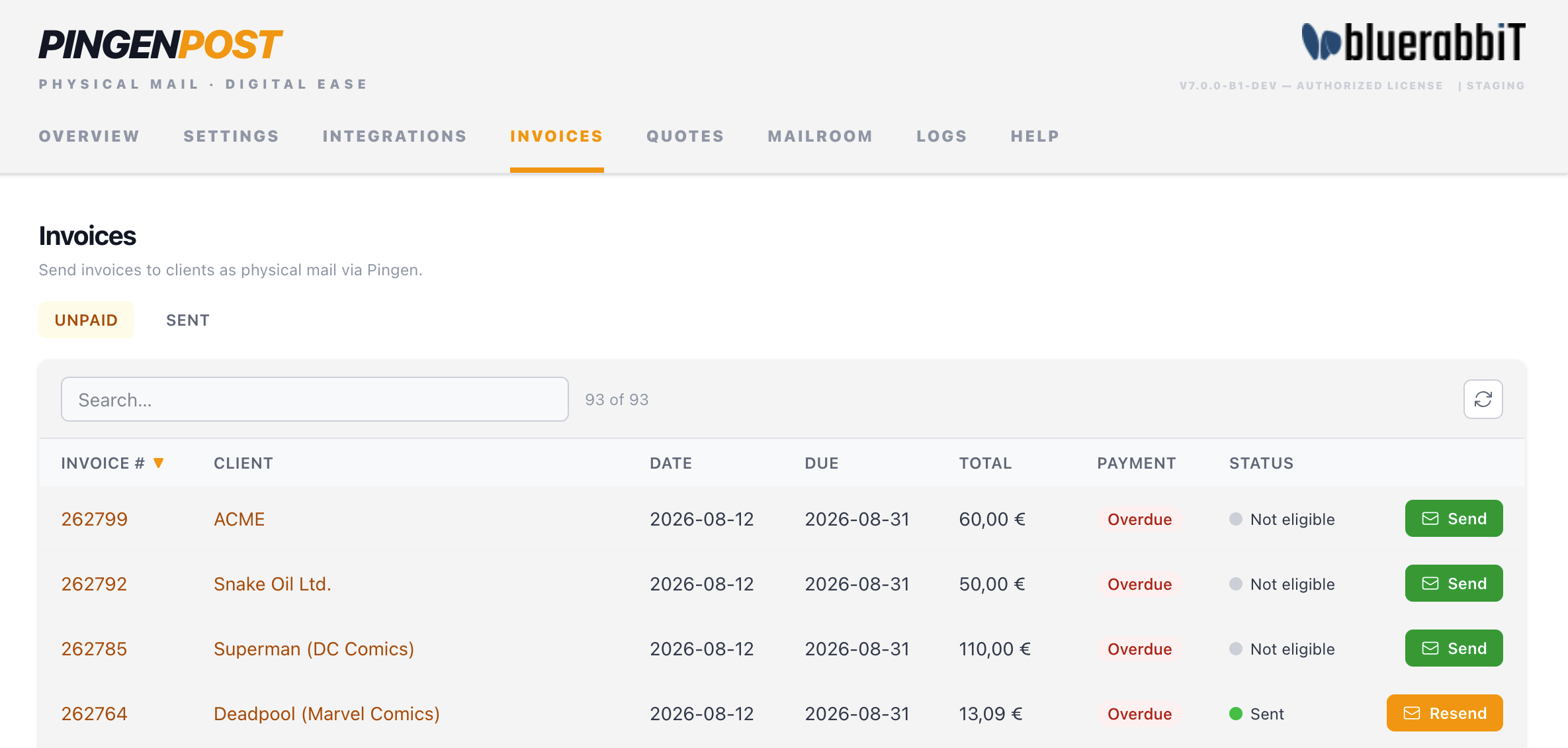
- Send — submit this invoice to Pingen now. A confirmation dialog shows the invoice number, client, and total before you commit.
- Already-sent invoices show when they were sent; use the same control to resend if needed.
Quotes tab
Quotes work the same way on the Quotes tab — pick a valid quote and Send it to Pingen as a letter.
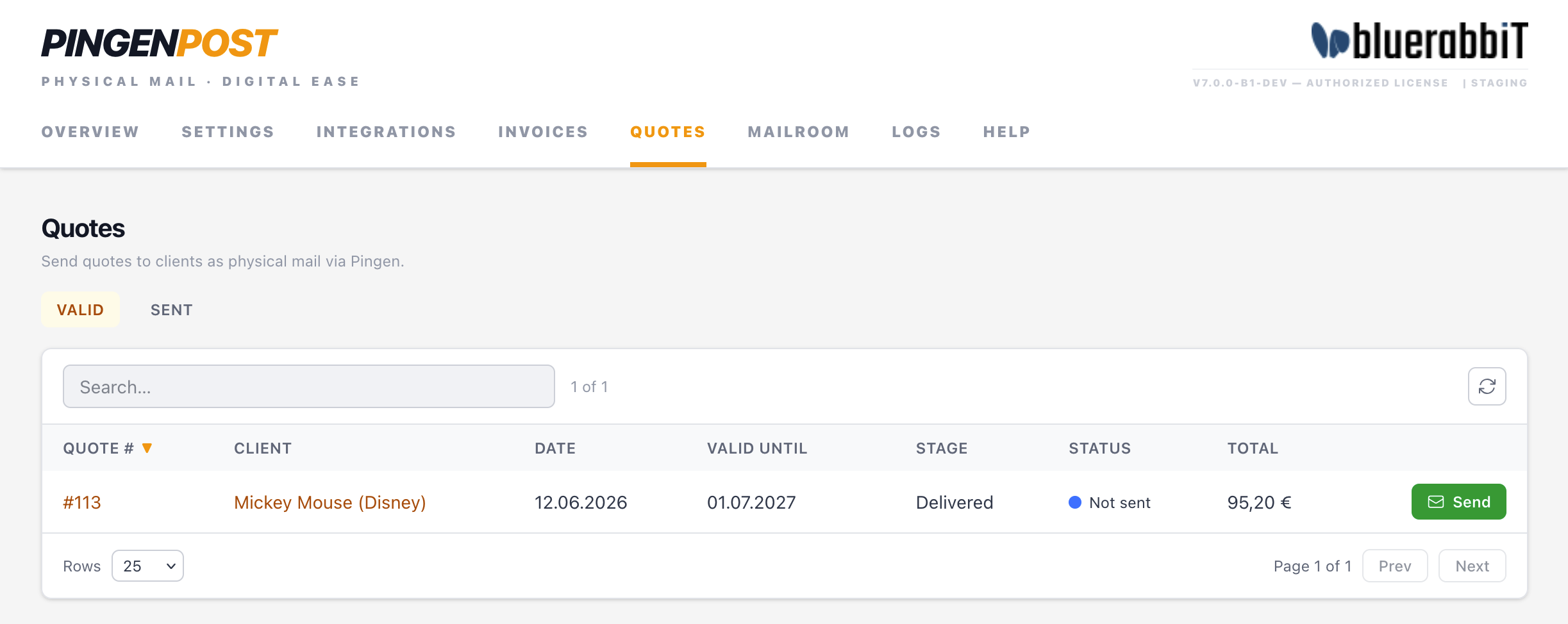
Once submitted, every document — whether it went automatically or by hand — is tracked in the Mailroom.
Pingen validates every PDF for correct margins and address positioning before it will post it. If a document fails validation it won't be sent, and the reason is recorded in the Logs. The easiest way to guarantee valid PDFs is to generate them with BestPDF, which produces Pingen-ready output automatically.
Continue to the Mailroom to see how sent letters are tracked, or set up Integrations so your PDFs are always Pingen-ready.