Pingen Account Configuration
To let the plugin submit letters on your behalf, it needs three pieces of information from your Pingen account: an Organisation ID, a Client ID, and a Client Secret. This page walks you through obtaining them.
You will enter these values later on the Account sub-tab of the plugin's Settings. Repeat the steps for both environments if you want to test against staging before going live — staging and production have separate dashboards and separate credentials.
Step 1: Log in to your Pingen dashboard
If you don't have an account yet, just create one.
- For Staging: https://app-staging.v2.pingen.com
- For Production: https://app.v2.pingen.com
Step 2: Get the organisation ID
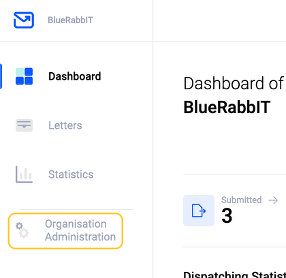
Organization Administration on the left pane

Step 3: Get the Client ID / Client Secret
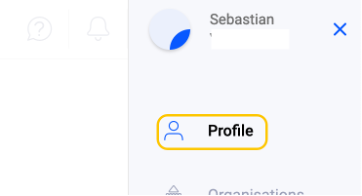
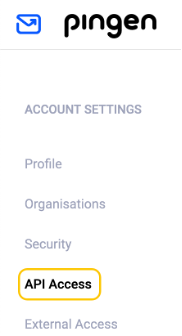
API Access from the left pane, then click on Create Developer App
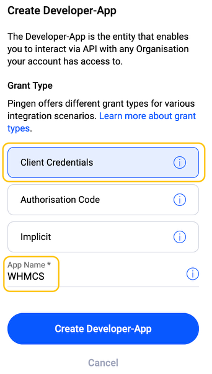
Client Credentials, give it any name you like, and click on Create
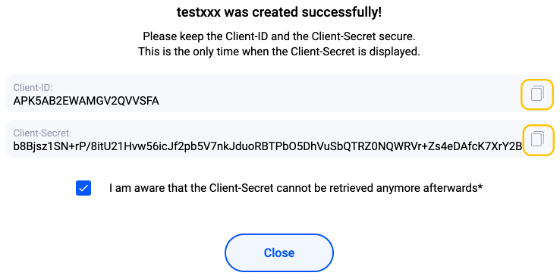
With your Organisation ID, Client ID, and Client Secret in hand, open the plugin's Settings → Account tab, choose the matching Environment, and paste them in.