Installation
Installing Pingen Post takes four short steps: upload the files, install the plugin in Blesta, open the configuration interface, and enter your license key. Getting your Pingen API credentials is covered separately in Pingen Account Configuration.
1. Upload the files
Upload the contents of the release archive to your Blesta installation, preserving the following directory structure:
/plugins/pingen
The folder sits alongside Blesta's existing plugins directory — it does not replace anything.
2. Install the plugin
In your Blesta admin area, navigate to Settings → Plugins.
On the Available tab, locate Pingen and click Install.
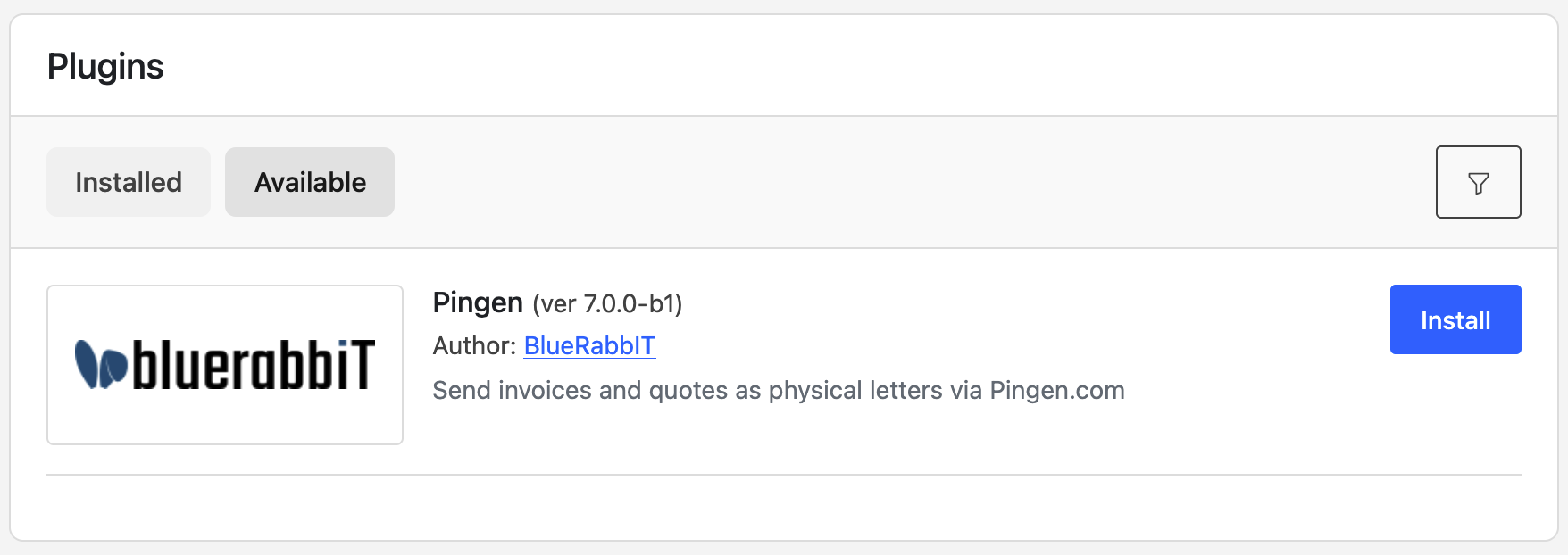
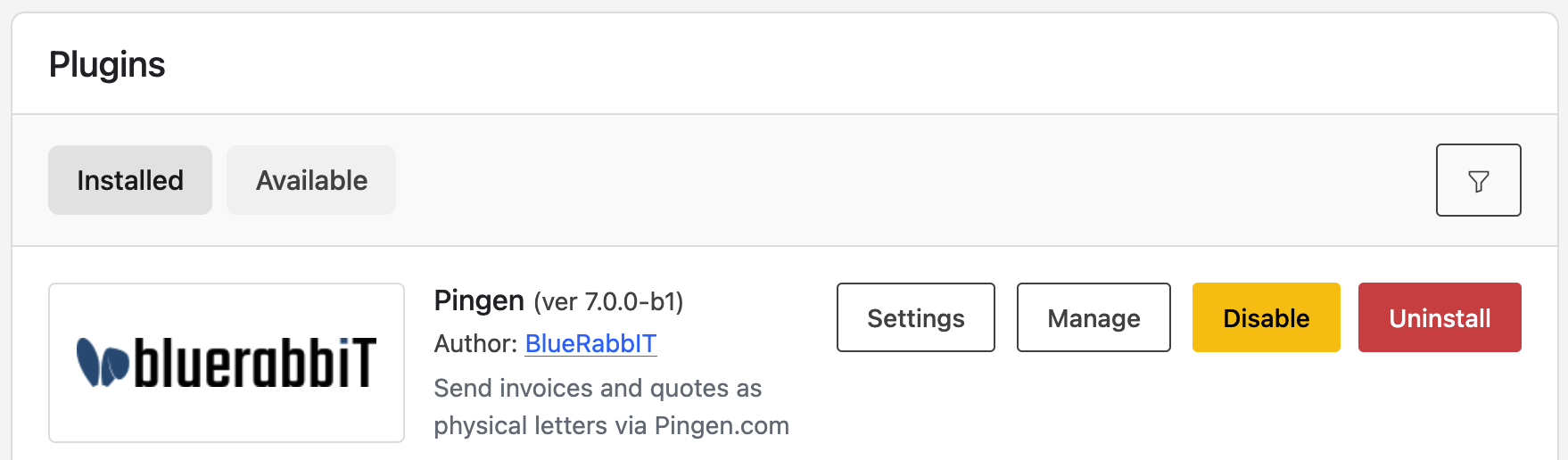
Once installation completes, Pingen Post will appear on the Installed tab. Installing the plugin also registers two cron tasks — the paper-delivery sweep and the log cleanup (see Configuration).
3. Open the configuration interface
Pingen Post is reached either from the admin Tools menu or from the Manage button on the plugin page.
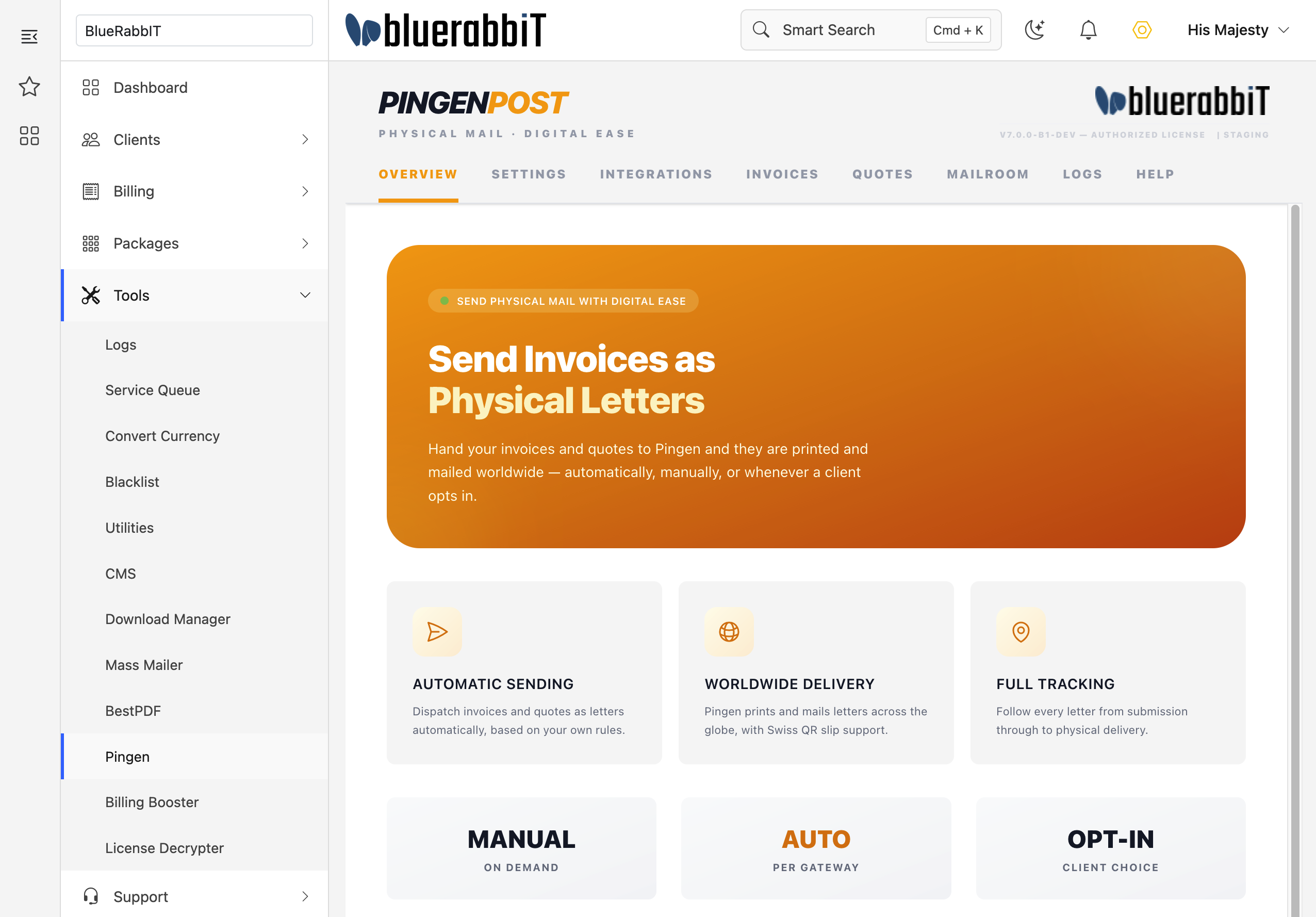
This is where you will manage credentials, letter defaults, delivery behaviour, and where you track everything you send.
4. Configure the license key
In the Pingen Post interface, open the Settings tab and, on the General sub-tab, paste your license key, then click Save settings.
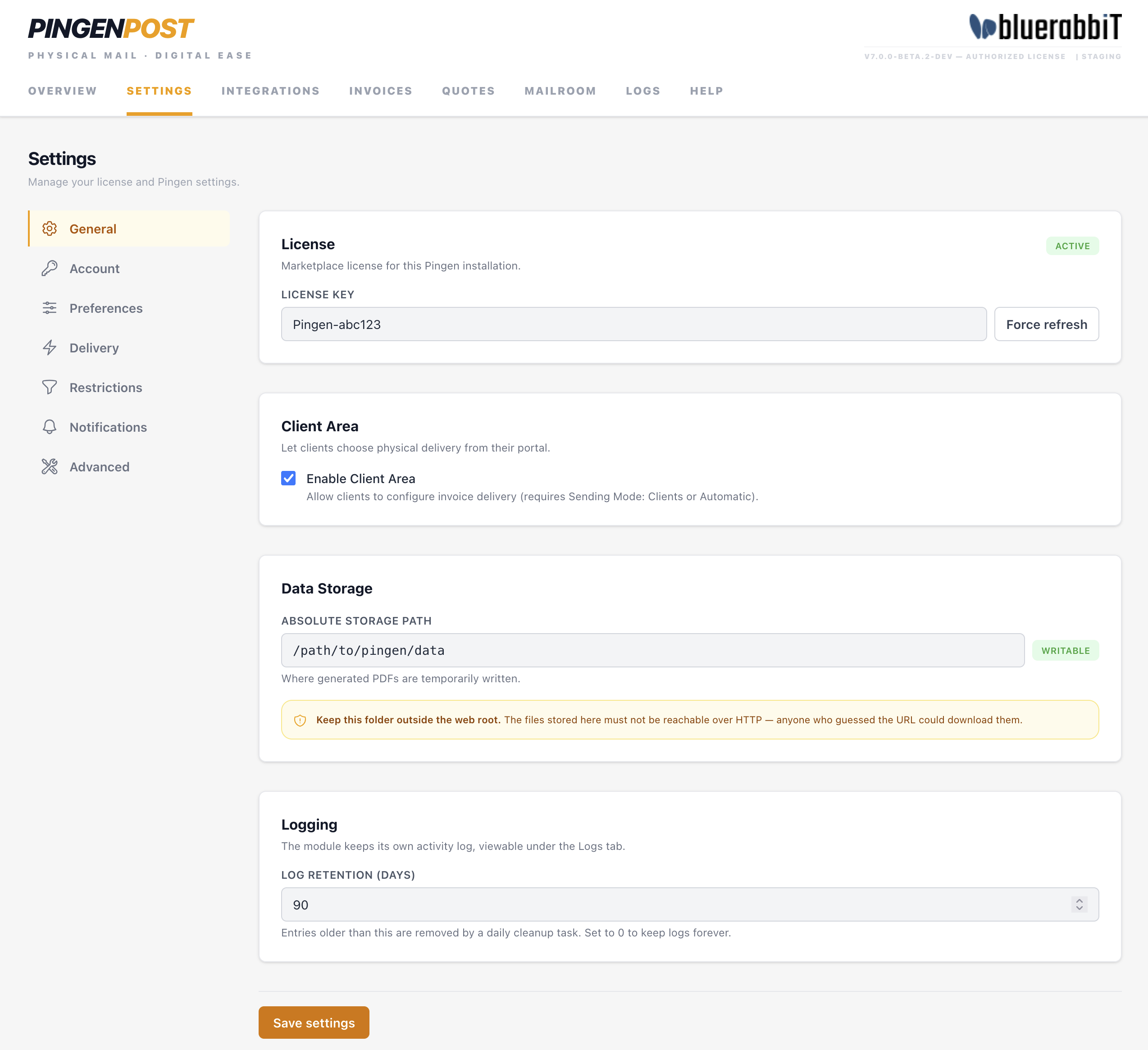
With Pingen Post licensed, connect your Pingen account by following Pingen Account Configuration, then head to the Quick start to send your first letter.