Troubleshooting
Common issues and how to resolve them. If you can't find your problem here, check the Reading the logs section to gather context, then open a ticket in our client area and we'll help you out.
Installation and licensing
"Plugin requires ionCube Loader 13 or newer"
Billing Booster's PHP files are encoded with ionCube. If you see ionCube-related errors during install, check:
- Run
php -vfrom the command line. The output should mention "with the ionCube PHP Loader v13" (or newer). - If it doesn't, install or update ionCube Loader on your server (see your hosting provider's documentation).
- Restart your web server / PHP-FPM after installing.
The features are locked or the Statements/Transactions tabs are missing
Payment codes, e-invoicing, and statement processing are licensed individually, so each part of the interface follows its own entitlement. If something is locked or missing:
- Open Settings → General and confirm your license key is entered and shows status Active.
- Check the Overview tab — the Included features checklist shows which features your license unlocks. A feature your license doesn't include stays locked even when the license is active, and that is expected, not a fault.
- Just bought or renewed something? Click Force refresh next to the license key to re-check with the license server instead of waiting for the cached result to expire.
- Statements needs two things, not one: the Statement Processing feature and an enabled statement configuration. With the feature licensed but nothing configured, Transactions appears and Statements doesn't.
If the Overview tab reports an Active license that includes no features at all, an add-on entitlement has most likely lapsed — Force refresh first, then open a ticket if it stays empty.
See Licensing and what you can see for the full table of what appears when.
"Class not found" or autoload errors after upgrade
Stale opcache or a partial file copy. Fix by:
- Make sure the file upload finished cleanly — check that
/plugins/billboost/lib/is fully populated. - Clear your PHP opcache (restart PHP-FPM, or
service php-fpm restart). - Reload the Blesta admin page.
"Upgrade button missing after replacing files"
The Upgrade button only appears when the new version requires a database migration. If the new files are all that's needed, no button is shown — your install is already up to date.
Data storage shows "Not Writable" / file permission errors
The Data Storage directory must be writable by the user that runs PHP. The Settings tab shows a live status chip next to the path. If it reads Not Writable, Not Readable, or Not Executable, fix the directory's ownership and permissions so the PHP user can write to it.
Payment codes
A payment code isn't appearing anywhere
Before hunting through conditions, check the two wiring steps Blesta needs:
- Is the invoice template set to BillBoost? Under Settings → Billing/Payment → Invoice Customization, the Invoice Template must be BillBoost — or BestPDF, with a Payment Code component in the design. With Blesta's stock template selected, no code is ever drawn, however well the configuration is set up. This is the most common cause by a distance.
- Does the email template contain
{paycode}? Blesta builds invoice emails from your own templates, so the tag has to be there. See Installation → Add the email tags.
If the code appears in one place but not another, the wiring is fine and it's a condition — read on.
A payment code isn't appearing on a particular invoice
This is almost always a condition that excludes the invoice. To find out which:
- Turn on diagnostic logging under Settings → Logging.
- Regenerate the invoice (or trigger the email).
- Open the Logs tab — the log explains, per invoice, which condition matched or excluded the code.
Things to check:
- Is the configuration Enabled?
- Do the invoice's currency and the client's country fall within the code's Conditions?
- Is there a payment gateway filter that excludes this invoice's gateway?
- For emails specifically: does that email template carry the
{paycode}tag? Billing Booster fills the tag in for the two invoice delivery emails and the three payment-due notices only. - If another exclusive code matched first, it suppresses lower-priority codes — check the Order on the list.
"Invalid IBAN format" / "Invalid BIC format"
The editor validates the IBAN and BIC you enter on the Account Details tab. Re-check them — IBANs must be the full international format, and BICs are 8 or 11 characters.
The Swiss QR slip looks wrong or is missing
- Confirm you entered a valid CHF IBAN (or QR-IBAN) and complete Company Details (creditor address).
- Check Show separation lines on the Layout tab — if it's set to Never, In emails only, or Always except admin area, the slip won't render where you're looking. Admin-generated previews are the usual surprise.
- Not on the page you expected? Check Slip placement on the same tab. Under BestPDF the control is greyed out and placement comes from the design instead.
Every page has a large empty band at the bottom
Slip placement is set to First page. Reserving room for the slip uses TCPDF's page-break margin, which is global, so the gap appears on every page of a multi-page invoice — and the slip itself ends up mid-document.
Switch Slip placement to Last page (or Separate page after the invoice) on the payment code's Layout tab. See Slip placement.
E-invoicing
Factur-X / ZUGFeRD XML isn't in the PDF
ZUGFeRD and Factur-X embed the XML inside the PDF, which is done by BestPDF. Make sure BestPDF is installed and detected (Integrations tab) and that the E-Invoicing component is present in your active design. Without BestPDF, only standalone UBL/Peppol XML can be produced.
The XML fails validation
Schema validation almost always fails on missing company or tax identity fields. Re-check the Company Details and Tax Information tabs, then validate a fresh sample. The Logs tab records generation errors.
Untaxed lines come out as zero-rated instead of reverse charge
Reverse charge (AE) needs both VAT identifiers, and an exemption (E) needs a reason. When either is missing, Billing Booster falls back to zero-rated (Z) deliberately, so the document stays valid rather than asserting something it can't support. Check that:
- your own VAT Number is filled in on the Tax Information tab, and
- the client has a VAT number on their Blesta record (for AE), or an Exemption reason is set (for E).
See VAT treatment of untaxed lines.
The e-invoice download link in an email doesn't work
The {einvoice_link} tag points at Blesta's electronic-invoice route, which is served by the e-Invoice invoice format component. Confirm /components/invoice_formats/billboost was uploaded (see Installation). If the download returns an XML <error> element, it will name the cause: the plugin isn't installed, e-invoicing isn't in your license, or no e-invoicing configuration matched.
Statement processing
Can't download from the bank
- Confirm the configuration has a bank connection. Without one, Download from Bank isn't available and statements have to be uploaded.
For an MFTPF connection:
- Confirm the SFTP Username and SFTP Private Key Path are correct.
- Make sure the private key file exists at that path and is readable by the PHP user.
- Confirm the server can reach PostFinance MFTPF over SFTP (no firewall blocking the outbound connection).
For an EBICS connection:
- Confirm the bank setup is Active. Until it is, the Statements tab says the setup is not finished, and downloads are refused.
- Confirm the Bank Country is your bank's, so the right files are requested. If the bank answers that the order type or parameters are not supported, ask it for its BTF parameters and enter them under Show download parameters.
- Confirm the server can reach the EBICS URL over HTTPS, and that its CA certificates are up to date: the bank's certificate is always verified.
- "The bank will send them again" means the files arrived but could not be saved to the archive — check that the Data Storage path is writable. The bank keeps the files until they can be saved.
For a Revolut Business or Enable Banking connection:
- Confirm the bank setup reads Authorised and an Account is chosen. If the Statements tab says the bank no longer accepts the authorisation, it has expired: open the configuration, Edit the bank connection, and click Authorise Again.
- A payment the bank still reports as pending isn't downloaded yet; it comes in with the next download after it is booked.
The EBICS setup doesn't get past a step
- Sending the keys fails: check the EBICS URL, Host ID, Partner ID and User ID against your bank's contract letter. If only the second half failed, Retry Sending Keys resends the same keys.
- "EBICS needs these PHP extensions on the server": install the extensions it names (see Requirements).
- Check Bank Activation keeps failing: the bank has not activated your access yet — it needs the signed initialisation letter first. The message shows the bank's own reason.
- The hash values don't match: don't activate. Contact your bank, then use Start over with new keys once it has reset your EBICS access.
A Revolut or Enable Banking setup doesn't finish
- Nothing happens after authorising: the setup listens for the window it opened. Allow pop-ups for your admin area, and finish the authorisation in that window rather than in another tab.
- Enable Banking offers no banks, or the wrong ones: check the Application ID, the Bank Country and the Account Type — a bank serving only personal accounts isn't listed for a business account, and the other way round. Your accounts must also be linked to the application in the Enable Banking control panel.
- The bank refuses the authorisation: the refusal is written to the Logs tab with everything the bank said.
An uploaded file is refused
Each configuration takes files in its own format. "… is a camt.053 file; upload it on the tab of a camt.053 configuration" means the file belongs on another configuration's subtab — add a configuration of that format if there is none. "… which statement processing does not read" means another ISO 20022 message, such as a camt.052 intraday report — ask your bank for camt.053 or camt.054 instead. "… is not a camt.054 file" means the file is not a camt statement at all.
On a CSV configuration, a file that lacks one of the mapped columns is refused with the column's name — the bank has changed its export, or the file is from another account. Open the configuration and map the columns again from a current export (see CSV Columns).
Some payments are missing from the preview
The preview lists incoming payments only; outgoing payments in a camt.053 are skipped. If the import warns about bookings without payment details, your bank booked several payments as one line without listing them. Those can't be matched: ask your bank to include the details, or use camt.054 (see camt.054 or camt.053?).
Payments aren't matching invoices
Matching relies on the structured reference carried by the payment. If transactions come back unmatched:
- Confirm the originating payment code's reference format produces a reference your matching can read (e.g. client number + invoice number).
- For SEPA payments, turn on Use an RF creditor reference on the EPC payment code, so the payment carries a reference instead of free text.
- For payments without a reference, set Match by invoice number in the payment note to Review or Automatic. Such a match needs exactly one unpaid invoice that the amount pays in full — a partial payment, or a note naming several invoices, stays unmatched on purpose (see How payments are matched).
- For CHF, turn on Accept 5-cent rounded CHF payments under Shared settings, so a 5-cent rounding difference doesn't block the match.
- Check the Logs tab for the specific reason a transaction was skipped.
A payment can't be selected in the preview
A row without a checkbox is a payment that can't be applied: its invoice wasn't found, or the payment is already recorded (Exists). A payment on an invoice that is already Paid can be applied, but is never preselected — tick it only if you mean to book it; see A payment on an invoice that is already paid.
Payments are waiting for review on the Overview
That is automatic processing handing you what it could not settle by itself — an invoice already paid, a match from the payment note, an overpayment, a failure. Open Details to see the payment and the invoice, then Apply or Dismiss it. See Payments to review.
"Paycode gateway not found" when applying payments
Applied payments are booked against the Payment Code non-merchant gateway, so it has to exist. Go to Settings → Company → Payment Gateways, find Payment Code on the Available tab, and install it. See Installation.
The Transactions tab is empty even though payments were applied
The tab lists Blesta transactions booked against the Payment Code gateway. If the gateway was installed after the fact, or the payments were recorded by hand against a different gateway, they won't be listed there — check the client's payment history in Blesta instead.
Automatic processing isn't running
- Confirm the configuration has a ready bank connection (for EBICS, a setup that is Active; for Revolut Business and Enable Banking, an authorisation that hasn't expired), and enable Enable automatic sync on it. The Statement Processing cron task is enabled by default, but it exits immediately unless this checkbox is on — it is the real switch.
- Confirm the task is still enabled in Blesta's cron task manager under Settings → Automation, in case it was turned off.
- Confirm Statement Processing is included in your license; the task stops early without it.
- Make sure Blesta's own system cron is configured and running on the server.
- If it runs but not often enough, that is the task's interval, not a Billing Booster setting — raise it under Settings → Automation (see Changing how often it runs).
Reading the logs
The Logs tab inside the Billing Booster interface shows the plugin's activity log — the first place to look when something doesn't behave as expected.
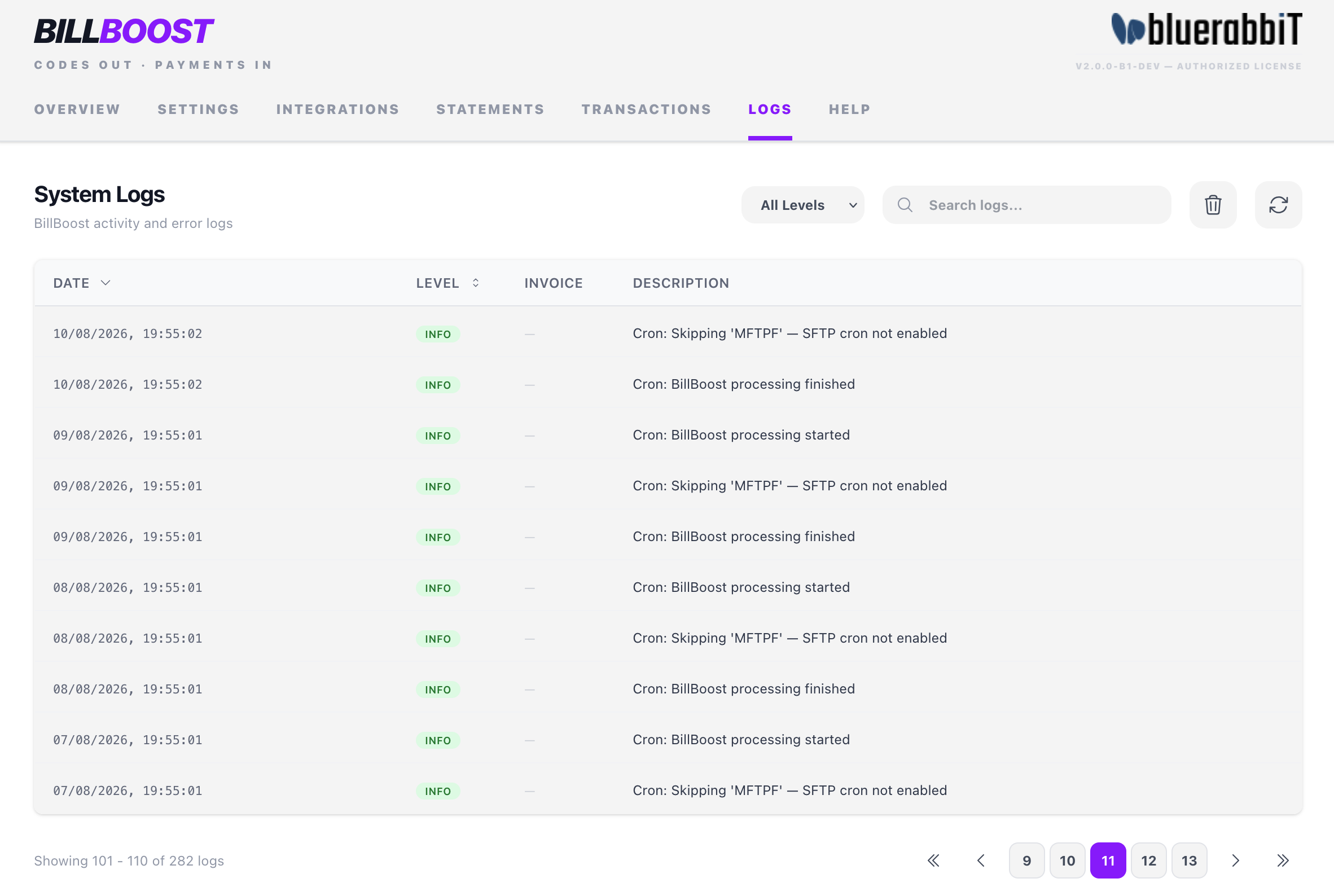
Controls
- Filter by level — Debug, Info, Warning, Error.
- Search — substring match against the log message and date.
- Sort — by date or level, ascending or descending. Defaults to most recent first.
- Refresh — re-fetch the latest entries.
What's logged
- INFO — routine operations: code generated, e-invoice produced, statement processed, payment applied.
- WARNING — recoverable issues: an invoice was skipped by a condition, a transaction couldn't be matched.
- ERROR — unrecoverable issues: invalid bank details, e-invoice generation failure, SFTP or EBICS download failure, file write permission denied.
- DEBUG — verbose tracing, written when diagnostic logging is enabled. This is what to turn on when a payment code isn't appearing.
When to attach logs to a support ticket
If you're opening a ticket in our client area, turn on diagnostic logging, reproduce the issue, then filter the log to the relevant time window at DEBUG level and copy the matching entries into the ticket. This gives us enough context to diagnose without repeated round-trips.
Frequently asked questions
Will my configurations survive an upgrade?
Yes. Payment code, e-invoicing, and processing configurations live in the Blesta database. Replacing the plugin files preserves them, as do your invoice template selection, email tags, and gateway settings.
Uninstalling the plugin keeps them too, unless Remove all data when the plugin is uninstalled is switched on under Settings → Advanced. See Uninstall.
Can I switch off the payment code for one type of email?
Not on Blesta. Blesta's email event can't cancel or rewrite a send, so which emails carry a code is decided purely by which templates you put the {paycode} tag into. (The per-email-type toggles exist on the WHMCS edition, which hooks emails differently.)
Can I have different payment codes for different countries or currencies?
Yes — that's exactly what Conditions are for. Create one configuration per account/standard and scope each with currency, country, and gateway conditions. Use Exclusive and Order when several could match the same invoice.
Do I need BestPDF?
No — Billing Booster works standalone. Without BestPDF, set your Invoice Template to BillBoost, which wraps Blesta's default template and places the code for you at a fixed position. BestPDF replaces that with pixel-precise placement, and is required for embedding ZUGFeRD / Factur-X XML into the PDF. Pick one or the other as your invoice template — never both. See Integrations.
Can statement processing work with banks other than PostFinance?
Yes. Statement processing reads camt.054 and camt.053 files, which practically any bank can export, and any bank's CSV export once its columns are mapped: upload them on the Statements tab to match and apply payments. For automatic download, the EBICS connection works with practically every bank in Switzerland, Germany and Austria, Enable Banking with most European banks, and Revolut Business has a connection of its own; PostFinance can also be reached through MFTPF.
Uninstalling
If you want to remove Billing Booster from your installation entirely, see the dedicated Uninstall page.