Statements
Getting bank statements into Billing Booster and applying the payments they contain back to your Blesta invoices — the day-to-day side of statement processing.
The Statements tab is where you import statement files and apply the payments they carry. Applied payments are then listed on the Transactions tab.
The Statements tab only appears once Statement Processing is included in your license and you have an enabled statement configuration. See Configuration → Statement Processing to set it up, optionally with a bank connection — and make sure the Payment Code gateway is installed, or applying a payment will fail.
One subtab per configuration
With more than one enabled statement configuration, the tab shows a subtab for each, named after it, in the order set under Settings → Statement Processing. Everything on a subtab belongs to that configuration: its settings, its bank connection, and its own archive of files. The subtab you used last is shown again next time.
With a single configuration, there is no subtab bar.
Getting a statement
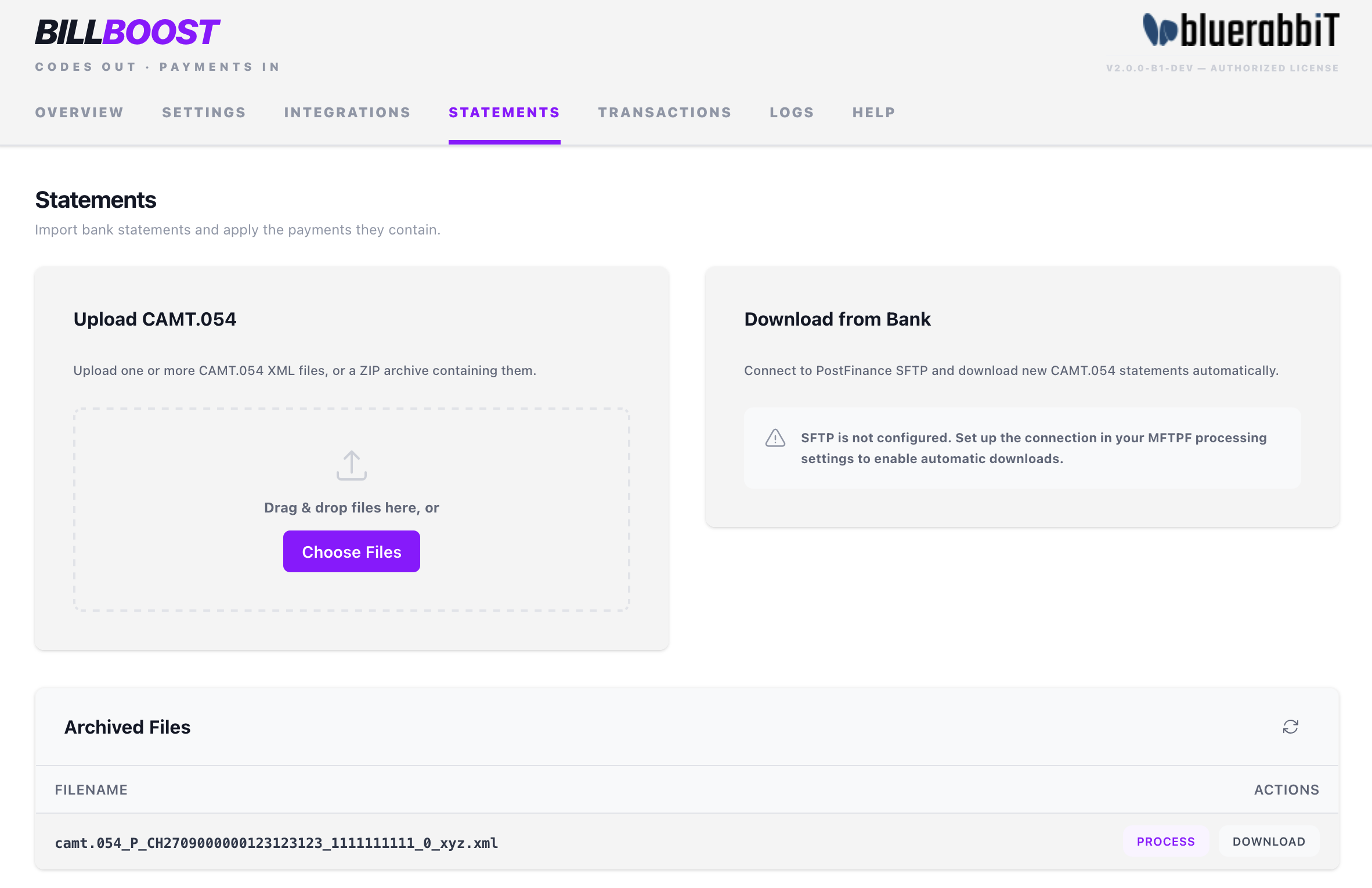
- Upload Statements — upload one or more files in the configuration's format (
.xmlfor camt.054 and camt.053,.csvfor CSV), or a ZIP archive containing them. This works with any bank that exports the format. A camt file in the other camt format is refused — "… is a camt.053 file; upload it on the tab of a camt.053 configuration" — so that every file is processed with the settings meant for it. - Download from Bank — pull the latest statements through the configuration's bank connection (MFTPF, EBICS, Revolut Business or Enable Banking). Only available once a bank connection is configured and ready. Until then, the card says what is missing: a connection, a finished EBICS setup, or — for Revolut Business and Enable Banking — an authorisation the bank still accepts. It also warns two weeks before an authorisation runs out.
Either way, Billing Booster reads the statements and opens the transaction preview. Anything that needs your attention but didn't stop the import — a refused file, or bookings without payment details — is shown as a warning.
Reviewing and applying
The Preview Transactions dialog lists every incoming payment the statements contain, each matched (where possible) to an invoice and client, with the invoice's status and balance, the amount paid, the booking date, the payer, and how the payment relates to the balance (Full, Partial, Excess).
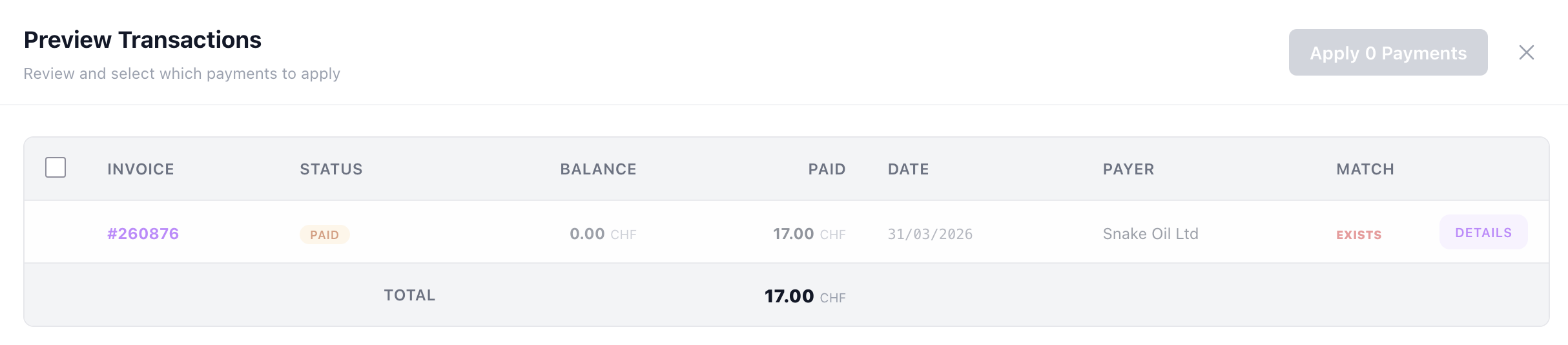
- Review the proposed matches and select which payments to apply. Payments on unpaid invoices are preselected. A payment that can't be applied has no checkbox: its invoice wasn't found, or it has already been recorded (Exists).
- Payments matched by the invoice number in their note, rather than by their reference, are marked From note — hover over the mark to see the note. They are not preselected: tick them once you have checked them. (With Match by invoice number in the payment note set to Off, there are none.)
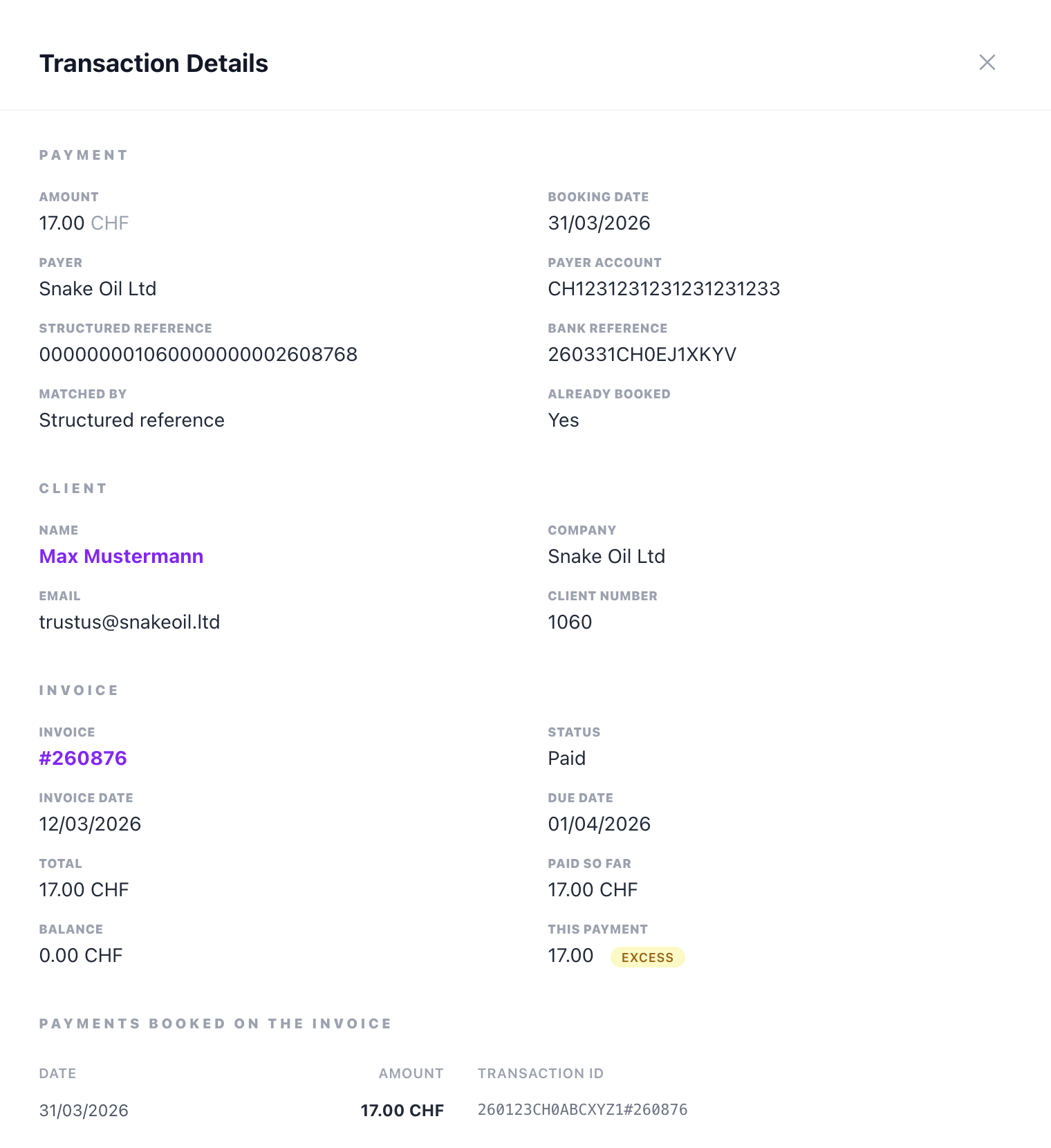
- Details on a row shows everything about the payment: as the bank reported it (amount, booking date, payer and their account, structured reference, bank reference, how it was matched), the client, the invoice with its total, what has been paid so far and its balance, and the payments already booked on it.
- Click Apply n Payments — Billing Booster records the selected payments against their invoices in Blesta. The result lists what was applied, with its transaction ID, and any errors it hit. Print prints it for your records.
A payment on an invoice that is already paid
A client who pays an invoice twice — once by card, once by bank transfer, say — leaves a payment whose invoice is already Paid. The preview marks it Already paid, and does not preselect it. Tick it to book it anyway: a warning above the list says how many such payments are selected. The payment is recorded on that invoice, and since there is nothing left to pay, Blesta keeps the amount as credit on the client's account.
Automatic processing never books such a payment by itself: it puts it on the review list.
Archived files
Processed files move to the configuration's Archived Files list and are retained for the number of days set under Shared settings, whether they were uploaded or downloaded. Each archived file has two buttons: Process re-runs it and opens the preview again, and Download fetches the original file.
Each configuration archives into its own folder below the Data Storage path, named after its type and ID — for example camt054-1/ or camt053-4/.
Payments to review
Automatic processing applies what is unambiguous: a payment matched to an unpaid invoice. Anything else it leaves alone — and rather than skip it without a word, it puts it on a review list on the Overview tab.
| Mark | Why it wasn't applied |
|---|---|
| Already paid | The invoice is already paid — the client may have paid twice. |
| Not payable | The invoice is in a status that takes no payment, e.g. void. |
| Invoice not found | The payment's reference names an invoice that doesn't exist. |
| Match from note | The invoice was found in the payment note, and the configuration leaves such matches for an admin to confirm. |
| Overpaid | It was applied, but paid more than the invoice's balance. Listed so you notice the surplus. |
| Failed | Applying it failed; the entry says why. |
Each entry shows the amount, the invoice, the client or payer, the booking date and the configuration it came from, with three buttons: Details (as in the preview), Dismiss to take it off the list, and — for Match from note, Failed and Already paid — Apply (Apply anyway for a paid invoice) to book it from here. The list only appears while there is something on it.
Unless you turn it off under Shared settings, the admins also get one email per run listing the payments that were added to the list.
Automatic processing
Billing Booster registers a Blesta cron task, Statement Processing (billboost_processing), that runs the whole pipeline unattended: download new files through the bank connections, match the transactions, and apply the payments. Configurations are worked through in the order set under Settings.
- The task is enabled by default and runs every 6 hours.
- It is harmless in that state: it exits immediately unless Statement Processing is licensed and a statement configuration is enabled with a bank connection and Enable automatic sync switched on. In other words, the switch that actually starts automatic processing is that checkbox on the configuration, not the cron task.
- It applies payments matched by their reference to an unpaid invoice. Payments matched by the invoice number in their note are only applied if the configuration's Match by invoice number in the payment note is set to Automatic. Everything it doesn't apply goes to the review list.
- One configuration failing doesn't stop the ones after it.
For automatic processing to work, Blesta's own cron must be running on the server (see Blesta's documentation on configuring the system cron).
Changing how often it runs
The six-hour default is a starting point, not a limit. If your bank publishes statement files more often than that, retime the task in Blesta itself — there is nothing to configure in Billing Booster.
- Go to Settings → Automation and find Statement Processing in the task list.
- Set the interval to how often you want statements pulled.
- Save. The change takes effect on Blesta's next cron run.
The same screen is where you disable the task altogether, if you would rather import statements by hand from the Statements tab.
The interval on a task is a minimum — Blesta only checks its task list when the system cron fires. If that runs every 15 minutes, a task set to a 5-minute interval still runs every 15.
Billing Booster also registers BillBoost cleanup (billboost_log_cleanup), which runs once a day. It deletes activity-log entries older than the retention period set under Settings → Logging, and archived statement files older than Retain processed files in the shared settings. Leave it enabled, or old statement files are never removed.
If a payment doesn't match an invoice, the most common cause is a payment without a structured reference. Swiss QR-bills always carry one; for SEPA payments, turn on Use an RF creditor reference on the EPC payment code. For payments that still arrive without one, see How payments are matched, and check the Logs tab for details.