Installation
Installing Billing Booster takes a handful of short steps: upload the files, install the plugin in Blesta, enter your license key, and then tell Blesta where the payment codes should appear.
1. Upload the files
Upload the contents of the release archive to your Blesta installation, preserving the following directory structure:
/components/gateways/nonmerchant/paycode
/components/invoice_formats/billboost
/components/invoice_templates/billboost_invoice
/plugins/billboost
The four folders sit alongside Blesta's existing components and plugins directories — they do not replace anything.
Only /plugins/billboost is mandatory. The three components folders are what make Billing Booster visible to the rest of Blesta, and each is optional on its own:
| Folder | What it is | Needed for |
|---|---|---|
invoice_templates/billboost_invoice | The BillBoost invoice template | Payment codes on PDF invoices, when you are not using BestPDF (see step 5) |
invoice_formats/billboost | The e-Invoice invoice format | Downloading the e-invoice XML through Blesta's electronic-invoice route (see E-Invoicing) |
gateways/nonmerchant/paycode | The Payment Code payment gateway | Showing a payment code on the client's payment page, and required for statement processing to book payments (see step 7) |
2. Install the plugin
In your Blesta admin area, navigate to Settings → Plugins.
On the Available tab, locate Billing Booster and click Install.
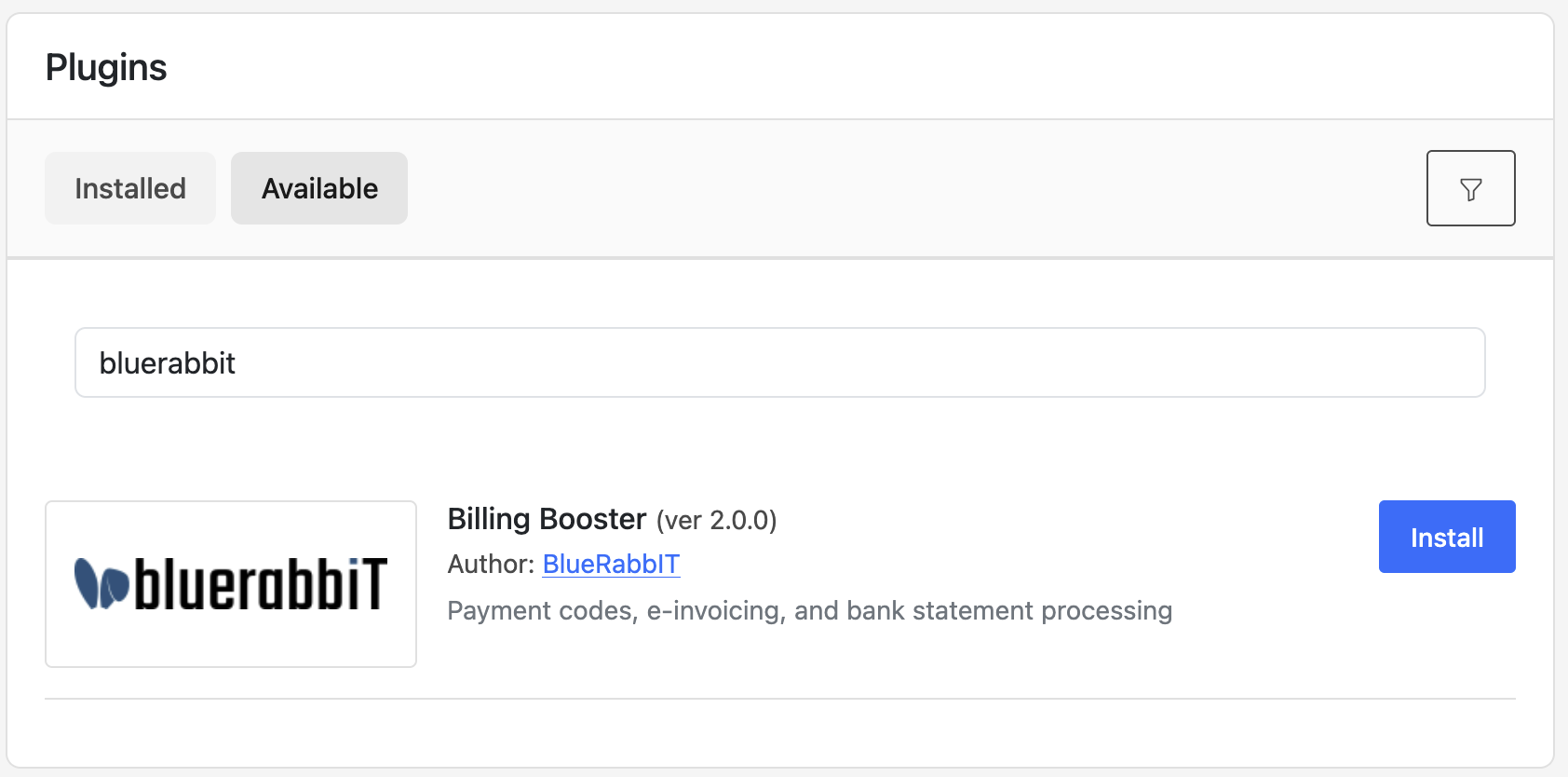
Once installation completes, Billing Booster will appear on the Installed tab.
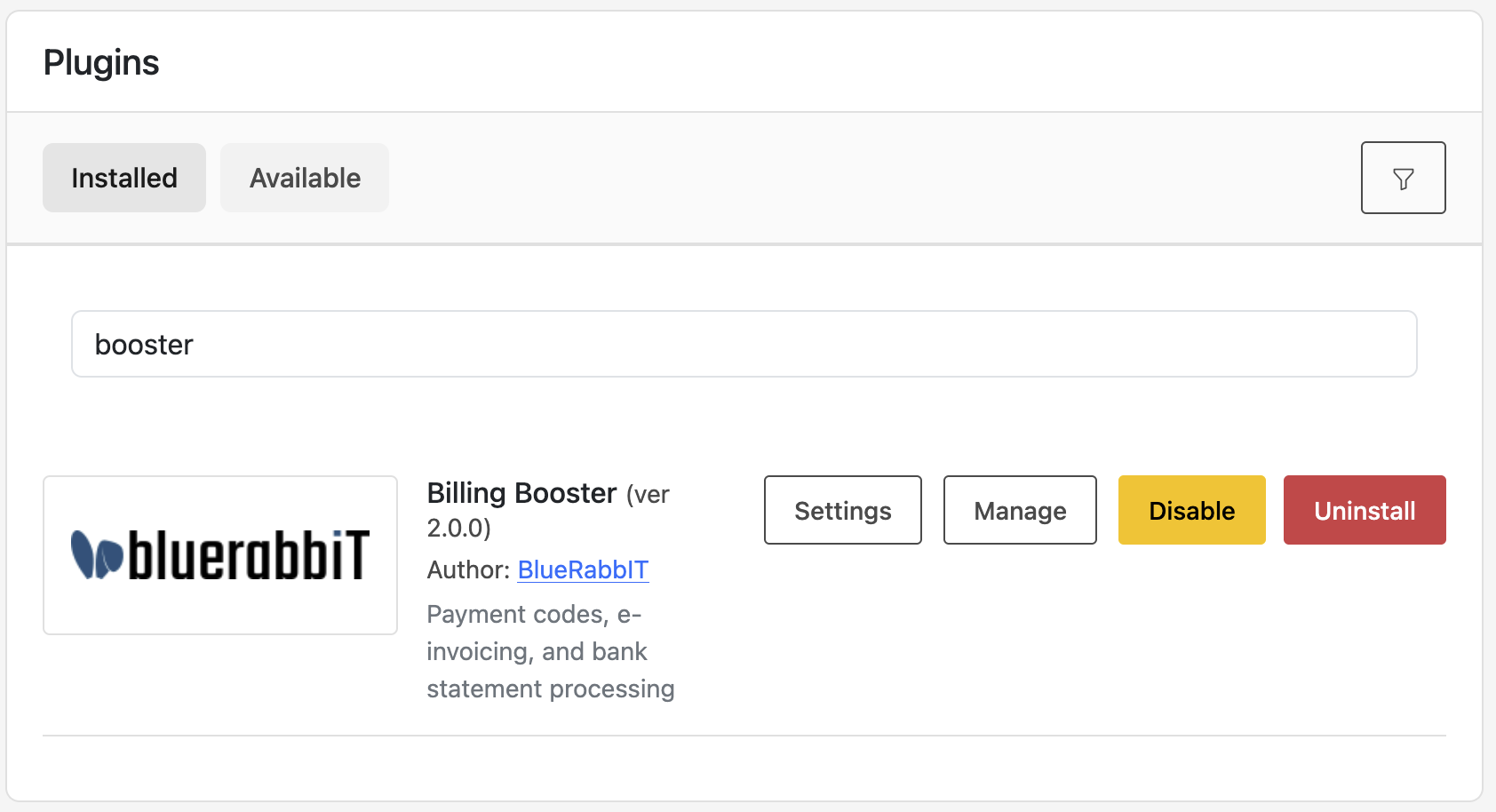
Installing the plugin also registers two cron tasks, billboost_processing and billboost_log_cleanup. Both are enabled by default and are described under Statements → Automatic processing.
3. Open the configuration interface
Billing Booster is reached either from the admin Tools menu or from the Manage button on the plugin page.
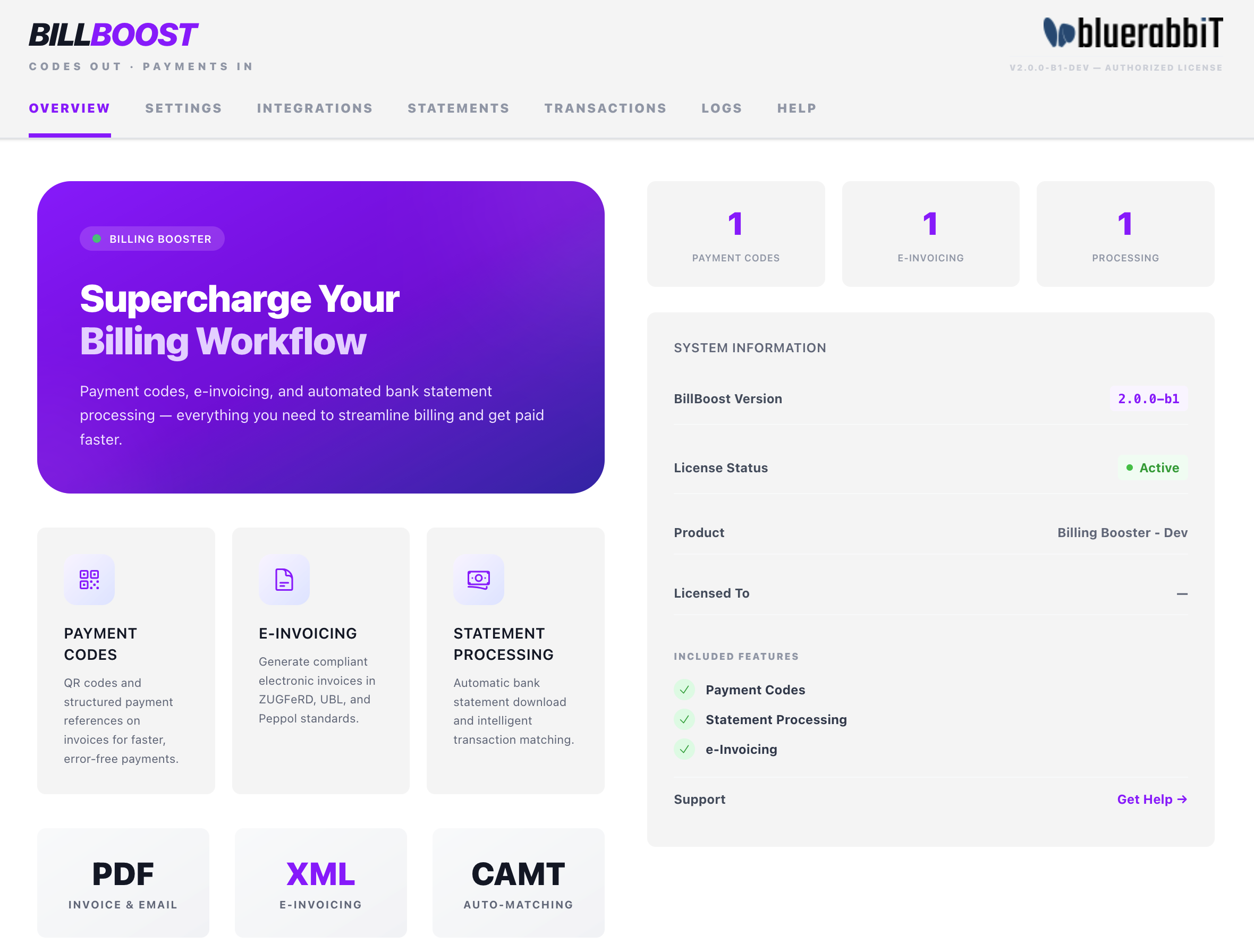
This is where you will configure payment codes, e-invoicing, statement processing, and the module settings.
4. Configure the license key
In the Billing Booster interface, open the Settings tab (the General sub-tab) and paste your license key, then click Save Changes. If you have just bought a feature and it hasn't appeared yet, click Force refresh next to the field to re-check with the license server immediately.
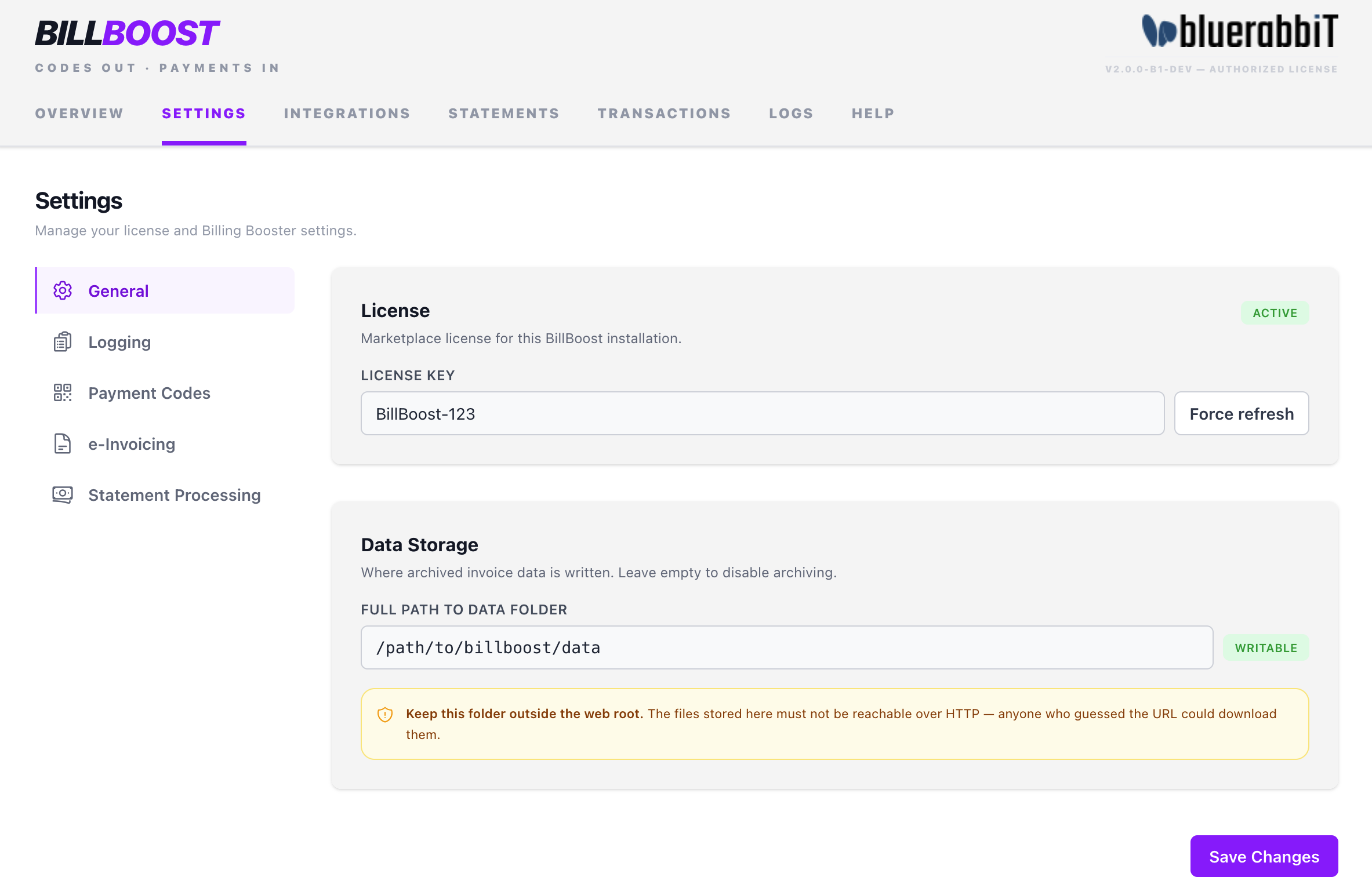
Billing Booster's three features — payment codes, e-invoicing, and statement processing — are licensed individually, and the interface only exposes what your license includes. See Configuration → Licensing and what you can see for the full picture, and check the Overview tab for the list of features your license unlocks.
While you are here, set the Data Storage path to a directory that is not reachable from the web — this is where Billing Booster archives generated codes and processed statements. See Configuration → Data Storage.
5. Select the invoice template
Payment codes reach your PDF invoices through the invoice template, so Blesta needs to be told to use one that knows about them. Navigate to Settings → Billing/Payment → Invoice Customization and, in the Look and Feel section, set Invoice Template:
- Not using BestPDF? Choose BillBoost. It wraps Blesta's default invoice template and adds the payment code (and, where the space is needed, reserves room for a Swiss QR slip).
- Using BestPDF? Leave the template set to BestPDF instead, and place the code with the Payment Code component in the design editor. Do not select BillBoost — a Blesta install uses one invoice template at a time.
Click Update Settings to save.
With Blesta's stock template selected, Billing Booster has nothing to draw into: invoices generate exactly as before, with no payment code and no reserved slip space. This is the single most common reason a correctly configured code never shows up.
6. Add the email tags
Blesta builds its invoice emails from your own templates, so Billing Booster provides two tags for you to place where you want them:
| Tag | What it inserts |
|---|---|
{paycode} | The payment code block (QR code plus payment details) for the invoice |
{einvoice_link} | A Download E-Invoice link, when an e-invoicing configuration matches the invoice |
Go to Settings → Company → Emails → Email Templates and edit the invoice templates you use: the two invoice delivery templates (unpaid and paid) and the three payment-due notice templates. Insert the tags into the body wherever the code should appear, then save. Those five are the only emails Billing Booster fills the tags in.
Both tags render empty when nothing applies — an invoice with no matching payment code, or a client with no e-invoice — so it is safe to leave them in every template.
On WHMCS, payment codes can be switched off for individual email types. Blesta's email event cannot cancel or rewrite a send, so the equivalent option does not exist here: whether a code appears in a given email is decided entirely by which templates you put {paycode} into.
7. Install the Payment Code gateway
Billing Booster ships a non-merchant gateway called Payment Code. It does two jobs:
- It shows the payment code on the client's payment page — useful when a customer chooses to pay by bank transfer and wants to scan the code straight from the screen. The gateway encodes the amount the client allocated to each invoice, so partial and multi-invoice payments produce a code for the amount actually being paid.
- It is the gateway that statement processing books payments against. Every payment Billing Booster applies from a bank statement is recorded as a Blesta transaction on this gateway, which is also what the Transactions tab lists.
To install it, go to Settings → Company → Payment Gateways, find Payment Code on the Available tab, and click Install. Then enable it for the currencies you accept.
Without this gateway installed, applying a payment fails with "Paycode gateway not found. Please install the Payment Code gateway in Blesta.", and the Transactions tab stays permanently empty. If you use Statement Processing, this step is not optional.
If you only use payment codes and e-invoicing, and you don't want clients to see Payment Code as a checkout option, you can skip this step.
With Billing Booster licensed and wired up, head to the Quick start to create your first payment code, or dive into Configuration.