Upgrade
Upgrading BestPDF takes two steps: overwrite the module files with the new release, then run the upgrade from the Blesta Plugins page so any database changes are applied.
Always back up your Blesta files and database before upgrading any plugin. If something goes wrong, a clean restore is much faster than troubleshooting a half-applied upgrade.
1. Replace the files
Upload the contents of the new release archive over your existing BestPDF installation, overwriting the files in:
/components/invoice_templates/best_invoice
/plugins/bestpdf
Replace the existing files in place — do not delete the folders first. Blesta keeps configuration in the database, so a file-level overwrite preserves all your settings, templates, and uploaded assets.
2. Run the plugin upgrade
In your Blesta admin area, navigate to Settings → Plugins and open the Installed tab.
If the new version requires a database migration, an Upgrade button will appear on the BestPDF row. Click it to apply the upgrade.
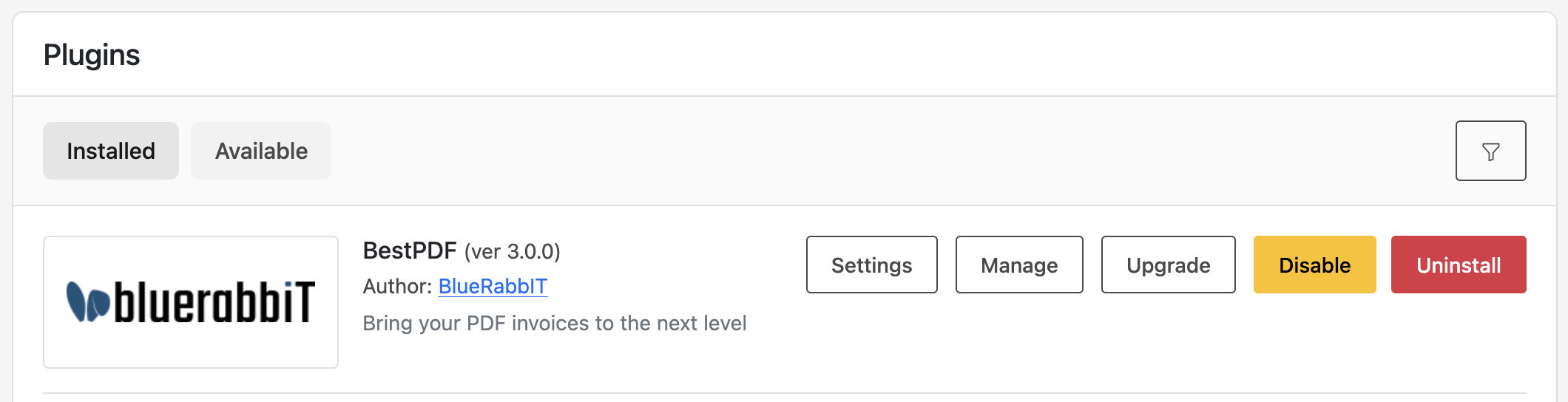
If no Upgrade button is shown, the new files are all that was needed and you're done.
See the Changelog for the full list of changes in the latest release.