Installation
Installing BestPDF takes four short steps: upload the files, install the plugin in Blesta, open the configuration interface, and select BestPDF as your invoice template.
1. Upload the files
Upload the contents of the release archive to your Blesta installation, preserving the following directory structure:
/components/invoice_templates/best_invoice
/plugins/bestpdf
The two folders must sit alongside Blesta's existing components/invoice_templates and plugins directories — they do not replace anything.
2. Install the plugin
In your Blesta admin area, navigate to Settings → Plugins.
On the Available tab, locate BestPDF and click Install.
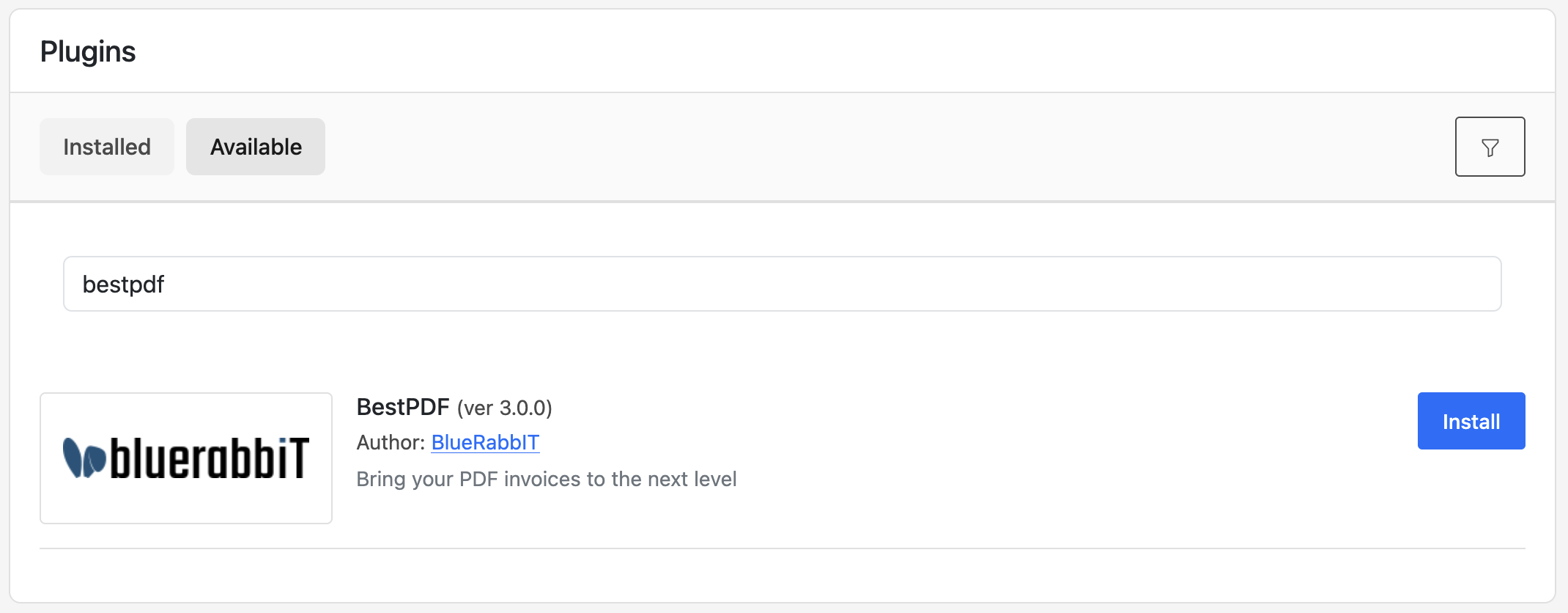
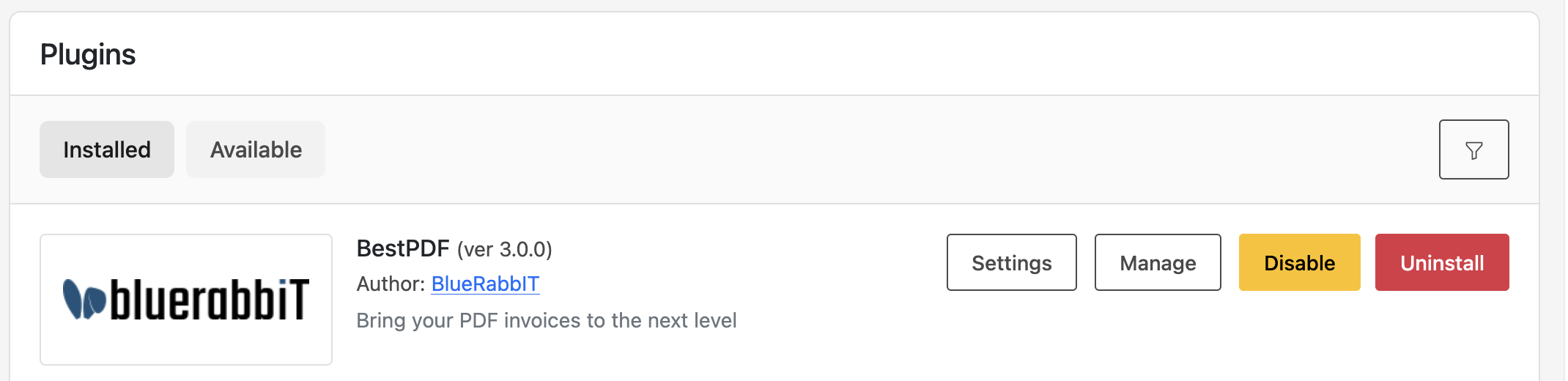
Once installation completes, BestPDF will appear on the Installed tab.
3. Open the configuration interface
BestPDF is reached either from the admin Tools menu or from the Manage button in the plugin page.
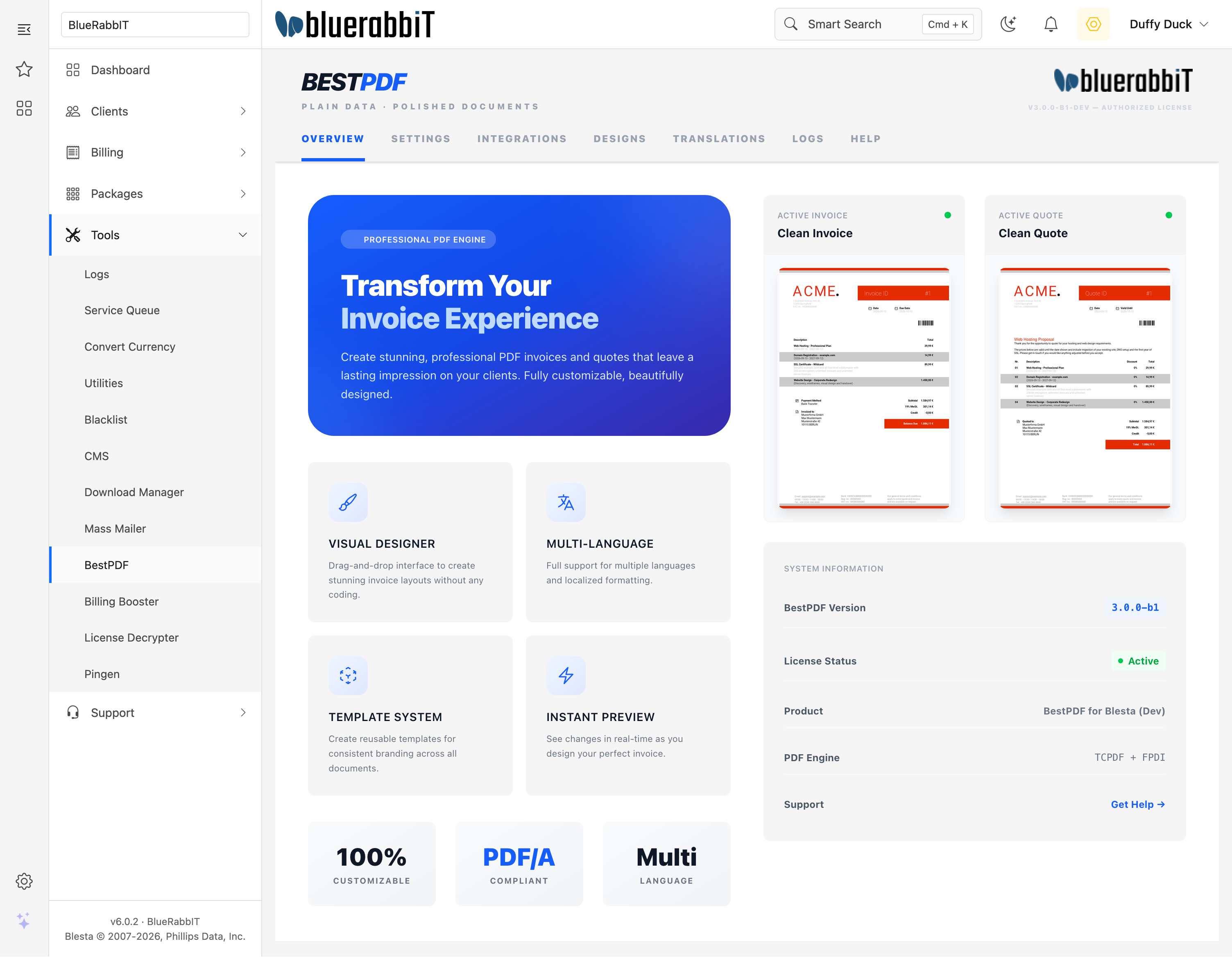
This is where you will design templates, manage fonts, and configure the module. See the Configuration section once you've finished installation.
4. Configure the license key
In the BestPDF UI, navigate to the Settings tab and paste your license key.
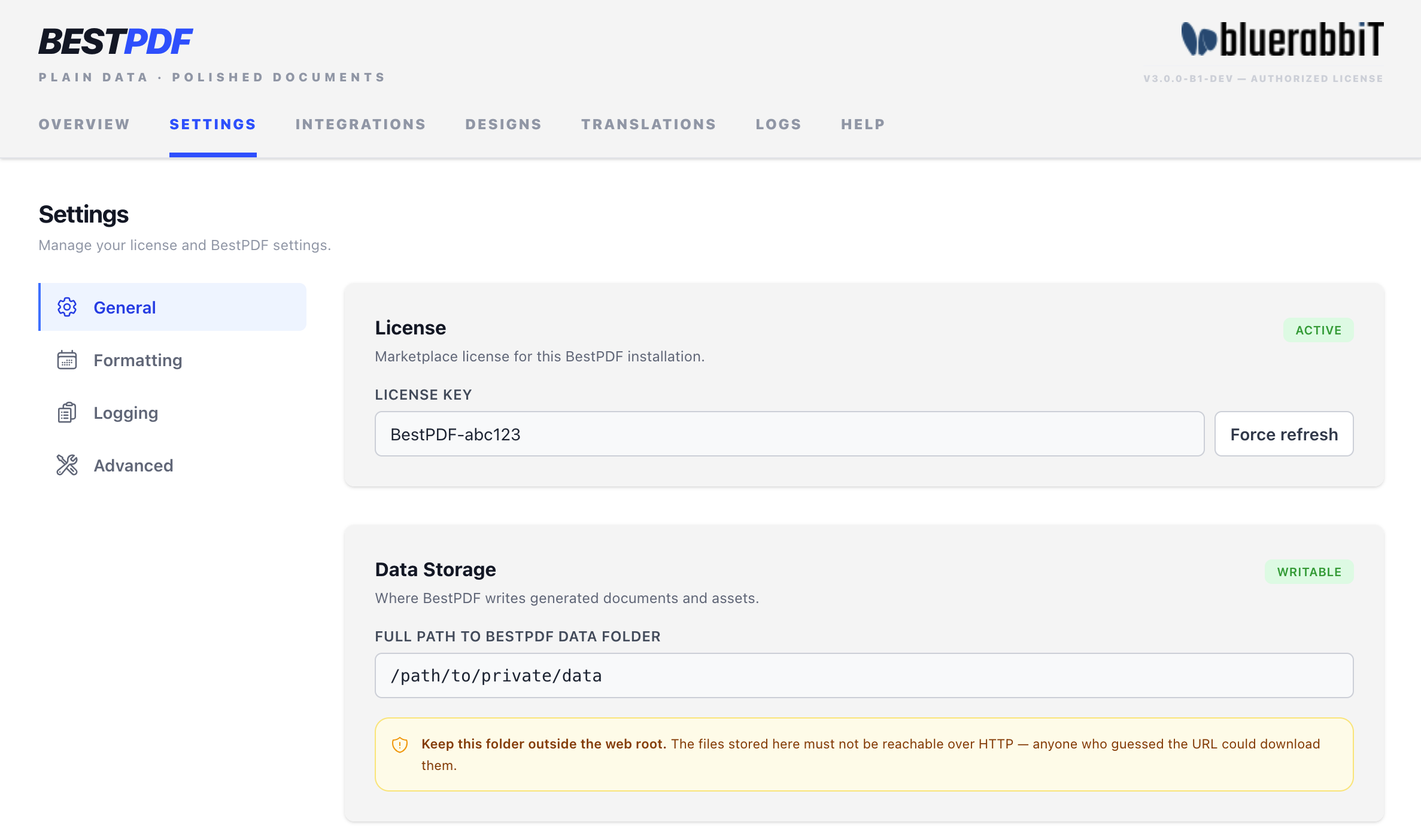
As you are at it, make sure the data storage path is set to a path that is not reachable from the web.
5. Enable BestPDF as the invoice template
In the admin area, navigate to Settings → Billing/Payment → Invoice Customization.
In the Look and Feel section, set Invoice Template to BestPDF and click Update Settings.
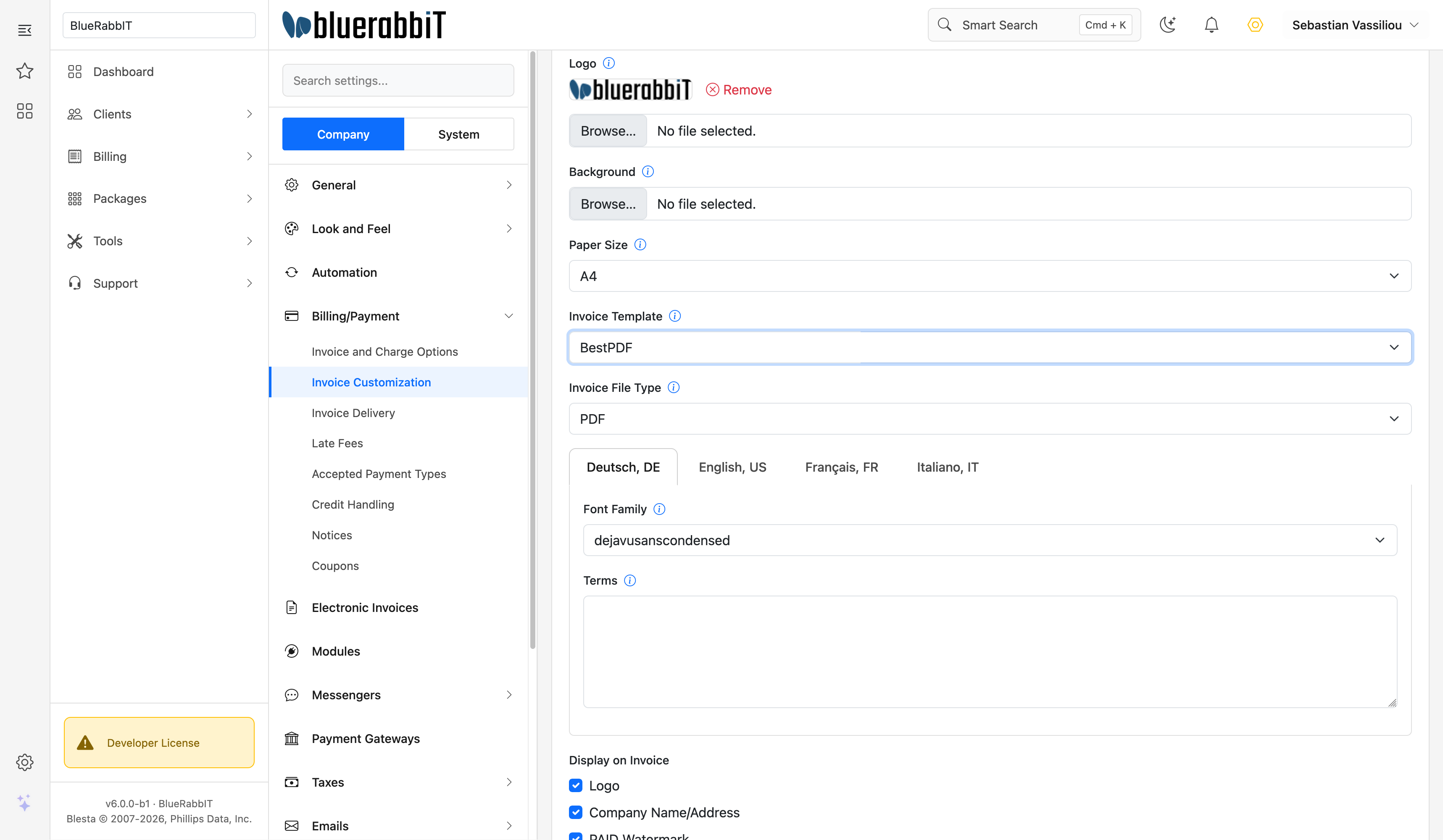
With BestPDF enabled, head over to the Configuration section to design your first template.