Styles
The Styles tab is where you define the visual building blocks that components reuse — colours, typography styles for text, and table styles for tables. Define a style once, point any number of components at it, change it later, and everything updates together.
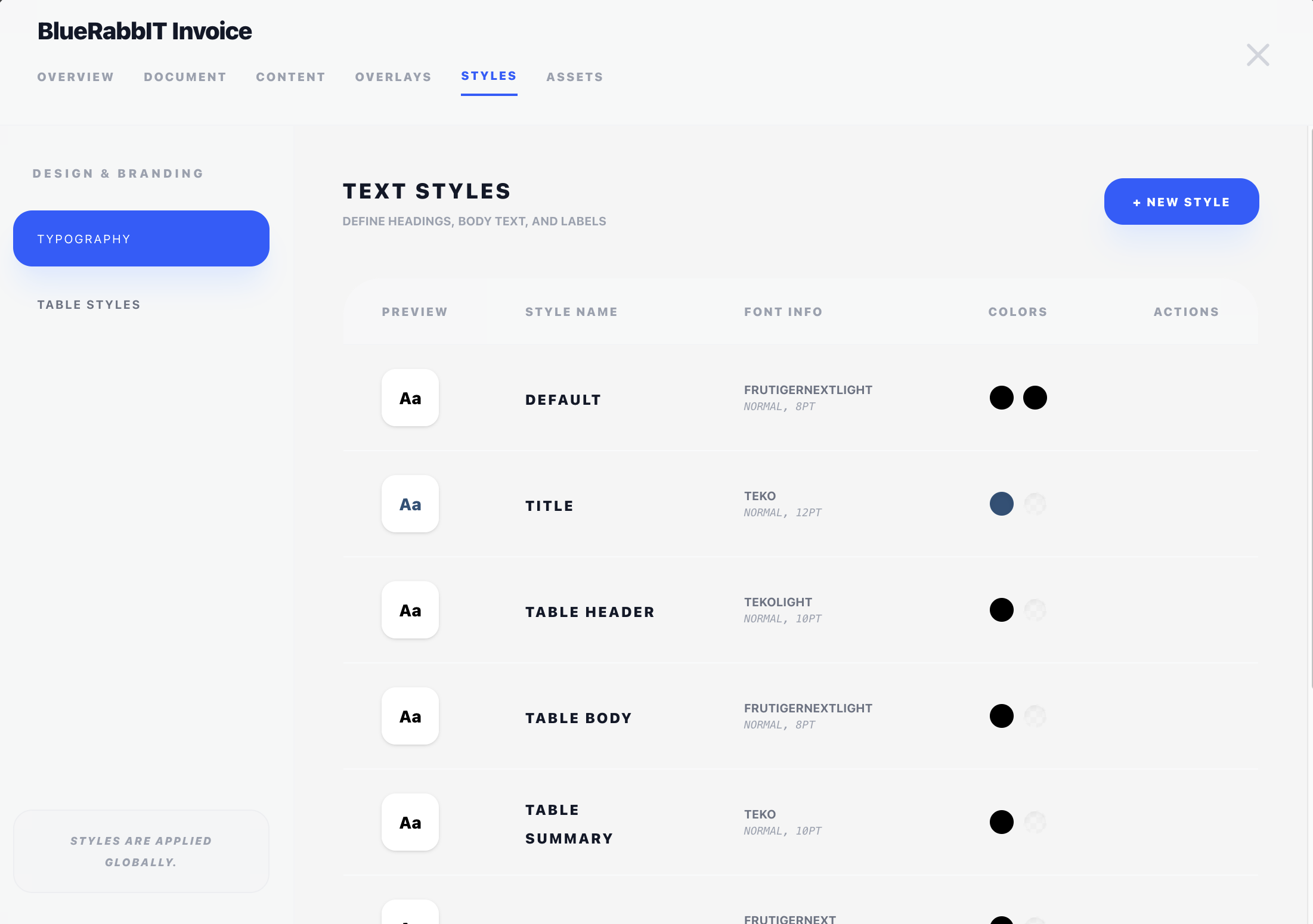
If you're new to how components reference styles, read Concepts → Styles first — that page covers the selector pattern. This page covers the fields of each kind of style.
The tab has three sub-sections in the left rail, in dependency order: Color Palette, Typography, and Table Styles. Colours come first because typography and table styles both reference them.
Color palette
Every colour used anywhere in the design lives in one named palette. Nothing carries a raw hex value: typography styles, table zone borders and backgrounds, invoice status badges, rectangles, dividers and barcodes all reference a palette entry by name.
The consequence is the useful part — change Brand in the palette and every element using it changes at once, across the whole design.
The palette is shown as a table with a swatch, the colour's name, its hex value, a Used By summary, and per-row actions (edit, duplicate, delete).
The default colour
Exactly one colour is marked Default (Black, initially) and cannot be deleted. It is the fallback whenever a reference no longer resolves — for instance if a colour was deleted while something still pointed at it.
Empty means transparent
This is the one place where colours behave differently from typography and table styles. An empty style reference means "use the default style"; an empty colour reference means no colour at all — transparent.
That distinction is load-bearing for table backgrounds and rectangle fills, which is why those fields offer an explicit None (transparent) option in their dropdown while other colour fields don't.
Adding and editing
+ New Color opens a small dialog with a name and a value (hex, with a colour picker). Names must be unique within the design; the value is a normal #RRGGBB hex.
Typography styles
Typography styles control text appearance. Each style has these fields:
| Field | What it does |
|---|---|
| Name | Identifier used everywhere this style is selected. Pick something descriptive — "Body Text", "Table Header", "Section Title". |
| Font Family | Built-in: Courier, Dejavu Sans, FreeSans, Helvetica, Times. Plus any custom fonts uploaded on the Assets tab. |
| Size (pt) | Font size in points. |
| Letter Case | As written / UPPERCASE / lowercase / Capitalise Each Word. See below. |
| Format | Three toggles — B, I, U — that combine freely: bold, italic, underline. |
| Text Color | A colour from the palette above. |
Letter case
Letter case is part of the style rather than something you apply to the text, which means one style can print the same content in caps in one place and as written in another — you never have to keep two copies of a label.
It applies everywhere the style does: table cells, plain text drawn by a component, and HTML Text blocks. The transform is multibyte-aware, so accented names come through intact — Société Générale becomes SOCIÉTÉ GÉNÉRALE, not mojibake.
Column widths in tables are measured on the transformed text, so an upper-cased row still gets the width it needs.
Editing
Click the pencil icon on a row to open the editor. If the style is used by more than one component, an amber banner at the top of the editor tells you so — expand it to see exactly which components are affected.
To make a one-off variant instead of changing a shared style, duplicate it (see below) and assign the copy to just the component you want.
Underline is its own toggle rather than a fourth value of a Style dropdown, so bold + underline and bold italic + underline are ordinary combinations. There is no need for a separate "Bold Underline" style.
Table styles
Table styles are richer — they control the chrome around a table and reference typography styles for the text inside it. The editor is organised into four tabs: Table, Header, Body, Footer.
Table
| Field | What it does |
|---|---|
| Name | Identifier. |
| Cell spacing (mm) | Distance between cells. |
| Cell padding (mm) | Inner padding around cell content. |
| Outer cell padding (mm) | Extra inset on the table's outer left and right edges, so the first and last columns don't sit flush against the table border. |
| Text alignment | Default alignment for text cells (left/center/right). |
| Numeric alignment | Default alignment for numeric cells (typically right). |
Header / Body / Footer zones
Every table style defines three zones independently. The fields below apply to each zone:
| Field | What it does |
|---|---|
| Borders | Which sides have a border. Toggled per side — T (top), R (right), B (bottom), L (left) — e.g. bottom-only for a header rule, blank for none. |
| Width (mm) & Color | Line thickness in millimetres, and a palette colour for the border. The default is 0.35 — about one point, the thinnest rule that still reads on paper. |
| Background color | Cell fill. None for transparent — and only None: white is a colour like any other and paints, which is exactly what you want where a fill has to cover stationery showing through. |
| Typography | Which typography style to use for text in this zone. |
Two zones carry extra fields:
Body — odd and even rows
The body zone is configured as two row groups, Odd rows and Even rows, each with its own background colour and its own typography. Leaving the even-row fields unset makes even rows inherit the odd-row treatment; setting them is how you get zebra striping that changes type as well as background, not just a tint.
Within each row group there are two typography selectors:
- Typography — first line — the item's main line.
- Typography — subsequent lines — every line after the first in the same cell. This is what styles product descriptions and custom-field lines under an item title, so a description can be smaller and lighter than the item it belongs to without touching the item itself.
Body — last row override
A separate set of Borders and Width & Color applies to the final row of the body, so you can put a heavier separator between the last line item and the footer.
Footer — extra padding
Additional top/bottom cell padding (mm) adds vertical room to footer rows only. Totals rows generally want more air around them than body rows; this is how you get it without loosening the whole table.
How the zones map to a real table
Take an Invoice Items component as an example:
- Header → the column titles row at the top ("Description", "Quantity", "Unit Price", …).
- Body → the line items themselves, alternating between the odd and even row groups.
- Body last row → the final line item, useful when you want a clear separator before the totals.
- Footer → the totals/subtotal row at the bottom — and, in a Summary component, every row you marked Highlight.
Duplicating a style
Every colour, typography style and table style row has a duplicate action. It copies the entry under a new, non-colliding name — the fastest route to a variant, since you start from something that already works instead of from defaults.
Deleting a style
Deleting opens a confirmation dialog that first tells you what currently uses the style, listed by component (with a count where a style is used more than once).
If anything does use it, the dialog asks what to replace usages with:
- For typography and table styles: the design's default style, or any other named style.
- For colours: None (transparent), or any other palette colour.
The replacement is applied everywhere before the style is removed, so nothing is left pointing at something that no longer exists — including references held inside other styles, such as the typography a table zone points at, or the colour a typography style prints in.
The default colour, default typography style and default table style cannot be deleted. To "change the default", edit it in place.
When to add a new style vs edit an existing one
- Edit when the change should apply everywhere the style is used — for example, "all body text should be one point smaller".
- Duplicate when the change should apply to one component only — for example, "the section title above the items table should be larger and bolder than the rest of the body text".
Adding styles is cheap. It's better to have several well-named styles than to keep tweaking one shared style and chasing the ripple effects across the design.