Overlays
The Overlays tab holds elements that sit on top of (or behind) the content layer at fixed positions on the page. Letterhead, logo, address window, page numbers, fold marks, watermark stamps, payment QR codes — anything that needs to land at a specific spot regardless of what the content layer is doing.
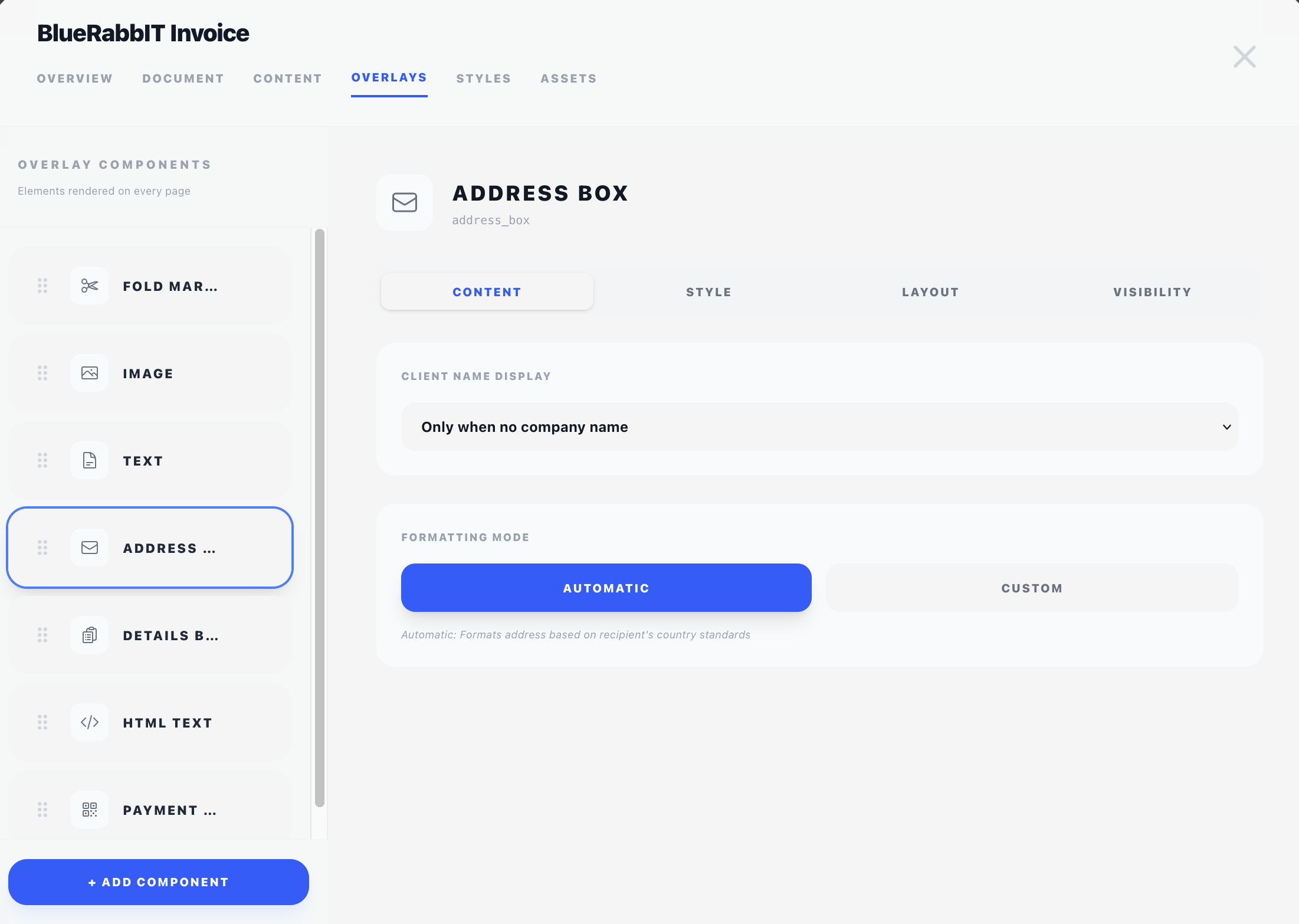
How overlays work
Each overlay is drawn at an explicit X/Y coordinate in millimetres, measured from the top-left of the page. Page margins do not apply — overlays can be placed anywhere on the paper, including in the bleed area or right at the edge. An overlay that should respect them can be told to, one component at a time, with the Full width setting described below.
By default an overlay shows on every page; you can scope it to the first page only (typical for letterhead and address windows) or the last page only (typical for signature blocks).
Adding, reordering, removing
The interface is identical to the Content tab:
- + Add Component at the bottom opens a picker filtered to overlay-compatible components for this design's type.
- Drag the handle to reorder. Order matters when two overlays overlap — later items draw on top of earlier ones.
- Click to select and edit, hover and click the trash to remove.
Most components can be used either as an overlay or as content — see the table in the Components section for which is which. Only Page Number and Fold Marks are overlay-only.
What's special about overlay components
Every overlay editor has three settings on top of its own configuration:
- Position — the X/Y coordinates, with the option to define a separate position for page 2 onward. A negative X measures in from the right edge of the sheet. Content components have an Offset in this slot instead. See Concepts → Positioning.
- Width — three buttons deciding where the overlay's box ends: Edge to edge (the paper's edge, the default), Full width (the page's own right content margin, so the overlay lines up with the body) or Custom (a number you type). It is the boundary that decides where a line wraps. See Concepts → Positioning.
- Display (inside the Visibility section) — on all pages / first page only / last page only. See Concepts → Visibility & conditions.
When Pingen Post is installed, overlays also gain a Hide when sent as a physical letter toggle — the reason overlays and content differ here is that Pingen's printer supplies its own envelope handling.
The styles and merge-field behaviour are identical to content components — see the linked Concepts pages.
Drawing order: overlays vs content
For each page that BestPDF generates, the layers stack like this, bottom to top:
- Stationery (if configured in Document Settings → Stationery).
- Content that flowed onto this page.
- Overlays for this page, in the order they appear in the list.
So overlays always sit on top of content. If you need something behind content (a faint watermark, for example), use stationery instead.
Suggested overlay set
A typical invoice has roughly:
- Image overlay — logo, top-left or top-right of page 1.
- Address Box overlay — recipient address, positioned to fit a DL envelope window (first page only).
- Details Box overlay — invoice number, date, customer number in the top-right corner.
- Invoice Status overlay — "PAID" or "OVERDUE" stamp with conditional visibility.
- Page Number overlay — bottom-centre or bottom-right.
- Fold Marks overlay — discreet ticks on the left edge to mark DL fold positions.
- Payment Code overlay — a payment QR code at a fixed spot. (The full Swiss QR-bill slip goes in the content instead — see where the slip lands.)
- Divider or Rectangle overlay — a margin rule or a framed zone, drawn from the palette.
Each of these is a separate component covered in the Components section.