Managing your designs
The Designs tab inside the BestPDF interface is the main entry point for everything design-related — create new templates, edit existing ones, activate the one Blesta should use, and import or export designs as portable bundles.
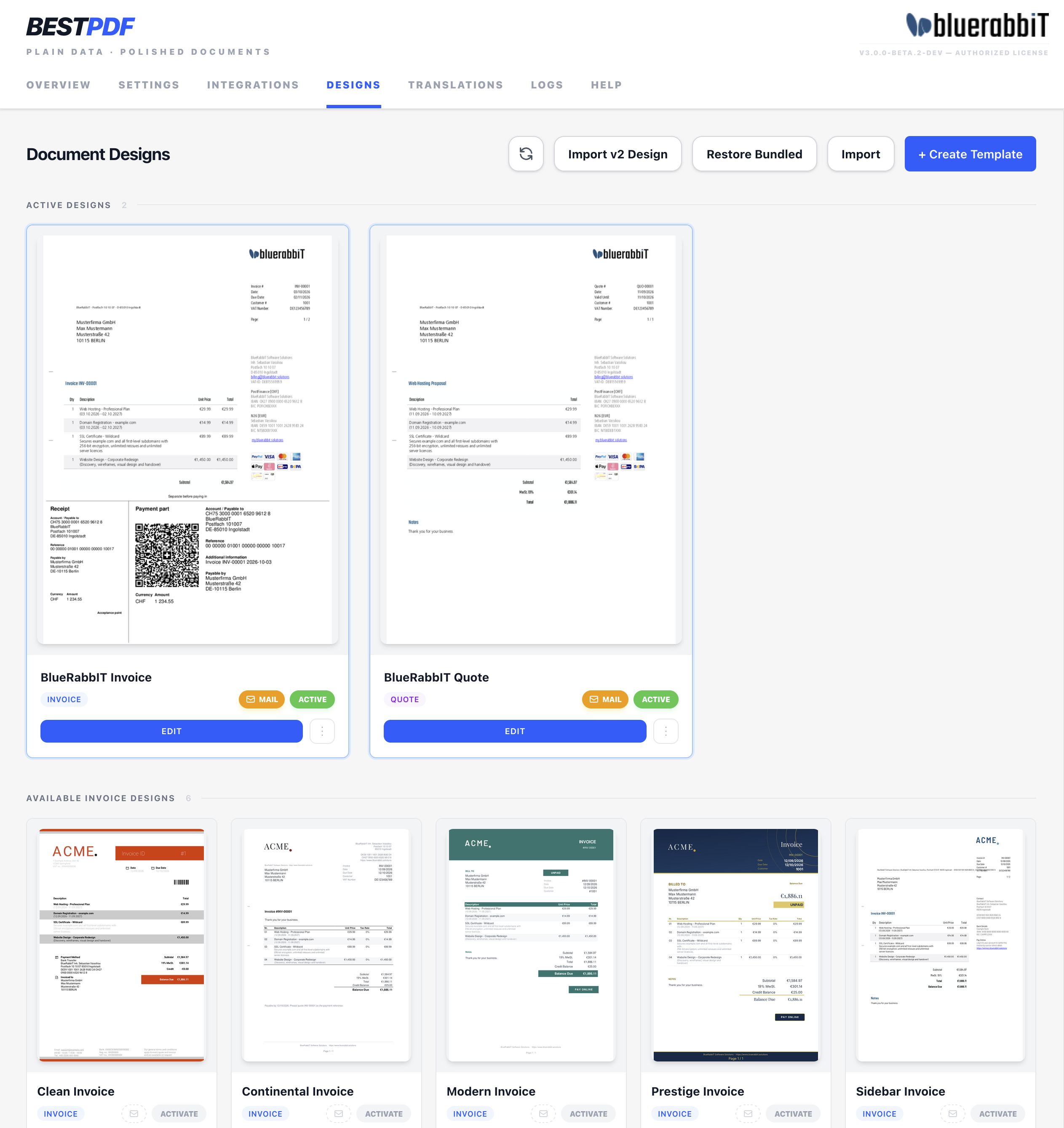
Each card on the Designs page represents a template (also called a design): a name, a type (invoice or quote), a small preview thumbnail, and an Active indicator. The buttons at the top right of the page handle the global actions (Create, Import), while each card has an Edit button and a ⋮ menu for everything else.
The designs in use — the active invoice and quote designs, and any design assigned to physical mail — sit together at the top under Active Designs, on large cards. Below them, Available Invoice Designs and Available Quote Designs list the rest in a denser grid, sorted by name.
Creating a new design
Click + Create Template at the top right. A small dialog asks for two things:
- Template Name — a short descriptive name. You can rename it later.
- Document Type — Invoice or Quote. This cannot be changed after creation.
Click Create Design. The new template appears in the grid and the editor opens automatically so you can start building.
Invoice and quote templates expose different components — invoice items vs. quote items, payment codes (invoice-only), transactions (invoice-only), and so on. Pick the right type up front; you cannot convert later.
How designs are selected at render time
BestPDF uses exactly one active invoice template and one active quote template. Whichever invoice template is marked Active is used for every invoice Blesta renders, and the same for quotes. There is no per-client, per-language, or per-country routing.
The one exception is physical mail — see below.
The single-active-template model may be extended in the future (e.g. one design per client country). For now, plan around the one-active-per-type rule.
Activating a design
To switch which template is active for a given type, click the Activate chip at the foot of its card, next to its type. The design moves up to Active Designs.
The previously active template becomes inactive automatically — there is never more than one active template of the same type.
A design for physical mail
When the Pingen Post plugin is active, each card grows a second chip beside Activate, an envelope that reads Mail once assigned. Click it to nominate that design as the one used whenever the document is printed and posted as a physical letter.
Why this exists rather than a set of visibility toggles: a letter's requirements are page geometry, not just which components print. Pingen needs a 100 mm top margin on the first page, an address box inside the envelope window, and no fold marks of your own. None of that can be expressed by hiding components on your emailed design — the margins would have to change on the design itself, and then your PDF invoice would carry a huge white band at the top for no reason.
- At most one mail design per type. Assigning a second invoice design to mail clears the first automatically, exactly as Activate does.
- Nothing assigned? Physical mail falls back to the active design — which then has to meet Pingen's requirements itself.
- The Integrations tab checks whichever design mail actually uses, and says which one it checked.
- A design assigned to mail cannot be deleted until you unassign it, the same guard the active design has.
Duplicate your invoice design, rename the copy "Invoice — Physical Mail", adjust its first-page margins and address position to Pingen's window, delete the fold marks, and click Mail on it. Your emailed invoices keep their own layout untouched.
Editing a design
Click Edit on any card to open the design editor. Inside the editor you'll find six tabs:
- Overview — name, preview, stats (component counts).
- Document — page margins, font embedding, stationery. See Document settings.
- Content — the body of the document. See Content.
- Overlays — fixed-position elements. See Overlays.
- Styles — typography and table styles. See Styles.
- Assets — uploaded images, fonts, PDFs. See Assets.
Changes are kept in memory until you click Save Template in the bottom-right of the editor. Saving regenerates the preview thumbnail.
What a preview is rendered from
Every preview — the thumbnail on the card, the Overview tab, and the live preview beside the editor — is built from sample data, never from one of your real invoices. That holds for the integrations too: a payment code or an e-invoice attachment in a preview comes from Billing Booster's own sample values, with the sample client's name and invoice number carried across so the page reads as one document. The upshot is that preview.pdf can be regenerated freely without touching, or exposing, a customer's invoice.
Two things follow. A Payment Code draws nothing in a preview when Billing Booster has no code configured at all — there is nothing to sample. And a full Swiss slip claims the bottom of the page in the preview exactly as it will in production, so you can see the room it needs while you are still arranging the page.
Other actions
Each card has a ⋮ button (top-right) that opens a menu:
Rename
Change the template's name. Doesn't affect anything else — the design's contents, assets, and active status all stay as-is.
Duplicate
Copy the template — name, configuration, all assets — into a brand new template. Useful for:
- Iterating on a design without losing the previous version
- Creating a per-language variant manually
- Starting a new design from one that's close to what you need
Export
Download the template as a .bestpdf.zip file. The archive contains the full template configuration and every asset (images, custom fonts, PDF files) referenced by it. The exported file is self-contained — it can be imported into another BestPDF installation without needing access to the original asset library.
Useful for backups, moving a design between environments (staging → production), or sharing a design with someone else.
Delete
Removes the template, its configuration, and all of its assets. This is permanent — there is no undo.
A template that is currently Active, or assigned to Mail, cannot be deleted — activate another design of that type, or unassign it from physical mail, first.
Bundled designs
BestPDF ships with a set of ready-made designs, so the Designs tab is never empty on a fresh install.
They are seeded once per install, by name. Each installation records which design names it has already seeded, which gives the behaviour you'd want:
- A design that ships in a later version is imported on upgrade, so new bundled designs reach existing installations.
- A bundled design you have since edited is never overwritten — your copy is yours.
- A bundled design you deleted stays deleted.
- A seeded design only takes the Active flag when its type has no active design yet, so seeding on upgrade never steals the flag from your own design.
Restore Bundled
The Restore Bundled button at the top of the Designs tab re-imports them on demand — including any you deleted. Designs are matched by name.
The dialog offers one choice:
- Leave the checkbox off (default) — only what's missing is added. Your copies of designs that already exist are untouched.
- Tick "overwrite" — the layout and assets of the bundled designs are replaced with the shipped version. Any changes you made to them are lost.
Use it when you've experimented a design into a corner and want the original back, or after deleting one by accident.
Importing a design
Click Import at the top of the page. Drag (or pick) a .bestpdf.zip file exported from any BestPDF installation. Click Upload & Import.
The imported template lands in your grid with its original name. It is not activated automatically — that's a deliberate choice you make afterwards.
On import, the template's assets are copied into your installation's data directory. There is no name collision check across designs (each design has its own asset pool), so importing the same file twice gives you two separate copies under the same template name.
Backing up your designs
The combination of Export and Import is BestPDF's portable backup mechanism. For a full backup:
- Export each template from the Designs page.
- Store the
.bestpdf.zipfiles somewhere safe (cloud storage, version control, etc.).
To restore, re-import them on the target installation.
Database backups alone do not capture the assets — those live on disk in the configured data storage directory. Either back up that directory too, or rely on per-template exports.