Assets
The Assets tab is the file library for the design. Anything that lives on disk and gets referenced by a component — logos, signatures, stationery PDFs, custom brand fonts — is uploaded and managed here.
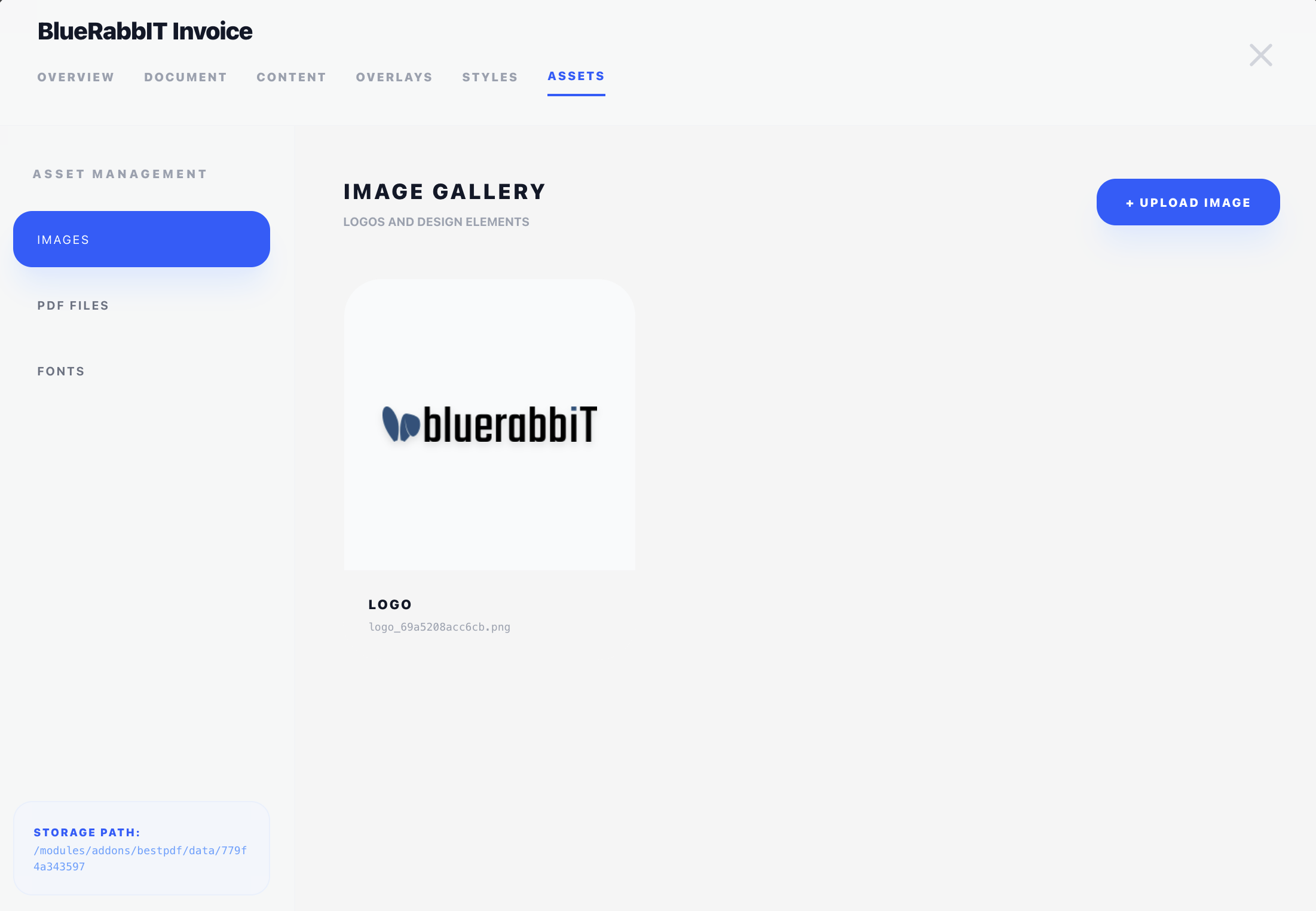
Assets are scoped to the design they live in. Each design has its own asset pool, so two designs can use the same filename for different files without conflict. Exporting a design (Designs view → ⋮ menu → Export) bundles the assets in the archive.
The tab has three sub-sections in the left rail: Images, PDF Files, Fonts.
Images
Use this for anything raster: logos, signatures, watermark graphics, photos.
- Upload — click + Upload Image, give it a friendly Display Name, then drop a file (or click to pick one). Any browser-supported image format works.
- Delete — hover an image and click the trash icon. The image is removed from disk and any component referencing it will show a broken-image placeholder until you reassign it.
Images are referenced by:
- The Image component (content or overlay) — pick from the dropdown of uploaded images.
- The HTML Text editor's image dialog — inserting a picture inside a rich-text block. Choosing a template asset there is what makes the image resolve reliably at render time, since the PDF is generated on the server.
Both of those offer a + upload button that puts a new file straight into this pool without leaving the component editor.
PDF doesn't have a "screen resolution" — physical size at print time is what counts. A logo printed at 30 × 30 mm needs roughly 350 × 350 px at 300 DPI to look crisp. Smaller source images will look blurry; much larger ones are wasted bytes.
PDF Files
Use this for any PDF that needs to be referenced from the design — stationery (your letterhead PDF), terms-and-conditions appendices, or any other multi-page document you want to splice into the output.
- Upload — click + Upload PDF, give it a name, pick a file. BestPDF auto-generates a thumbnail for the preview.
- Delete — same as images.
PDF assets are referenced by:
- Document Settings → Stationery — assigned per language as background stationery.
- The PDF Document component (content only) — appended into the document at a specific point in the flow.
Fonts
The Fonts sub-tab lists every font available to typography styles in this design — both built-in and custom.
Built-in fonts
These ship with BestPDF and need no upload:
- Courier
- Dejavu Sans
- FreeSans
- Helvetica
- Times
These are always available in the Font Family dropdown of every typography style.
Custom fonts
To use your own brand typeface:
- Click + Upload Custom Font.
- Give it a Display Name (this is what shows up in the typography style picker).
- Upload a
.ttfor.otffile.
The font is processed, registered, and immediately available in every typography style's Font Family dropdown.
Removing custom fonts
Hover a custom-font row in the table and click the trash icon. Built-in fonts cannot be removed.
If a typography style still references a deleted font, that style will fall back to Helvetica at render time. You'll see this in the PDF — go back to the style and pick a replacement.
Font embedding
Whether the font file itself ends up inside the produced PDF is controlled separately on Document Settings → Output & Logic via the Font Embedding Strategy setting.
Storage
Assets live in the data storage directory configured on the Configuration page, under a per-design subfolder. They're not stored in the database — the database only keeps the asset's name and filename, not the file content itself.
The left rail of the Assets tab shows that location under Storage Path: the tail of your configured data path, followed by the design's own folder in bold. Server paths are usually too long to print in full there, so hover the line to see the whole path as a tooltip. Change the data path in Settings and this updates without a page reload.
This means:
- Backing up the data storage directory is essential. Without it, a database restore alone will leave designs pointing at missing files.
- Two designs with assets of the same name are isolated from each other.
- An exported design ZIP carries the assets with it, so importing into another installation is self-contained.