Configuration
The BestPDF configuration interface is where you design templates, manage fonts and images, control how integrations behave, and translate everything for your customers. This page covers the general settings that apply across the whole module; the other top-level pages cover specific areas (Integrations, Designs, Translations).
Opening the configuration interface
Once BestPDF is installed and enabled (see Installation), open it from the admin Tools menu — click Tools in the main navigation and select BestPDF.
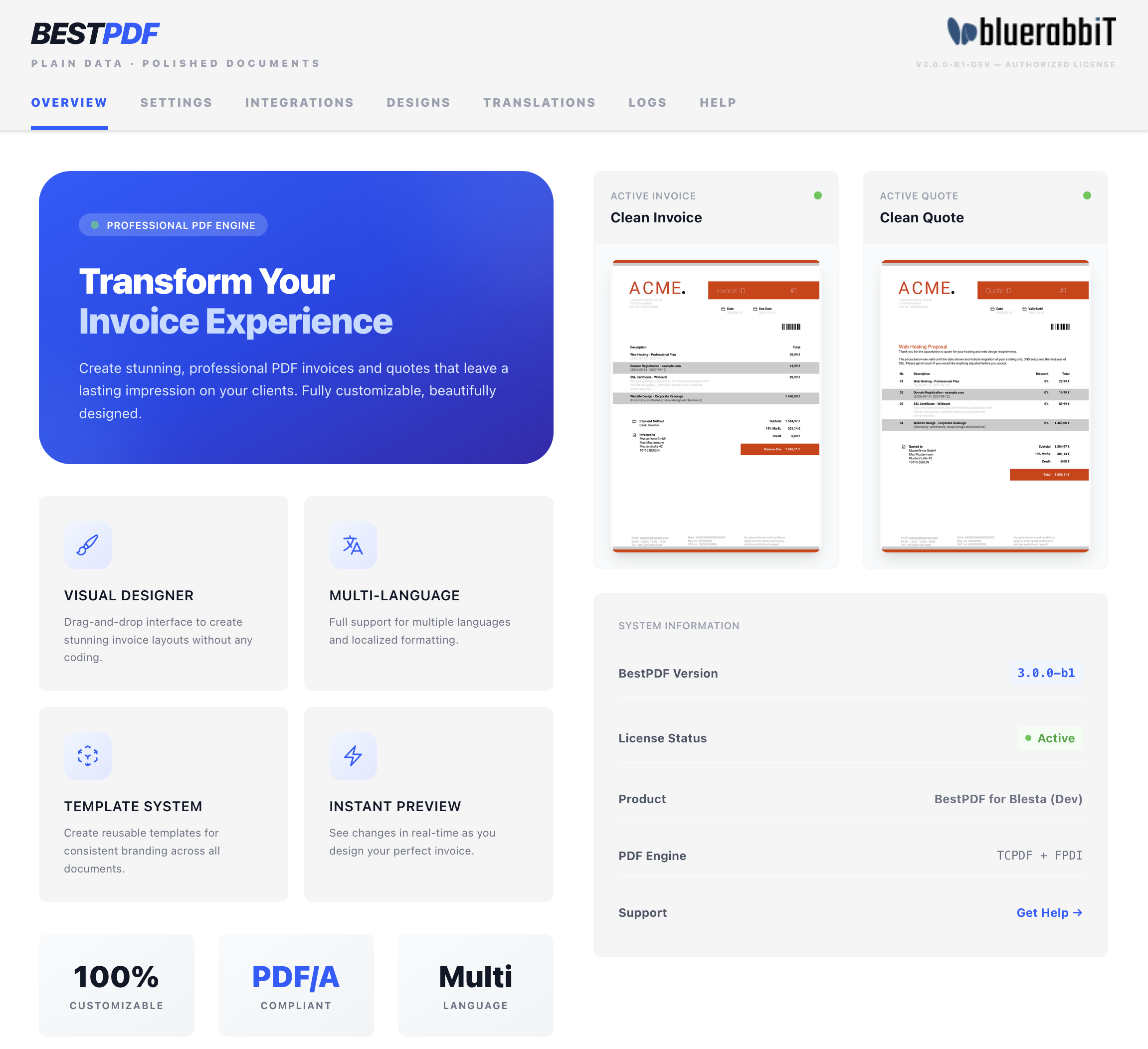
The BestPDF interface at a glance
The left sidebar of the BestPDF interface has seven tabs:
| Tab | What it does | Documented in |
|---|---|---|
| Overview | Landing page — shows the currently active invoice and quote designs, license status, and module version. | (this page) |
| Settings | The system settings documented on this page. | (this page) |
| Integrations | See which BlueRabbIT add-ons (Billing Booster, Pingen Post) are detected, and whether your active design meets their requirements. | Integrations |
| Designs | Create, edit, activate, import, export, and delete invoice/quote designs. | Designs |
| Translations | Override built-in PDF strings per language and add your own custom strings. | Translations |
| Logs | A searchable, filterable view of BestPDF's activity log — used when something goes wrong. | Troubleshooting → Reading the logs |
| Help | This documentation, embedded directly in the admin interface. | (you're reading it) |
Settings
The Settings tab is organised into a vertical list of sub-tabs down the left side. All of them share a single Save Changes button.
| Sub-tab | What it holds |
|---|---|
| General | License key and data storage path. |
| Formatting | How dates and currency amounts are rendered on documents. |
| Logging | Log retention for the module's activity log. |
| Advanced | Error handling, settings backup and restore, and data removal. |
General
License
Insert your license key here. After saving, you will see the license status (Active, Invalid, Expired, or Suspended).
The result of a license check is cached locally, so a key that has just been renewed, upgraded or reissued can keep reporting its old state for a while. Force refresh, next to the key field, throws that cached result away and asks the license server again straight away. Use it after changing anything about the license on our side; there is no need to touch it in normal operation.
A check that fails to reach the license server is treated as unreachable rather than as a rejection, and BestPDF keeps working on the cached result. Force refresh is also the quickest way to confirm connectivity is back once a firewall or DNS problem has been fixed — the Logs tab records each attempt.
Data Storage
A path to a directory where data should be stored. BestPDF stores any uploaded images, fonts, or PDF files in this directory. A live status chip next to the field shows whether the path is writable.
Make sure the directory you configure here is not reachable from the web! Either protect it via .htaccess or, even better, store it outside of the web root. The settings page repeats this warning below the field, because anyone who guessed the URL could otherwise download your stationery and other uploads.
The path you set here is also what the Assets tab shows above each design's file library, so you can always see where a design's files actually live.
Formatting
Two independent settings, both about how values are written rather than what they contain.
Date Format
Controls how dates appear on generated documents:
- System Setting will use whatever is configured in Blesta — the current value is shown next to the option.
- Auto-format (Country/Language) will choose the date format based on the client's country and language.
Currency Format
Controls how amounts are written:
- System Setting (per currency) uses the formatting configured for each currency in Blesta.
- Auto-format (Country/Language) derives the separators, the currency symbol and its position from the client's country and language — so a German client sees
1.234,56 €and a French one1 234,56 €.
Automatic formatting on linux servers requires the corresponding locales to be installed, otherwise it will revert to US formatting. This applies to both settings above.
Logging
Log retention (days) — BestPDF keeps its own activity log (viewable on the Logs tab). Entries older than this are removed by a daily cleanup task. Set to 0 to keep logs forever.
Advanced
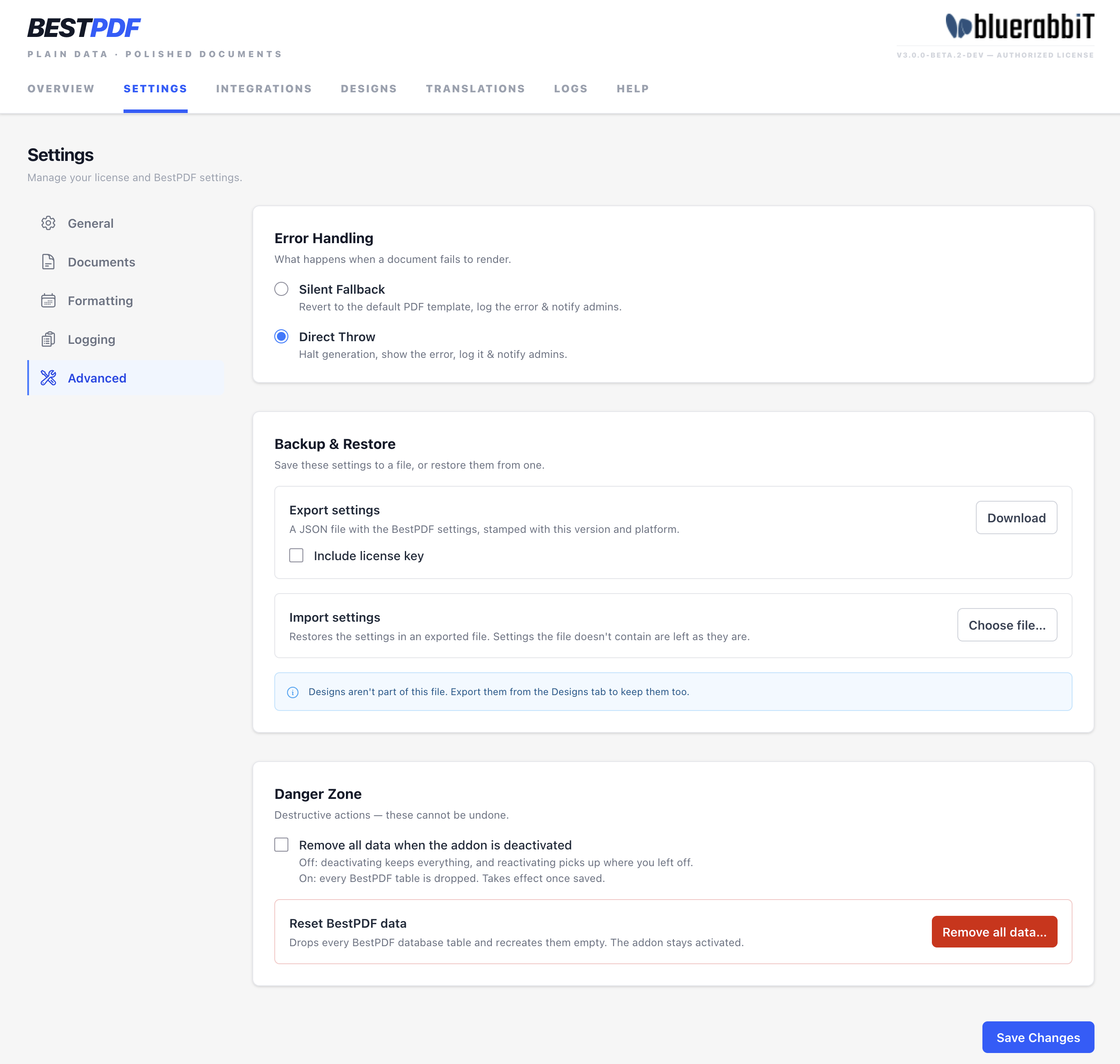
Error Handling
Error handling decides what happens when a document fails to render:
- Silent Fallback — revert to the default PDF template, log the error, and notify admins. The customer still gets a (default) document.
- Direct Throw — halt generation, show the error, log it, and notify admins. Use this while building or debugging a design.
Backup & Restore
Saves BestPDF's settings to a file, and restores them from one — to move a configuration to another installation, or to keep a copy before you change things. Both act straight away rather than through Save Changes.
- Export settings — Download saves a JSON file with the settings and your translation overrides, stamped with the BestPDF version and the platform it came from. The license key is left out unless you tick Include license key; a file that holds it should be stored like a password, and not attached to a support ticket.
- Import settings — Choose file… reads an exported file first and shows where it came from and when it was made, with a warning if it is from another platform or another BestPDF version. Nothing changes until you click Import: the file's settings then replace the current ones, and settings the file doesn't contain are left as they are. If the file carries a license key, Also restore the license key decides whether it replaces the one this installation has. Settings this installation doesn't use are skipped, and the confirmation lists them.
Designs have their own export, one .bestpdf.zip per design — see Managing your designs → Backing up your designs.
An import can't be undone, so export the current settings first if you might want them back.
Danger Zone
- Remove all data when the plugin is uninstalled — off by default: uninstalling BestPDF keeps its tables, and reinstalling it picks up where you left off. Switch it on, and Save Changes, before uninstalling if you want every BestPDF table dropped with it. See Uninstall.
- Reset BestPDF data — Remove all data… drops every BestPDF table and recreates them empty, while the plugin stays installed: every design (including bundled ones you changed), all settings including the license key, the translation overrides and the activity log. The bundled designs are added back afterwards, and uploaded images, fonts and PDFs stay in the data folder. Type
DELETEto confirm. There is no undo.
Installing missing locales
This is advisable to do if you choose to set the Date Format setting to automatic.
- Debian / Ubuntu
- RHEL / Alma / Rocky
sudo dpkg-reconfigure locales
# List installed locales
localectl list-locales
# List available language packs
dnf list langpacks-*
# Install missing language pack (example for English)
sudo dnf install langpacks-en