Visibility & conditions
Every component has a Visibility section in its editor that controls whether — and on which pages — it appears in the rendered PDF. There are several layers, and a component is shown only if all of them allow it.
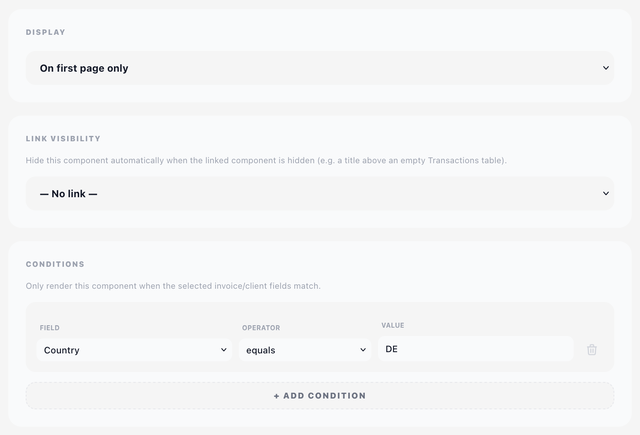
Display (overlay components only)
For overlay components, you choose which pages the component prints on:
- On all pages — every page of the PDF.
- On first page only — only the cover page. Typical for letterhead logos, sender address blocks, and the recipient address window.
- On last page only — typical for signature blocks.
Content components do not have this setting — they flow inside the document and appear wherever they happen to land in the layout.
Link Visibility
The Link Visibility dropdown lets you hide a component automatically when another component is hidden.
The classic use case is a section title above a table:
Transactions heading + Transactions table
If the invoice has no transactions, the table renders nothing — but the heading would still print, looking awkward and orphaned. Link the heading's visibility to the table, and the heading disappears too.
Pick the target component from the dropdown. Pick — No link — to remove the link.
Physical mail (Pingen)
When the Pingen Post plugin is detected, overlay components gain one extra toggle:
Hide when sent as a physical letter (Pingen)
Switch it on and the component is dropped from renders that Pingen Post sends to print, while staying on the PDF your client downloads or receives by email.
The two components that usually want this are the sender address and the Fold Marks — Pingen prints and folds the letter itself, so its own envelope handling makes yours redundant (and fold marks in the wrong place look like a mistake).
The toggle only appears on overlay components, and only when Pingen Post is installed.
Payment slip (Billing Booster)
When Billing Booster is detected, overlay components gain a second toggle:
Hide on pages carrying a payment slip
A full Swiss QR slip takes over the bottom of whichever page it lands on. Anything positioned down there — a footer, a company details block, a page number — would collide with it. Switch this on and the component stands aside on that page only, still printing on every other page of the document.
Flowing content needs no such toggle: the Payment Code claims the bottom of the slip's page, and the content wraps above it. This toggle is for the overlays, which stay where they are put.
Like the Pingen toggle, it appears on overlay components only — it is a per-page decision, and content components flow rather than sit on a chosen page.
Conditions
The Conditions panel lets you show or hide a component based on the invoice or client data. Each condition is a rule:
field operator value
For example: invoice.status equals paid — to only show a "PAID" stamp on paid invoices.
Operators
| Operator | Meaning |
|---|---|
equals | Field value is exactly the entered value |
does not equal | Field value is anything other than the entered value |
contains | Field value contains the entered text |
does not contain | Field value does not contain the entered text |
starts with | Field value begins with the entered text |
ends with | Field value ends with the entered text |
is empty | Field has no value (no value input needed) |
is not empty | Field has a value (no value input needed) |
AND vs OR
When you have more than one rule, a toggle appears at the top of the panel:
- All (AND) — the component is shown only when every rule matches.
- Any (OR) — the component is shown when at least one rule matches.
Available fields
The fields you can use in conditions are the same merge fields you use in text — invoice (or quote), client, company and system data. See Merge fields & Twig for the full list.
The same builder elsewhere
The rules builder is shared: the Address Box uses it to decide whether an individual address line prints, with the same fields, operators and AND/OR modes. Whatever you learn here applies there.
Examples
| Goal | Rule(s) |
|---|---|
| Only show "PAID" stamp on paid invoices | invoice.status equals paid |
| Only show VAT exemption note for non-EU clients | client.country does not equal (your country) |
| Hide a section if the client has no tax ID | client.tax_id is empty |
| Show a reverse-charge notice where it applies | invoice.eu_reverse_charge is not empty |
| Show a notice for two specific countries | mode Any (OR), client.country equals CH, client.country equals LI |
Resolution order
A component is rendered only if all layers agree:
- Display allows this page.
- Link Visibility target is not itself hidden.
- The Pingen toggle allows this kind of render, and the payment slip toggle allows this page.
- Conditions evaluate to true (with AND or OR as configured).
If any layer says "hide", the component is skipped — including its layout space, in the case of content components.
Four components can also hide themselves, before any of the rules above are consulted:
- Transactions — when set to Hide When Empty and the invoice has no payments.
- Summary — when no rows are selected.
- Payment Code and E-Invoicing — when Billing Booster isn't going to produce anything for this document.
That is what makes Link Visibility useful: it lets a heading follow a component that decided on its own to stay quiet.