Transactions
ContentInvoice
A ledger of payment transactions applied to the invoice. Typically rendered below the Summary component on receipts and reminder invoices.
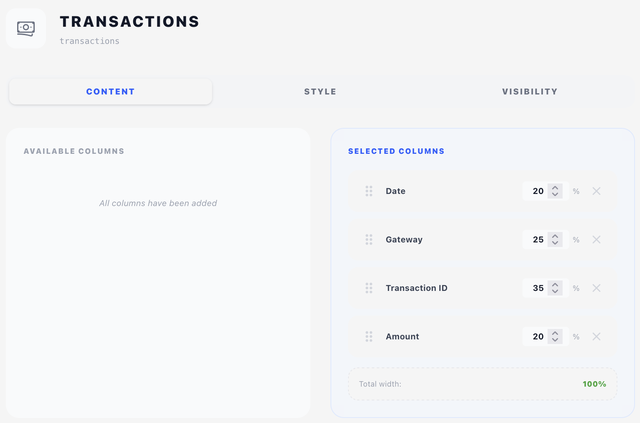
Content tab — columns
Same two-pane drag-and-drop interface as the other tabular components. Available columns:
| Column | Default width |
|---|---|
| Date | 20% |
| Gateway | 25% |
| Transaction ID | 35% |
| Amount | 20% |
Each selected column has drag-to-reorder, width %, and remove. Width counter turns green at 100%.
Style tab
- Table style — pick a table style (see Concepts → Styles).
- Show Column Headers — print the column header row. Turn it off when the table sits under a heading that already names what it is.
Layout tab
- Overlay — Position (X/Y in mm) plus a Width mode: Edge to edge, Full width or Custom — a table almost always wants Full width or Custom, so it lines up with the rest of the page. See Concepts → Positioning.
- Content — Offset (X/Y nudges from the natural flow position) plus a plain Width.
Visibility tab
In addition to the standard Display / Link / Conditions panels, Transactions has its own When to Show toggle at the top of the Visibility tab:
- Always Show — render the component even when the invoice has no payments. The body will be empty (the "no transactions yet" string from Translations is rendered).
- Hide When Empty (default) — skip rendering entirely when there are no transactions. This is what you want for fresh invoices.
The standard visibility rules apply on top of this — see Concepts → Visibility & conditions.
Tips
- Pair Transactions with a Text heading ("Payments Received") above it, and use Link Visibility on the heading to point at the Transactions component. The heading then disappears whenever the table is hidden.
- If you only want to show payments on paid invoices, add a condition
invoice.status equals paidon the Visibility tab.