Summary
The totals block — subtotal, tax, total, payments, balance due. Sits below the items table on most invoices.
The Summary is built from an ordered list of rows that you pick, arrange and configure yourself. Nothing is hard-coded: if your invoices never carry credit, drop the credit rows; if you want air between the total and the balance due, insert a separator.
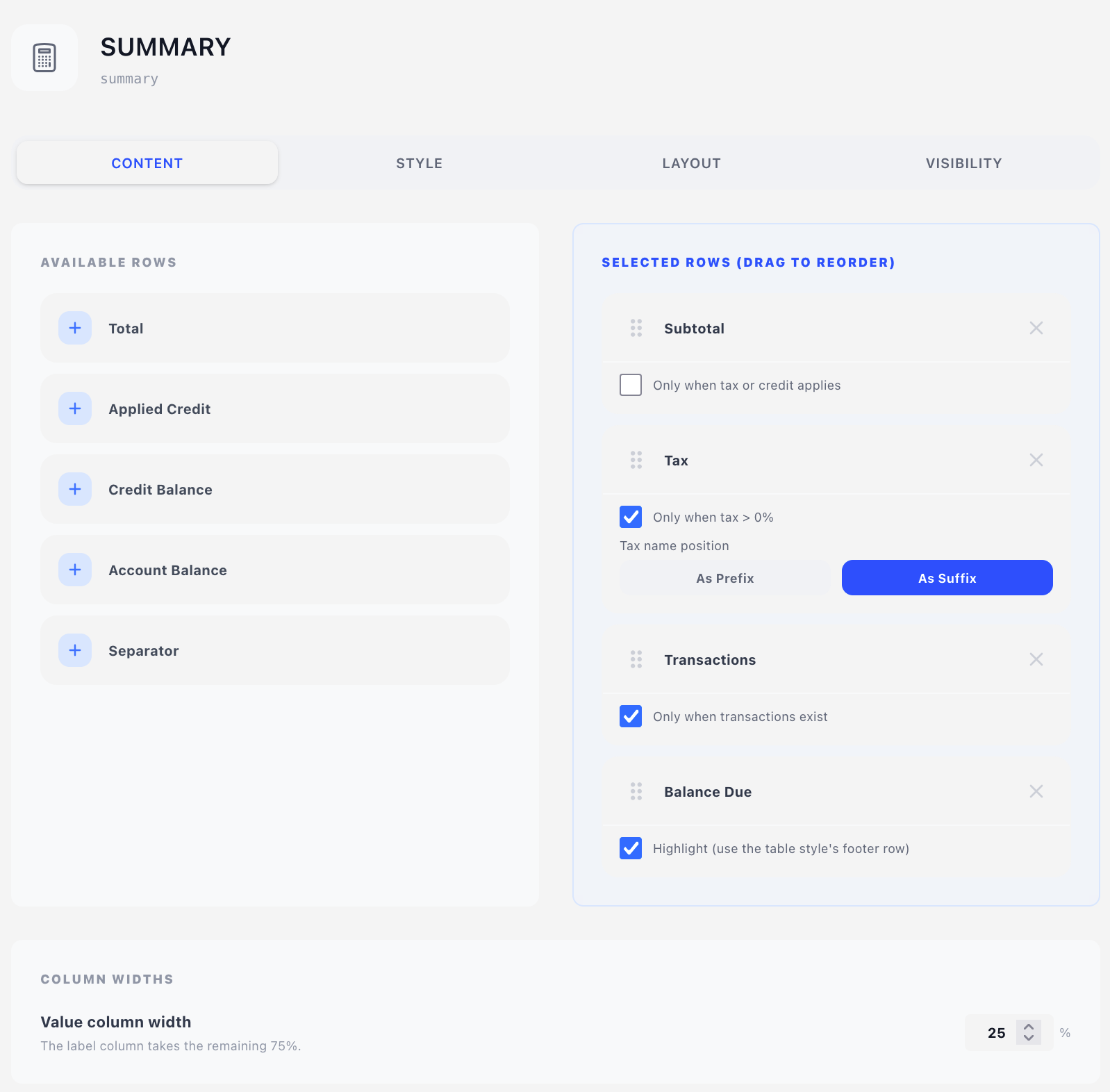
Content tab — rows
A two-pane drag-and-drop interface, the same pattern as the items tables:
- Left pane (Available Rows) — rows not yet in use. Click one to append it, or drag it to a position.
- Right pane (Selected Rows) — the rows that will print, in the order they will print. Drag the handle to reorder; the ✕ removes a row.
Each value row can be used once. The only exception is the Separator, which you can add as many times as you like.
Available rows
| Row | Value printed |
|---|---|
| Subtotal | Net total before tax |
| Tax | One row per tax line (see below) |
| Total | Gross total |
| Applied Credit | Credit applied to this invoice, shown negative |
| Transactions | Total already paid, shown negative |
| Balance Due | What is still outstanding |
| Credit Balance | The client's remaining credit balance |
| Account Balance | The client's running account balance |
| Separator | A blank spacing row — no label, no value |
A freshly added Summary component starts with every value row, in the order listed above, and no separators.
Per-row options
Expand a row in the right-hand pane to see the options it supports:
Condition — a single checkbox whose wording depends on the row. Leave it off and the row always prints; switch it on and the row prints only when it carries information:
| Row | Condition checkbox | Prints only when |
|---|---|---|
| Subtotal | Only when tax or credit applies | Tax > 0 or credit > 0 — because otherwise the subtotal equals the total and tells the reader nothing |
| Tax | Only when tax > 0% | There is a non-zero tax line |
| Applied Credit | Only when > 0 | Credit was applied |
| Transactions | Only when transactions exist | There are payments and the paid amount > 0 |
| Credit Balance | Only when > 0 | The client has credit on file |
| Account Balance | Only when > 0 | The account balance is non-zero |
Total and Balance Due have no condition — they always print.
Highlight (use the table style's footer row) — available on Total and Balance Due, and on by default for both. A highlighted row is drawn with the footer styling of the selected table style (typically a heavier top border and bolder type), which is what makes the total stand out from the rows above it.
Tax name position — on the Tax row only. Prefix or Suffix, controlling where the tax name sits relative to its rate — VAT 8.1% versus 8.1% VAT.
Height (mm) — on Separator rows only. Sets how much blank space the separator inserts. A freshly added separator is 3 mm; leave the field empty and the separator falls back to a full text line.
The Tax row is not a single line — the renderer emits one row for each tax line on the document. Zero-rate taxes are dropped upstream, so an invoice with no tax charged produces no tax rows at all; only an unconditional Tax row still prints in that case, showing a zero.
Column Widths
Value column width — the percentage of the component's width taken by the value (right) column; the label column takes the rest. Default 25%, and the editor shows you the label share as you change it. Accepts 5–95%.
Widen this if your currency formatting is long (CHF 12'345.60) and narrow it if the labels are wordy in your longest language.
Style tab
- Table style — the summary is rendered as a small table, so it takes a table style for its borders, padding and typography. The footer zone of that style is what "Highlight" rows use, and the body zone is what everything else uses.
Layout tab
- Overlay — Position (X/Y in mm) plus a Width mode: Edge to edge, Full width or Custom. See Concepts → Positioning.
- Content — Offset (X/Y nudges) plus a plain Width. Leaving Width empty makes the summary run the full content width; setting it to, say, 80 mm and combining it with an X offset is how you get the classic right-aligned totals block.
Visibility tab
See Concepts → Visibility & conditions. A Summary with no rows selected renders nothing at all.
Labels and translations
The label printed for each row comes from the summary_* entries on the Translations tab. Edit those to change wording per language — the editor's own row names are just for the editor.
Tips
- Classic layout: Subtotal → Tax → Total (highlighted) → Separator → Transactions → Balance Due (highlighted). The separator lifts the payment section clear of the total.
- Switch the condition on for everything except Total and Balance Due. A clean invoice then shows only three lines, while a part-paid one with credit shows the full story — no second design needed.
- If you run a full Transactions table below the summary, remove the Transactions row here so the payment total isn't stated twice.
Designs saved before the row picker existed carried a flat set of Show Tax / Show Subtotal / … dropdowns. Those are converted to the equivalent row list automatically the first time the design is loaded — order and behaviour are preserved. The old Show EU Reverse Charge option is the one exception: the notice moved out of the summary. invoice.eu_reverse_charge is now a merge field you can test anywhere, so the notice goes wherever it belongs on your layout:
{% if invoice.eu_reverse_charge %}{{ lang.reversecharge }}{% endif %}