Invoice Items
The line items table for an invoice. The single most-configured component on any invoice design.
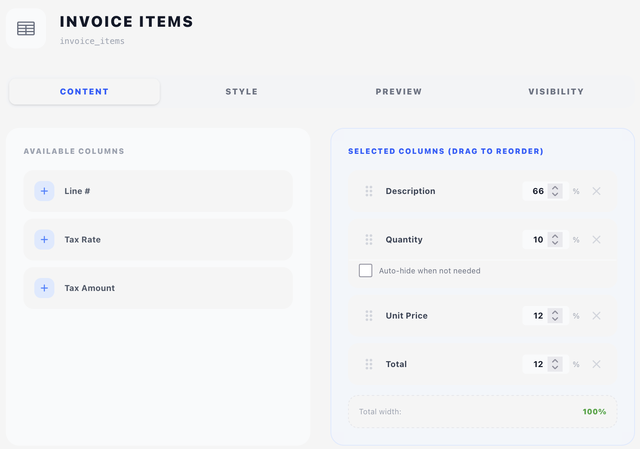
Content tab — columns
The Content tab is a two-pane drag-and-drop interface:
- Left pane (Available Columns) — columns you can add. Click or drag to the right.
- Right pane (Selected Columns) — the columns currently shown in the table, in the order they appear, with a width % per column.
Each selected column has:
- A drag handle for reordering.
- A width field (% of table width).
- A ✕ to remove it.
A total-width counter at the bottom turns green when columns add up to 100% — if you go over or under, the engine still renders but column widths may not be what you expect.
Available columns
| Column | Default width | Notes |
|---|---|---|
| Line # | 8% | Auto-numbered |
| Quantity | 10% | Printed as Qty — see Translations to change it. Has an Auto-hide option that drops the column when every row has quantity 1 |
| Description | 40% | Free-form text from the invoice line |
| Unit Price | 12% | Price per unit |
| Tax Rate | 10% | The applied tax rate |
| Tax Amount | 10% | The tax amount per line |
| Total | 10% | Line total |
Style tab
Table style
Pick a table style from the dropdown. See Concepts → Styles and the Styles tab for table-style fields.
Display options
- Show table header — print the column header row. Turn off for an entirely body-only table.
- Hide empty custom fields — skip custom fields that have no value, instead of printing a blank row.
There is no "bold first line" toggle any more. Which lines get which typography is decided by the table style: its body zone has a Typography — first line and a separate Typography — subsequent lines, so item titles and the description lines beneath them are styled independently — and differently for odd and even rows if you want.
Filters
Two independent regular-expression filters sit below the display options. Both accept a full regex including delimiters and flags, as the placeholders show.
Item filter
Items whose description matches this pattern are left out of the table entirely. For example /^Internal:/ drops every line that starts with Internal:.
Description filter
Text matching this pattern is stripped from within item descriptions, leaving the item itself in place — for instance /\(Renewal\)/ to take a repeated suffix off every renewal line.
Any line the pattern empties is removed along with it, so a pattern written to clear a whole line (/^Setup fee:.*$/m) leaves no blank gap behind. That collapsing only happens when the pattern actually matched something: a description that already contained a blank line keeps it as long as the filter found nothing to strip.
Both filters only affect what's printed. The line totals on hidden lines still contribute to the subtotal and totals shown by the Summary component — the math always reflects the full invoice.
Layout tab
Invoice Items is content-only, so the Layout tab carries an Offset (X/Y nudges from the natural flow position) and a Width. Leave Width blank for the full content width; set it, or offset X, to inset the table from the margins. See Concepts → Positioning.
Preview tab
A live preview rendered with sample data, using your current column configuration. It does not apply your table style — it's a layout-only preview. Use it to sanity-check column order and widths.