Image
Render an image asset on the page. The classic use case is a letterhead logo, but you can use this for signatures, watermark graphics, or any raster element.
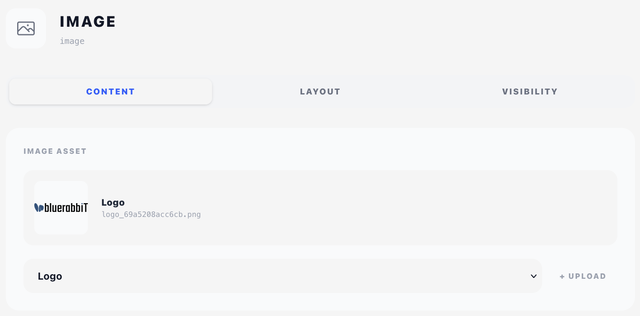
Content tab
Pick an image from the Image Asset dropdown. Everything uploaded on the Assets tab → Images appears here.
If you haven't uploaded the file yet, click the + button next to the dropdown to upload one on the spot. The uploaded file lands in the design's image pool and is selected for this component.
When an image is selected, a preview thumbnail appears above the dropdown along with the file name.
Link URL
Optional. When set, the image becomes clickable in the PDF — readers can tap your logo or a "Pay now" graphic and land where you point them.
The field takes a plain URL, or Twig and merge fields, so the target can be specific to the document. Two shortcut buttons fill in the common cases:
- Client Area — inserts
{{ client.area_url }}, the login page of your client area. - This Invoice — inserts
{{ invoice.view_url }}, a direct link to this invoice. Shown on invoice designs only.
Leave it empty for a plain, non-clickable image.
Layout tab
Several components carry a height here, but the Image is the only one whose height can be left on Auto — it is the only one that draws something with proportions of its own to work the height out from.
-
Width (mm) — physical width on the page.
-
Height (mm) with an Auto toggle — when Auto is on, height is calculated to preserve the image's aspect ratio. Turn Auto off to stretch the image to an explicit height.
-
Overlay — a Position panel (X/Y in mm) appears above Dimensions. See Concepts → Positioning.
-
Content — an Offset panel takes its place, nudging the image from where it would naturally land in the flow.
Dimensions apply in both cases. A content image with no explicit Width takes the full content width. The overlay width modes don't appear here: the image's width is its drawn size, not a box its content flows in.
Visibility tab
See Concepts → Visibility & conditions.
Tips
- For sharp output, the source image should be at least 300 DPI at the printed size — a logo printed at 30 × 30 mm wants a source around 350 × 350 px.
- Leave Height on Auto unless you have a specific reason to distort the image; this is almost always what you want.
- If you need an image to appear on every page (running header logo), put it on the Overlays tab with Display set to "On all pages". If you want it on page 1 only (cover-letter logo), use "On first page only".
- A linked logo is a quiet way to drive clients to the portal: point it at
{{ client.area_url }}and the branding does double duty.