HTML Text
A rich-text editor for longer or more formatted blocks of text — terms and conditions, a styled greeting, a table of bank details, anything that needs mixed formatting in one place. Stored as HTML and rendered into the PDF by the engine.
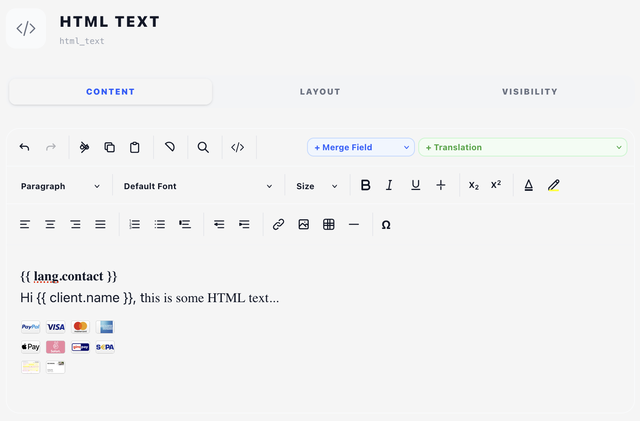
BestPDF renders HTML through TCPDF, whose HTML support is a deliberate subset of the web's. The toolbar has been trimmed to match: everything you can click here reaches the page. Anything TCPDF ignores was removed rather than left in place to disappoint you at render time. See What the PDF renders below.
Content tab
The editor has three rows of toolbar controls above a WYSIWYG canvas.
Toolbar — actions row
- Undo / Redo.
- Cut / Copy.
- Clear formatting — strips marks and block formatting from the selection.
- Find & Replace — toggles a bar with find, find next/prev, and replace/replace-all.
- Source toggle — switches between the WYSIWYG view and raw HTML editing.
- + Merge Field and + Translation dropdowns (right-aligned) — insert
{{ field }}syntax at the cursor. See Concepts → Merge fields & Twig.
Toolbar — formatting row
- Block format — Paragraph, Heading 1–6, or Code Block.
- Font Family — built-in fonts plus any custom fonts uploaded on Assets.
- Font Size — presets from 8 to 72 px.
- Bold, Italic, Underline, Strikethrough.
- Subscript, Superscript.
- Font Color and Highlight Color — click the icon to open a colour picker.
Toolbar — layout & insert row
- Alignment — left, center, right, justify.
- Lists — ordered, bullet, blockquote.
- Link — prompts for a URL; click again to remove the link from the selection.
- Image — opens the image dialog.
- Table — insert a 3×3 table, or, with the cursor inside a table, work on the table.
- Horizontal Rule.
- Ω Special Characters — currency, math, arrows, punctuation, fractions.
Images
The Image button opens a properties dialog rather than asking for a bare URL. It has two source modes:
- Template asset (recommended) — pick any image from the design's asset pool, or upload one on the spot with the + button. The asset is referenced by name, so the PDF renderer resolves it to a local file at render time and it always works.
- External URL — a full
https://…address. The PDF is generated on the server, so the URL has to be reachable from there, not just from your browser. Template assets always are.
The same dialog sets the image's Width and Height in pixels — which is how TCPDF reads image dimensions inside HTML — with a keep aspect ratio checkbox so setting one dimension derives the other. Selecting an existing image and clicking the Image button again reopens the dialog on that image, so sizing is editable after the fact.
Tables
With the cursor inside a table, the Table menu offers:
- Table Properties… — width (e.g.
100%or80mm), cell padding and cell spacing in px, and border width, border colour and background colour. - Add / Delete Column — before or after the current column.
- Add / Delete Row — before or after the current row.
- Merge/Split Cells.
- Delete Table.
Tables are the reliable way to lay out anything in columns inside an HTML Text block — TCPDF has no float or flexbox support, so a table is the layout tool. For laying out whole components side by side, use the Columns component instead.
Twig and merge fields
The HTML body is passed through the Twig template engine before rendering, so all the same syntax as Text components works here — variables, {% if %}, {% for %}, filters. See Concepts → Merge fields & Twig.
Twig statements are held safely inside the editor's document as placeholders and converted back on the way out, so a {% if %} spanning several paragraphs survives editing intact.
Source view
The </> Source toggle swaps the canvas for a plain textarea containing the component's HTML. Edit it freely and click away (blur) to apply — what you typed is stored as written, not re-serialised by the editor, so hand-tuned markup, inline styles and TCPDF-specific attributes survive.
This is the escape hatch for anything the toolbar doesn't expose: cell-level attributes, nobr, page-break hints, or raw Twig blocks that wrap several elements.
What the PDF renders
Before the HTML reaches TCPDF, BestPDF normalises it to the subset TCPDF genuinely honours. Knowing the boundaries saves surprises when writing source by hand:
Tags that render: a, b, blockquote, br, dd, del, div, dl, dt, em, font, h1–h6, hr, i, img, li, ol, p, pre, s, small, span, strike, strong, sub, sup, table, td, th, thead, tr, tt, u, ul.
Any other tag is unwrapped — the tag disappears, the text inside it stays. script, style, head, colgroup, col and caption are dropped entirely, content included. tbody, tfoot, body and html are unwrapped, since TCPDF doesn't recognise them but does keep the rows inside.
CSS properties that are honoured: direction, display, font-family, font-size, font-stretch, font-style, font-weight, letter-spacing, line-height, list-style-type, text-align, text-decoration, text-indent, text-transform, color, background-color, width, height, border (plus border-color, border-width, border-style, border-spacing), padding, and the page-break-before / page-break-after / page-break-inside hints.
Everything else is stripped, so the markup never promises something the renderer will quietly ignore.
Two TCPDF extras worth knowing, usable from source view:
nobr="true"on any element keeps it from being split across a page break.pagebreak="true"on adiv,portableforces a page break before it (pagebreakafterfor after).
No Style tab
HTML Text doesn't have a style selector — typography is set inline using the toolbar's font, size, and colour controls. This is what makes HTML Text different from Text, which uses a single shared typography style for the whole block.
Layout tab
- Overlay — Position (X/Y in mm) plus a Width mode: Edge to edge, Full width or Custom. See Concepts → Positioning.
- Content — Offset (X/Y nudges from the natural flow position) plus a plain Width.
The width mode is what decides where rich text wraps, so an overlaid block that has to agree with the body below it wants Full width.
Visibility tab
See Concepts → Visibility & conditions.
Tips
- Press Ctrl/Cmd+Z to undo, or use the Undo button in the toolbar.
- Pasting from Word or Google Docs carries a lot of inline styling that TCPDF will strip anyway. Use Clear Formatting on the pasted selection and re-apply the formatting you want.
- For an inline price like
Total: {{ invoice.total }}where the price needs to be bold while the label is normal, type the text first, then select just the price and apply Bold. - Long content flowing across page boundaries breaks naturally between paragraphs. Use
nobrfrom source view to keep a block (a signature, an address) together.