Details Box
A two-column box that prints document and client metadata as label–value pairs — document number, dates, customer number, payment method, VAT ID, custom fields. Typically sits at the top of the invoice, often as a first-page overlay opposite the address box.
The component adapts to the design's document type: on a quote design the fields are named Quote Nr., Quote ID and Valid Until, and the invoice-only fields are not offered at all.
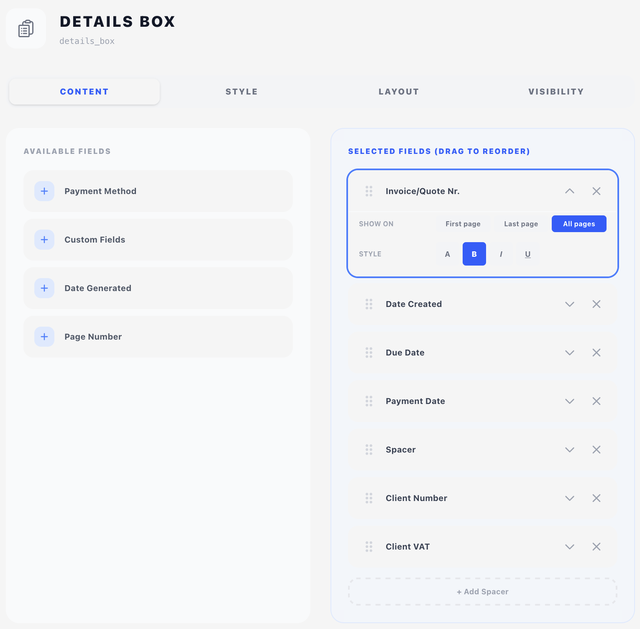
Content tab — fields
Two-pane drag-and-drop interface:
- Left pane (Available Fields) — fields you can add.
- Right pane (Selected Fields) — the fields currently shown, in order. Click a field's chevron to expand its per-field options.
Available fields
| Field on an invoice design | On a quote design | What it shows |
|---|---|---|
| Invoice Nr. | Quote Nr. | The document's number, as shown to the client |
| Invoice ID | Quote ID | The internal record ID |
| Date Created | Date Created | Issue date |
| Due Date | Valid Until | Payment due date / quote expiry |
| Payment Date | — | When paid (empty if unpaid) — invoice designs only |
| Payment Method | — | The selected payment method — invoice designs only |
| Client Number | Client Number | The client's account number |
| Client VAT | Client VAT | The client's tax ID |
| Custom Fields | Custom Fields | The client custom fields you choose, in your order |
| Date Generated | Date Generated | When the PDF was produced (today's date at render time) |
| Page Number | Page Number | "1/3" style page indicator |
Blesta keeps custom fields on the client record, so the Custom Fields entry prints the client's fields rather than anything attached to the individual invoice. Fields defined through a language file show up under the name an admin sees in the client's profile.
Blesta has no per-field "show on invoice" switch, so the picker offers every client custom field the company defines — including any you keep for internal use. Deciding what belongs on a document is the design's job here, which is why a Custom Fields row prints nothing until you choose. Fields are defined per client group; the picker lists each one once, and a client in any group still resolves correctly.
The same values are available individually as merge fields — {{ client.custom_fields['VAT Number'] }} — when you want one specific field somewhere else on the document. See Merge fields → Client custom fields.
Per-field options
Click a field's down-chevron to expand:
- Show on — First page / Last page / All pages. Useful when the box is an overlay on every page but some fields (like Date Generated) only make sense on the first page.
- Style — a typography style for this row alone, defaulting to Same as box. Pick one to make the invoice number bigger than the dates around it, or to print one row in caps. See Styles → Typography.
- Fields — on the Custom Fields row only. See below.
Choosing which custom fields print
The Custom Fields row carries one extra control, a Fields switch:
- All — every custom field that has a value prints.
- Selected — only the fields you name print, in the order you put them.
In Selected mode a Choose fields button opens a dialog laid out like the field list above: available fields on the left, chosen fields on the right, dragged into the order they should print. The button shows how many are currently chosen, so a row that would print nothing is obvious without opening it. Apply commits the selection; Cancel discards it, reordering included.
Order is the reason to reach for Selected even when you want every field: Blesta stores no order for custom fields, so All prints them in whatever order the database happens to return. Naming them is the only way to fix that order.
Selected is the default, and it begins with nothing chosen — so a Custom Fields row that has never been through this dialog prints nothing. That includes rows in designs built before this option existed. A field reaches the document because the design asks for it, not because it happens to exist on the client record. If custom fields vanished from your output after an upgrade, open the row and either switch it to All or pick the fields you want.
A chosen field is stored by both its ID and its name. Import the design into another installation — where the same field almost certainly has a different ID — and it is matched by name instead, so the selection keeps working. The ID is only trusted when the name on that record still agrees, which stops a recycled ID from printing some other field's value.
Spacer
A + Add Spacer button at the bottom of the Selected Fields pane inserts a blank vertical-spacing row. Useful for grouping fields visually (e.g. dates together, then a gap, then VAT and customer number).
Style tab
Alignment
How labels and values are arranged in the two columns:
- Left — both label and value flush left.
- Labels Left / Values Right — labels on the left, values on the right (the most common look).
- Right — both flush right.
- Labels Right / Values Left — labels right, values left.
Label style
- Add ':' suffix to labels — appends a colon to every label (e.g. Invoice Nr.:).
- Add '#' suffix to numeric labels — appends a hash to number-bearing labels (e.g. Invoice #).
- Add '#' prefix to numeric values — puts the hash on the value side instead (e.g. #1001).
The last two are alternatives to each other — pick the convention you prefer rather than switching both on.
Typography
Two typography style selectors — one for Labels and one for Values. Use this to differentiate them (e.g. lighter grey label, bolder black value). See Concepts → Styles.
A per-row style (above) overrides these for the row that names it. Column widths are measured on the text as it will actually print, so a row set to UPPERCASE still gets the width it needs.
Layout tab
- Overlay — Position (X/Y in mm) plus a Width mode: Edge to edge, Full width or Custom. See Concepts → Positioning.
- Content — Offset (X/Y nudges from the natural flow position) plus a plain Width.
A details box is usually an overlay in the top-right corner, which means its X already sits past the right margin — Full width has no effect there, so use Custom to give the box a size, or a negative X to measure it in from the right edge.
Visibility tab
See Concepts → Visibility & conditions.
Labels and translations
The text printed for each label (Invoice, Due Date, etc.) is sourced from the Translations tab under the "Details Box" group. Edit those entries to change wording per language.