Columns
A container that places content blocks side by side instead of stacking them. Use it for a two-up header (details box on the left, logo on the right), a three-up footer with bank details, VAT information and contact data, or a text block sitting next to a QR code.
Columns is content-only — it lays out the flowing body of the document, so it has no overlay form.
How it works
Every column starts at the same vertical position and gets its own left/right margin box. Components inside a column flow top-to-bottom within that box exactly as they would in the main document. When all columns are done, the document continues below whichever column ran the tallest — including across page breaks, if one of them flowed onto the next page.
Because each column is a real margin box, components inside it size themselves to the column automatically. A table written to full width fills the column, not the page.
Layout tab
Columns has no Content tab — the columns are its content, so everything lives on Layout.
Gutter (mm)
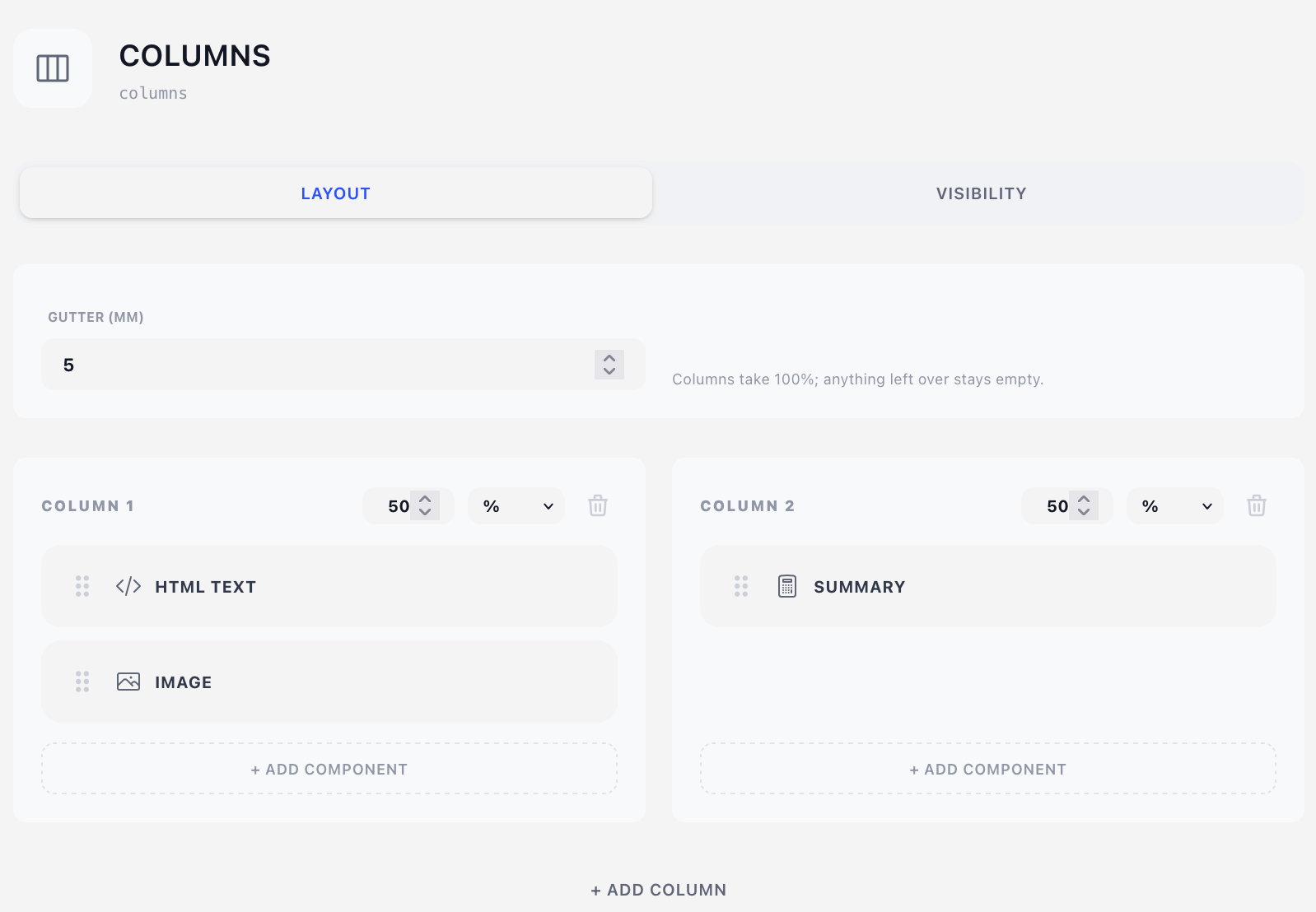
The horizontal gap between adjacent columns. Default 5 mm. The gutters are subtracted from the available width before the column widths are resolved.
Column widths
Each column header carries a width value and a unit selector:
| Unit | Meaning |
|---|---|
| % | Percentage of the available row width (after gutters). |
| mm | A fixed physical width. |
| auto | Takes whatever is left over. Several auto columns share the remainder equally. |
A summary line next to the gutter tells you what the current mix adds up to — for example "Columns take 60%. The auto column takes the rest of the row." If the percentages exceed 100% and there is no auto column, an amber warning appears and every column is scaled down proportionally at render time to fit.
Give one column a fixed width (in mm or %) and set the other to auto. The auto column absorbs whatever is left, so the row always fills the page exactly — no arithmetic needed.
Adding and removing columns
- + Add Column appends a column. If every existing column is percentage-based, the widths are redistributed evenly so the new one is visible; in any other mix, the new column is created as auto.
- The ✕ on a column header removes it, along with anything inside it. The last remaining column cannot be removed.
Filling the columns
Each column has its own + Add Component button and its own drop zone. You can drag components between columns.
Click a component inside a column to open its editor directly below the column grid — the same editor you'd get on the main Content list, with a Column N label in its header so you know where you are.
Everything except Columns itself (no nesting), Page Break, and PDF Document. Those three operate on the document as a whole and would be meaningless inside a column box.
Visibility tab
See Concepts → Visibility & conditions. Hiding the container hides everything inside it; components inside a column keep their own visibility rules on top.
Tips
- A two-column header of Details Box (auto) and Image (fixed mm) is the most common use — the logo keeps its exact size and the details take the rest.
- Column heights are independent. If you want two columns to visually align at the bottom, put a Spacer at the end of the shorter one.
- Columns are ordered left to right in the same order they appear in the editor. Drag components between columns rather than deleting and re-adding.